1. Introduction
Thank you for choosing the Hama WiFi Camera. This indoor surveillance camera provides 1080p Full HD video, motion detection, night vision, and two-way audio communication. It is designed for monitoring homes, pets, or other indoor areas, offering peace of mind through remote access via the Hama Smart Solution app.
2. Product Overview
Key Features
- 1080p Full HD Video: High-resolution video for clear monitoring.
- Motion Detection: Alerts you to detected movement.
- Night Vision: Clear visibility even in low-light conditions.
- Two-Way Audio: Listen and speak through the camera.
- MicroSD Card Slot: Supports up to 128 GB for local video recording.
- Multi-User Function: Multiple users can access the camera simultaneously.
- App Integration: Seamless control via the free Hama Smart Solution app.
Package Contents
- 1x Hama WiFi Camera
- 1x USB Cable
- 1x USB Charger
- 1x Quick Start Guide
Camera Components
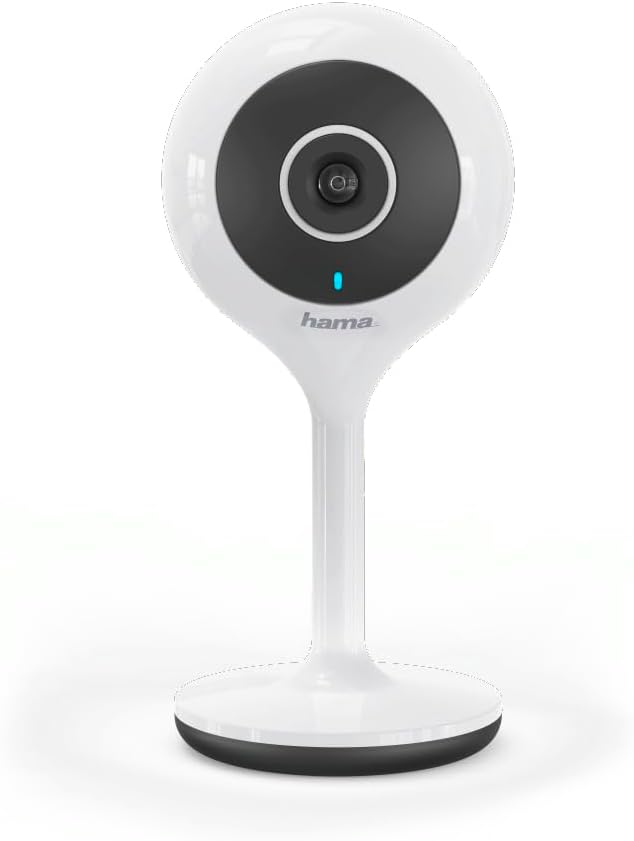
Figure 2.1: Front view of the Hama WiFi Camera. The camera features a central lens, a blue status LED below it, and the 'hama' brand logo at the base of the camera head. The camera is white with a black lens housing, mounted on a slender white stand with a round base.

Figure 2.2: Side view of the Hama WiFi Camera. This view highlights the side profile of the camera head, revealing a MicroSD card slot and a power port for connectivity. The design is sleek and minimalist.
3. Setup
3.1 Initial Setup
- Power Connection: Connect the camera to a power source using the provided USB cable and charger. The camera will power on automatically.
- Download App: Download the free "Hama Smart Solution" app from your smartphone's app store (iOS or Android).
- Register/Log In: Open the app and register a new account or log in if you already have one.
- Add Device: Follow the in-app instructions to add your Hama WiFi Camera. Ensure your smartphone is connected to a 2.4 GHz Wi-Fi network, as the camera operates on this frequency.
- Wi-Fi Pairing: The app will guide you through the Wi-Fi pairing process, which typically involves scanning a QR code displayed on your phone with the camera lens.
3.2 MicroSD Card Installation (Optional)
For local video recording, you can install a MicroSD card (up to 128 GB) into the designated slot on the side of the camera. Ensure the camera is powered off before inserting or removing the card.
4. Operating the Camera
4.1 Live View and Recording
Once connected, you can access the live video feed from your camera via the Hama Smart Solution app. From the live view, you can:
- View real-time footage.
- Manually record video or capture screenshots.
- Access recorded footage stored on the MicroSD card or cloud (if subscribed).

Figure 4.1: A user's hand holding a smartphone horizontally, displaying the live video feed from the Hama WiFi Camera. The screen shows a golden retriever dog lying on a tiled floor in a bright room, demonstrating the camera's monitoring capability.
4.2 Motion Detection and Alerts
The camera is equipped with a motion sensor. When motion is detected, the camera can:
- Send push notifications to your smartphone.
- Automatically record video clips (requires MicroSD card or cloud storage).
You can adjust the sensitivity of motion detection and set notification preferences within the app settings.
4.3 Night Vision
The camera automatically switches to night vision mode in low-light conditions, providing clear black-and-white video footage. This ensures continuous surveillance 24/7.
4.4 Two-Way Audio
Utilize the built-in microphone and speaker for two-way communication:
- Listen: Hear sounds from the camera's environment.
- Speak: Talk through the camera to communicate with people or pets in the monitored area.
4.5 Smart Assistant Integration
The Hama WiFi Camera supports integration with smart assistants like Amazon Show and Google Nest Hub. This allows you to view the camera feed on compatible smart displays using voice commands. Refer to the app's integration section for detailed setup instructions.

Figure 4.2: A smart display device, likely an Amazon Echo Show or Google Nest Hub, positioned on a wooden kitchen counter. The screen displays a live feed from the Hama WiFi Camera, showing a baby sleeping in a crib, illustrating smart assistant integration.
5. Maintenance
5.1 Cleaning
To clean the camera, gently wipe the exterior with a soft, dry cloth. Do not use liquid cleaners or abrasive materials, as they may damage the camera's surface or internal components. Ensure the lens is clean for optimal image quality.
5.2 Firmware Updates
Periodically check the Hama Smart Solution app for available firmware updates. Keeping your camera's firmware up-to-date ensures optimal performance, security, and access to new features. Follow the in-app instructions for any update procedures.
6. Troubleshooting
Common Issues and Solutions
| Issue | Possible Cause | Solution |
|---|---|---|
| Camera offline/Cannot connect to Wi-Fi | Incorrect Wi-Fi password; Camera too far from router; Router on 5 GHz band. | Verify Wi-Fi password; Move camera closer to router; Ensure router is broadcasting a 2.4 GHz network. |
| Poor image quality | Dirty lens; Insufficient lighting; Weak Wi-Fi signal. | Clean the camera lens; Ensure adequate lighting or rely on night vision; Improve Wi-Fi signal strength. |
| No motion detection alerts | Motion detection disabled; Sensitivity too low; App notifications blocked. | Enable motion detection in app; Increase sensitivity; Check phone notification settings for the Hama Smart Solution app. |
| Two-way audio not working | Microphone/speaker permissions not granted; Volume too low. | Check app permissions for microphone; Adjust volume settings in the app and on your phone. |
| MicroSD card not recording | Card full or corrupted; Incorrect format; Recording settings disabled. | Format the MicroSD card via the app; Replace card if corrupted; Enable continuous recording or event recording in app settings. |
If you encounter issues not listed here, please refer to the help section within the Hama Smart Solution app or visit the Hama support website for further assistance.
7. Technical Specifications
| Feature | Specification |
|---|---|
| Model Number | 00176566 |
| Color | White, Grey |
| Dimensions (L x W x H) | 9 x 3.1 x 19.5 cm |
| Weight | 113 Grams |
| Video Resolution | 1920 x 1080 (Full HD) |
| Frame Rate | Max. 25 Pictures per Second |
| Viewing Angle | 110 degrees |
| Wireless Technology | Wi-Fi (WLAN 802.11 n/g/b) |
| Frequency Band | 2.4 GHz |
| Power Supply | 5V |
| Memory Card Support | MicroSD up to 128 GB |
| Data Encryption | WPA2 |
| Special Features | Night Vision, Motion Detector, Two-Way Audio |
| Compatibility | Smartphone (iOS/Android), Amazon Show, Google Nest Hub |
| Installation Type | Desk/Wall Mount |
8. Warranty and Support
8.1 Warranty Information
This Hama WiFi Camera comes with a manufacturer's warranty. Please refer to the warranty card included in your package for specific terms and conditions. Spare parts availability is guaranteed for 2 years from the date of purchase.
8.2 Customer Support
For technical support, product inquiries, or warranty claims, please contact Hama customer service. You can find contact information on the official Hama website or through the Hama Smart Solution app.
Online Resources:
- Hama Smart Solution App (available on App Store and Google Play)
- Official Hama Website (for FAQs, support, and product information)


