
Introduction
Welcome to your Zienstar Wireless Large Print Keyboard and Mouse Combo. This manual provides detailed instructions for setting up, operating, and maintaining your new device. Designed for enhanced visibility and ease of use, this combo is ideal for individuals with low vision or those who prefer larger, clearer characters.

Image: The Zienstar Wireless Large Print Keyboard and Mouse Combo, showcasing its design for middle-aged and elderly users.
Package Contents
Please verify that all items are present in your package:
- 1 x Wireless Keyboard
- 1 x Wireless Mouse
- 1 x USB Receiver (located inside the mouse battery compartment)
- 1 x User Manual
Key Features
- Large Print Keys: High-contrast white keycaps with crisp, large black letters for improved visibility.
- Wireless Connectivity: Easy and stable 2.4G wireless connection using a single USB nano receiver for both keyboard and mouse.
- Full-Size & Ultra-thin Keyboard: 102 keys with dimensions of 14.5 x 5.8 x 0.2 inches, offering a complete typing experience in a slim design.
- Responsive Scissor-Key-Switch: Provides smooth typing and sensitive response with low-profile keycaps.
- Quiet Mouse Buttons: Designed for a silent clicking experience.
- Ergonomic Design: Inclined angle on the keyboard and a comfortable mouse shape for extended use.
- Wide Compatibility: Works with Windows 10 / 8 / 7 / Vista / XP / 2000 / 98, Mac OSX, and macOS.

Image: A visual comparison highlighting the thicker and clearer font design of the Zienstar keyboard keys against standard keys.
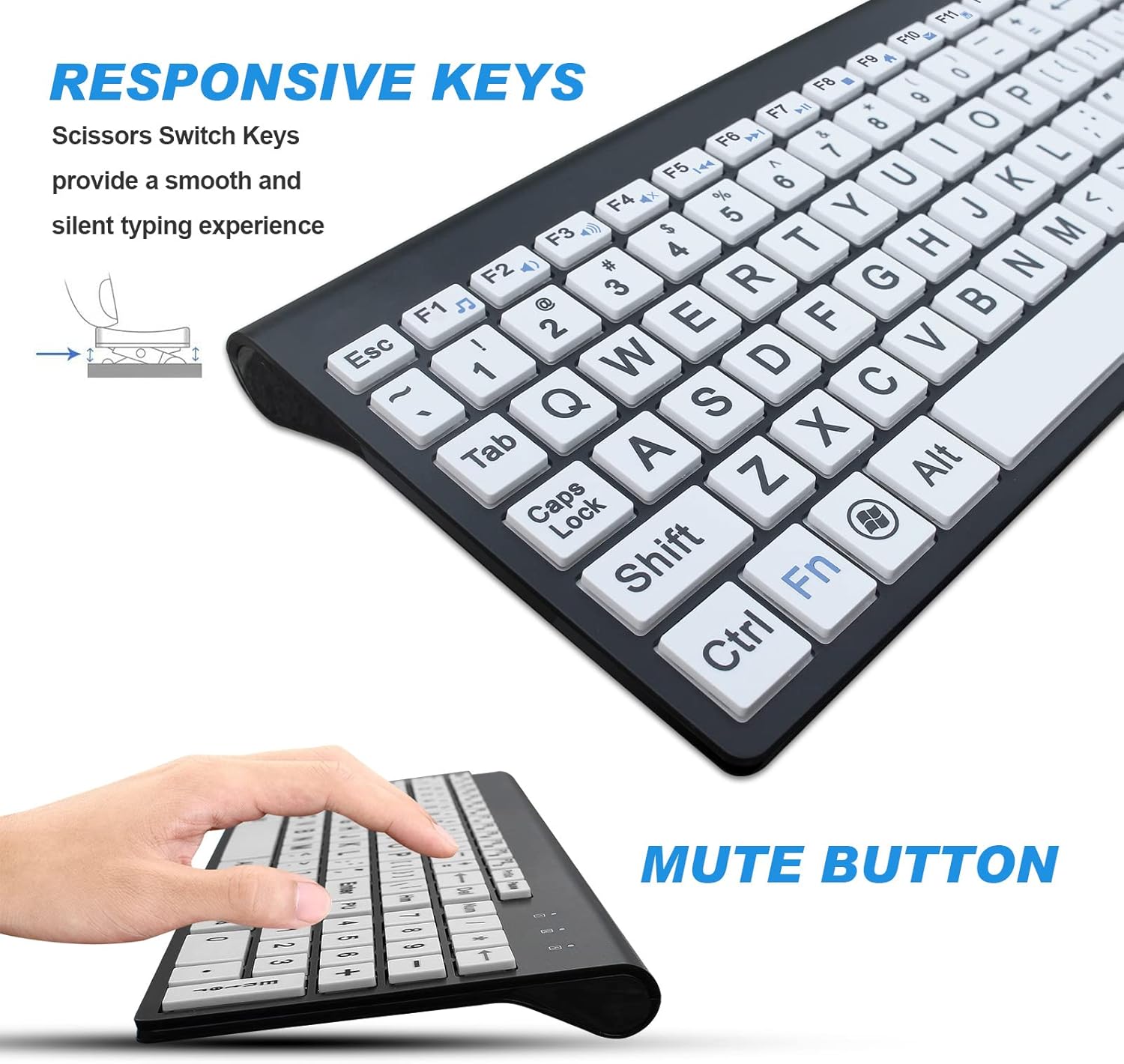
Image: Close-up of the keyboard demonstrating the responsive scissor-switch keys for a smooth and silent typing experience.

Image: Side view of the ergonomic mouse, designed for comfortable and stable use.
Setup Guide
1. Install Batteries
- For the Keyboard: Open the battery compartment on the underside of the keyboard. Insert two (2) AAA batteries, ensuring correct polarity (+/-). Close the compartment.
- For the Mouse: Open the battery compartment on the underside of the mouse. Insert one (1) AA battery, ensuring correct polarity (+/-). Close the compartment.

Image: Diagram showing the battery compartments for both the keyboard and mouse, and the location of the USB receiver inside the mouse.
2. Connect USB Receiver
- Locate the USB Receiver: The nano USB receiver is conveniently stored inside the battery compartment of the mouse. Carefully remove it.
- Plug into Computer: Insert the USB receiver into an available USB port on your computer.

Image: Diagram illustrating the 2.4G wireless connection between the keyboard, mouse, and the USB receiver plugged into a laptop.
3. Power On Devices
- Keyboard: Locate the power switch on the keyboard (if present) and slide it to the 'ON' position.
- Mouse: Locate the power switch on the underside of the mouse and slide it to the 'ON' position.
Your computer should automatically detect and install the necessary drivers. The keyboard and mouse are now ready for use.
Operating Instructions
Basic Usage
The keyboard and mouse function like standard input devices. Simply type on the keyboard and move/click the mouse as you normally would. The large print keys ensure clear visibility for comfortable use.

Image: Overview of the Zienstar large print keyboard layout, showing the clear, oversized characters on each key.
Multimedia Shortcuts
The keyboard includes multimedia function keys (F1-F12) that can be activated by pressing the Fn key simultaneously with the desired function key. These shortcuts are indicated by blue characters on the keys.
- Fn + F1: Media Player
- Fn + F2: Volume Down
- Fn + F3: Volume Up
- Fn + F4: Mute
- Fn + F5: Previous Track
- Fn + F6: Next Track
- Fn + F7: Play/Pause
- Fn + F8: Stop
- Fn + F9: Email
- Fn + F10: Calculator
- Fn + F11: Media
- Fn + F12: Favorites

Image: Detailed diagram showing the multimedia shortcuts on the keyboard, activated using the Fn key.
Compatibility
This keyboard and mouse combo is compatible with a wide range of operating systems, including:
- Windows 10 / 8 / 7 / Vista / XP / 2000 / 98
- Mac OSX and macOS
- Android
Maintenance
- Cleaning: Use a soft, dry cloth to clean the surfaces of the keyboard and mouse. For stubborn dirt, a slightly damp cloth with mild soap can be used, ensuring no liquid enters the device.
- Battery Replacement: Replace batteries when performance degrades (e.g., lag, unresponsiveness). Always use new batteries of the specified type (2x AAA for keyboard, 1x AA for mouse).
- Storage: When not in use for extended periods, turn off both the keyboard and mouse using their respective power switches to conserve battery life.
Troubleshooting
- Device not responding:
- Ensure the USB receiver is securely plugged into a working USB port on your computer.
- Check if the keyboard and mouse are powered on using their respective ON/OFF switches.
- Replace the batteries in both the keyboard and mouse with fresh ones.
- Try plugging the USB receiver into a different USB port on your computer.
- Restart your computer.
- Lagging or intermittent connection:
- Ensure the devices are within the operating distance of 10 meters from the USB receiver.
- Minimize interference from other wireless devices (e.g., Wi-Fi routers, other wireless peripherals).
- Check and replace batteries if they are low.
- Mouse not working, but keyboard is:
- Confirm the mouse's power switch is ON and its battery is fresh.
- Remember, both devices use the same USB receiver. If the keyboard works, the receiver is likely functional. Focus troubleshooting on the mouse's power and battery.
Product Specifications
| Brand | Zienstar |
| Model Number | E68 |
| Connectivity Technology | Wireless (2.4G) |
| Operating Distance | Up to 10 meters |
| Keyboard Layout | QWERTY |
| Number of Keys | 102 |
| Keyboard Dimensions | 368 x 143 x 26.3 mm (14.5 x 5.8 x 0.2 inches) |
| Keyboard Weight | 0.428 kgs |
| Mouse Dimensions | 116 x 66 x 35 mm |
| Mouse Weight | 0.06 kgs |
| Keyboard Battery | 2 x AAA batteries (not included) |
| Mouse Battery | 1 x AA battery (not included) |
| Compatible Operating Systems | Windows, Mac OS, Android |
| Special Features | Ergonomic, Large font |
Warranty and Support
Zienstar products are designed for reliability and performance. For any questions, technical support, or warranty inquiries, please refer to the contact information provided with your purchase or visit the official Zienstar website. Please retain your proof of purchase for warranty claims.