1. Product Overview
The Canon PIXMA TS3370s is an all-in-one inkjet color printer designed for home use, offering print, scan, and copy functionalities. It features wireless connectivity options for convenient use with various devices.

Image 1.1: Front view of the Canon PIXMA TS3370s printer, showing its compact design and paper output tray.
Key features include:
- Functionality: Print, Scan, Copy
- Connectivity: WiFi, Wifi-Direct, USB, AirPrint, Windows 10 Mobile, Mopria, Google Cloud Print, Canon Print Service, PIXMA Cloud Link, Canon Selphy
- Printer Output: Color
- Display: 3.8cm LCD (monochrome)
2. Initial Setup
Follow these steps to set up your Canon PIXMA TS3370s printer for the first time.
2.1 Unpacking and Component Check
Carefully remove the printer from its packaging. Ensure all included components are present:
- Canon PIXMA TS3370s Printer
- Inkjet Cartridges (Black and Color)
- Power Cord
- Setup CD-ROM (if applicable)
- USB Cable (may be sold separately)
2.2 Installing Ink Cartridges
Open the printer's top cover to access the cartridge installation area. Insert the black and color inkjet cartridges into their respective slots until they click into place. Refer to the printer's internal labels for correct placement.

Image 2.1: The Canon PIXMA TS3370s printer with paper loaded in the rear input tray, ready for printing.
2.3 Power Connection
Connect the power cord to the printer and then to a wall outlet. Press the power button to turn on the printer.
2.4 Driver Installation and Connectivity
To enable full functionality, install the printer drivers on your computer or mobile device. Drivers can typically be found on the Canon website or the included CD-ROM.
The printer supports various connectivity options:
- Wi-Fi: Connect the printer to your wireless network. Use the printer's LCD panel to navigate to Wi-Fi setup, or use WPS for a quick connection.
- USB: Connect the printer directly to your computer using a USB cable.
- Mobile Printing: Utilize AirPrint, Mopria, Google Cloud Print, Canon Print Service, PIXMA Cloud Link, or Canon Selphy for printing from smartphones and tablets.

Image 2.2: Visual representation of the three simple steps for initial setup: filling ink, establishing connection and installing drivers, and preparing for printing.
3. Operating the Printer
This section details the basic operations for printing, scanning, and copying with your PIXMA TS3370s.
3.1 Control Panel and LCD Display
The printer features a 3.8cm monochrome LCD display and push buttons for navigation and control. The display shows status, settings, and error messages.
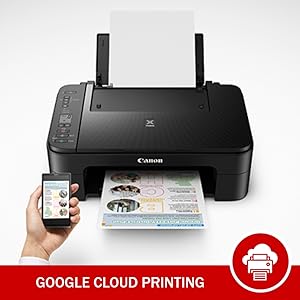
Image 3.1: Detailed view of the printer's control panel, highlighting the 3.81 cm segment LCD display for status and menu navigation.
3.2 Loading Paper
Load paper into the rear paper input tray. The printer supports various paper sizes including A4, Letter, and 4x6 inch. It can also handle glossy photo paper.

Image 3.2: The printer's compact design, indicating the paper input tray, scan area, LCD display, and illustrating support for A4, Letter, and 4x6 inch paper sizes.
3.3 Printing Documents and Photos
- Ensure the printer is powered on and connected to your device.
- Open the document or photo you wish to print on your computer or mobile device.
- Select the print option from your application.
- Choose the Canon PIXMA TS3370s from the list of available printers.
- Adjust print settings such as paper size, print quality, and number of copies.
- Click 'Print'.
The printer offers borderless printing for photos.
3.4 Scanning Documents
- Place the document face-down on the scanner glass.
- On your computer, open the Canon scanning utility or a compatible application.
- Select 'Scan' and choose your desired settings (e.g., document type, resolution, destination).
- Initiate the scan.
3.5 Copying Documents
- Place the document face-down on the scanner glass.
- On the printer's control panel, press the 'Black' button for a monochrome copy or the 'Color' button for a color copy.
- To make multiple copies, use the '+' or '-' buttons on the control panel to select the number of copies before pressing 'Black' or 'Color'.
3.6 Auto Power On/Off
The printer supports an auto power on/off feature to save energy. This can be configured through the printer settings or the Canon utility software.

Image 3.3: Control panel detail showing the power button and indicator for the Auto Power On/Off feature.
4. Maintenance
Regular maintenance ensures optimal performance and longevity of your printer.
4.1 Replacing Ink Cartridges
When an ink cartridge runs low or is empty, the printer's LCD will display a notification. Replace cartridges promptly to avoid print quality issues. Use genuine Canon inkjet cartridges for best results.
Note: If the printer remains idle for an extended period (e.g., a month), ink cartridges may dry out, potentially affecting print quality or rendering them unusable.
4.2 Cleaning the Printer
- Exterior: Wipe the exterior of the printer with a soft, damp, lint-free cloth.
- Scanner Glass: Clean the scanner glass with a soft cloth and a non-abrasive glass cleaner.
- Print Head Cleaning: If print quality degrades (e.g., streaks, missing colors), perform a print head cleaning from the printer's maintenance menu or through the printer driver software on your computer.
5. Troubleshooting
This section addresses common issues you might encounter with your Canon PIXMA TS3370s printer.
5.1 Common Printing Issues
- No Print Output: Check power connection, USB/Wi-Fi connection, and ensure paper is loaded correctly. Verify that the correct printer is selected in your application.
- Poor Print Quality (Streaks, Fading, Incorrect Colors): This often indicates low ink levels or a clogged print head. Replace ink cartridges if low. Perform a print head cleaning and alignment from the printer's maintenance menu.
- Lines on Pages: If lines appear on printed pages and cannot be resolved by print head cleaning, the ink cartridge may need replacement.
- Printer Offline: Check network connection (for Wi-Fi) or USB cable connection. Restart both the printer and your computer/router.
5.2 Error Messages
Refer to the printer's LCD display for specific error codes or messages. Consult the Canon support website or your printer's full manual for detailed explanations and solutions for specific error codes.
5.3 Cancelling a Print Job
To immediately stop a print or scan operation, press the 'Stop' button on the printer's control panel.
6. Technical Specifications
| Feature | Specification |
|---|---|
| Model Number | TS3370S |
| Product Dimensions | 31.6D x 43.5W x 14.5H Centimeters |
| Item Weight | 3.9 Kilograms |
| Printer Type | Inkjet |
| Functionality | All-in-One (Print, Scan, Copy) |
| Printer Output | Color |
| Connectivity | Wi-Fi, USB |
| Control Method | App, Push Button |
| Maximum Print Speed (Black) | 7.7 ipm |
| Maximum Print Speed (Color) | 4.0 ipm |
| Scanner Type | Flatbed |
| Maximum Media Size | 8.5 x 11 inch (A4) |
| Sheet Size Support | A4, Letter, 4x6 inch |
| Compatible Operating Systems | Windows 10 / 8.1 / 7 SP1; Mac OS v10.12 ~ v 10.14, Mac OS X 10.11.6 |
| Duplex Printing | No |
7. Warranty Information
The Canon PIXMA TS3370s comes with a limited warranty. For specific terms and conditions, please refer to the warranty card included with your product or visit the official Canon India website.
Extended warranty options may be available for purchase:
- 1 Year Extended Warranty
- 2 Year Extended Warranty
Please contact Canon Customer Care for details on purchasing extended warranty plans.
8. Customer Support
For any product-related issues, technical assistance, or service inquiries, please contact Canon Customer Care.
- Canon Customer Care Number: 1860 180 3366
- Manufacturer: Canon Inc., 3-30-2, Shimomaruko, Ohta-ku, Tokyo 146-8501, Japan
- Importer (India): Canon India Pvt Limited, 214-218, 2nd floor, Narain Manzil, Barakhamba Road, Connaught Place, New Delhi-110001, India
You can also visit the official Canon website for drivers, FAQs, and additional support resources.


