
WeMo WLS0403-BDL, F7C030-BDL
WeMo Wi-Fi Light Switch User Manual
Models: WLS0403-BDL, F7C030-BDL
Introduction
This manual provides comprehensive instructions for the installation, operation, and maintenance of your WeMo Wi-Fi Light Switch Bundle. This bundle includes both 3-Way and Smart WiFi Light Switches, designed to integrate seamlessly with your smart home ecosystem, offering control via Amazon Alexa, Google Assistant, and the WeMo app.

Image: The WeMo Wi-Fi Light Switch Bundle, showcasing both the 3-Way and Smart WiFi models.
Important Safety Information
Please read and understand all safety instructions before installation and use. Improper installation can lead to electric shock or fire. If you are unsure about any part of these instructions, consult a qualified electrician.
- WARNING: Risk of Electric Shock. Disconnect power at the circuit breaker or fuse box before installing.
- Install indoors only.
- Do not exceed the electrical ratings of the switch.
- Ensure wiring connections are secure and comply with local electrical codes.
Setup and Installation
What's in the Box

Image: Product packaging for the WeMo Wi-Fi Light Switch bundle.
Your WeMo Wi-Fi Light Switch bundle typically includes:
- WeMo Wi-Fi Light Switch (WLS0403-BDL)
- WeMo Smart WiFi Light Switch (F7C030-BDL)
- Faceplates
- Wire nuts
- Quick Start Guide
Pre-Installation Checklist
- Neutral wire required (usually white).
- Single-pole or 3-way wiring configuration.
- 2.4 GHz Wi-Fi network.
- Smartphone or tablet with the WeMo app installed.
Installation Steps
- Turn off power: At the circuit breaker, turn off the power to the switch you are replacing. Verify power is off using a voltage tester.
- Remove old switch: Carefully remove the existing wall plate and unscrew the old switch from the wall box. Disconnect the wires.
- Identify wires: Identify the Line (hot), Load, Neutral, and Ground wires. The neutral wire is essential for WeMo switches.
- Connect WeMo switch:
- Connect the WeMo switch's ground wire to your home's ground wire (bare copper or green).
- Connect the WeMo switch's neutral wire to your home's neutral wire (white).
- Connect the WeMo switch's line wire to your home's line wire (black, usually from the breaker).
- Connect the WeMo switch's load wire to your home's load wire (black, usually to the light fixture).
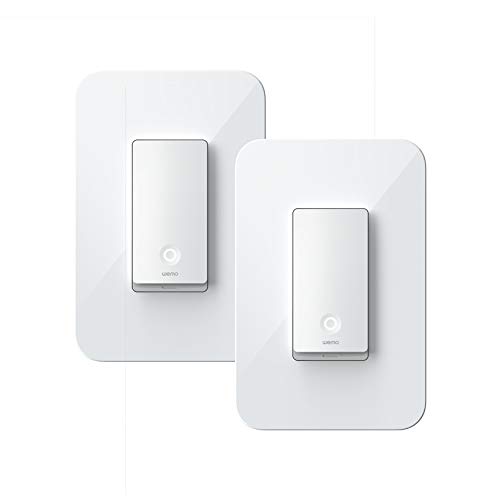
Image: A single WeMo Wi-Fi Light Switch, ready for installation.
- Secure switch: Gently push the wires into the wall box and secure the WeMo switch with screws. Attach the new faceplate.
- Restore power: Turn the power back on at the circuit breaker. The Wi-Fi indicator light on the WeMo switch should blink.
- App setup: Download the WeMo app from the App Store or Google Play. Follow the in-app instructions to connect your WeMo switch to your Wi-Fi network and complete the setup.
Operating Your WeMo Light Switch
Manual Control
Press the physical button on the WeMo light switch to manually turn the connected lights on or off.

Image: Detailed view of the WeMo Light Switch's power button and indicator light.
App Control
Once connected to the WeMo app, you can control your lights from anywhere using your smartphone or tablet. The app allows you to:
- Turn lights on/off remotely.
- Set schedules and timers for automatic lighting.
- Create rules for specific events (e.g., turn on at sunset).
- Group multiple WeMo devices for simultaneous control.
Voice Control (Alexa & Google Assistant)
Integrate your WeMo switches with Amazon Alexa or Google Assistant for convenient voice control. Follow the instructions in the WeMo app or your smart assistant's app to link your accounts.
Example voice commands:
- "Alexa, turn on the living room light."
- "Hey Google, turn off the kitchen lights."
- "Alexa, set the bedroom light to 50%." (If dimmer functionality is available on your specific model)

Image: WeMo switches integrated into a smart home environment, alongside other smart devices.
Maintenance
WeMo light switches require minimal maintenance. Keep the device clean by wiping it with a soft, dry cloth. Do not use harsh chemicals or abrasive cleaners.
Periodically check for firmware updates through the WeMo app to ensure optimal performance and access to new features.
Troubleshooting
Switch Not Responding
- Ensure power is on at the circuit breaker.
- Check the Wi-Fi indicator light on the switch. If it's off or blinking unusually, it may not be connected to Wi-Fi.
- Restart your Wi-Fi router.
- Try restarting the switch by turning off power at the breaker for 10 seconds, then turning it back on.
Cannot Connect to Wi-Fi
- Ensure your Wi-Fi network is 2.4 GHz. WeMo switches do not support 5 GHz networks.
- Verify your Wi-Fi password is correct.
- Move your Wi-Fi router closer to the switch, or consider a Wi-Fi extender.
- Perform a factory reset on the WeMo switch (refer to the WeMo app or online support for specific instructions).
Voice Control Issues
- Ensure your WeMo account is correctly linked in the Alexa or Google Home app.
- Check your internet connection.
- Try re-discovering devices in your smart assistant's app.
Specifications
| Feature | Detail |
|---|---|
| Brand | WeMo |
| Model Numbers | WLS0403-BDL, F7C030-BDL |
| Circuit Type | 3-way (WLS0403-BDL), Single-pole (F7C030-BDL) |
| Mounting Type | Wall Mount |
| Controller Type | Amazon Alexa, Google Assistant, WeMo App |
| Control Method | App, Voice, Manual |
| Connectivity Protocol | Wi-Fi (2.4 GHz) |
| Date First Available | March 2, 2020 |
Warranty and Support
For detailed warranty information and technical support, please visit the official WeMo website or contact WeMo customer service. Keep your proof of purchase for warranty claims.
Official WeMo Website: www.wemo.com
Related documentsWLS0403-BDL, F7C030-BDL


Ask a question about this manual
Ask about setup, troubleshooting, compatibility, parts, safety, or missing instructions. Manuals+ will review the question and use this page’s manual context to help answer it.