1. Introduction
The ASUS ZenWiFi AC (CT8) is a whole-home tri-band mesh WiFi system designed to provide extensive and reliable wireless coverage throughout your home. This system eliminates WiFi dead zones and ensures a stable connection for all your devices.
Key Features:
- Extensive Coverage: Tri-band mesh WiFi system with unique antenna placement delivers strong WiFi to every corner of your home, covering up to 5,400 sq.ft.
- Seamless Connectivity: Devices automatically switch to the hub with the strongest WiFi connection, ensuring the best online experience.
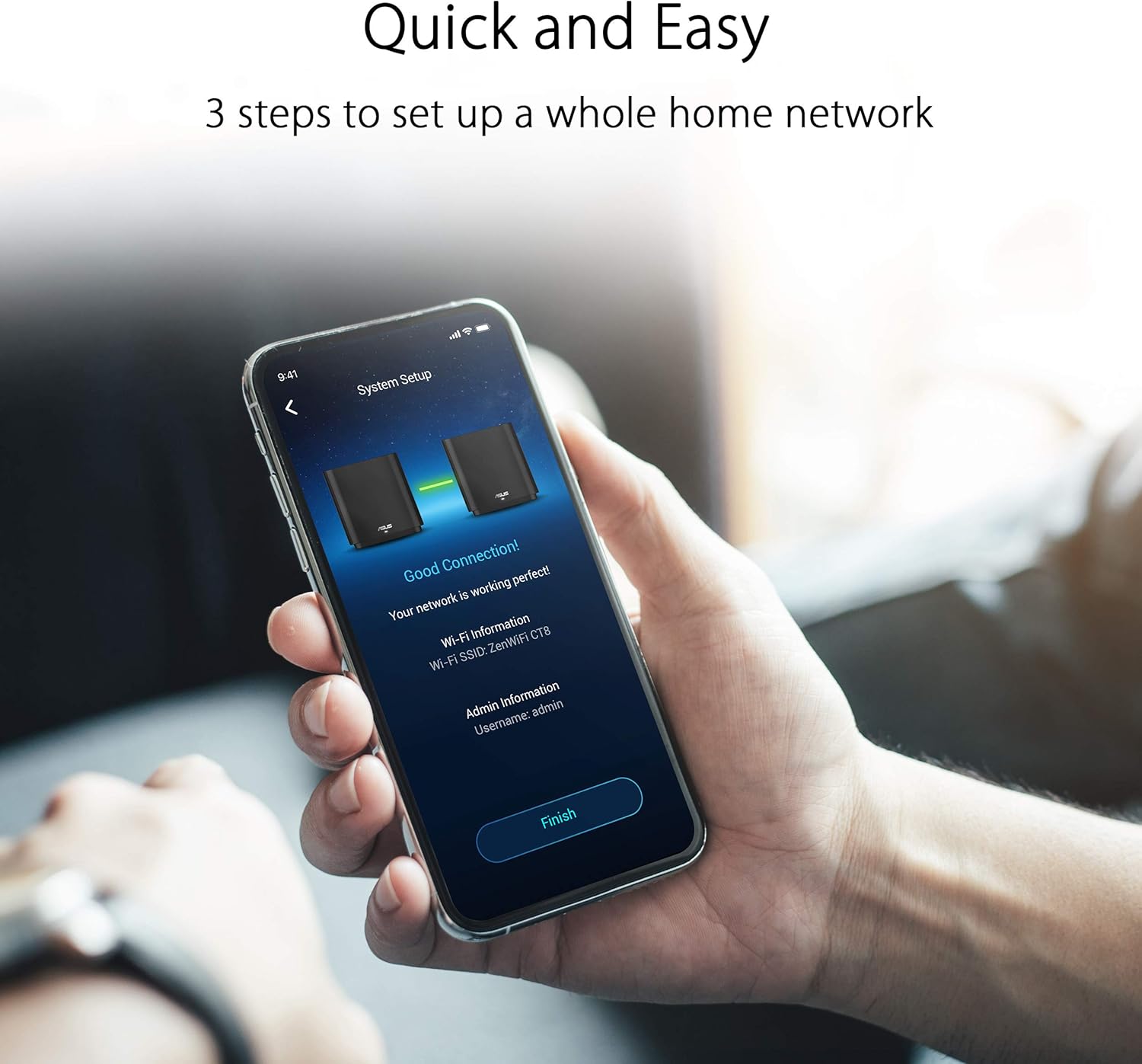
- Easy Setup & Management: Features a 3-step setup process and convenient management via the ASUS Router App.
- Advanced Network Security: Includes lifetime free AiProtection powered by Trend Micro, protecting your privacy on connected devices 24/7.
- Parental Controls: Utilize URL filtering and scheduling to manage internet access and protect family members from inappropriate content.
- AiMesh Supported: Mix and match ZenWiFi with other AiMesh-compatible routers to form a powerful and flexible whole-home WiFi system.

2. What's in the Box
Your ASUS ZenWiFi AC (CT8) package includes the following items:
- 2 x ZenWiFi AC (CT8) Units
- 2 x Power Adapters
- 1 x Ethernet Cable
- 1 x User Guide
3. Product Overview (Hardware)
Each ZenWiFi AC (CT8) unit features a sleek design and essential connectivity ports for seamless integration into your home network.

Port Descriptions:
- DC-IN Port: Connects to the power adapter.
- Power On/Off Switch: Toggles the unit's power.
- USB 3.0/2.0 Port: For connecting USB devices such as external storage.
- LAN Ports (LAN1, LAN2, LAN3): For connecting wired devices to your network.
- WAN Port: Connects to your modem for internet access.
4. Setup
Setting up your ASUS ZenWiFi AC (CT8) mesh system is designed to be quick and straightforward. Follow these general steps to get your network running:
- Positioning: Place your ZenWiFi units strategically to maximize coverage. Ensure they are within a reasonable range of each other and your modem.
- Power On: Connect both ZenWiFi units to power outlets using the provided power adapters and turn them on.
- Connect to Modem: Connect one of the ZenWiFi units (this will be your main router) to your internet modem's LAN port using the provided Ethernet cable. Plug the other end into the WAN port of the ZenWiFi unit.
- Download ASUS Router App: Download and install the ASUS Router App on your smartphone or tablet from your device's app store.
- Follow In-App Instructions: Open the ASUS Router App and follow the on-screen instructions to detect and configure your ZenWiFi system. The app will guide you through creating your network name (SSID) and password.
- Node Pairing: The app will automatically detect and pair the second ZenWiFi unit (node) to extend your mesh network.
Setup Video Guide:
5. Operating
Once your ASUS ZenWiFi AC (CT8) system is set up, it operates to provide a seamless and secure wireless experience.
Network Management with ASUS Router App:
The ASUS Router App is your central hub for managing your mesh network. Through the app, you can:
- Monitor network status and connected devices.
- Configure Wi-Fi settings, including SSID and password.
- Activate and manage AiProtection for network security.
- Set up and customize Parental Controls for internet usage.
- Optimize network performance and check signal quality for each node.


6. Maintenance
To ensure optimal performance and longevity of your ASUS ZenWiFi AC (CT8) system, consider the following maintenance tips:
- Firmware Updates: Regularly check for and install firmware updates via the ASUS Router App or web interface. Updates often include performance improvements and security patches.
- Proper Ventilation: Ensure your ZenWiFi units are placed in well-ventilated areas to prevent overheating. Avoid covering them or placing them in enclosed spaces.
- Periodic Restart: Occasionally restarting your router and nodes can help clear temporary issues and improve network stability.
- Cleanliness: Keep the units free from dust and debris. Use a soft, dry cloth for cleaning.
7. Troubleshooting
If you encounter issues with your ASUS ZenWiFi AC (CT8) system, try the following basic troubleshooting steps:
- No Internet Connection:
- Check if your modem is working correctly.
- Ensure all Ethernet cables are securely connected.
- Restart your modem and then your ZenWiFi units.
- Weak WiFi Signal:
- Relocate your ZenWiFi nodes to optimize coverage, using the ASUS Router App to check signal strength.
- Ensure there are no major obstructions (e.g., thick walls, large metal objects) between the units.
- Device Disconnections:
- Update the firmware of your ZenWiFi system.
- Check for interference from other electronic devices.
- Restart the affected devices and the ZenWiFi system.
- App Issues:
- Ensure your ASUS Router App is updated to the latest version.
- Clear the app's cache or reinstall it if problems persist.
8. Specifications
| Feature | Specification |
|---|---|
| Product Dimensions | 6.3 x 2.95 x 6.36 inches |
| Item Weight | 6.42 pounds (2.92 Kilograms) |
| ASIN | B081ZVFN64 |
| Item Model Number | ZenWiFi AC (CT8 2PK) Charcoal |
| Brand | ASUS |
| Model Name | ZenWiFi AC (CT8 2PK) Charcoal |
| Frequency Band Class | Tri-Band |
| Wireless Communication Standard | 802.11a, 802.11ac, 802.11b, 802.11g, 802.11n |
| Compatible Devices | Personal Computer |
| Recommended Uses For Product | Security |
| Connectivity Technology | Ethernet, Wi-Fi, Wired, Wireless |
| Manufacturer | ASUS |
| Date First Available | January 23, 2020 |
9. Warranty and Support
For warranty information, technical support, or additional resources, please visit the official ASUS support website.
ASUS Support Website: ASUS Official Store on Amazon
10. Legal Disclaimer
Disclaimer: Actual data throughput and WiFi coverage will vary from network conditions and environmental factors, including the volume of network traffic, building material and construction, and network overhead, resulting in lower actual data throughput and wireless coverage.


