
Introduction
Welcome to the EMPIRE GAMING Stardust Opto-Mechanical RGB Gaming Keyboard user manual. This guide provides comprehensive instructions for the setup, operation, maintenance, and troubleshooting of your new keyboard. The Stardust keyboard is designed for gamers, featuring responsive opto-mechanical switches, customizable RGB lighting, and an ergonomic magnetic wrist rest for enhanced comfort and performance.
Setup
Follow these steps to set up your EMPIRE GAMING Stardust keyboard:
- Unpack the Keyboard: Carefully remove the keyboard and all accessories from the packaging.
- Connect to Computer: Plug the keyboard's USB cable into an available USB port on your computer. The keyboard is compatible with Windows 10 and later operating systems.
- Attach Wrist Rest: The magnetic wrist rest can be easily attached to the front edge of the keyboard for improved ergonomic support during use. Align the wrist rest with the keyboard's front edge, and the magnets will secure it in place.
- Driver Installation: Your computer should automatically detect and install the necessary drivers. If prompted, follow the on-screen instructions.
- Software Installation (Optional): For advanced customization, including macro programming and detailed RGB lighting control, download and install the dedicated EMPIRE GAMING software from the official website.

Image: The EMPIRE GAMING Stardust keyboard in a typical gaming setup, connected to a computer with a monitor and mouse, demonstrating its use.
Operating Instructions
Opto-Mechanical Switches
The Stardust keyboard features opto-mechanical switches, which utilize light for actuation, resulting in faster response times compared to traditional mechanical switches. This technology provides a 30% faster response, enhancing your gaming performance.

Image: A detailed view of the opto-mechanical switches on the EMPIRE GAMING Stardust keyboard, highlighting their design and light-based actuation.
RGB Backlighting Customization
The keyboard's RGB LED backlighting can be customized with up to 16.8 million colors and features 13 predefined lighting effects. Use the dedicated software or onboard controls to personalize your lighting preferences.

Image: The EMPIRE GAMING Stardust keyboard displaying its full RGB backlight capabilities, illustrating the range of customizable colors and effects.
Multimedia Control Wheel and Keys
The Stardust keyboard features a multi-function control wheel and dedicated M1, M2, M3 keys for quick access to multimedia functions. The wheel allows for easy volume adjustment, while the M keys can be programmed for various controls.
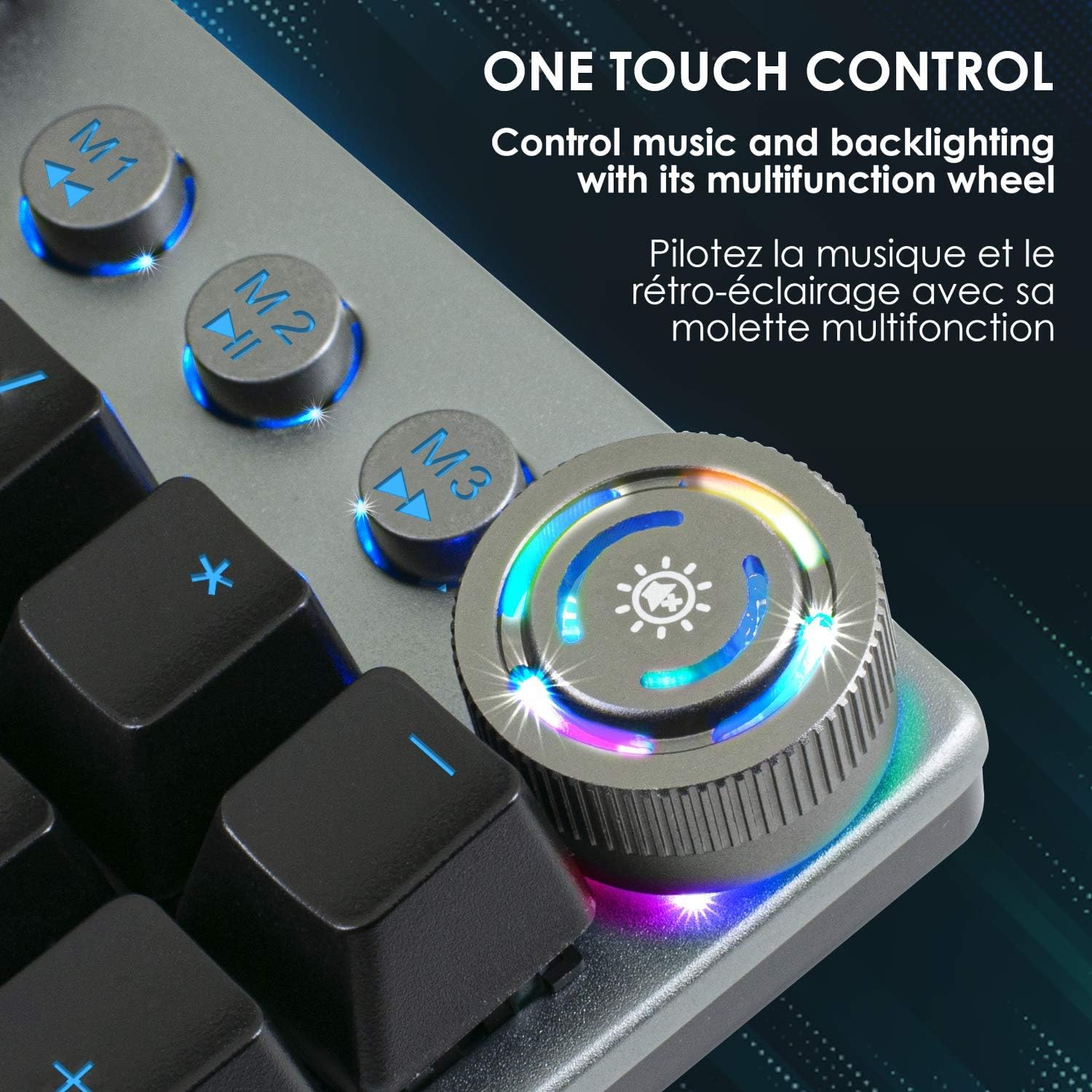
Image: A detailed shot of the multi-function control wheel and programmable M-keys on the EMPIRE GAMING Stardust keyboard, showing their illuminated design.
Anti-Ghosting Feature
The keyboard includes full anti-ghosting on all keys. This ensures that every key press is registered accurately, even when multiple keys are pressed simultaneously, preventing missed commands during intense gaming sessions.

Image: The EMPIRE GAMING Stardust keyboard with a visual representation of hands pressing multiple keys, demonstrating the anti-ghosting functionality.
Programming Software
Utilize the intuitive downloadable software to fully customize your Stardust keyboard. The software allows you to:
- Create and assign macros to specific keys.
- Remap multimedia keys.
- Fine-tune RGB backlight settings and effects.
- Save and switch between different profiles for various games or applications.

Image: A screenshot of the EMPIRE GAMING Stardust keyboard's software, illustrating its interface for macro programming and RGB lighting adjustments.
Magnetic Wrist Rest
The keyboard includes an XXL magnetic wrist rest designed for enhanced ergonomics and comfort during extended use. It provides optimal support for your wrists, reducing strain.

Image: The EMPIRE GAMING Stardust keyboard shown with its magnetic wrist rest attached, emphasizing the ergonomic benefits.
Maintenance
To ensure the longevity and optimal performance of your EMPIRE GAMING Stardust keyboard, follow these maintenance guidelines:
- Cleaning: Regularly clean the keyboard surface with a soft, dry, lint-free cloth. For deeper cleaning, use a can of compressed air to remove dust and debris from between the keys. Avoid using harsh chemicals or abrasive materials.
- Spills: In case of liquid spills, immediately disconnect the keyboard from your computer. Gently wipe away any liquid and allow the keyboard to dry completely before reconnecting. Do not attempt to disassemble the keyboard.
- Storage: When not in use for extended periods, store the keyboard in a dry, cool place away from direct sunlight and extreme temperatures.
Troubleshooting
If you encounter issues with your EMPIRE GAMING Stardust keyboard, refer to the following common troubleshooting steps:
- Keyboard Not Responding:
- Ensure the USB cable is securely plugged into both the keyboard and the computer.
- Try connecting the keyboard to a different USB port on your computer.
- Restart your computer.
- Check if the keyboard is recognized in your operating system's device manager.
- RGB Lighting Not Working or Incorrect:
- Verify that the EMPIRE GAMING software is installed and running correctly.
- Check the keyboard's onboard lighting controls (refer to the software manual for specific key combinations).
- Ensure no conflicting software is controlling the RGB lighting.
- Keys Not Registering or Double-Typing:
- Clean the affected keys with compressed air to remove any debris.
- Ensure the keyboard firmware is up to date (check the EMPIRE GAMING website).
- If the issue persists, it may indicate a hardware problem.
- Software Issues:
- Ensure you have the latest version of the EMPIRE GAMING software.
- Try reinstalling the software.
- Check for any operating system updates that might affect software compatibility.
If these steps do not resolve your issue, please contact EMPIRE GAMING customer support for further assistance.
Specifications
| Brand | EMPIRE GAMING |
| Model Number | OE-KB-198ES |
| Connectivity Technology | USB |
| Compatible Devices | Computer, Laptop |
| Operating System | Windows 10 |
| Special Features | Magnetic Wrist Rest, RGB Backlighting |
| Material | Aluminum, Silicone |
| Keyboard Description | Gaming |
| Recommended Use | Gaming |
| Backlight Color Management | RGB (Customizable: 16.8 million colors) |
| Keyboard Dimensions (L x W) | 43.5 cm (17.13 in) x 19.4 cm (7.6 in) |
| Keyboard Height (with wrist rest) | 4.5 cm (1.77 in) |
| Keyboard Height (without wrist rest) | 3.5 cm (1.37 in) |
| Cable Length | 1.62 m (5.31 ft) |

Image: A technical diagram illustrating the precise dimensions of the EMPIRE GAMING Stardust keyboard, including its length, width, height, and cable length.
Warranty and Support
For warranty information, product support, or to inquire about spare parts, please visit the official EMPIRE GAMING website or contact their customer service directly. Information regarding spare parts availability and software update guarantees is not provided in the product specifications.
Manufacturer: OPTIMUM WAY
Official Website: www.empiregaming.eu


