
Introduction
This manual provides detailed instructions for the setup, operation, maintenance, and troubleshooting of your AULA F2008 USB Keyboard. Please read this manual thoroughly before using the product to ensure proper functionality and longevity.
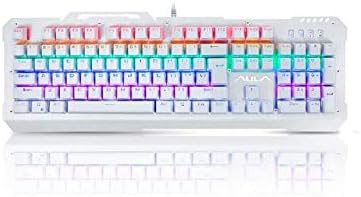
Figure 1: Front view of the AULA F2008 USB Keyboard, showcasing its full layout and vibrant RGB backlighting.
Setup Instructions
The AULA F2008 USB Keyboard is designed for simple plug-and-play installation. Follow these steps to connect your keyboard:
- Unpack the Keyboard: Carefully remove the keyboard from its packaging.
- Identify the USB Connector: Locate the USB-A connector attached to the keyboard cable.
- Connect to Your Device: Plug the USB-A connector into an available USB port on your PC or laptop.
- System Recognition: Your operating system will automatically detect and install the necessary drivers. This process may take a few moments.
- Verify Functionality: Once installation is complete, test the keyboard by typing in a text editor or browser to ensure all keys are responsive.
System Requirements
- Available USB port
- Compatible with Windows, macOS, and Linux operating systems (basic functionality)

Figure 2: The AULA F2008 USB Keyboard integrated into a typical desktop computer setup, ready for use.
Operating Instructions
The AULA F2008 keyboard features a standard 104-key English layout, providing full functionality for typing and general computer use.
Basic Keyboard Functions
- Typing Keys: Standard alphanumeric keys for text input.
- Function Keys (F1-F12): Perform various system or application-specific functions.
- Numeric Keypad: Dedicated number pad for efficient data entry.
- Navigation Keys: Arrow keys, Home, End, Page Up, Page Down for cursor control and document navigation.
- Modifier Keys: Shift, Ctrl, Alt, Windows/Command keys for shortcuts and special commands.
Backlighting Control (If Applicable)
The AULA F2008 keyboard may feature integrated backlighting. Specific key combinations, often involving the "Fn" key (if present) and other function keys (e.g., Fn + Scroll Lock, Fn + Page Up/Down), are typically used to adjust brightness, change lighting modes, or toggle the backlighting on/off. Refer to the keyboard's keycap legends for specific lighting control indicators.
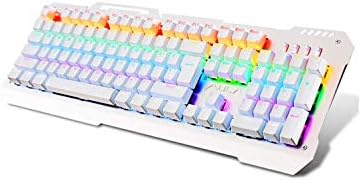
Figure 3: Angled perspective of the AULA F2008 USB Keyboard, showing the full key layout and the illuminated RGB backlighting.
Maintenance
Proper maintenance ensures the longevity and optimal performance of your AULA F2008 keyboard.
Cleaning Instructions
- Disconnect: Always disconnect the keyboard from your computer before cleaning.
- Dust Removal: Use a can of compressed air to blow away dust and debris from between the keys. Hold the can upright to prevent propellant discharge.
- Surface Cleaning: Gently wipe the keycaps and keyboard surface with a soft, lint-free cloth lightly dampened with water or a mild, non-abrasive cleaning solution. Avoid excessive moisture.
- Avoid Harsh Chemicals: Do not use strong solvents, alcohol, or abrasive cleaners, as these can damage the keycap legends or surface finish.
- Drying: Ensure the keyboard is completely dry before reconnecting it to your computer.
Storage
When not in use for extended periods, store the keyboard in a cool, dry place away from direct sunlight and extreme temperatures.
Troubleshooting
If you encounter issues with your AULA F2008 keyboard, refer to the following common solutions:
- Keyboard Not Responding:
- Ensure the USB cable is securely plugged into both the keyboard and the computer.
- Try plugging the keyboard into a different USB port on your computer.
- Restart your computer.
- Test the keyboard on another computer to determine if the issue is with the keyboard or the computer's USB port/drivers.
- Specific Keys Not Working:
- Check for any physical obstructions or debris under the keycap.
- Gently remove the keycap (if designed to be removable) and clean the switch area with compressed air.
- If multiple keys in a row or column are not working, it might indicate a hardware issue.
- Backlighting Not Working/Incorrect:
- Ensure the backlighting is enabled using the designated key combination (e.g., Fn + Scroll Lock).
- Adjust brightness settings using the appropriate function keys (e.g., Fn + Page Up/Down).
- Verify that the keyboard is receiving sufficient power from the USB port.
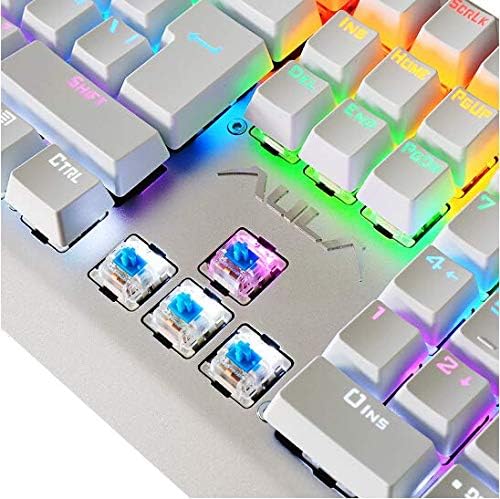
Figure 4: A detailed close-up of the AULA F2008 keyboard's mechanical switches, illustrating their construction.
Specifications
| Feature | Detail |
|---|---|
| Brand | AULA |
| Model Number | F2008 |
| Connectivity Technology | USB |
| Color | White |
| Style | Modern |
| Hand Orientation | Ambidextrous |
| Button Quantity | 104 |
| Keyboard Language | English |
| Compatible with | PC & Laptop |
| Manufacturer | AULA |
| Date First Available | 10 December 2019 |
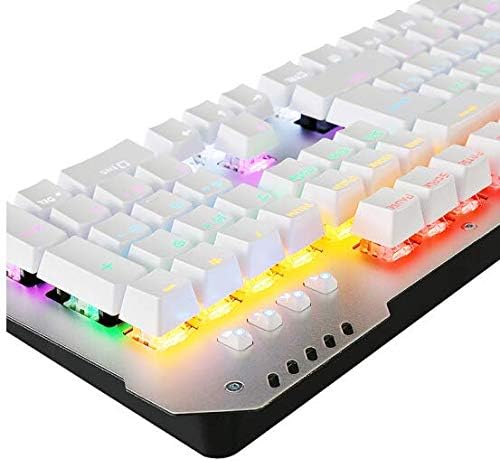
Figure 5: Side profile of the AULA F2008 USB Keyboard, illustrating its robust construction and key height.
Warranty and Support
For information regarding product warranty, technical support, or service inquiries, please refer to the warranty card included with your purchase or visit the official AULA website. Keep your proof of purchase for warranty claims.


