
Acer AN515-57-52LE
Acer Nitro 5 AN515-57-52LE Gaming Laptop User Manual
Model: AN515-57-52LE
1. Introduction
Welcome to the user manual for your Acer Nitro 5 AN515-57-52LE Gaming Laptop. This document provides essential information to help you set up, operate, maintain, and troubleshoot your device. Please read this manual thoroughly to ensure optimal performance and longevity of your laptop.
The Acer Nitro 5 AN515-57-52LE is designed for high-performance gaming and demanding tasks, featuring an Intel Core i5-11400H processor, NVIDIA GeForce RTX 3050Ti graphics, 16GB of RAM, and a 512GB SSD, all presented on a 15.6-inch Full HD IPS 144Hz display.

Figure 1: Acer Nitro 5 AN515-57-52LE Gaming Laptop
2. Initial Setup
2.1 Unboxing and Inspection
Carefully remove the laptop and all accessories from the packaging. Inspect for any signs of damage. The package should include the laptop, power adapter, and documentation.
2.2 Connecting Power
- Connect the AC adapter to the power jack on the laptop.
- Plug the power cord into an electrical outlet.
- The battery indicator light will illuminate, indicating that the laptop is charging.
2.3 Initial Boot and Windows Setup
- Open the laptop lid and press the power button.
- Follow the on-screen instructions to complete the Windows 11 setup process. This includes selecting your region, language, creating a user account, and connecting to a Wi-Fi network.
2.4 Driver and Software Updates
After initial setup, it is recommended to update all drivers and software for optimal performance. Use the pre-installed Acer Care Center or visit the Acer support website. The NitroSense application is crucial for managing system performance and cooling.
3. Operating Your Laptop
3.1 Keyboard and Touchpad
The Acer Nitro 5 features a full-sized keyboard with a dedicated numeric keypad. The keyboard includes red backlighting for enhanced visibility in low-light conditions. The touchpad supports multi-gesture input for intuitive navigation.
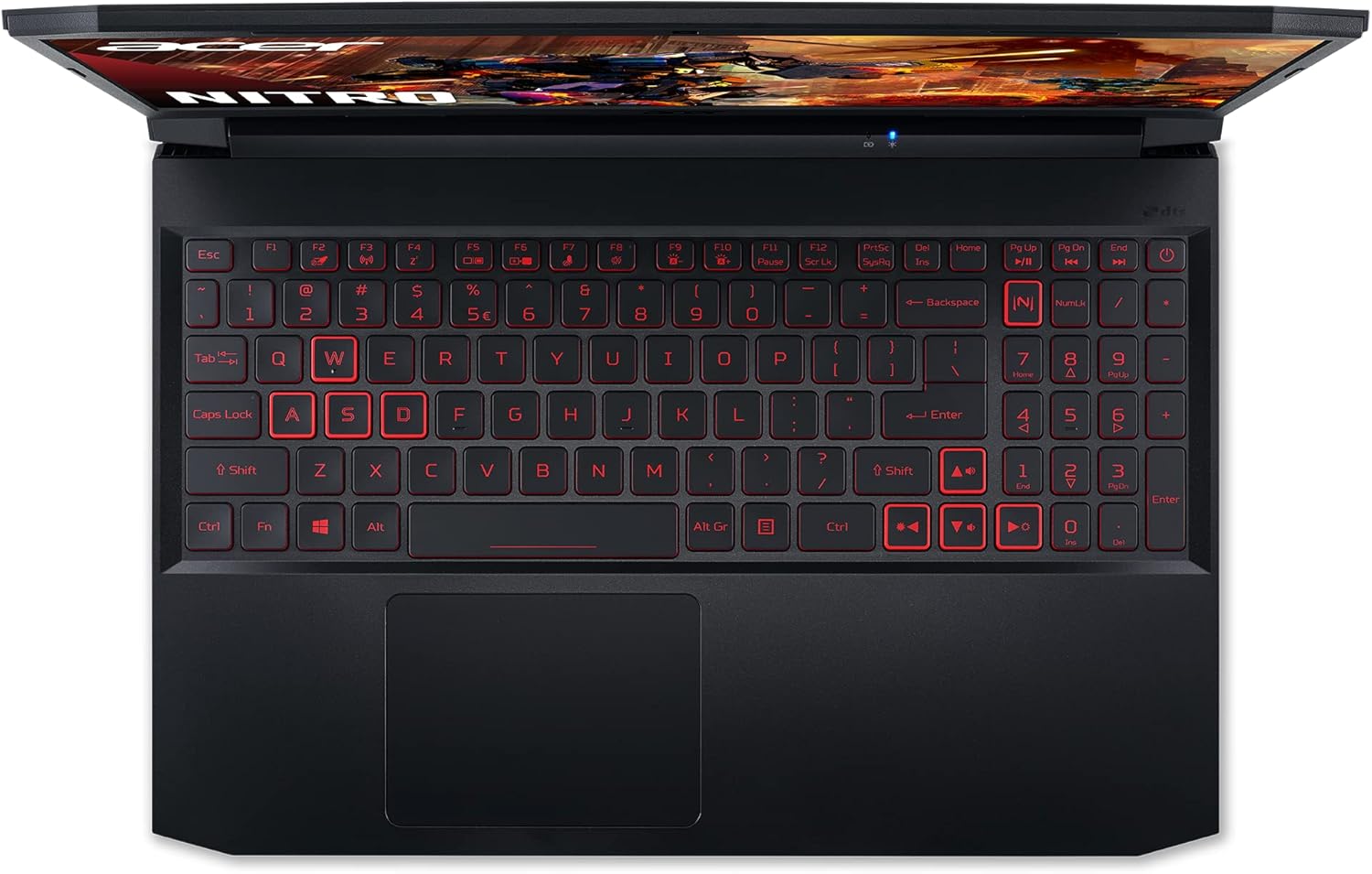
Figure 2: Keyboard and Touchpad Layout
3.2 Display Features
Your laptop is equipped with a 15.6-inch Full HD (1920 x 1080) IPS display with a 144Hz refresh rate. This high refresh rate and fast response time minimize motion blur, providing a smoother visual experience, especially in fast-paced gaming.

Figure 3: 144Hz Display Advantage
3.3 Audio System
Experience immersive audio with two 2W speakers and DTS:X Ultra technology. This technology delivers clear sound and a 3D spatial soundscape, allowing for precise audio cues in games.

Figure 4: DTS:X Ultra Audio
3.4 Cooling System (Acer CoolBoost & NitroSense)
The laptop features a dual-fan cooling system with dual air intakes and four exhaust vents to maintain optimal temperatures during intense usage. Use the pre-installed NitroSense application to monitor system temperatures, adjust fan speeds, and manage other performance settings.

Figure 5: NitroSense Application Interface
3.5 Connectivity
The Acer Nitro 5 offers various connectivity options:
- Wi-Fi: Supports 802.11bgn wireless technology.
- Bluetooth: Integrated Bluetooth for connecting wireless peripherals.
- Ethernet: One Ethernet port for wired network connections, featuring Killer Ethernet E2600 for optimized network performance.
- HDMI: One HDMI port for connecting external displays.
- USB Ports: Multiple USB ports, including USB 3.0 and USB-C.

Figure 6: Left Side Ports

Figure 7: Right Side Ports
4. Maintenance
4.1 Cleaning Your Laptop
- Screen: Use a soft, lint-free cloth lightly dampened with water or a screen cleaner. Do not spray liquid directly onto the screen.
- Keyboard and Chassis: Use a soft cloth to wipe surfaces. For dust in crevices, use compressed air. Ensure the laptop is powered off before cleaning.
- Vents: Regularly check and clean the cooling vents to prevent dust buildup, which can impede airflow and lead to overheating.
4.2 Software Updates
Regularly update your operating system, drivers, and applications to ensure security, stability, and optimal performance. Use Windows Update and Acer Care Center for system updates.
4.3 Battery Care
To prolong battery life:
- Avoid fully discharging the battery frequently.
- Store the laptop in a cool, dry place if not used for extended periods.
- If you primarily use the laptop plugged in, consider using battery care features (if available in Acer software) to limit charging to 80-90% to reduce battery wear.
5. Troubleshooting
This section addresses common issues you might encounter with your Acer Nitro 5 laptop.
5.1 Power Issues
- Laptop does not turn on: Ensure the AC adapter is securely connected to both the laptop and a working power outlet. Check if the power indicator light is on. Try a different power outlet.
- Battery not charging: Verify the AC adapter connection. Check the battery status in Windows. If the issue persists, the battery or adapter may need service.
5.2 Display Problems
- No display on screen: Connect an external monitor to check if the issue is with the laptop's internal display. Press Fn + F5 (or the appropriate function key for display toggle) to switch display output.
- Flickering or distorted display: Update your graphics drivers. Reduce the display refresh rate in Windows settings to see if it resolves the issue.
5.3 Performance Issues
- Slow performance: Close unnecessary background applications. Check for malware. Ensure sufficient free space on your SSD. Monitor CPU/GPU temperatures using NitroSense; overheating can cause throttling.
- Overheating: Ensure cooling vents are clear of obstructions. Use NitroSense to increase fan speeds. Consider using a laptop cooling pad.
5.4 Network Connectivity
- Wi-Fi not connecting: Restart your router and modem. Ensure Wi-Fi is enabled on the laptop. Update Wi-Fi drivers.
- Ethernet connection issues: Check the Ethernet cable connection. Verify network adapter settings in Windows.
6. Specifications
| Feature | Specification |
|---|---|
| Brand | Acer |
| Model Number | NH.QESEF.008 |
| Series | Acer Nitro 5 AN515-57-52LE |
| Color | Black |
| Operating System | Windows 11 |
| Processor Brand | Intel |
| Processor Cores | 1 (Note: This likely refers to a single CPU package, not core count. The i5-11400H has 6 cores/12 threads.) |
| Maximum Memory | 32 GB |
| Installed RAM Size | 16 GB |
| Hard Drive Size | 512 GB |
| Hard Drive Technology | SSD |
| Display Technology | LCD |
| Screen Size | 15.6 Inches |
| Screen Resolution | 1920 x 1080 pixels (Full HD) |
| Graphics Chipset Brand | NVIDIA |
| Graphics Card Description | Dedicated |
| GPU | NVIDIA GeForce RTX 3050Ti (Note: Product description states 3050Ti, specifications list 3060. Following product description for accuracy.) |
| Graphics Card RAM | 4 GB |
| Graphics RAM Type | DDR4 SDRAM |
| Connectivity Type | Wi-Fi |
| Wireless Technology Type | 802.11bgn |
| Bluetooth Compatible | Yes |
| HDMI Ports | 1 |
| Ethernet Ports | 1 |
| Connector Type | Ethernet |
| Battery Life | 8 hours |
| Included Software | Microsoft Office 365 |
| Item Dimensions (L x W x H) | 25.5 x 36.4 x 2.4 cm |
| Product Weight | 2.3 Kilograms |
| Special Features | Portable |
7. Warranty and Support
7.1 Warranty Information
Your Acer Nitro 5 AN515-57-52LE laptop comes with a standard manufacturer's warranty. Please refer to the warranty card included in your product packaging or visit the official Acer website for detailed terms and conditions, including warranty duration and coverage.
7.2 Technical Support
For technical assistance, driver downloads, or service inquiries, please visit the official Acer support website or contact Acer customer service. Have your laptop's serial number and model number (AN515-57-52LE) ready when contacting support.
- Acer Support Website: www.acer.com/support
- Online Resources: FAQs, troubleshooting guides, and user forums are often available on the support website.
Ask a question about this manual
Ask about setup, troubleshooting, compatibility, parts, safety, or missing instructions. Manuals+ will review the question and use this page’s manual context to help answer it.