1. Introduction
This manual provides essential information for setting up, operating, maintaining, and troubleshooting your Dell Latitude 7390 laptop. The Dell Latitude 7390 is a business-class laptop designed for productivity and reliability, featuring an Intel Core i5-8350U processor, 8GB RAM, and a 256GB SSD, running Windows 10 Pro.
Please read this manual thoroughly to ensure proper use and to maximize the lifespan of your device.
2. Setup
2.1 Unboxing and Initial Inspection
Carefully remove the laptop and all accessories from the packaging. Verify that all components are present and undamaged. The package should include the Dell Latitude 7390 laptop, a power adapter, and documentation.
2.2 Connecting the Power Adapter
Connect the power adapter to the power connector on the laptop and then plug the power cable into a wall outlet. The battery will begin charging automatically.

Figure 2.2.1: Dell Latitude 7390 laptop with the screen open, displaying the keyboard and touchpad. This view is typical during initial setup and operation.
2.3 Initial Boot-up and Operating System Setup
Press the power button to turn on the laptop. Follow the on-screen instructions to complete the Windows 10 Pro setup, including language selection, network connection, user account creation, and privacy settings.
3. Operating Your Laptop
3.1 Basic Navigation
Utilize the keyboard for typing and the touchpad for cursor control. The touchpad supports multi-touch gestures for scrolling, zooming, and other functions. Refer to Windows 10 documentation for detailed gesture information.
3.2 Connecting Peripherals
The Latitude 7390 features various ports for connecting external devices:
- USB Ports: For connecting USB devices such as mice, keyboards, and external storage.
- HDMI Port: For connecting to external displays or projectors.
- Ethernet Port: For wired network connections.
- Audio Jack: For headphones or external speakers.
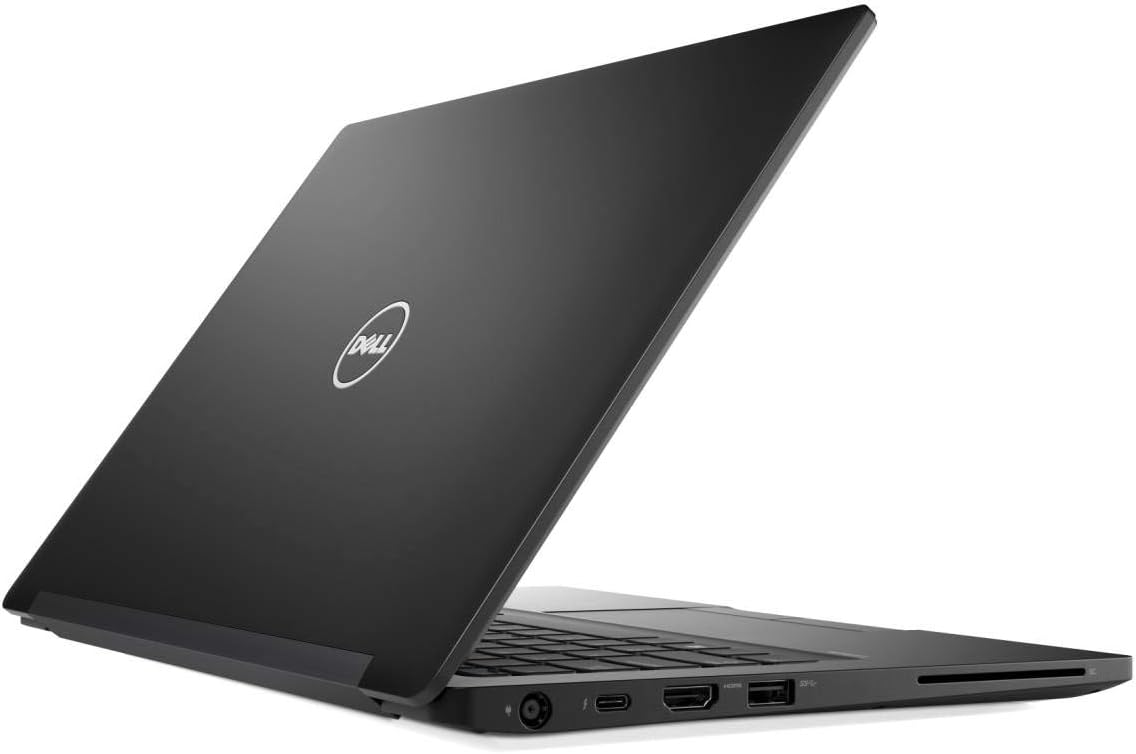
Figure 3.2.1: Side view of the Dell Latitude 7390 laptop, highlighting the various input/output ports available for connecting peripherals.
3.3 Power Management
To conserve battery life, you can put the laptop into sleep mode by closing the lid or selecting "Sleep" from the power options in the Start Menu. To shut down the laptop completely, select "Shut down" from the power options.
4. Maintenance
4.1 Cleaning Your Laptop
Use a soft, lint-free cloth slightly dampened with water or a specialized screen cleaner to clean the display. For the keyboard and chassis, use a soft cloth. Avoid harsh chemicals or abrasive materials.
4.2 Battery Care
To prolong battery life, avoid extreme temperatures and do not leave the laptop constantly plugged in at 100% charge for extended periods. Periodically allow the battery to discharge partially before recharging.
4.3 Software Updates
Regularly check for and install Windows updates and Dell driver updates to ensure optimal performance and security. These updates can be found in Windows Settings and on the Dell support website.
4.4 Data Backup
It is recommended to regularly back up your important data to an external drive or cloud storage to prevent data loss.
5. Troubleshooting
5.1 No Power
- Ensure the power adapter is securely connected to both the laptop and a working wall outlet.
- Check if the power outlet is functional by plugging in another device.
- Try a different power adapter if available.
5.2 Display Problems
- If the screen is blank, try pressing the Fn key and the display toggle key (often F8 or F10) to switch display outputs.
- Ensure external monitors are properly connected and powered on.
- Restart the laptop.
5.3 Peripheral Not Recognized
- Try connecting the peripheral to a different USB port.
- Restart the laptop.
- Ensure the peripheral has the necessary drivers installed.
5.4 Slow Performance
- Close unnecessary applications running in the background.
- Check for and install any pending Windows or driver updates.
- Run a virus and malware scan.
- Ensure there is sufficient free space on the primary drive.
6. Specifications
Below are the key technical specifications for the Dell Latitude 7390:
| Feature | Specification |
|---|---|
| Brand | Dell |
| Model Number | 7390 |
| Operating System | Windows 10 Pro |
| Screen Size | 13.3 Inches |
| Screen Resolution | 1366 x 768 pixels |
| Processor | Intel Core i5-8350U (1.7GHz) |
| RAM Memory Installed Size | 8 GB |
| Flash Memory Size (Storage) | 256 GB |
| Item Weight | 3 Pounds |
| Human Interface Input | Keyboard, Touch Pad, Touchscreen |
| Hardware Interface | Ethernet |
| Voltage | 240 Volts |
7. Warranty and Support
7.1 Product Warranty
Your Dell Latitude 7390 laptop is covered by Dell's standard limited hardware warranty. The specific terms and duration of your warranty may vary based on your region and purchase agreement. Please refer to the warranty documentation included with your product or visit the official Dell support website for detailed information.
7.2 Technical Support
For technical assistance, driver downloads, or further troubleshooting, please visit the official Dell Support website. You will need your laptop's Service Tag, which can typically be found on a sticker on the bottom of the laptop or accessed through the BIOS/UEFI settings.
Dell Support Website: www.dell.com/support