1. Introduction
Thank you for choosing the Sainlogic Weather Station Model 1. This device is designed to provide accurate indoor and outdoor temperature and humidity readings, helping you monitor environmental conditions in various locations. The system includes a main display unit and three wireless remote sensors, allowing for comprehensive monitoring. This manual will guide you through the setup, operation, and maintenance of your weather station.
2. Package Contents
Please check the package contents to ensure all items are present:
- 1 x Sainlogic Weather Station Main Display Unit
- 3 x Wireless Remote Sensors
- 1 x User Manual (this document)
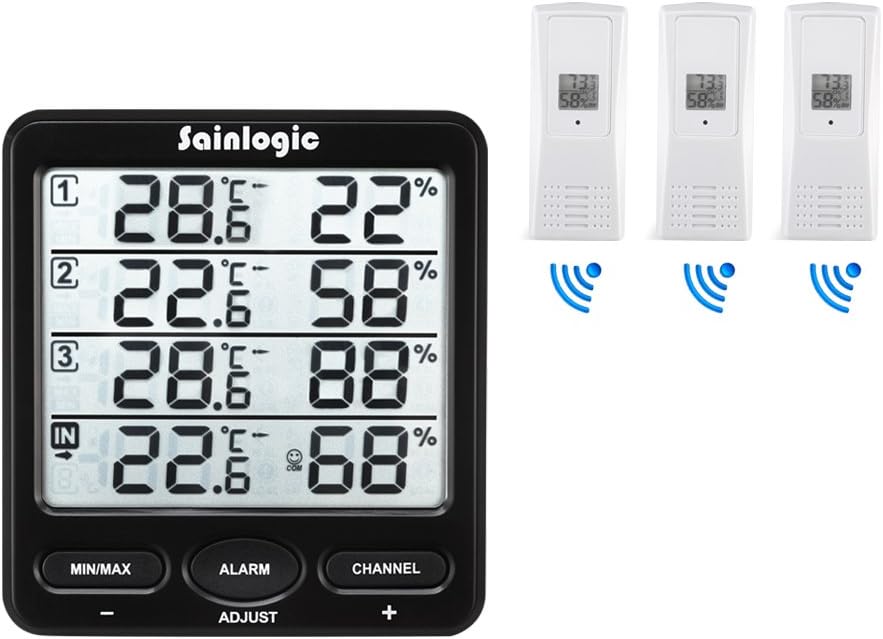
Image: The Sainlogic Weather Station main display unit shown alongside three wireless remote sensors, illustrating the complete package contents.
3. Product Overview
3.1 Main Display Unit
The main display unit features a large LCD screen that simultaneously shows indoor temperature and humidity, along with readings from up to three remote sensors. It includes several buttons for configuration and data viewing.
- MIN/MAX Button: Used to view the minimum and maximum recorded temperature and humidity values.
- ALARM Button: Used to set and activate temperature and humidity alarms.
- CHANNEL Button: Used to switch between displaying individual remote sensor channels or to activate an auto-cycle display.
- ADJUST (+/-) Buttons: Used to adjust values during settings configuration.

Image: A dual view of the main display unit, showing its front with the LCD screen and control buttons, and its back with the battery compartment and wall-mounting option.
3.2 Wireless Remote Sensors
Each remote sensor is a compact unit designed to measure temperature and humidity in its location and transmit data wirelessly to the main display unit. They are suitable for both indoor and outdoor use, provided they are protected from direct weather elements.

Image: A white wireless remote sensor positioned outdoors in a garden, demonstrating its potential placement for environmental monitoring.
4. Setup
4.1 Battery Installation
Proper battery installation is crucial for the correct functioning of your weather station.
- Main Display Unit: Open the battery compartment on the back of the main unit. Insert 3 AAA batteries, ensuring correct polarity (+/-). Close the compartment.
- Remote Sensors: Open the battery compartment on each remote sensor. Insert 2 appropriate batteries (typically AAA), ensuring correct polarity (+/-). Close the compartment.
Note: It is recommended to install batteries in the remote sensors first, then in the main display unit, to facilitate easier pairing.

Image: The rear view of the main display unit, highlighting the battery compartment for 3 AAA batteries, the wall-mountable slot, and the foldable stand.
4.2 Sensor Pairing
After installing batteries, the main unit will automatically attempt to connect with the remote sensors.
- Place all remote sensors within close proximity (e.g., 1 meter) of the main display unit.
- Ensure each remote sensor is powered on. Each sensor has a channel switch (1, 2, or 3). Assign a unique channel to each sensor.
- The main unit will display readings for each connected sensor. This process may take a few minutes. If a sensor does not connect, try removing and reinserting its batteries, or pressing the 'CHANNEL' button on the main unit to initiate a search.
4.3 Placement
Optimal placement ensures accurate readings and reliable wireless transmission.
- Main Display Unit: Place the main unit indoors on a stable surface or mount it on a wall. Avoid direct sunlight, heat sources, or areas with high electromagnetic interference (e.g., near TVs, computers).
- Remote Sensors: Place remote sensors in desired monitoring locations. For outdoor use, ensure sensors are protected from direct rain, snow, and prolonged direct sunlight. A sheltered spot under an eaves or porch is ideal. The wireless range is approximately 60 meters (200 feet) in open air, but walls and obstacles will reduce this range.

Image: The weather station display unit shown in different indoor settings such as an office, bedroom, baby room, and wine cellar, illustrating versatile placement options.

Image: An illustration depicting the main display unit wirelessly communicating with a remote sensor placed in a baby room, highlighting the 60m/200ft wireless range capability.
5. Operation
5.1 Display Information
The main display unit provides a clear overview of current conditions:
- Indoor Section: Displays the current temperature and humidity measured by the main unit itself.
- Sensor 1, 2, 3 Sections: Each section displays the current temperature and humidity from the corresponding remote sensor.
5.2 Button Functions
- MIN/MAX: Press once to view maximum recorded temperature and humidity. Press again to view minimum recorded values. Press and hold to clear recorded MIN/MAX data.
- ALARM: Press to enter alarm setting mode. Use the ADJUST (+/-) buttons to set desired high/low temperature or humidity thresholds. Press ALARM again to confirm and move to the next setting. Press and hold ALARM to activate/deactivate the alarm function.
- CHANNEL: Press to manually cycle through the remote sensor channels (1, 2, 3). Press and hold to activate the auto-cycle feature, which will automatically display readings from each sensor in sequence.
- ADJUST (+/-): In setting modes (e.g., alarm setting), these buttons are used to increase or decrease values.
5.3 Setting Alarms
The weather station can alert you when temperature or humidity exceeds predefined limits.
- Press the ALARM button to enter alarm setting mode.
- The display will show the current alarm setting for a specific parameter (e.g., high indoor temperature). Use the ADJUST (+/-) buttons to set your desired value.
- Press ALARM again to move to the next alarm parameter (e.g., low indoor temperature, high indoor humidity, low indoor humidity, then cycling through each sensor's high/low temperature and humidity alarms).
- Once all desired alarms are set, press and hold the ALARM button to exit the setting mode and activate the alarms. An alarm icon will appear on the display.
- When an alarm condition is met, the unit will emit an audible alert and the corresponding reading will flash. Press any button to silence the alarm.
6. Maintenance
6.1 Battery Replacement
Replace batteries when the low battery indicator appears on the display. For optimal performance, replace all batteries simultaneously with new, high-quality batteries.
6.2 Cleaning
Wipe the main unit and sensors with a soft, damp cloth. Do not use abrasive cleaners or solvents, as these can damage the plastic casing and display. Ensure no moisture enters the battery compartments or sensor openings.
7. Troubleshooting
| Problem | Possible Cause | Solution |
|---|---|---|
| No remote sensor reading | Low batteries in sensor; sensor out of range; interference; sensor not paired. | Replace sensor batteries; move sensor closer to main unit; avoid placing near electronic devices; re-pair sensor by removing/reinserting batteries and pressing 'CHANNEL' on main unit. |
| Inaccurate readings | Sensor/unit not stabilized; improper placement; calibration needed. | Allow 15-30 minutes for readings to stabilize after setup; ensure proper placement away from direct heat/cold sources; some units allow for manual calibration (refer to advanced settings if available, though not explicitly detailed in basic product info). |
| Display is blank or dim | Low batteries in main unit. | Replace batteries in the main display unit. |
8. Specifications
| Feature | Detail |
|---|---|
| Product Dimensions | 7.2 x 12 x 5 cm |
| Product Weight | 320 grams |
| Material | Plastic |
| Model Number | 1 |
| Wireless Range | Up to 60 meters (200 feet) in open air |
| Power Source (Main Unit) | 3 x AAA batteries (not included) |
| Power Source (Remote Sensors) | 2 x AAA batteries per sensor (not included) |
9. Warranty and Support
For warranty information and technical support, please refer to the documentation included with your purchase or contact Sainlogic customer service directly. Contact details are typically available on the manufacturer's official website or product packaging.


