1. Product Overview
The ICY Box USB 3.0 Universal Laptop Docking Station is designed to expand the connectivity of your Windows or Mac laptop, transforming it into a powerful workstation. This high-performance, all-black upright dock features a slim and sleek design, making it a suitable addition to any home or office setup. It supports dual monitors, multiple USB devices, Gigabit Ethernet, and audio connections.

Image: ICY Box USB 3.0 Universal Laptop Docking Station connected to a laptop with dual monitors.
2. Key Features
- Dual Monitor Support: Connect two additional monitors via HDMI, supporting resolutions up to 2560x1440 with a single HDMI display or 1080p with two displays.
- High-Speed USB Connectivity: Features 2 USB 3.0 ports (up to 5 Gbit/s) and 4 USB 2.0 ports for connecting various peripherals and transferring data.
- Gigabit Ethernet: Provides a stable and fast wired network connection.
- Audio Connectivity: Includes audio input and output ports for headphones, speakers, and microphones.
- Broad OS Compatibility: Compatible with Windows XP SP3 (32-bit), Vista, 7, 8, 8.1, 10, macOS 10.6 - 10.12, 10.14, and Chrome OS v55+.
- Versatile Design: Can be used vertically with the included stand or horizontally.

Image: The docking station shown in its vertical orientation with stand.
3. Package Contents
Please verify that all items are present in your package:
- ICY Box USB 3.0 Universal Laptop Docking Station (Model 60638)
- Power Adapter
- USB B to A/C Cable
- Stand for vertical placement
- Instruction Manual
4. Setup Instructions
Follow these steps to set up your docking station:
- Install Drivers: Before connecting the docking station, download and install the necessary DisplayLink drivers from the official Synaptics website: https://www.synaptics.com/products/displaylink-graphics/downloads.
- Connect Power: Plug the provided power adapter into the power input port on the rear of the docking station and then into a wall outlet. An LED indicator on the front will illuminate once power is connected.
- Connect to Laptop: Use the provided USB B to A/C cable to connect the docking station to a USB 3.0 port on your laptop. If your laptop has a USB-C port, use the included USB-A to USB-C adapter.
- Connect Peripherals: Plug your USB devices (e.g., mouse, keyboard, external drives) into the available USB 3.0 and USB 2.0 ports. Connect your headphones, speakers, or microphone to the audio ports on the front.
- Connect Displays: Connect your monitors to the HDMI ports on the rear of the docking station using appropriate HDMI cables.
- Connect Ethernet: For a stable wired network connection, plug an RJ45 Ethernet cable into the Gigabit Ethernet port on the rear of the docking station.
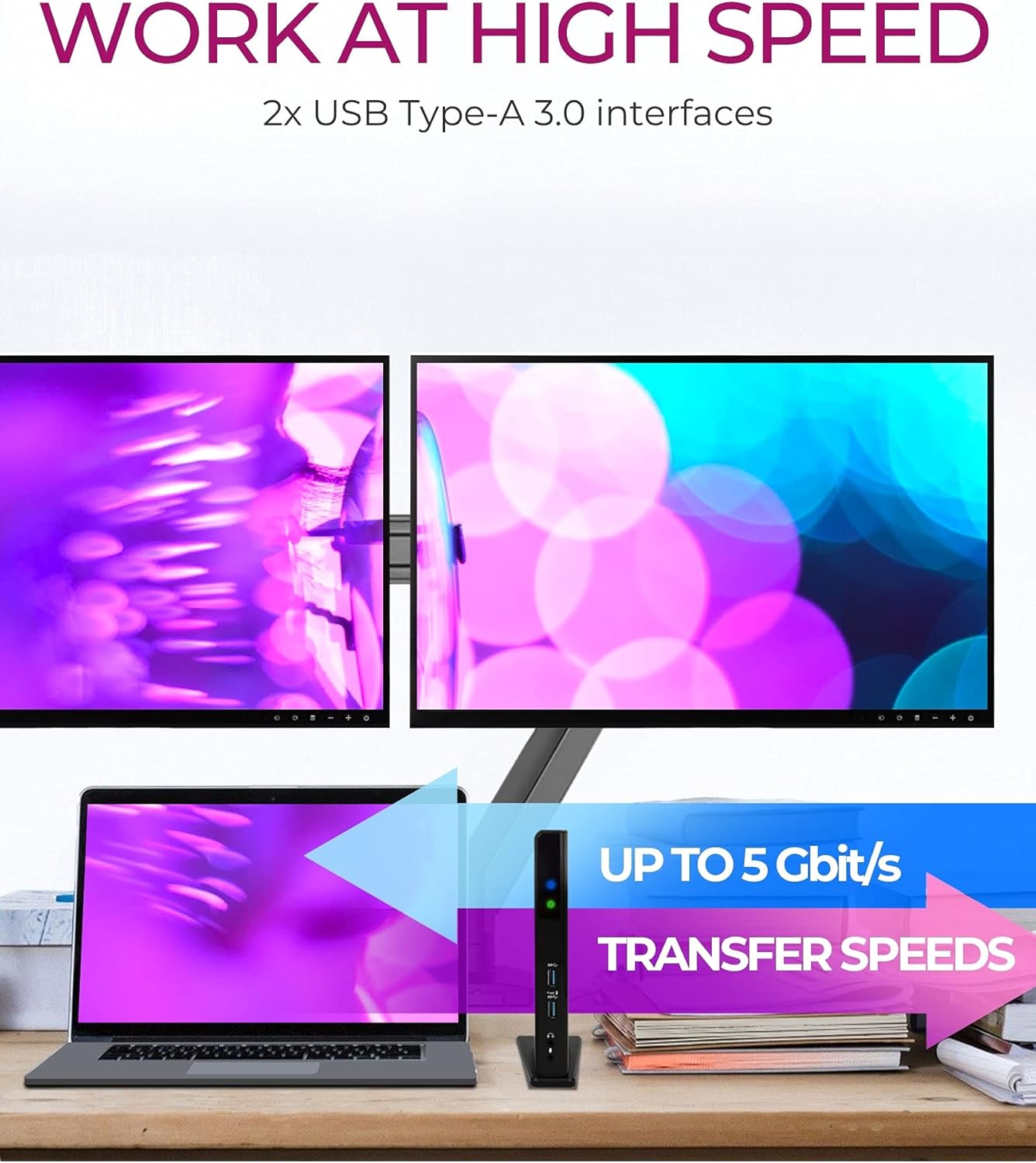
Image: Visual guide for driver installation and initial connection steps.
Video: Official setup guide for the ICY Box USB 3.0 Universal Laptop Docking Station, demonstrating connections and functionality.
5. Operating Instructions
Once set up, the docking station operates automatically. Your connected monitors, USB devices, and network connection should be recognized by your operating system. You can manage display settings through your computer's display preferences.
Important Note:
This docking station does not provide power delivery to charge your notebook. Ensure your laptop is connected to its own power adapter for charging.

Image: Visual reminder that the docking station does not provide power to charge the laptop.
Charging Smartphones and Tablets:
The front USB 3.0 ports can be used to easily charge your smartphone or tablet. One of these ports is specifically labeled for high-power charging.
6. Connectivity Ports
The ICY Box docking station offers a comprehensive array of ports for all your connectivity needs:
Front Ports:
- 2x USB 3.0 (5 Gbit/s): For high-speed data transfer and connecting USB 3.0 devices. One port supports high-power charging.
- Headset (Audio Out): 3.5mm jack for headphones or speakers.
- Microphone (Audio In): 3.5mm jack for microphone input.
Rear Ports:
- USB Type-B (Host): Connects to your laptop via the provided USB B to A/C cable.
- 2x HDMI (2K@60 Hz): For connecting external displays.
- RJ45 Ethernet Interface: For a wired Gigabit Ethernet connection.
- 4x USB 2.0 (480 Mbit/s): For connecting standard USB devices.
- Power Jack: For connecting the power adapter.

Image: Detailed view of the front and rear ports of the docking station.
7. Driver Installation
The ICY Box docking station utilizes DisplayLink technology, which requires specific drivers for full functionality. It is crucial to install these drivers before connecting the docking station to your computer.
- Visit the official DisplayLink website: https://www.synaptics.com/products/displaylink-graphics/downloads
- Download the latest drivers compatible with your operating system (Windows, macOS, Chrome OS).
- Follow the on-screen instructions to complete the installation.
- Restart your computer if prompted.
Always ensure your PC software and hardware are fully updated to enjoy all the latest features and ensure optimal performance with the docking station.
8. Display Configuration
The docking station supports connecting up to two external displays via its HDMI ports. After connecting your monitors and installing the drivers, you can configure your display settings through your operating system.
Windows:
Right-click on your desktop and select 'Display settings' or 'Screen resolution'. From there, you can extend or duplicate your desktop across the connected monitors and adjust their resolutions.
macOS:
Go to 'System Preferences' > 'Displays'. You can arrange your displays, set resolutions, and choose between extended desktop or mirroring modes.
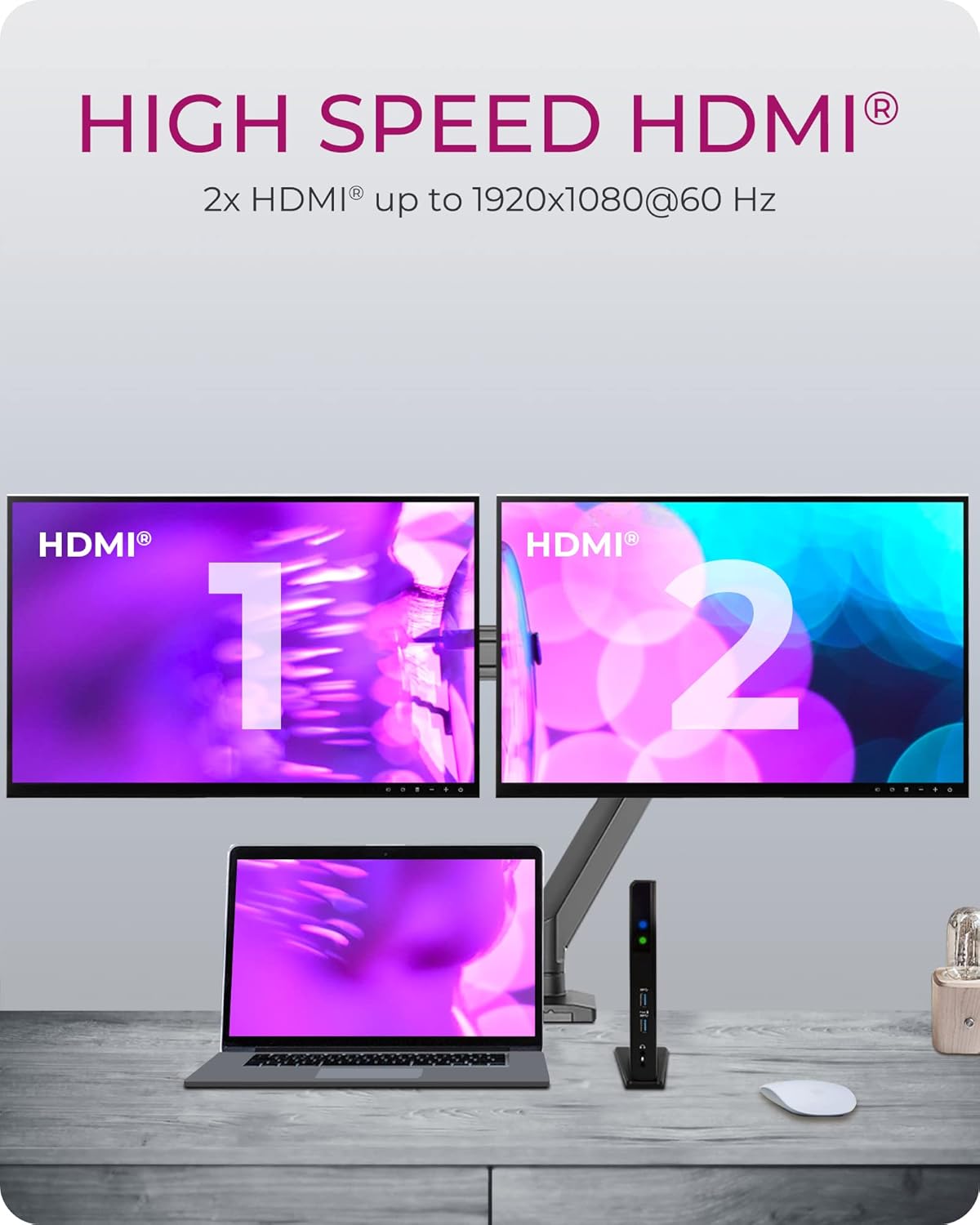
Image: A laptop connected to two external HDMI monitors through the docking station, illustrating dual display functionality.
9. Troubleshooting
If you encounter issues with your ICY Box docking station, please refer to the following common solutions:
- No Display Output:
- Ensure DisplayLink drivers are correctly installed and up to date.
- Check all HDMI cable connections between the docking station and monitors.
- Verify that the docking station is receiving power (LED indicator should be on).
- Confirm your laptop's display settings are configured to detect and use external monitors.
- USB Devices Not Recognized:
- Ensure the USB cable connecting the docking station to your laptop is securely plugged in.
- Try connecting the USB device to a different port on the docking station or directly to your laptop to isolate the issue.
- Update your laptop's USB drivers.
- Network Connection Issues:
- Check the Ethernet cable connection to both the docking station and your router/modem.
- Verify network settings on your computer.
- Ensure DisplayLink drivers are updated, as they manage the Ethernet functionality.
- Intermittent Connectivity (macOS M1/M2): Some users have reported compatibility challenges with specific macOS versions on M1/M2 chipsets. Ensure you have the latest DisplayLink Manager software installed, as updates frequently address these issues. Refer to the DisplayLink website for the most current information and support for Apple Silicon.
Video: An official video demonstrating the ICY Box USB 3.0 Universal Laptop Docking Station for Windows, which may assist with general setup and troubleshooting.
10. Specifications
| Feature | Specification |
|---|---|
| Brand | ICY BOX |
| Model Number | 60638 |
| Dimensions (LxWxH) | 3.07 x 7.17 x 1.18 inches (7.8 x 18.2 x 3 cm) |
| Item Weight | 7.7 ounces (0.22 Kilograms) |
| Color | Black |
| Host Interface | USB 3.0 Type-B |
| USB Ports | 2x USB 3.0 (front), 4x USB 2.0 (rear) |
| Video Output | 2x HDMI |
| Max HDMI Resolution | 2560x1440 (single display), 1080p (dual displays) |
| Ethernet | Gigabit Ethernet (RJ45) |
| Audio Ports | Headset (out), Microphone (in) |
| OS Compatibility | Windows XP SP3 (32-bit), Vista, 7, 8, 8.1, 10; macOS 10.6 - 10.12, 10.14; Chrome OS v55+ |
| Power Input | 35 watts (via included power adapter) |
11. Warranty and Support
The ICY Box USB 3.0 Universal Laptop Docking Station is backed by a 2-year limited parts and labor warranty. This warranty covers defects in materials and workmanship under normal use.
For any questions, technical assistance, or warranty claims, please contact our support team. You can reach us via email, and our team will be happy to assist you.
Please visit the official ICY BOX website for contact information and further support resources.


