1. Introduction
This manual provides essential instructions for setting up, operating, and maintaining your LG Phoenix 4 X210 smartphone. Please read this manual thoroughly to ensure proper use and to maximize the device's features.
The LG Phoenix 4 X210 is a GSM unlocked smartphone featuring a 5.0-inch display, 8 MP rear camera, 5 MP front camera, 16 GB internal memory, 2 GB RAM, and runs on Android 7.1 Nougat.
2. Device Layout
Familiarize yourself with the physical components of your LG Phoenix 4 X210.
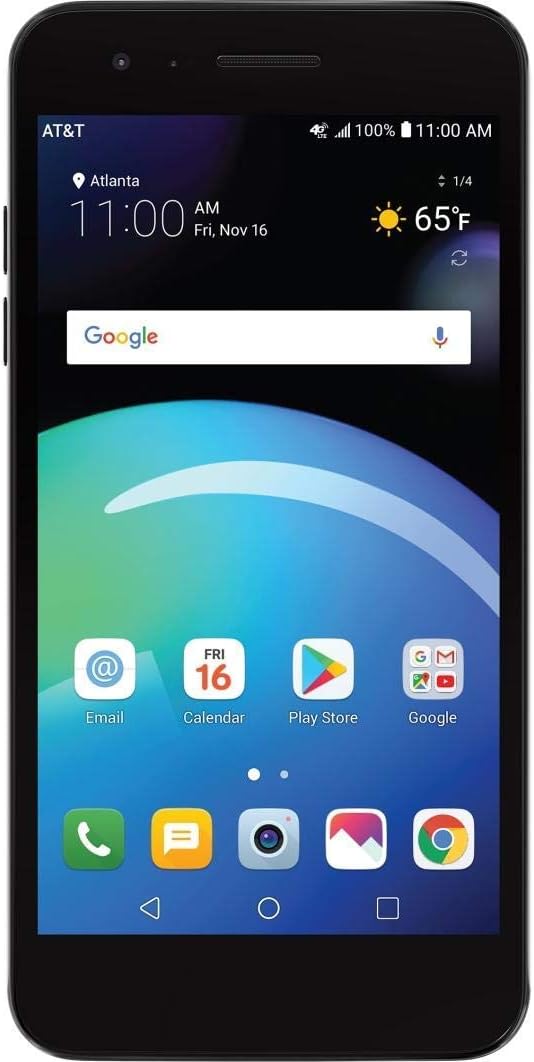
Figure 2.1: Front View. This image shows the front of the LG Phoenix 4 X210 smartphone. The screen is active, displaying the home screen with various application icons, the current time, date, and weather information. The AT&T carrier logo is visible in the top left corner, indicating network connectivity.

Figure 2.2: Rear View. This image displays the back of the LG Phoenix 4 X210. Prominently featured are the main camera lens, the LED flash, and a circular fingerprint sensor located below the camera. The LG logo is visible towards the bottom of the device.

Figure 2.3: Right Side View. This image illustrates the right side of the LG Phoenix 4 X210, where the volume up and down buttons, along with the power/lock button, are located.

Figure 2.4: Bottom View. This image shows the bottom edge of the LG Phoenix 4 X210, featuring the 3.5mm headphone jack, the micro USB charging/data port, and the primary microphone opening.
3. Setup
3.1 Inserting the SIM Card
The LG Phoenix 4 X210 requires a Nano-sized SIM card for network connectivity. The SIM card is not included with the device.
- Power off the device completely.
- Locate the SIM card slot, typically on the side or under the back cover. Refer to the device diagram for exact location.
- Insert the Nano SIM card into the designated slot with the gold contacts facing down, ensuring it is correctly oriented.
- Close the SIM card tray or replace the back cover securely.
Note: This device is GSM unlocked and compatible with GSM carriers such as AT&T and T-Mobile. It will not work with CDMA carriers like Verizon or Sprint.
3.2 Initial Power On
- Press and hold the Power button (located on the right side of the device) until the LG logo appears on the screen.
- Follow the on-screen prompts to complete the initial setup, including language selection, Wi-Fi connection, Google account setup, and security settings.
4. Operating Instructions
4.1 Basic Navigation
- Touchscreen: Tap, swipe, pinch, and spread gestures are used to interact with the device.
- Home Screen: Access apps, widgets, and notifications. Customize by long-pressing on empty space.
- Navigation Bar: The bottom of the screen typically features Back, Home, and Recent Apps buttons.
4.2 Making Calls and Sending Messages
- Calls: Tap the Phone icon, enter the number, and tap the call button.
- Messages: Tap the Messages icon, start a new conversation, enter the recipient and message, then send.
4.3 Camera Usage
The device features an 8 MP rear camera with autofocus and flash, and a 5 MP front camera with Auto Shot for selfies.
- Open the Camera application.
- Select between front and rear cameras using the camera switch icon.
- Tap the screen to focus, then tap the shutter button to capture a photo or start/stop video recording.
4.4 Battery Management
The LG Phoenix 4 X210 is equipped with a 2,500 mAh removable battery. To optimize battery life:
- Adjust screen brightness.
- Disable Wi-Fi, Bluetooth, and GPS when not in use.
- Close unused applications running in the background.
- Utilize power-saving modes available in Settings.
5. Maintenance
5.1 Cleaning the Device
- Use a soft, lint-free cloth to clean the screen and body of the phone.
- Avoid using harsh chemicals or abrasive materials.
- Ensure all ports are dry before charging.
5.2 Software Updates
Regularly check for software updates to ensure optimal performance and security. Updates can typically be found in Settings > About phone > Software updates.
5.3 Battery Care
- Avoid exposing the battery to extreme temperatures.
- Use only approved chargers and cables.
- If the battery is removable, ensure it is properly seated.
6. Troubleshooting
6.1 Common Issues and Solutions
| Issue | Possible Solution |
|---|---|
| Device not powering on | Ensure the battery is charged. Connect the charger and wait a few minutes before attempting to power on again. |
| No network signal | Verify SIM card is correctly inserted. Check network settings (Settings > Network & internet > Mobile network). Ensure you are within a GSM network coverage area. |
| Battery drains quickly | Reduce screen brightness, disable unused features (Wi-Fi, Bluetooth, GPS), close background apps, and check for power-intensive apps in Battery settings. |
| Apps crashing or freezing | Restart the device. Clear the cache of the problematic app (Settings > Apps & notifications > App info > Storage > Clear cache). If the issue persists, consider uninstalling and reinstalling the app. |
| Device is slow or unresponsive | Close unnecessary apps. Clear device cache. Consider performing a factory reset as a last resort (backup data first). |
6.2 Factory Reset
A factory reset will erase all data from your device and restore it to its original factory settings. Backup all important data before proceeding.
- Go to Settings > System > Reset options.
- Select Erase all data (factory reset).
- Confirm your decision and enter your PIN/password if prompted.
7. Specifications
- Model: LG Phoenix 4 X210 (LM-X210APM-cr)
- Operating System: Android 7.1 Nougat
- Display: 5.0 inches
- Processor: 1.4GHz Quad-Core Qualcomm Snapdragon (MSM8917)
- Internal Storage: 16 GB (approximately 9 GB available to user)
- RAM: 2 GB
- Rear Camera: 8 MP Autofocus with Flash
- Front Camera: 5 MP Auto Shot
- Battery: 2,500 mAh Removable Lithium Ion
- Talk Time: Up to 14 hours
- Standby Time: Up to 16.5 days
- Dimensions: 5.69 x 2.86 x 0.31 inches
- Weight: 4.8 ounces (136 grams)
- Network Compatibility: GSM 850/900/1800/1900 MHz, UMTS Bands 2/4/5, LTE Bands 2/4/5/12
- Connectivity: Wi-Fi, Bluetooth, GPS
8. Warranty and Support
For warranty information and technical support, please refer to the documentation provided with your purchase or visit the official LG support website. Keep your proof of purchase for warranty claims.
This device is sold as an unlocked unit. For network-specific issues, contact your chosen GSM carrier.