
Product Overview
The MEGACOM Dual Catchmon is an automatic accessory designed to enhance your gaming experience by allowing two accounts to automatically catch creatures and spin stops. It features a compact design, long battery life, and customizable notification settings.
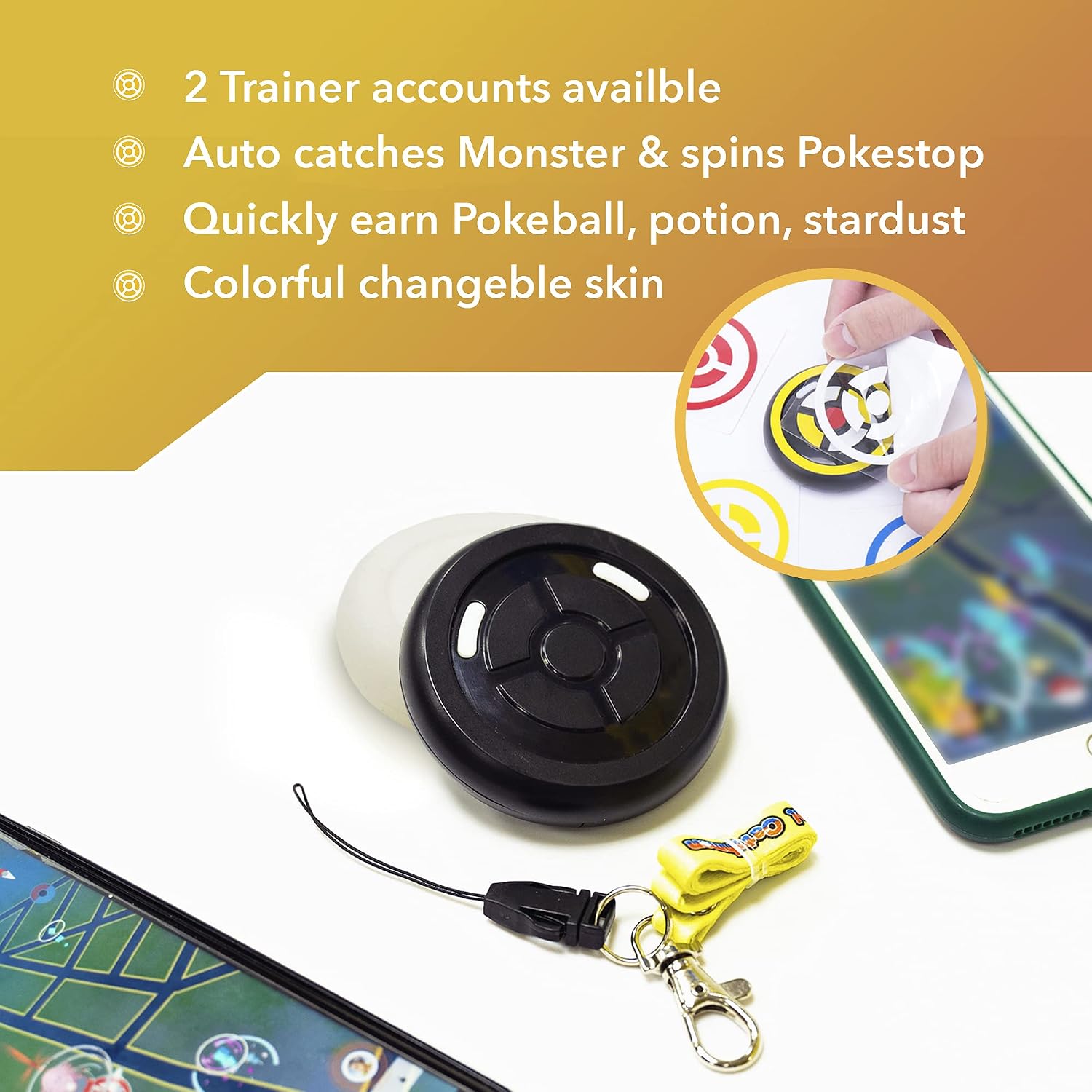
Image: The Dual Catchmon device showcasing its key features: support for two trainer accounts, automatic creature catching, automatic stop spinning, quick earning of in-game items, and colorful changeable skins.
What's in the Box
- MEGACOM Dual Catchmon device
- Wireless Charging Pad (for Pro version)
- USB-C Charging Cable
- Protective Pouch
- Lanyard/Key-ring chain
- Instruction Manual
Video: Unboxing the DuoMon 3 Pro, showing the wireless charging pad, USB-C charging cable, and the DuoMon 3 device itself.
Setup
- Insert Batteries: Open the battery compartment on the back of the Dual Catchmon and insert 2 AAA alkaline batteries (not included). Ensure correct polarity.
- Power On: Locate the ON/OFF switch on the side of the device and slide it to the 'ON' position.
- Download App: Download the "MEGACOM Center" app from your device's app store.
- Enable Bluetooth: Ensure Bluetooth is enabled on your smartphone.
- Pairing:
- Open the Pokémon GO app.
- Tap the Poké Ball icon to open the main menu.
- Tap "Settings" (gear icon).
- Scroll down and tap "Connected Devices and Services".
- Tap "Accessory Devices".
- Press the main button on your Dual Catchmon device to make it discoverable.
- Select the Dual Catchmon from the "Available Devices" list to begin pairing.
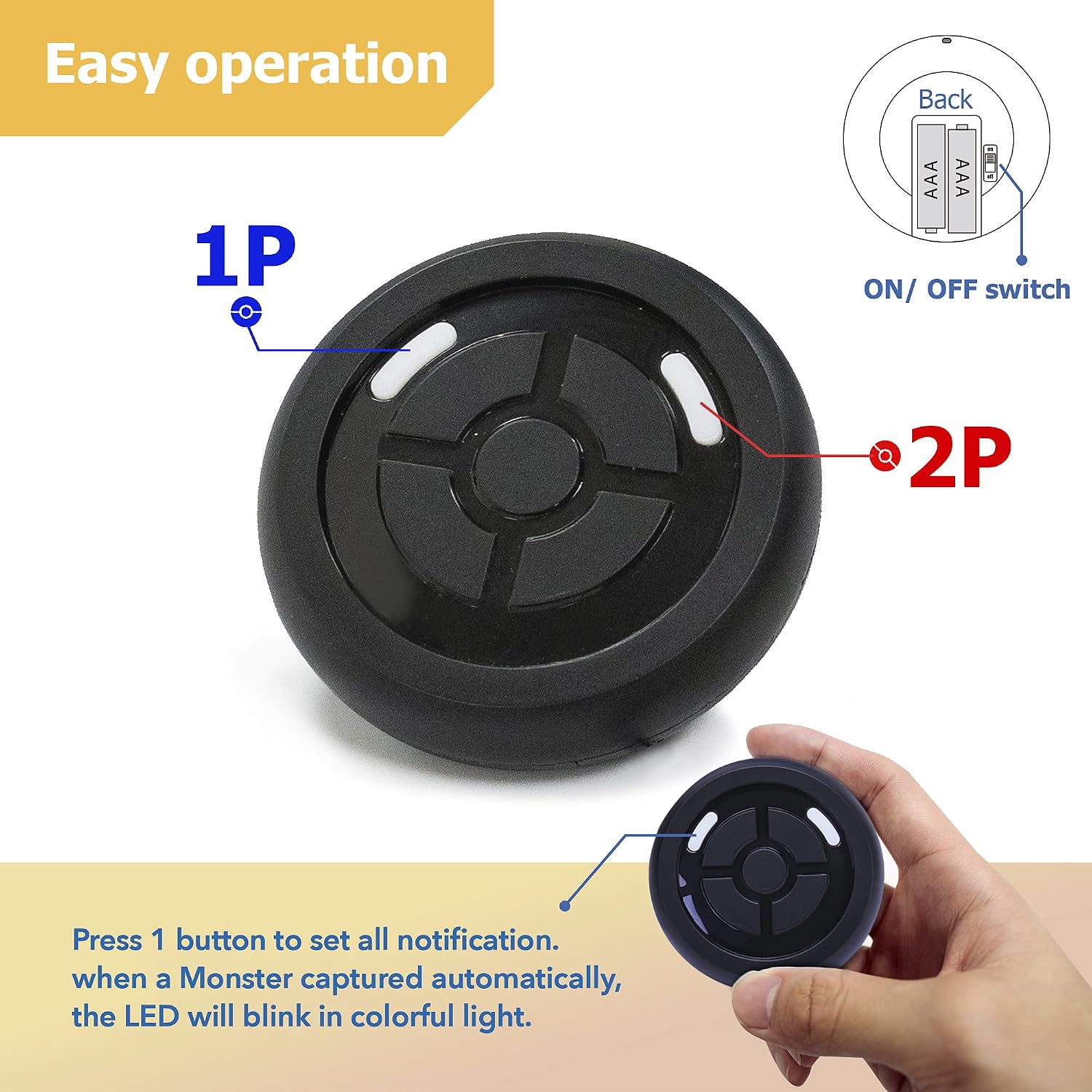
Image: The Dual Catchmon device, illustrating the location of the ON/OFF switch and the battery compartment. It also highlights the 1P and 2P buttons for individual player settings.
Operating Instructions
The Dual Catchmon allows for automatic creature catching and stop spinning for up to two accounts simultaneously. It provides notifications through LED blinks, beeping sounds, and vibration.
- Automatic Catching: Once connected, the device will automatically attempt to catch nearby creatures using standard Poké Balls.
- Automatic Spinning: The device will automatically spin nearby PokéStops to collect items.
- Notifications: The device uses LED lights, beeps, and vibrations to indicate various statuses such as creature appearance, successful catch, missed catch, and item collection.
- Notification Modes: You can adjust notification modes to turn off beeping sounds or vibration as desired.
- One-Touch Reconnect: The device supports one-touch reconnection to quickly re-establish connection with your game.
- Sleep Mode: The device can be set to sleep mode to conserve battery. Pressing the button three times quickly will return it to connected mode.

Image: The Dual Catchmon device displaying icons for sound, vibration, and LED notifications, indicating customizable alert options.

Image: A diagram illustrating the light functions of the Dual Catchmon: Blue light for Bluetooth reset, Green light for notification sound switch, and Purple light for vibration switch.
Charging
The Dual Catchmon offers both wired and wireless charging options (wireless charging pad included in Pro version). It uses 2 AAA alkaline batteries for operation, providing up to 600 hours of standby time.
Wireless Charging (Pro Version):
- Connect the USB-C charging cable to the wireless charging pad and a USB power source (not included).
- The wireless charging pad will light up with RGB lighting, then stay green, indicating it's ready.
- Place the Dual Catchmon device on the wireless charging pad. The indicator light on the Dual Catchmon will light up red to show it is charging.
Wired Charging:
- Open the protective cover on the side of the Dual Catchmon to reveal the USB-C port.
- Connect a USB-C cable (included) to the device and a USB power source. The indicator light will show charging status.
Video: Demonstrates connecting the USB-C cable to the wireless charging pad, showing the RGB lighting sequence, and then placing the DuoMon 3 device on the pad for charging (red indicator light).
Video: Shows the wireless charging pad lighting up with RGB, then green, indicating readiness. The DuoMon 3 is then placed on it, and its indicator light turns red for charging.
Maintenance
- Keep the device clean and dry. Avoid exposure to extreme temperatures or moisture.
- When not in use for extended periods, turn off the device to conserve battery life.
- Store the device in its protective pouch to prevent scratches or damage.
Troubleshooting
If you encounter connection issues, follow these steps:
- Press the button on the Dual Catchmon until the LED light turns blue.
- Press the button for 3 seconds.
- The LED will flash "blue-yellow" for 30 seconds to delete the Bluetooth settings on the Catchmon GO.
- Attempt to connect your game to Catchmon GO again following the 5-step startup process.
Important: Please clear the Bluetooth settings on Catchmon GO before connecting to another phone.

Image: A visual guide for troubleshooting connection issues, showing the steps to reset the Bluetooth settings on the Dual Catchmon device.
Specifications
| Item Weight | 1.1 Ounces |
| Product Dimensions | 2.76 x 2.76 x 0.71 inches |
| Power Source | Battery Powered (2 AAA batteries required) |
| Battery Description | AAA |
| Material | Plastic |
| Form Factor | Compact, Round |
| Display Type | Digital |
| Compatibility | iPhone 7 and above, Android 7.0 and above |
Warranty and Support
For warranty information or technical support, please refer to the official MEGACOM website or contact their customer service. Keep your purchase receipt for warranty claims.
Visit the MEGACOM Store on Amazon for more products and information.