
1. Introduction
Welcome to the Cooler Master CH321 Gaming Headset user manual. This document provides essential information for setting up, operating, maintaining, and troubleshooting your new headset. Please read this manual thoroughly to ensure optimal performance and longevity of your device.
2. Package Contents
Verify that all items are present in your package:
- 1 x Cooler Master CH321 Gaming Headset
3. Product Overview
The Cooler Master CH321 is a wired gaming headset designed for immersive audio and clear communication across multiple platforms. It features 50mm Neodymium audio drivers for high-quality sound and an omni-directional microphone with noise cancellation.
Key Features
- 50mm Neodymium Audio Drivers: Delivers rich, clear audio for an immersive gaming experience.
- Omni-Directional Microphone: Flexible, non-removable microphone with background noise cancellation for clear voice communication.
- Comfortable Design: Soft, removable PU leather ear cups and a flexible suspension headband ensure comfort during extended use.
- USB Type-A Connectivity: Compatible with PC, notebooks, PlayStation 4, and PlayStation 4 Pro.
- Built-in Sound Card: Enhances audio performance.
- RGB Logo: Features a stylish color-cycling RGB logo on the earcups.

Figure 1: Cooler Master CH321 Gaming Headset, front view. This image displays the headset from a front-side angle, highlighting the over-ear design, the flexible microphone, and the illuminated Cooler Master logo on the earcup.
4. Setup
Connecting the Headset
- Locate an available USB Type-A port on your computer, gaming console (PS4/PS4 Pro, Xbox), or notebook.
- Insert the USB Type-A connector of the CH321 headset firmly into the USB port.
- The headset is designed for plug-and-play functionality. Your operating system or console should automatically detect and install the necessary drivers.
- For PC users, verify the audio input and output settings in your operating system's sound control panel to ensure the CH321 is selected as the default device.

Figure 2: Headset with USB cable. This image shows a side view of the Cooler Master CH321 Gaming Headset, illustrating the integrated USB Type-A cable for connection.
5. Operating Instructions
Adjusting Volume
The CH321 headset features an in-line control for volume adjustment:
- To increase volume, roll the volume wheel upwards.
- To decrease volume, roll the volume wheel downwards.
Microphone Usage
The omni-directional microphone is designed for clear voice pickup with background noise cancellation:
- Position the microphone approximately 2-3 centimeters from your mouth for optimal voice clarity.
- To mute or unmute the microphone, adjust settings within your operating system's sound preferences or the communication application you are using.
Wearing the Headset
The flexible suspension headband automatically adjusts to your head size for a comfortable fit:
- Place the earcups over your ears, ensuring they fully cover them for optimal sound isolation.
- The soft PU leather earcups are designed for long-lasting comfort during extended use.
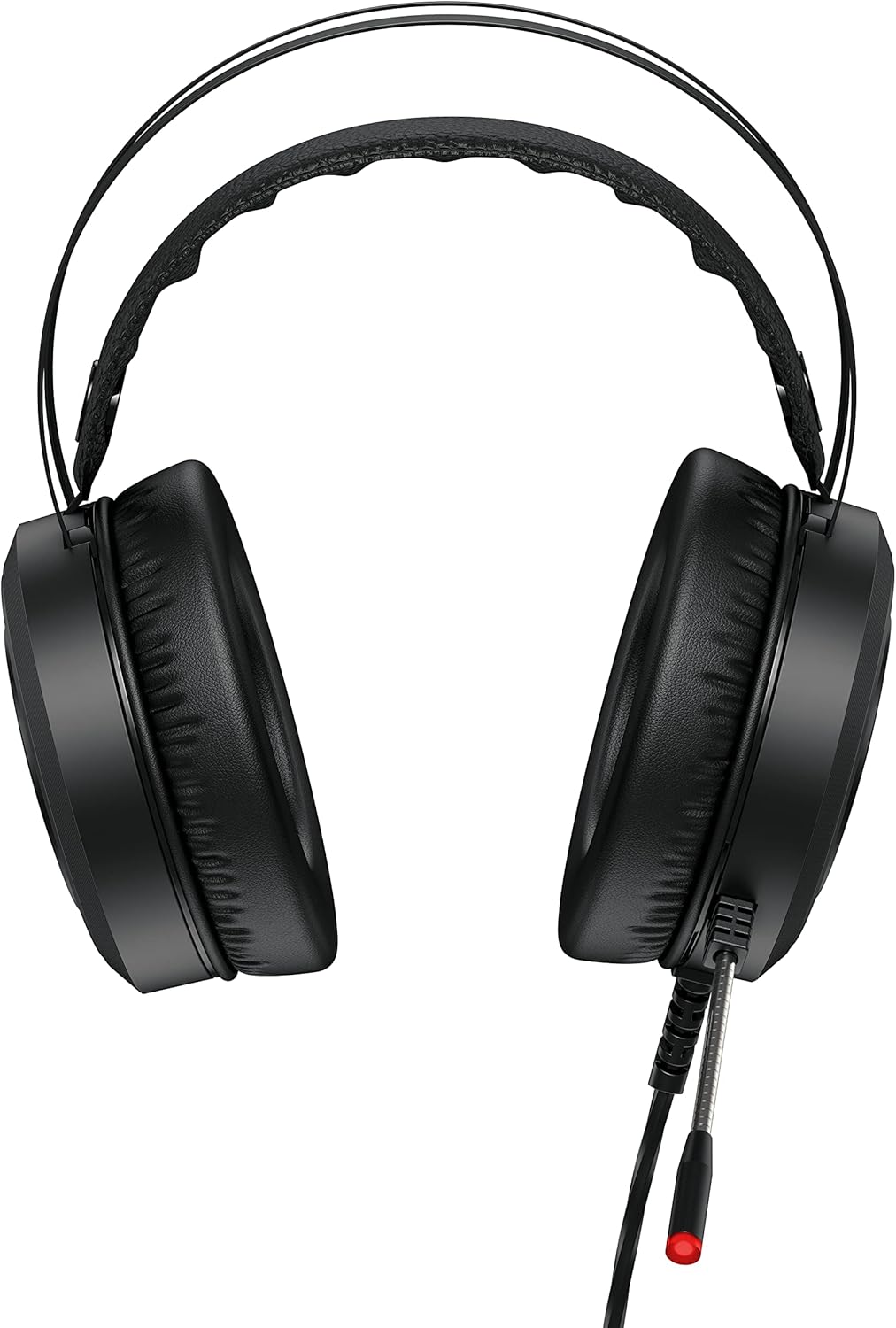
Figure 3: Side profile of the headset. This image shows the Cooler Master CH321 Gaming Headset from a side profile, highlighting the earcup design and the flexible microphone arm.
6. Maintenance
Cleaning
- Use a soft, dry cloth to gently wipe the headset's surfaces.
- Do not use harsh chemicals or abrasive cleaners, as these can damage the finish.
- The PU leather ear cups can be gently wiped with a slightly damp cloth if necessary, then dried immediately.
Storage
- Store the headset in a cool, dry place away from direct sunlight and extreme temperatures.
- Avoid placing heavy objects on the headset to prevent structural damage.
Cable Care
- Avoid sharp bends or twists in the USB cable to prevent internal wire damage.
- Do not pull the cable forcefully when disconnecting the headset from a device.
7. Troubleshooting
No Sound from Headset
- Check USB Connection: Ensure the USB connector is fully inserted into the port. Try a different USB port on your device.
- Verify System Settings: On your computer or console, check the audio output settings to confirm that the Cooler Master CH321 is selected as the default output device.
- Adjust Volume: Ensure the in-line volume control on the headset is turned up and not at its minimum setting. Also, check your system's master volume levels.
- Test on Another Device: If possible, test the headset on another compatible device to determine if the issue is with the headset or the original device.
Microphone Not Working
- Check System Settings: On your computer or console, verify the audio input settings to confirm that the Cooler Master CH321 Microphone is selected as the default input device.
- Application Settings: Ensure the microphone is enabled and selected within the communication application (e.g., Discord, Zoom, in-game chat) you are using.
- Microphone Position: Ensure the microphone is positioned correctly near your mouth for optimal voice pickup.
- Test on Another Device: If possible, test the headset on another compatible device to determine if the issue is with the headset or the original device.
Sound Distortion or Static
- Check USB Connection: Ensure the USB connector is securely connected. Loose connections can sometimes cause distortion or static.
- Interference: Move the headset away from other electronic devices that might cause electromagnetic interference.
- Volume Levels: Reduce volume levels if distortion occurs primarily at high volumes.
- Update Drivers: For PC users, ensure your operating system and USB audio drivers are up to date.
8. Specifications
| Feature | Detail |
|---|---|
| Model Name | CH321 |
| Model Number | CH-321 |
| Brand | Cooler Master |
| Connectivity | Wired (USB Type-A) |
| Audio Drivers | 50mm Neodymium |
| Frequency Response | 20 Hz - 20,000 Hz |
| Impedance | 16 Ohm |
| Microphone Type | Omni-Directional, Flexible |
| Noise Control | Sound Isolation, Microphone Noise Cancellation |
| Ear Placement | Over-Ear |
| Material | Faux Leather (Ear Cups) |
| Cable Length | 2.3 Meters |
| Item Weight | 256 Grams (approx. 9 ounces) |
| Compatible Devices | PC, Notebooks, PlayStation 4, PlayStation 4 Pro, Xbox |
9. Warranty and Support
For detailed warranty information and technical support, please refer to the official Cooler Master website or contact their customer service directly. It is recommended to keep your proof of purchase for any warranty claims.
Cooler Master Official Website: www.coolermaster.com


