
1. Introduction
Thank you for choosing the Rapoo VT200 Wired/Wireless Optical Gaming Mouse. This manual provides detailed instructions on how to set up, operate, and maintain your new gaming mouse. Please read this manual carefully to ensure optimal performance and longevity of your device.

Image 1.1: The Rapoo VT200 Dual-Mode Wired/Wireless Gaming Mouse. This image highlights the mouse's capability to operate in both wired and wireless modes, showcasing its versatile connectivity options for gamers.
2. Package Contents
Please check the package contents upon unboxing. If any items are missing or damaged, please contact your retailer.
- Rapoo VT200 Wired/Wireless Optical Gaming Mouse
- USB Receiver (for 2.4GHz wireless connection)
- USB Charging/Data Cable
- Quick Start Guide / User Manual
3. Product Overview and Features
The Rapoo VT200 is designed for gamers, offering high precision, customizable controls, and flexible connectivity.

Image 3.1: Labeled diagram of the Rapoo VT200 mouse. This image points out key features such as the DPI button, LED lighting, braided cable, ergonomic design, rubber grip, and programmable buttons, providing a visual guide to the mouse's components.
Key Features:
- Dual-Mode Connectivity: Seamlessly switch between wired USB connection and 2.4GHz wireless mode for versatile gaming.
- High-Precision Optical Sensor: Equipped with an advanced optical sensor (PMW3327) for accurate tracking and responsiveness, supporting up to 6200 DPI.
- Adjustable DPI: Cycle through multiple DPI settings on-the-fly to match your gaming style and precision needs.
- 8 Programmable Buttons: Customize button functions through dedicated software to execute complex commands with ease.
- RGB Backlight: Personalize your gaming setup with dynamic RGB lighting effects.
- Ergonomic Design: Crafted for comfort during extended gaming sessions, reducing hand fatigue.
- Onboard Memory: Save your custom profiles and settings directly to the mouse for use on any PC without software.
- Durable Switches: Built with high-quality switches rated for 60 million clicks for long-lasting performance.

Image 3.2: Detailed view of the Rapoo VT200 mouse with its buttons labeled. This image clearly indicates the Left Button, Right Button, Scroll Up/Down, DPI Button, Forward Button, and Backward Button, illustrating the mouse's ergonomic layout and accessible controls.

Image 3.3: The Rapoo VT200 mouse showcasing its vibrant RGB backlight. This image highlights the customizable lighting zones, adding an aesthetic element to the gaming experience.
4. Setup
4.1 Wired Connection
- Connect one end of the provided USB Charging/Data Cable to the USB port on the front of the Rapoo VT200 mouse.
- Connect the other end of the USB cable to an available USB port on your computer.
- The mouse will be automatically detected by your operating system and will be ready for use.
4.2 Wireless Connection (2.4GHz)
- Locate the USB receiver (dongle) included in the package.
- Plug the USB receiver into an available USB port on your computer.
- Ensure the mouse is powered on. If there is a power switch on the bottom of the mouse, slide it to the 'ON' position.
- The mouse should automatically connect to the receiver. If not, refer to the troubleshooting section.
4.3 Charging the Mouse
The Rapoo VT200 features a built-in rechargeable battery for wireless operation.
- Connect the USB Charging/Data Cable to the mouse and to a USB power source (e.g., computer USB port, USB wall adapter).
- The RGB lighting or a dedicated LED indicator on the mouse will show the charging status. Refer to the software or quick start guide for specific indicator behavior.
- A full charge typically takes a few hours. The mouse can be used in wired mode while charging.
4.4 Software Installation
To unlock the full customization potential of your Rapoo VT200 mouse, including button programming, DPI settings, and RGB lighting effects, download the official driver software from the Rapoo website:
Visit www.rapoo.com and navigate to the support or downloads section for the VT200 model. Follow the on-screen instructions to install the software.
5. Operating Instructions
5.1 DPI Adjustment
The Rapoo VT200 features a dedicated DPI button, usually located behind the scroll wheel. Press this button to cycle through preset DPI levels. The RGB lighting may change color to indicate the current DPI setting. Default DPI steps typically include 800, 1200, 1600, 2400, 3200, and up to 6200 DPI.
5.2 RGB Lighting Control
The RGB lighting effects can be customized using the Rapoo driver software. You can select from various lighting modes, colors, brightness levels, and speeds. Some basic lighting modes might be accessible via specific button combinations (refer to software documentation for details).
5.3 Button Programming
All 8 buttons on the Rapoo VT200 can be programmed using the official software. You can assign macros, keyboard functions, multimedia controls, and more to each button. Custom profiles can be created and saved to the mouse's onboard memory.
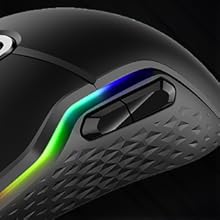
Image 5.1: Close-up view of the programmable side buttons on the Rapoo VT200 mouse. This image highlights the accessible placement of the forward and backward buttons, which can be customized for various in-game actions or productivity tasks.
6. Maintenance
6.1 Cleaning
- Disconnect the mouse from your computer before cleaning.
- Use a soft, dry, lint-free cloth to wipe the surface of the mouse.
- For stubborn dirt, slightly dampen the cloth with water or a mild cleaning solution (avoid harsh chemicals).
- Use a cotton swab or compressed air to clean around buttons and the optical sensor.
6.2 Storage
When not in use for extended periods, store the mouse in a cool, dry place away from direct sunlight and extreme temperatures.
7. Troubleshooting
7.1 Mouse Not Responding
- Wired Mode: Ensure the USB cable is securely connected to both the mouse and the computer. Try a different USB port.
- Wireless Mode: Ensure the USB receiver is properly plugged in. Check if the mouse is powered on. Ensure the mouse battery is charged. Try a different USB port for the receiver.
- Restart your computer.
7.2 Wireless Connection Issues
- Ensure the mouse is within the effective range (up to 10 meters) of the USB receiver.
- Avoid placing the receiver near other wireless devices or sources of interference (e.g., Wi-Fi routers, cordless phones).
- If the mouse and receiver lose connection, try re-pairing them. (Consult Rapoo support or software for specific re-pairing instructions if automatic connection fails).
7.3 Software Not Detecting Mouse
- Ensure the mouse is connected to the computer (either wired or wirelessly).
- Reinstall the Rapoo driver software.
- Temporarily disable any antivirus or firewall software that might be blocking the driver.
- Ensure your operating system is up to date.
8. Specifications

Image 8.1: The underside of the Rapoo VT200 mouse, showing the optical sensor and regulatory markings. This view highlights the precision tracking component and the overall build quality of the device.
| Feature | Specification |
|---|---|
| Model Name | Rapoo VT200 |
| Connectivity | Wired (USB) / Wireless (2.4GHz) |
| Sensor Type | Optical (PMW3327) |
| DPI Range | Up to 6200 DPI (Adjustable) |
| Programmable Buttons | 8 |
| Polling Rate | 1000Hz |
| Backlight | RGB |
| Onboard Memory | Yes |
| Switch Lifespan | 60 Million Clicks |
| Weight | 137 Grams |
| Compatibility | Windows, Mac, Linux |
9. Warranty and Support
9.1 Warranty Information
The Rapoo VT200 Gaming Mouse comes with a 2-year limited warranty from the date of purchase. This warranty covers manufacturing defects and workmanship under normal use. It does not cover damage caused by misuse, accidents, unauthorized modifications, or normal wear and tear.
Please retain your proof of purchase for warranty claims.
9.2 Customer Support
For technical support, warranty claims, or further assistance, please visit the official Rapoo website or contact their customer service:
- Website: www.rapoo.com
- Refer to the website for regional contact information and support resources.
Manufacturer: Shenzhen RAPOO Technology Co. Limited, 22, Jinxiu Road East, Pingshan District, Shenzhen, China.