
Introduction
The SanDisk Ultra USB Type-C Flash Drive is designed for easy storage and sharing of files. This USB 3.1 Gen 1 drive seamlessly connects to USB Type-C laptops, phones, and tablets, eliminating the need for adapters. With large capacities and high transfer speeds, you can manage your data efficiently, even without internet access. The drive also includes applications and services for enhanced data protection.

Image: The SanDisk Ultra USB Type-C Flash Drive, showcasing its sleek black design and USB-C connector.
Product Features
- High-performance USB 3.1 Gen 1: Designed for computers, smartphones, and tablets with a USB Type-C port, enabling quick storage and transfer of photos, videos, and other files between devices. (Note: Smartphone or tablet requires On-The-Go (OTG) support.)
- Fast Transfer Speeds: Experience lightning-fast read speeds up to 150MB/s. Write speeds may vary by capacity, but can transfer a full-length movie in under 30 seconds. (Note: USB 3.1 Gen 1 or USB 3.0 port required. Performance may vary based on host device and other factors.)
- Slim Retractable Design: The compact, retractable design ensures more space for other ports on your host device, preventing obstruction.
- SanDisk SecureAccess Software: Helps keep private files secure with password-protected encryption. (Note: Password protection uses 128-bit AES encryption and is supported by Windows 7, 8, 10, and MacOS v10.9+. Software download required for Mac.)
- SanDisk Memory Zone Application: Easily manage and back up content on your Android smartphone or tablet with this included application. (Note: Installation required.)
- RescuePRO Deluxe Software: Recover accidentally deleted files with this included software. (Note: Download, installation, and registration required; terms and conditions apply.)

Image: The flash drive plugged into a smartphone, demonstrating its direct connectivity for mobile devices.
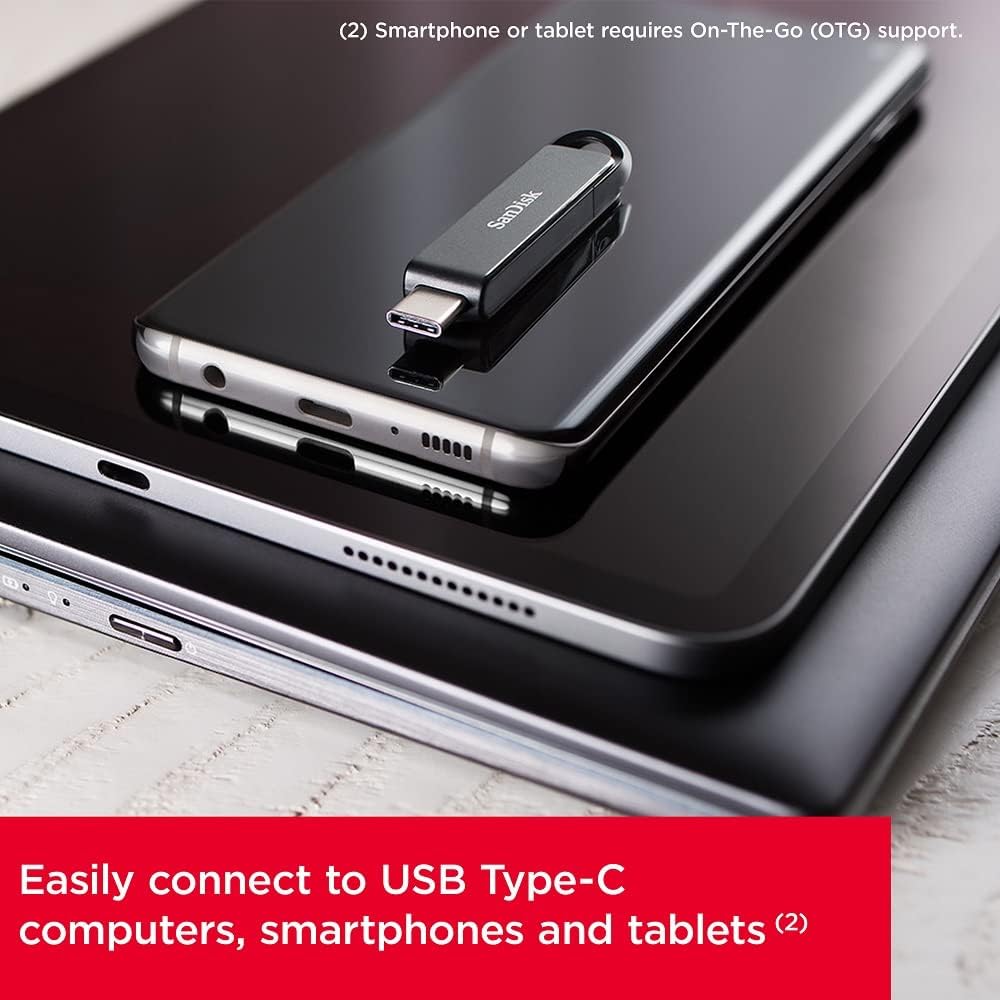
Image: The flash drive positioned on various USB-C compatible devices, illustrating its versatility.

Image: A visual representation of fast data transfer from a computer to the flash drive.
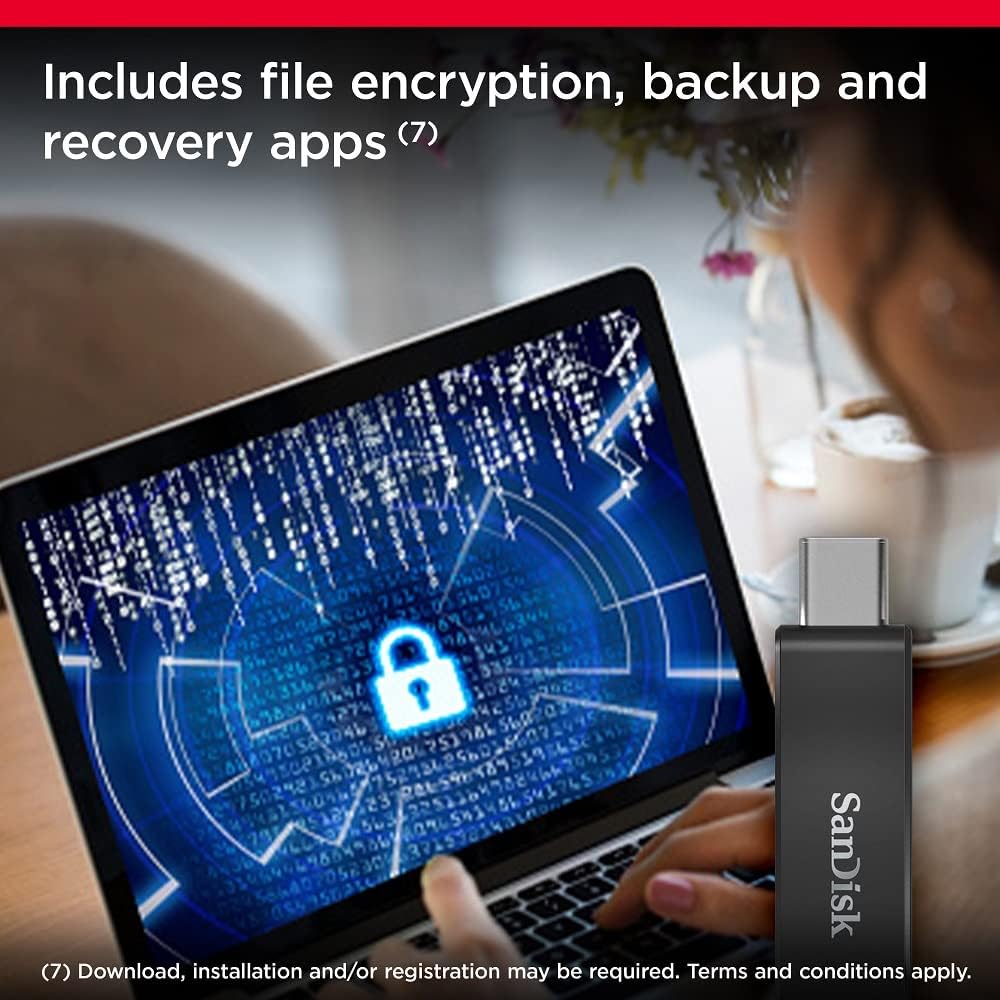
Image: The flash drive alongside a laptop screen, highlighting its data encryption capabilities.

Image: The flash drive connected to a laptop, showcasing its slim design that allows other ports to remain usable.
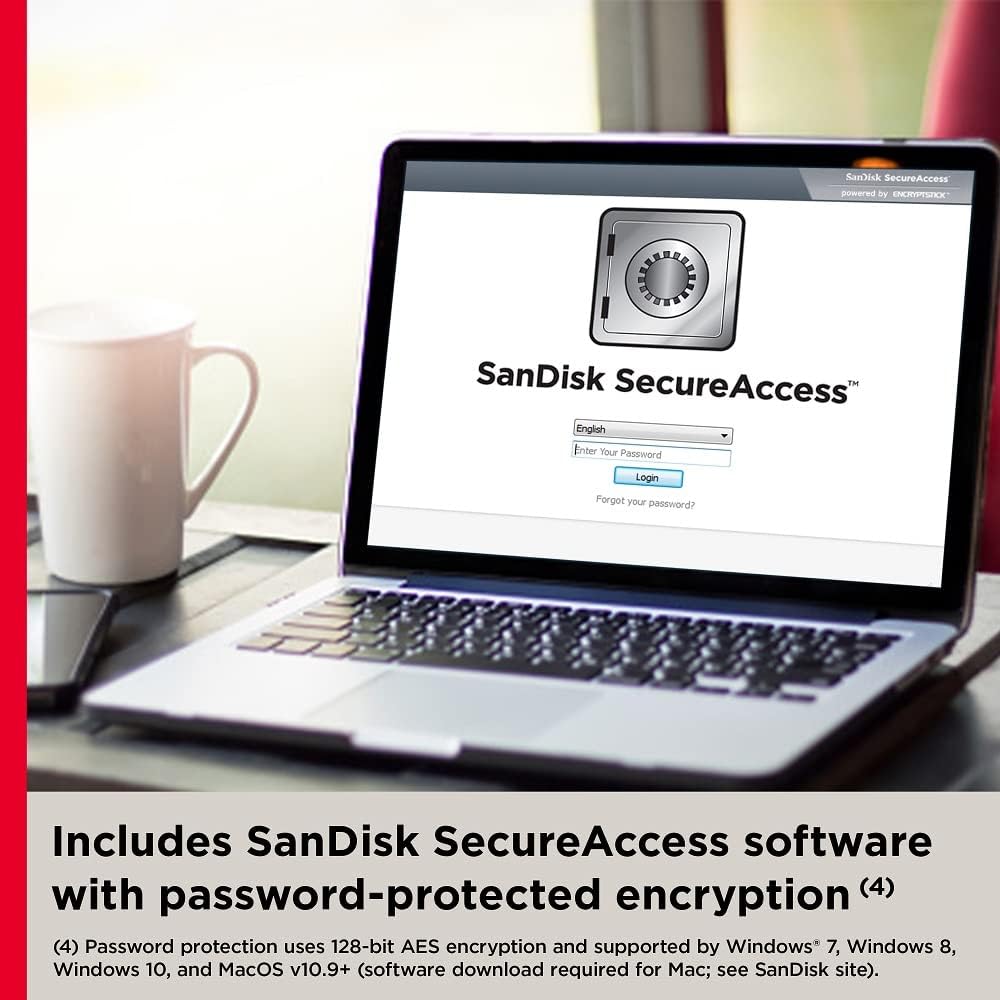
Image: A laptop screen displaying the SanDisk SecureAccess software, illustrating its security features.
Setup
The SanDisk Ultra USB Type-C Flash Drive is designed for plug-and-play functionality with compatible devices. No complex installation is required for basic use.
Connecting to a Device:
- Locate the USB Type-C port on your computer, smartphone, or tablet.
- Extend the USB-C connector from the flash drive by sliding the mechanism.
- Carefully insert the USB-C connector of the flash drive into the device's USB Type-C port. Ensure it is fully seated.
- Your device should automatically detect the flash drive. On most operating systems, a notification will appear, or the drive will be accessible through your file explorer (e.g., 'This PC' on Windows, 'Finder' on macOS, or a file manager app on Android).
For smartphones and tablets, ensure your device supports USB On-The-Go (OTG) for proper functionality.
Operating the Device
File Transfer:
- Once the flash drive is connected and recognized by your device, open your device's file manager or explorer.
- Navigate to the files you wish to transfer (e.g., documents, photos, videos).
- Select the desired files or folders.
- Copy or cut the selected items.
- Navigate to the SanDisk Ultra USB Type-C Flash Drive in your file manager.
- Paste the copied or cut items into the desired location on the flash drive.
Using SanDisk Software:
- SanDisk SecureAccess Software: This software allows you to create a password-protected folder on your drive to secure sensitive files. Download and install the software from the official SanDisk website. Follow the on-screen instructions to set up your vault.
- SanDisk Memory Zone App (for Android): Download and install the SanDisk Memory Zone app from the Google Play Store. This app helps you organize, manage, and back up files on your Android smartphone or tablet, including those on your SanDisk flash drive.
- RescuePRO Deluxe Software: If you accidentally delete files, you can use the RescuePRO Deluxe software to attempt recovery. A download link and registration details are typically provided with your purchase or can be found on the SanDisk support website.
Maintenance
Proper care of your SanDisk Ultra USB Type-C Flash Drive will ensure its longevity and reliable performance.
- Safe Ejection: Always safely eject the flash drive from your device before physically removing it. This prevents data corruption and ensures all write operations are completed. On Windows, right-click the drive icon in 'This PC' and select 'Eject'. On macOS, drag the drive icon to the Trash or click the Eject button next to the drive in Finder. On Android, use the 'Unmount' or 'Eject' option in your device's storage settings.
- Physical Protection: Keep the drive clean and free from dust and debris. Use the retractable connector feature to protect the USB-C plug when not in use. Avoid exposing the drive to extreme temperatures, direct sunlight, or high humidity.
- Avoid Physical Impact: Do not drop the drive or subject it to strong impacts, as this can damage internal components.
- Data Backup: While the drive is reliable, it is always recommended to keep important data backed up on multiple storage devices or cloud services to prevent data loss.
Troubleshooting
If you encounter issues with your SanDisk Ultra USB Type-C Flash Drive, try the following common troubleshooting steps:
- Drive Not Recognized:
- Ensure the drive is fully inserted into the USB-C port.
- Try a different USB-C port on your device.
- Test the drive on another computer or compatible device to rule out a device-specific issue.
- Restart your computer or device.
- Check your device's Device Manager (Windows) or System Information (macOS) to see if the drive is listed, even if it's not assigned a drive letter.
- Slow Transfer Speeds:
- Ensure you are using a USB 3.1 Gen 1 or USB 3.0 compatible port. Older USB 2.0 ports will result in significantly slower speeds.
- Transferring many small files can be slower than transferring a few large files.
- Close other applications that might be using system resources or accessing the drive.
- Ensure your device's drivers are up to date.
- Cannot Write Files to Drive (Read-Only):
- The drive might be formatted with a file system that is read-only on your operating system (e.g., NTFS on macOS without third-party software).
- The drive might be corrupted. Try formatting the drive (this will erase all data).
- Check if the drive has reached its storage capacity.
- Data Corruption:
- Always safely eject the drive before removal.
- Run a disk check utility (e.g., 'Error checking' on Windows, 'Disk Utility' on macOS) to scan and repair potential errors.
- If data is lost, consider using the included RescuePRO Deluxe software.
If these steps do not resolve your issue, please refer to the SanDisk support website for further assistance.
Specifications
| Feature | Detail |
|---|---|
| Brand | SanDisk |
| Model Name | SDDDC2-256G-A46 |
| Item model number | SDCZ460-256G-G46 |
| Memory Storage Capacity | 256 GB |
| Flash Memory Type | USB |
| Hardware Interface | USB 3.0 |
| Connectivity Technology | USB |
| Read Speed | 150 Megabytes Per Second |
| Write Speed | less than 150MB/s |
| Color | Black |
| Product Dimensions | 5.91"D x 3.94"W x 0.39"H |
| Item Weight | 0.152 ounces |
| Hardware Platform | PC, Mac |
| Operating System | windows |
| Compatible Phone Models | Phones with USB-C port, such as certain Samsung and Google Pixel models |
| Special Feature | Retractable Connector; Encrypted |
Warranty and Support
SanDisk products are manufactured to the highest standards and undergo rigorous testing. For detailed warranty information, please refer to the documentation included with your product or visit the official SanDisk website.
Protection Plans:
Optional protection plans are available to provide extended coverage for your device and data:
- 2-year Photo and Data Recovery Plan: Available for $3.99.
- 3-year Photo and Data Recovery Plan: Available for $4.99.
These plans offer additional peace of mind beyond the standard product warranty.
Customer Support:
For technical support, product registration, or to access FAQs and driver downloads, please visit the official SanDisk support website:
You can also find more information and contact options through the SanDisk store on Amazon: Visit the SanDisk Store


