
Introduction
This manual provides instructions for the proper setup, operation, and maintenance of your NEDIS Auxiliary Wired Lavalier Microphone, model MICCJ105BK. This microphone is designed for clear audio capture with various devices.
Package Contents
Please verify that all items listed below are included in your package:
- 1 x NEDIS Auxiliary Wired Lavalier Microphone (MICCJ105BK)
- 1 x Clip
- 1 x Foam Windscreen
- 1 x 3.5mm Y-Splitter Cable (for devices with separate audio input/output)
- 1 x Storage Pouch
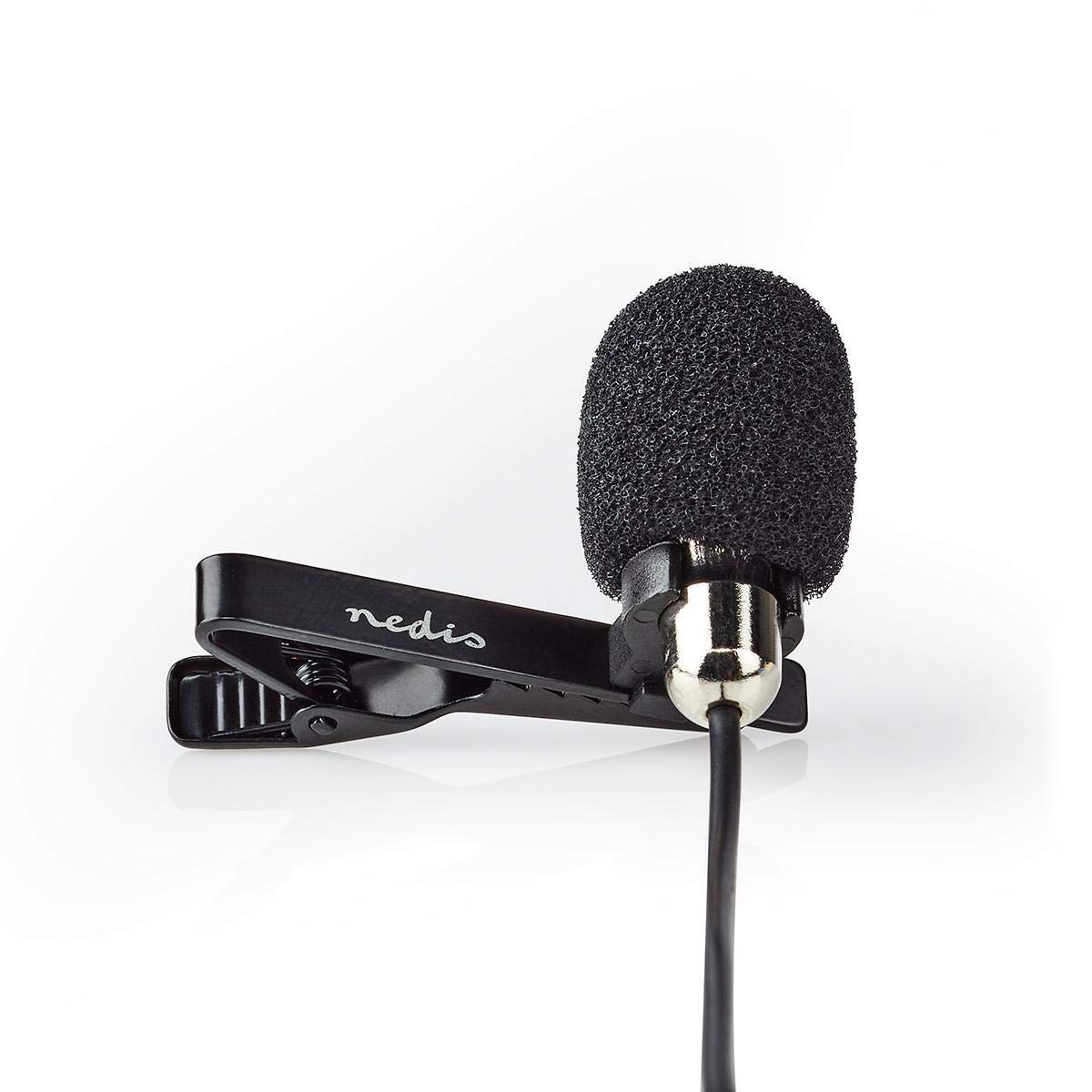
Image: Complete package contents of the NEDIS lavalier microphone.
Setup Instructions
1. Attaching the Microphone
- Gently slide the foam windscreen over the microphone capsule. This helps reduce wind noise and plosives.
- Attach the clip to the microphone body.
- Secure the microphone to your clothing, such as a lapel or collar, approximately 15-20 cm (6-8 inches) from your mouth for optimal sound capture.

Image: Close-up of the microphone with windscreen and clip.
2. Connecting to Your Device
The microphone features a 3.5mm TRRS jack for wide compatibility.
- For Smartphones, Tablets, and Laptops with a single 3.5mm TRRS port (headphone/microphone combo jack): Plug the microphone's 3.5mm jack directly into your device's audio port.
- For Cameras, PCs, or Laptops with separate 3.5mm microphone input and headphone output ports: Use the included 3.5mm Y-splitter cable. Plug the microphone into the microphone input (usually pink or marked with a microphone icon) on the Y-splitter, then plug the Y-splitter into your device's audio ports.

Image: The 3.5mm Y-splitter cable.
No external batteries or software installations are required for operation.
Operating Instructions
Once connected, the microphone is ready for use. Ensure your device's audio input settings are configured to use the external microphone.
- Recording: Open your preferred audio or video recording application on your device. The device should automatically detect the external microphone.
- Placement: For optimal sound quality, position the microphone approximately 15-20 cm (6-8 inches) from the sound source (e.g., your mouth). Avoid placing it too close to rustling clothing or jewelry.
- Monitoring: If using the Y-splitter, you can connect headphones to the headphone output (usually green or marked with a headphone icon) to monitor your audio during recording.
Features
- Wide compatibility with computers, smartphones, and other devices featuring a microphone input.
- Plug and play functionality; no batteries, app downloads, or complex configurations needed.
- Frequency response of 50 Hz to 16 kHz for clear audio capture.
- 1.8-meter cable length for flexible positioning and movement.
- Suitable for various applications including vlogging, filmmaking, gaming, online conversations, webinars, podcasts, and interviews.
Specifications
| Specification | Value |
|---|---|
| Brand | NEDIS |
| Model Number | MICCJ105BK |
| Connectivity Technology | Auxiliary |
| Connector Type | 3.5mm Jack |
| Special Feature | Clip-on design |
| Compatible Devices | Camera, Personal Computer, Smartphone, Tablet |
| Polar Pattern | Omnidirectional |
| Audio Sensitivity | 30 Decibels |
| Impedance | 1000 Ohms |
| Power Source | Device Powered (no external batteries required) |
| Signal-to-Noise Ratio | 58 dB |
| Frequency Response | 50 Hz - 16 kHz |
| Item Weight | 0.07 Kilograms |
| Cable Length | 1.8 meters |
| Colour | Black |
| Enclosure Material | Metal |
Maintenance
- Cleaning: Use a soft, dry cloth to clean the microphone body. Do not use liquid cleaners or solvents.
- Storage: When not in use, store the microphone in the provided pouch to protect it from dust and damage.
- Cable Care: Avoid sharp bends or kinks in the cable to prevent internal wire damage.
Troubleshooting
- No Sound/Low Volume:
- Ensure the microphone is fully plugged into the correct port on your device or the Y-splitter.
- Check your device's audio input settings to confirm the external microphone is selected and the input volume is adequate.
- If using a Y-splitter, ensure the microphone is plugged into the microphone input (often pink).
- Poor Sound Quality/Static:
- Ensure the foam windscreen is properly installed to reduce environmental noise.
- Check for any loose connections.
- Test the microphone with another device to rule out device-specific issues.
- Keep the microphone away from strong electromagnetic interference sources.
Warranty and Support
For warranty information or technical support, please refer to the documentation provided with your purchase or visit the official NEDIS website. Keep your proof of purchase for any warranty claims.
