
Introduction
This manual provides essential information for the safe and efficient operation of your LG UN73 Series 50UN7300PUF 4K UHD Smart TV. Please read this manual thoroughly before using your TV and retain it for future reference.
Important Safety Instructions
Always follow basic safety precautions when using this product to reduce the risk of fire, electric shock, or injury.
- Power: Ensure the power cord is securely plugged into a grounded outlet. Do not overload electrical outlets.
- Ventilation: Do not block ventilation openings. Allow adequate space around the TV for proper airflow.
- Cleaning: Unplug the TV before cleaning. Use a soft, dry cloth. Avoid liquid cleaners or sprays directly on the screen.
- Water and Moisture: Do not expose the TV to rain or moisture. Keep liquids away from the TV.
- Placement: Place the TV on a stable, level surface. Avoid placing it in direct sunlight or near heat sources.
- Servicing: Do not attempt to service this product yourself. Refer all servicing to qualified service personnel.
What's in the Box
Verify that all components are present upon unpacking your new LG TV.
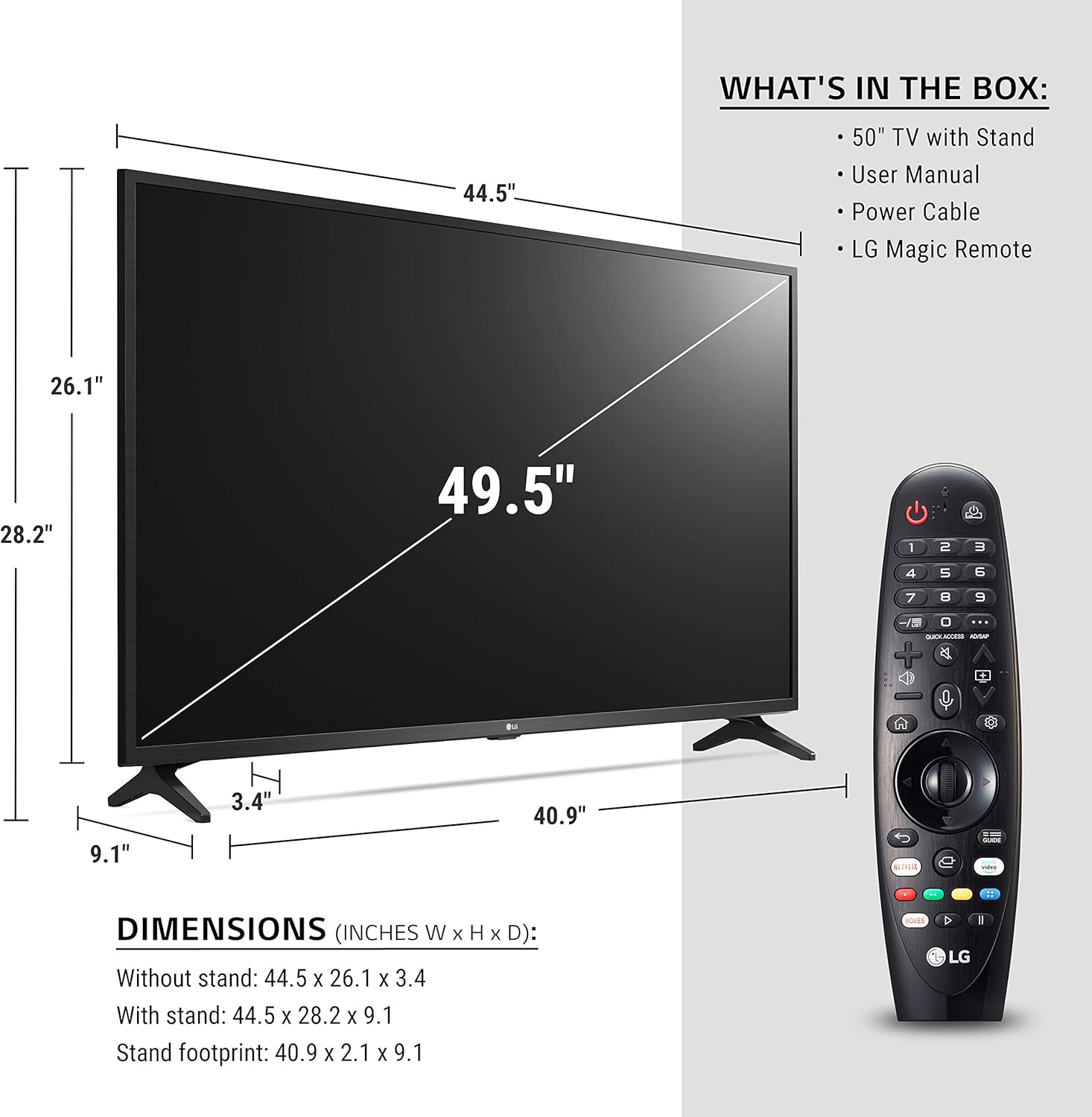
The image above illustrates the LG 50UN7300PUF television along with its standard accessories: the TV unit with its stand, a user manual, a power cable, and the LG Magic Remote.
- LG 50UN7300PUF 4K UHD Smart TV
- Magic Remote Control
- Power Cable
- E-Manual (pre-installed on TV)
- TV Stand (2 pieces)
- Screws for Stand Assembly
Setup
Physical Installation
Carefully remove the TV from its packaging. For wall mounting, refer to the wall mount kit instructions. For stand installation:
- Place the TV screen-down on a soft, flat surface to prevent damage.
- Attach the stand bases to the TV using the provided screws. Ensure they are securely fastened.
Connecting Peripherals
The LG 50UN7300PUF TV features multiple input ports for various devices.

This image displays the rear panel of the LG 50UN7300PUF television, highlighting the available connectivity options such as HDMI ports, USB ports, and an Ethernet port for wired internet connection.
- HDMI Ports: Connect Blu-ray players, game consoles, and other HDMI-enabled devices.
- USB Ports: Connect USB storage devices for media playback.
- Ethernet Port: For a stable wired internet connection.
- Antenna/Cable Input: For connecting an antenna or cable TV.
Initial Power-On and Network Connection
After connecting the power cable and turning on the TV, follow the on-screen instructions for initial setup. This includes selecting your language, country, and connecting to your home network.
The video above shows the process of connecting an LG Smart TV to a wireless (Wi-Fi) network during the initial setup. It illustrates navigating the on-screen keyboard to enter network credentials.
Operating Your LG Smart TV
The LG Magic Remote
The LG Magic Remote provides intuitive control over your TV with point-and-click functionality, voice commands, and a scroll wheel.

This image displays the LG Magic Remote, highlighting its ergonomic design and key features such as the scroll wheel, dedicated app buttons, and voice command button.
The video above demonstrates the various functions of the LG Magic Remote, including its pointer, scroll wheel, and voice control features, and how it can be used to navigate the webOS interface and control external devices.
webOS Smart TV Platform
Your LG TV runs on the webOS platform, offering a user-friendly interface for accessing streaming services, apps, and smart features.
The video above provides an overview of LG's webOS, demonstrating how to access various streaming services, apps, and smart features through its intuitive interface.
App Launcher Bar
Access your favorite apps and streaming services directly from the customizable launcher bar at the bottom of the screen.
Voice Control (Google Assistant & Alexa Built-in)
Use the built-in microphone on your Magic Remote to issue voice commands for searching content, controlling TV functions, and interacting with Google Assistant or Amazon Alexa.
LG Channels
Enjoy over 180 free LG channels streaming across various categories like news, sports, and comedy.
Home Dashboard
Manage your connected smart home devices and LG ThinQ AI appliances directly from the Home Dashboard.
Sports Alert
Receive real-time alerts for your favorite sports teams, including game start notifications and score updates.
Gallery Mode
Transform your TV into a digital art display when not in use, showcasing a variety of paintings and photographs.
Who Where What
Get real-time information about actors, locations, and music featured in the content you are watching.
Maintenance
Cleaning Your TV
- Always unplug the TV before cleaning.
- Use a soft, dry cloth to wipe the screen and exterior. Do not use liquid cleaners or sprays directly on the TV.
Software Updates
- Ensure your TV is connected to the internet to receive automatic software updates, which improve performance and add new features.
Troubleshooting
No Power
- Check if the power cord is securely plugged into both the TV and the wall outlet.
- Ensure the wall outlet is functioning by plugging in another device.
No Picture or Sound
- Verify that the correct input source is selected (e.g., HDMI 1, TV).
- Check all cable connections (HDMI, antenna) for looseness.
- Restart the TV by unplugging it for 30 seconds and plugging it back in.
Remote Control Not Working
- Replace the batteries in the Magic Remote.
- Ensure there are no obstructions between the remote and the TV.
- Re-pair the Magic Remote with the TV if necessary (refer to the on-screen instructions or LG support).
Network Connection Issues
- Check your router and modem to ensure they are powered on and functioning correctly.
- Try restarting your router and modem.
- If using Wi-Fi, try a wired Ethernet connection to rule out wireless interference.
Specifications
| Feature | Specification |
|---|---|
| Screen Size | 50 Inches |
| Max Screen Resolution | 3840 x 2160 (4K UHD) |
| Display Technology | LED |
| Refresh Rate | 60 Hz |
| Operating System | webOS |
| Connectivity | Bluetooth, Ethernet, HDMI (multiple), USB (2), Wireless |
| Special Features | Active HDR, FilmMaker Mode, Bluetooth Surround Ready, Google Assistant & Alexa Built-in, Apple Airplay 2 / Homekit, LG ThinQ AI with Magic Remote |
| Item Weight | 19.96 pounds |
| Product Dimensions (LxWxH) | 3 x 38 x 22 inches |
Warranty and Support
For detailed warranty information, technical assistance, and customer support, please visit the official LG website or contact LG customer service directly.