
Introduction
This manual provides detailed instructions for the setup, operation, and maintenance of your Midiplus EZ8 MIDI Keyboard Controller. Please read this manual thoroughly before using the device to ensure proper functionality and to prevent damage. Keep this manual for future reference.
Product Overview
The Midiplus EZ8 is an 88-key full-size MIDI keyboard controller designed for music production and performance. It features touch-sensitive keys and a compact design, making it suitable for various studio and live applications. The controller is powered via USB and does not require additional drivers for most operating systems.
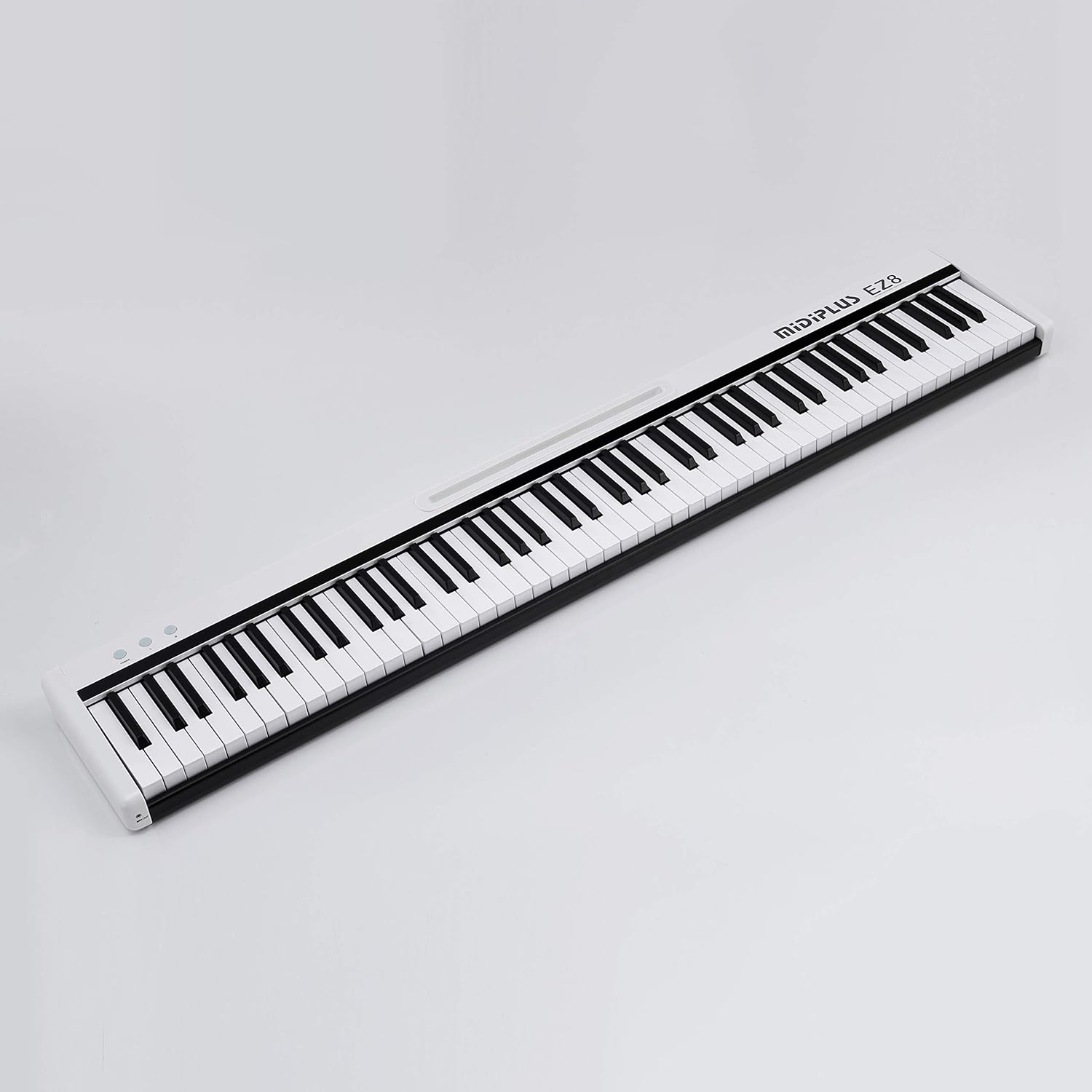
Image: Full view of the Midiplus EZ8 MIDI Keyboard Controller, showcasing its 88 keys and compact design.
Key Features:
- 88 full-size, touch-sensitive keys
- Transpose buttons for octave shifting
- Sustain pedal interface
- Expression pedal interface
- USB interface for power and MIDI data
- MIDI OUT interface for external MIDI devices
- Driver-free operation (built-in USB audio driver)
- USB powered
Package Contents:
- Midiplus EZ8 MIDI Keyboard Controller
- Sustain Pedal
- Expression Pedal
- USB Cable
- User Manual (this document)
Setup
Follow these steps to set up your Midiplus EZ8 MIDI Keyboard Controller:
- Connect the USB Cable: Connect one end of the provided USB cable to the USB port on the back panel of the EZ8 controller. Connect the other end to an available USB port on your computer (PC or Mac). The controller will power on automatically.
- Connect Pedals (Optional): If you wish to use a sustain pedal or expression pedal, connect them to their respective interfaces on the back panel of the EZ8. Ensure the pedals are fully inserted.
- Computer Recognition: Your computer should automatically recognize the EZ8 as a MIDI device. No additional drivers are typically required.
- Software Setup: Open your preferred Digital Audio Workstation (DAW) or music software (e.g., Ableton Live, Avid Pro Tools, FL Studio). Navigate to the MIDI settings or preferences within your software and select the Midiplus EZ8 as your MIDI input device.

Image: Close-up view of the Midiplus EZ8's control panel and rear ports, showing the USB, pedal, and MIDI OUT connections.
Operating Instructions
Playing the Keyboard:
- Once connected and configured in your software, you can begin playing the keys. The EZ8 features touch-sensitive keys, meaning the velocity (how hard or soft you press a key) will affect the sound's dynamics in your software.
Using Transpose Buttons:
- The EZ8 includes transpose buttons, typically labeled with up and down arrows or similar indicators. These buttons allow you to shift the pitch of the entire keyboard up or down by octaves. Refer to the markings on your specific unit for exact button functions.
MIDI OUT Functionality:
- The MIDI OUT port on the front panel allows you to connect the EZ8 to external MIDI hardware devices, such as synthesizers, sound modules, or other MIDI controllers. Use a standard 5-pin MIDI cable for this connection.
Connections
The Midiplus EZ8 offers several connection options:
- USB Port: Located on the back panel. This port provides both power to the unit and transmits MIDI data to and from your computer.
- Sustain Pedal Interface: Located on the back panel. Connect a standard sustain pedal here for piano-like sustain effects.
- Expression Pedal Interface: Located on the back panel. Connect an expression pedal here to control various parameters in your software, such as volume or modulation.
- MIDI OUT Interface: Located on the front panel. Use this to send MIDI data from the EZ8 to other MIDI-compatible hardware devices.
Maintenance
Proper care will ensure the longevity of your Midiplus EZ8:
- Cleaning: Use a soft, dry cloth to wipe the surface of the keyboard. For stubborn dirt, a slightly damp cloth can be used, followed by a dry cloth. Avoid using abrasive cleaners, solvents, or waxes, as these can damage the finish.
- Storage: When not in use, store the keyboard in a clean, dry environment away from direct sunlight, extreme temperatures, and excessive humidity. If transporting, use a protective case.
- Avoid Liquids: Keep liquids away from the keyboard to prevent internal damage.
- Handle with Care: Avoid dropping the keyboard or subjecting it to strong impacts.
Troubleshooting
If you encounter issues with your Midiplus EZ8, refer to the following common problems and solutions:
- No Sound from Software:
- Ensure the EZ8 is properly connected via USB and powered on.
- Verify that the EZ8 is selected as the MIDI input device in your DAW or music software's preferences.
- Check that the software instrument or track is armed for recording or monitoring MIDI input.
- Confirm that your software's master volume and instrument volume are not muted or set too low.
- Inconsistent Key Velocity or Unresponsive Keys:
- Ensure the USB cable is securely connected at both ends. A loose connection can cause intermittent data transmission.
- Try connecting the EZ8 to a different USB port on your computer.
- Test the keyboard with a different DAW or MIDI monitoring software to rule out software-specific issues.
- If certain keys are consistently unresponsive, gently clean around the key with a soft, dry cloth. Avoid forcing keys.
- Transpose Buttons Not Working:
- Ensure you are pressing the transpose buttons correctly. Some controllers require a combination press or a specific sequence.
- Check if your DAW or software has its own transpose settings that might be overriding the controller's function.
- Pedals Not Responding:
- Ensure the sustain and expression pedals are fully inserted into their correct ports on the back of the EZ8.
- Verify that your software instrument supports sustain and expression pedal input.
- Test with a different pedal if available to determine if the issue is with the pedal itself.
Specifications
| Feature | Specification |
|---|---|
| Model Name | EZ8 |
| Number of Keys | 88 |
| Key Type | Full-size, Touch-sensitive |
| Connectivity Technology | USB |
| Hardware Interface | USB |
| Compatible Devices | Laptop, Desktop, Music Production Software |
| Supported Software | Ableton Live, Avid Pro Tools, FL Studio (and others) |
| Hardware Platform | PC/Mac |
| Material Type | Plastic |
| Item Weight | 17.86 pounds (approx. 8.1 kg) |
| Package Dimensions | 54.8 x 11.6 x 6 inches (approx. 139.2 x 29.5 x 15.2 cm) |
Warranty and Support
For warranty information and technical support, please refer to the documentation provided at the time of purchase or visit the official Midiplus website. If you encounter issues not covered in this manual, please contact Midiplus customer support for assistance.


