
1. Introduction
The Fortinet FortiGate 61F is a compact, fanless desktop security appliance designed to provide robust security and SD-WAN capabilities for enterprise branch offices and mid-sized businesses. This device integrates advanced threat protection, secure SD-WAN, and comprehensive management features to safeguard network infrastructure.
Key features include:
- Industry-leading secure SD-WAN for optimized application performance and security.
- Protection against malware, exploits, and malicious websites through deep inspection of network traffic.
- Continuous threat intelligence from AI-powered FortiGuard Labs security services.
- High-performance threat protection and ultra-low latency utilizing purpose-built Security Processor Unit (SPU) technology.
- Comprehensive network automation and visibility via an intuitive Management Console.
- Zero Touch Integration with Fortinet Security Fabric for broader visibility and automated remediation.

Figure 1: Front view of the Fortinet FortiGate 61F appliance.
2. Setup and Installation
2.1 Unpacking and Contents
Before installation, carefully unpack the FortiGate 61F appliance and verify that all components are present. The standard package includes:
- FortiGate 61F Appliance (Base Unit)
- Power Adapter
- Ethernet Cable
- Quick Start Guide (if included)
2.2 Physical Installation
Place the FortiGate 61F on a stable, flat surface in a well-ventilated area. Ensure adequate space around the device for proper airflow. Connect the power adapter to the device and a suitable power outlet.
2.3 Port Overview and Connections
The FortiGate 61F features various ports for network connectivity and management. Refer to the diagrams below for port identification and connection instructions.

Figure 2: Rear panel of the FortiGate 61F showing various ports.
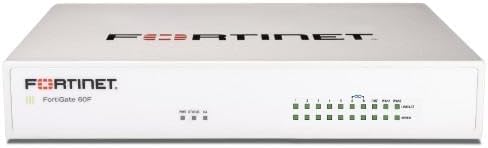
Figure 3: Detailed diagram of FortiGate 61F interfaces and hardware features.
Interface Descriptions:
- DC+12V: Power input port.
- RESET: Button to reset the device to factory defaults.
- USB: USB port for external storage or other peripherals.
- CONSOLE: RJ45 console port for direct management access.
- WAN1/WAN2: GE RJ45 WAN Ports for connecting to external networks (e.g., ISP).
- DMZ: GE RJ45 DMZ Port for a demilitarized zone network segment.
- B - ∞ - A: 2x GE RJ45 FortiLink Ports for connecting to FortiSwitch devices.
- 1-5: 5x GE RJ45 Internal Ports for connecting to internal network devices.
Initial Connection:
- Connect your internet service provider's modem or router to one of the WAN ports.
- Connect a computer or network switch to one of the Internal ports (e.g., port 1).
- Power on the device.
- Access the device's web-based management interface via a web browser (refer to the Quick Start Guide for default IP address and login credentials).
3. Operating the FortiGate 61F
The FortiGate 61F provides a comprehensive suite of security and networking functionalities managed through its web-based interface or command-line interface (CLI).
3.1 Security Features
The device offers advanced protection against various cyber threats:
- Application Control: Identifies and controls thousands of applications for granular policy enforcement.
- Threat Protection: Protects against malware, exploits, and malicious websites in both encrypted and non-encrypted traffic.
- Intrusion Prevention System (IPS): Detects and prevents known and unknown attacks.
- Web Filtering: Blocks access to inappropriate or malicious websites.
- Antivirus/Antimalware: Scans for and removes viruses and other malicious software.

Figure 4: Overview of FortiGuard security services available with FortiGate bundles.
3.2 SD-WAN Capabilities
The FortiGate 61F integrates secure SD-WAN functionality to optimize WAN performance and reduce costs:
- Application Steering: Directs traffic based on application requirements and link quality.
- WAN Path Control: Ensures high quality of experience for critical applications.
- IPsec VPN: Provides high-performance and scalable encrypted connections.
3.3 Management and Monitoring
The device offers robust management and monitoring tools:
- Management Console: A web-based interface for configuration, monitoring, and reporting.
- Zero Touch Integration: Seamless integration with Fortinet Security Fabric for centralized management.
- Network Topology Visualization: Automatically discovers IoT devices and provides complete network visibility.
4. Maintenance
Regular maintenance ensures the optimal performance and security of your FortiGate 61F appliance.
- Firmware Updates: Periodically check for and apply the latest firmware updates from the Fortinet support portal to ensure access to new features, bug fixes, and security enhancements.
- Configuration Backups: Regularly back up your device configuration. This allows for quick restoration in case of unexpected issues or misconfigurations.
- Physical Inspection: Ensure the device is free from dust and debris, and that ventilation openings are not obstructed.
- Security Policy Review: Periodically review your security policies to ensure they align with your current network requirements and threat landscape.
5. Troubleshooting
This section provides basic troubleshooting steps for common issues.
5.1 Power Issues
- No Power: Ensure the power adapter is securely connected to both the device and a working power outlet. Check the power LED on the front panel.
- Intermittent Power: Verify the power adapter is the correct one for the device and that the power source is stable.
5.2 Network Connectivity Issues
- No Internet Access: Check WAN port connections and ensure your ISP service is active. Verify WAN interface configuration in the management console.
- Internal Network Issues: Confirm LAN port connections and check internal interface configurations. Ensure DHCP server is functioning if used.
- Cannot Access Management Interface: Verify your computer's IP address is in the same subnet as the FortiGate's management interface. Try connecting via the console port.
5.3 Performance Degradation
- Slow Network: Monitor CPU and memory usage through the management console. Review security policies for any that might be overly restrictive or resource-intensive.
- Application Issues: Check application control logs and policies. Ensure sufficient bandwidth is allocated for critical applications.
If issues persist, consult the Fortinet documentation or contact Fortinet support.
6. Specifications
The following table details the technical specifications of the Fortinet FortiGate 61F.
| Feature | Detail |
|---|---|
| Product Dimensions | 6 x 9 x 2 inches |
| Item Weight | 2 pounds |
| Item Model Number | FG-61F-BDL-950-12 |
| Brand | FORTINET |
| Model Name | FG-61F-BDL-950-12 |
| Special Feature | WPS (Wireless Protected Setup - Note: This feature is typically for wireless devices. For a wired firewall, this might refer to a related security protocol or be a generic specification entry.) |
| Frequency Band Class | Dual-Band (Note: This typically applies to Wi-Fi. The 61F is a wired appliance, this might refer to internal components or a bundled offering.) |
| Wireless Communication Standard | 802.11ac (Note: As above, this is for Wi-Fi. The 61F is a wired appliance.) |
| Compatible Devices | Personal Computer |
| Recommended Uses For Product | Security |
| Included Components | Base |
| Connectivity Technology | Ethernet |
| Color | Multicolor |
| Manufacturer | Fortinet |
| Date First Available | November 6, 2019 |

Figure 5: FortiGate 61F performance and interface sizing chart.
7. Warranty and Support
For warranty information, please refer to the documentation included with your FortiGate 61F appliance or visit the official Fortinet website. Fortinet provides comprehensive support resources, including knowledge bases, forums, and direct technical assistance.
To obtain support, please have your product serial number ready and visit the Fortinet support portal at support.fortinet.com.


