
Keyecu Global Version Grey Color
Xhorse VVDI Mini Key Tool User Manual
Model: Global Version Grey Color
1. Introduction
The Xhorse VVDI Mini Key Tool is a professional device designed for automotive locksmiths and technicians. It supports various functions including transponder generation, remote cloning, remote generation, and frequency testing. This manual provides detailed instructions for the proper use and maintenance of your device.
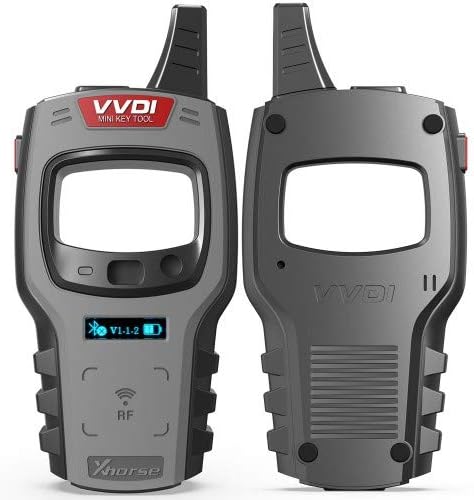
Figure 1: Front and back view of the Xhorse VVDI Mini Key Tool.
2. Product Overview
Familiarize yourself with the components of your VVDI Mini Key Tool.
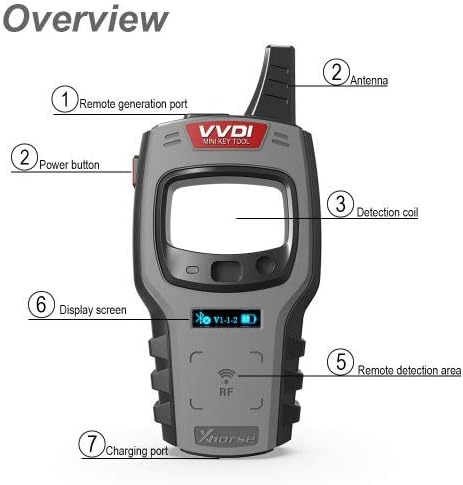
Figure 2: Key components of the VVDI Mini Key Tool.
- Remote generation port: Used for connecting cables for remote generation.
- Power button: Controls device power.
- Detection coil: Used for transponder detection.
- Antenna: For wireless communication.
- Remote detection area: Place remotes here for detection.
- Display screen: Shows device status and information.
- Charging port: For connecting the USB charging cable.
3. Setup and Initial Use
3.1 Powering On/Off

Figure 3: Powering the device and understanding the display.
- To Start: Press and hold the power button for 1 second.
- To Shut Down: Press and hold the power button for 4 seconds.
The display screen provides important information:
- Device SN: Unique serial number of the device.
- Battery level: Indicates remaining battery charge.
- Firmware version: Current software version installed.
- Bluetooth status: Shows Bluetooth connection status.
3.2 Connecting to Mobile Application
The VVDI Mini Key Tool operates in conjunction with a mobile application (iOS and Android compatible).

Figure 4: Connecting the device to the mobile application.
- Download and install the official Xhorse mobile application from your device's app store.
- Ensure Bluetooth is enabled on your mobile device.
- Open the Xhorse application.
- Enter the main interface of the app and click "add device" to connect to your VVDI Mini Key Tool.
4. Operating Instructions
The VVDI Mini Key Tool offers a range of functionalities accessible through its mobile application. Below are the primary operations:
4.1 Transponder Generating
This function allows for the generation of various transponder types for over 700 vehicle models, reducing the need for extensive transponder stock.
- Navigate to "Transponder Generating" in the app.
- Select the desired vehicle model and transponder type.
- Follow on-screen prompts to complete the generation process.
4.2 Remote Cloning
The device supports cloning of HCS/Fixed code remotes and non-HCS rolling code remotes. It also allows editing of PT22XX, LX918, HT6P20, VD5026, AX5326, HT12X fixed codes.
- Select "Remote Cloning" in the application.
- Place the original remote in the remote detection area (5) of the device.
- Follow the app's instructions to read and clone the remote data.
4.3 Remote Generating
Generate remotes for over 128 brands and 2000 vehicle models. The app provides comprehensive data including key pictures, transponder types, key blanks, and remote matching information.
- Choose "Remote Generate" in the app.
- Select the vehicle make and model.
- The app will guide you through the remote generation process.
4.4 Frequency Test
Test the power within the frequency range of 300-450MHz.
- Access "Frequency Test" in the application.
- Place the remote or transponder near the device's detection area.
- The screen will display the detected frequency.
4.5 Special Functions
The VVDI Mini Key Tool includes several special functions:
- Unlock Toyota smart keys: Specific function for Toyota smart key systems.
- ID63 to ID83 conversion: Convert transponder types.
- Special 4D to 4C conversion: Convert transponder types.
- Detect remote: Identify remote control properties.
- Activate Toyota H transponder generation function: Enables generation for Toyota H transponders.
Important Note regarding ID48 96-bit Copy:
This version of the VVDI Mini Key Tool does not include Copy 48 Transponder (96 bit) Authorization or tokens for Xhorse 96 Bit ID48 Copy initially. To activate the ID48 96-bit function for free, you must generate 10 Xhorse new remote keys using the VVDI Mini Key Tool. After collecting the necessary points, the server will enable the ID48 96-bit function within approximately 2 hours.
5. Maintenance and Care
- Keep the device clean and free from dust and moisture. Use a soft, dry cloth for cleaning.
- Avoid dropping the device or subjecting it to strong impacts.
- Store the device in a cool, dry place when not in use.
- Use only the provided USB cable for charging to prevent damage.
- Regularly check for firmware updates through the mobile application to ensure optimal performance and access to new features.
6. Troubleshooting
| Problem | Possible Cause | Solution |
|---|---|---|
| Device does not power on. | Low battery; Power button not pressed correctly. | Charge the device using the USB cable. Ensure the power button is pressed and held for 1 second. |
| Cannot connect to mobile app. | Bluetooth off; App not updated; Device not in pairing mode. | Ensure Bluetooth is on. Update the app to the latest version. Restart both the device and the app. |
| Transponder/Remote detection failure. | Incorrect placement; Damaged transponder/remote; Device malfunction. | Ensure the item is correctly placed in the detection area. Try with a known working item. Contact support if issues persist. |
| ID48 96-bit function not active. | Activation requirements not met. | Generate 10 Xhorse new remote keys to earn points for activation. Wait approximately 2 hours after points are collected. |
7. Product Specifications
- Model: Global Version Grey Color
- Brand: Keyecu (for Xhorse VVDI)
- Item Weight: 2.2 pounds
- Power Source: Corded Electric (via USB)
- Operating System Compatibility: Android, iOS
- Frequency Test Range: 300-450MHz
- Included in Package: VVDI Mini Key Tool Device, Remote Programming Cable, USB Cable, User Guide.

Figure 5: Package contents of the VVDI Mini Key Tool.
8. Warranty and Support
For warranty information and technical support, please refer to the official Keyecu or Xhorse documentation provided with your purchase or visit their official website. Ensure you retain your proof of purchase for warranty claims.
Common support inquiries can often be resolved by reviewing the troubleshooting section or checking for the latest firmware updates.
Related documentsGlobal Version Grey Color


Ask a question about this manual
Ask about setup, troubleshooting, compatibility, parts, safety, or missing instructions. Manuals+ will review the question and use this page’s manual context to help answer it.