
1. Introduction
The JMT EXP GDC is an external equipment designed to enable laptops to utilize independent, high-performance external graphics cards. This device significantly enhances laptop performance, making it suitable for demanding applications and high-performance gaming. It supports various PCI-E interface equipment and features a dual TD compatible switch for hardware conflict resolution, along with a multi-stage anti-interference circuit for stable operation.
2. Package Contents
The Expresscard Version package includes the following components:
- 1x EXP GDC Adapter
- 1x Instruction Manual
- 1x Expresscard Data Cable
- 1x ATX Power Cable (8-pin power cable, can be divided into 6-pin cable)

Image: Contents of the JMT EXP GDC Expresscard package, showing the adapter, Expresscard data cable, and ATX power cable.
3. Setup Guide
Follow these steps to set up your JMT EXP GDC external graphics docking station:
3.1. Before Installation: Identify Your Laptop Interface
Ensure your laptop has an Expresscard slot. The EXP GDC Expresscard version is designed specifically for laptops with this interface. Other versions (Mini PCI-E, M.2 A Key, M.2 M Key) are available for different laptop interfaces.

Image: Visual guide for identifying different laptop interfaces, including Mini PCI-E, M.2 A/e Key, Expresscard (Type 54 and Type 34), and M.2 M Key.
3.2. Connecting the EXP GDC Adapter
- Connect the Expresscard Data Cable: Insert the Expresscard end of the data cable into your laptop's Expresscard slot.
- Connect to EXP GDC Adapter: Connect the other end of the Expresscard data cable to the corresponding port on the EXP GDC Adapter.
- Install External Graphics Card: Insert your desired external PCI-E graphics card into the PCI-E 16X slot on the EXP GDC Adapter. Ensure it is seated firmly.

Image: Top-down view of the JMT EXP GDC adapter, highlighting the PCI-E 16X slot, P6, 8P, DC, USB, and PTD ports.

Image: The JMT EXP GDC adapter connected to a laptop via the Expresscard slot, with an external graphics card installed.
3.3. Power Connection
The EXP GDC requires external power for both the adapter and the graphics card. Use an ATX power supply (not included) for this purpose.
- Connect ATX Power Cable to EXP GDC: Connect the 8-pin end of the provided ATX power cable to the 8P power input on the EXP GDC Adapter.
- Connect Graphics Card Power: If your external graphics card requires additional power, use the 6-pin connector from the ATX power cable (or a separate 6-pin/8-pin cable from your ATX power supply) to connect to the graphics card's power input.
- Connect ATX Power Supply: Connect your ATX power supply to a wall outlet and turn it on.

Image: A schematic diagram illustrating the connections for the JMT EXP GDC, including the TD Switch, USB, DC Power, Independent Power, and connections to the laptop's Expresscard or Mini PCI-E interface.
3.4. Driver Installation
After physical setup, you will need to install the appropriate drivers for your external graphics card. Refer to the graphics card manufacturer's website for the latest drivers. In some cases, specific software or BIOS adjustments on your laptop may be required for optimal performance or to disable integrated graphics.
4. Operating Instructions
Once the EXP GDC is set up and drivers are installed, your laptop should recognize the external graphics card. You can then configure your system to utilize the external GPU for graphics-intensive applications, gaming, or other tasks requiring high graphical processing power. Ensure the external power supply is always on when using the EXP GDC.
5. Maintenance
To ensure the longevity and optimal performance of your JMT EXP GDC:
- Keep the device in a clean, dust-free environment.
- Avoid exposing the device to extreme temperatures or humidity.
- Ensure proper ventilation around the EXP GDC and the external graphics card to prevent overheating.
- Handle the Expresscard data cable and connectors with care to prevent damage.
6. Troubleshooting
If you encounter issues with your JMT EXP GDC, consider the following:
- No Detection of External GPU:
- Verify all cables are securely connected (Expresscard, power to EXP GDC, power to GPU).
- Ensure your ATX power supply is functioning correctly and providing sufficient power.
- Check your laptop's BIOS settings. Some laptops may require disabling integrated graphics or specific settings to recognize an external GPU.
- Ensure the correct drivers for your external graphics card are installed and up to date.
- Performance Issues:
- Confirm that the external GPU is selected as the primary graphics adapter in your operating system settings.
- Check for any background processes consuming resources.
- Ensure adequate cooling for both the laptop and the external graphics card.
- System Instability/Crashes:
- This can sometimes be related to driver conflicts. Try reinstalling graphics drivers.
- Ensure your ATX power supply is stable and provides enough wattage for your graphics card.
- Check for any hardware conflicts using your operating system's device manager. The EXP GDC features a dual TD compatible switch to help resolve hardware conflicts.
- Compatibility Concerns:
- While the EXP GDC is broadly compatible, some specific laptop models or BIOS versions may present challenges. Refer to online communities or manufacturer support for known compatibility issues with your specific laptop model.
7. Specifications
- Model: EXP GDC External Graphics Docking Station (Expresscard Version)
- Hardware Interface: PCI Express x1 (for connection to laptop via Expresscard)
- Compatible Devices: Laptop (with Expresscard slot)
- Input Voltage: 12 Volts (DC)
- Number of Ports: 2 (USB)
- Item Weight: 3.53 ounces (100 Grams)
- Package Dimensions: 8.07 x 5.28 x 2.13 inches

Image: Dimensions of the JMT EXP GDC adapter (13.5cm length, 3.5cm width, 2.5cm height) and the Expresscard cable (7.5cm length, 3.3cm width).
8. Compatibility
The JMT EXP GDC Expresscard version is compatible with a wide range of laptops featuring an Expresscard slot. Below is a list of some known compatible models. This list is not exhaustive, and compatibility may vary based on specific laptop configurations and BIOS versions.
For Lenovo:
W530/T520/W520/X220/Z570/T420/Y460/Y560/T410/E420/X201/X201s Edge/T410s/T400/T510/X201T/X200/W500/T61p/X61/T61/T60/T520/S420s/Y470/Y420I/Y480/G480/K580s/E520/Y580/G500/E46A/Y530/G510/Y400/G500/Y460/Y560p/Y480n/Y480/E420/K29/B470/Z470/L421/SL410K/E420S/G470/G450/Z465/Y500/Y370/G430/Z370/Y485/Y410p/V1000/S410p/Y471a/S230u/V570/E420s/Z500/V470/Y4070/G710 AT-ISE/Y430p/S400/SR1000/B5400/405s/A8/Y50/Z501/Z480/Z580U/310/K46A/Z380
For Dell:
E6520Vostro/3450/XPS15/L502Studio/1557/E6220/M4500/E6420/E4300Studio/1557XPS1645E4310M4600Insp.1545/XPS/1340E4300 XPS 1640 E6500Insp 1420XPS 1340Vostro 15001440Vostro v130XPS M1530D830M1330Studio 1555Insp 1520Vostro1310E150151545E6520E6220E5410E4310E64104RM12104600MD630E64206320N4120N50103421N3010772014R4728152014RD658N411014RD658inspiron15-3521E632074205537xps164515i7520767015R 45265547773014R-5420M6600752055374050Vostro3300n3420L702X3542155815 75484Z-5423 E6230
For Sony:
Z21VPC-Z11, VPC-Z13, VPC-Z12, VGN-FW45Z46GD, VGN-NS110EA27ECVPCCA36ECEA47ECCB36ECNW35EA200CS138VGN-rw71fbSVT11138CCS, vpcs128ec, FW17Z45vpcea25fgvpcea18ec, VPCEB26FXVPCZ138GGsVe14a28ccsPcg-7121tSL 141K
For HP:
4530s/2560P/8460P/4330s/2540P/8440P/DV4-2000/2530P/2740P/6930/6930P/2730P/HDX9000/ PavilionDV4/DV9690EN/CQ60/DV7126/7CLHDX16HDX18TTX22510PDV7-3020EDDV2000DV2416US6910PNC640021334530sHP8440p14beatsG42DV51220TXN51108570PCQ35-219TXDV2804TXCQ45CQ40CQ422857TX8560P2730P4321sDV7HP44318470P2570Penvy17J120usHP6450BHP 8470Pcq15-102tx/2570P/8460P
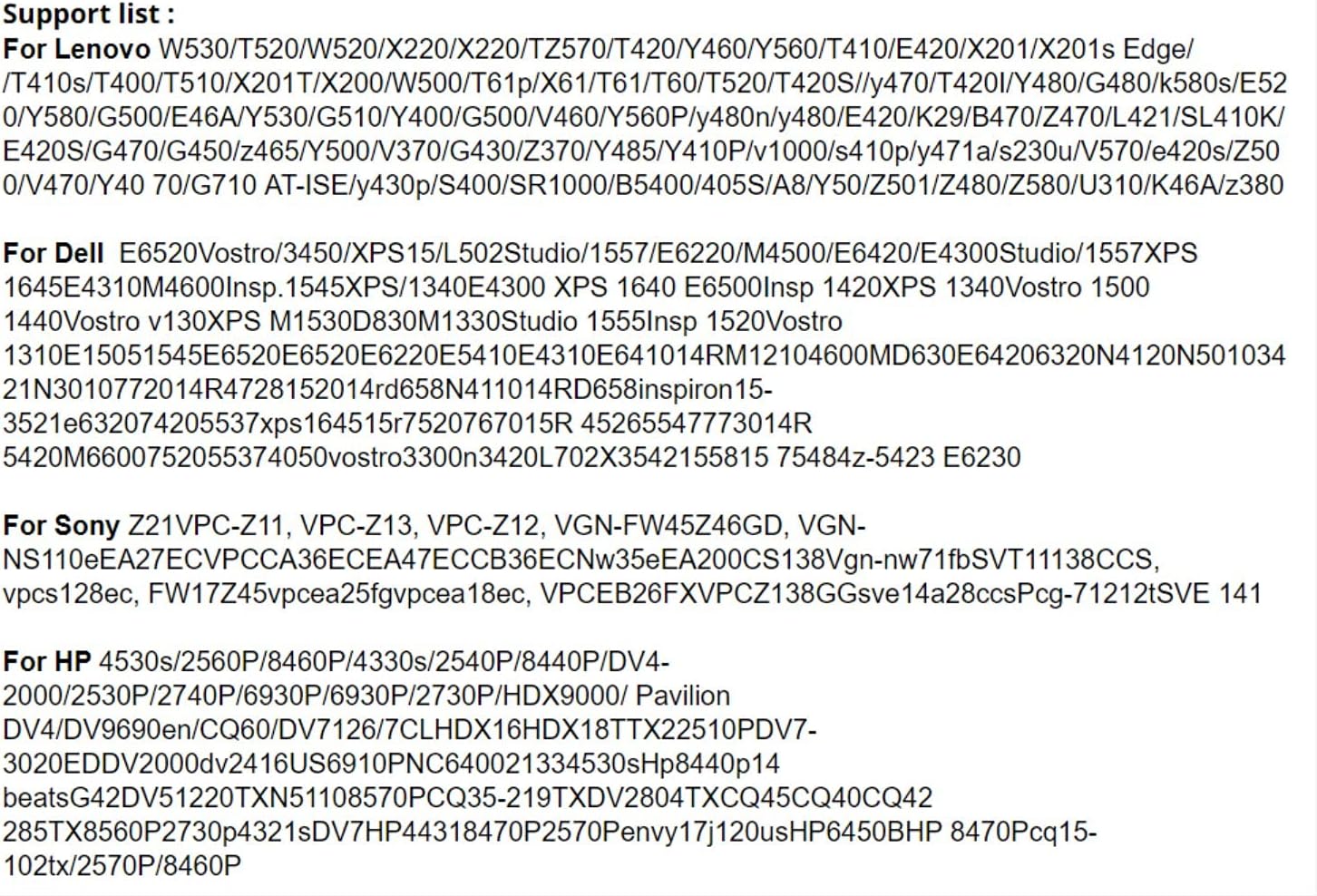
Image: A partial list of compatible laptop models for the JMT EXP GDC, including various Lenovo, Dell, Sony, and HP series.
For Fujitsu:
AH531/T731/S6420/T901/T5010/U9200/AH56/Gnh532
For Acer:
5755G/3820TG/5920G/5620/Z/5742G/6930/5620/1810TZ/5720G/1410 Ferrari One/4752G/470G/E1-471G/5750G/5951G/E1-571G/V3-571G/V5-472G/4315/V5-471G/V3-772G/4738G/4745G/E5-511G/5552G
For MSI:
CX623/CR720/A6200-021US/CR630/M610/GX640/GE60
For Toshiba:
R840/A665/L305-S5921/L300/A505-6965/L300/L305-S5921/M332/M780/L700/L650-02B/L800
For Clevo:
M860T/UM570RU
For Sager:
NP2096/NP8662/NP5793
For NEC:
Versa E6500
For Asus:
F8SA/X42JR/X59SL/1015PEM/M60J/Y581/CX81/X55V/X480VB/X450JS/X450c/N61JV/X402CA/U24E/R400/P53SJ/n75sl/n75s/N61JQ/N56/n55sf/n53/K56c/K55vd/K53SV/K52DR/K45Vs/K43SM/A55vd/K42JB/K40IP/K40IN/G73sw/F83se/A73S/A55VM/A53/A450J/A43X/A43s/a42J/K55vm/k43/SDG74S/XN43SL/n55sl/K55vm/A45/K56CB/K43DK42xv/X551237VD-SL/X550VC/N81/VG X751L/A53S/A53SM/a450jf
For LG:
P300
For Samsung:
R780/NP300E4A/NP270E5J-K01CN/R428/rv420
For HASEE:
A460-i7/K590C/A560P/K580P/A430/K470p/A460P/A550/k602c/K590S/K500DE400/K500C-i7/D1/K660E/A460p-i7/K480N
For Tsinghua University:
u49fk41H/A14RM0C
For Blue sky:
p170em
For Haier:
7g-2x5P
For Gigabyte:
p15f V2
For Fangzhengye:
a600

Image: A continuation of the list of compatible laptop models for the JMT EXP GDC, including various Fujitsu, Acer, MSI, Toshiba, Asus, Sager, NEC, LG, Samsung, HASEE, Tsinghua University, Blue sky, Haier, Gigabyte, and Fangzhengye series.
9. Warranty and Support
For warranty information and technical support, please refer to the documentation included with your product or contact JMT customer service through their official channels. Keep your purchase receipt for warranty claims.