
1. Introduction
The TOTOLINK T6 AC1200 Wireless Mesh Home Router system is designed to provide seamless and reliable Wi-Fi coverage throughout your home. This system utilizes Mesh technology to create a unified network, ensuring stable connections for all your devices. This manual provides instructions for setting up, operating, and maintaining your T6 Mesh system.
2. Package Contents
Please verify that all items are present in your package:
- TOTOLINK T6 Mesh Router Units (Master & Slave)
- Power Adapters
- Ethernet Cable
- Quick Installation Guide
3. Product Overview
The TOTOLINK T6 units are compact, white, square devices designed for discreet placement in your home. Each unit features essential ports and indicators for network connectivity.

Image: Two TOTOLINK T6 Mesh Router units, showing their compact design. One unit is slightly behind the other.
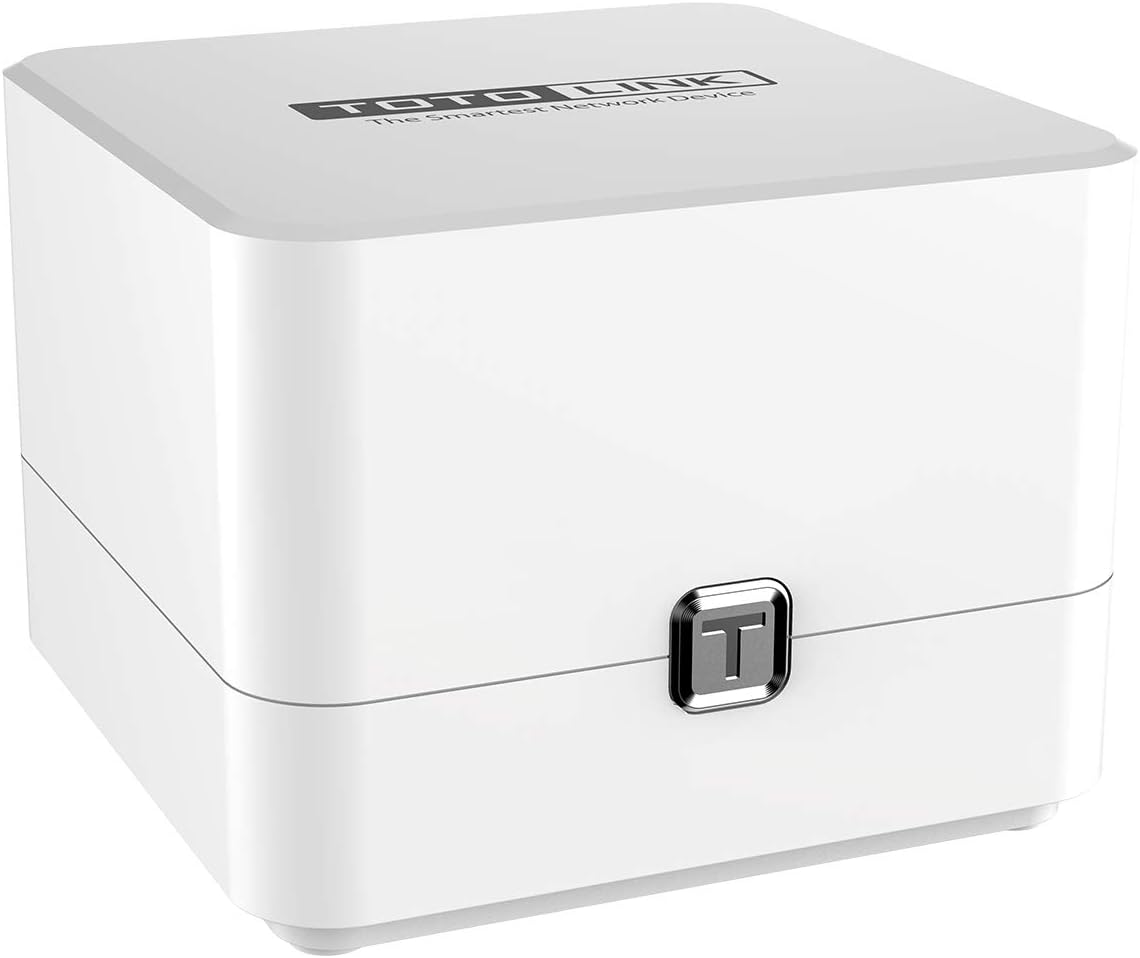
Image: A single TOTOLINK T6 Mesh Router unit, viewed from the top-front, highlighting its minimalist design.
3.1 Ports and Indicators

Image: Rear view of a TOTOLINK T6 unit, clearly showing the power input, WAN port, and two LAN ports.
- POWER: Connects to the provided power adapter.
- WAN: Connects to your modem or existing router for internet access. (Typically yellow)
- LAN1/LAN2: Connects to wired devices such as computers, smart TVs, or gaming consoles. (Typically orange/red)
- LED Indicator: (Location and specific behavior may vary, refer to Quick Installation Guide for details) Indicates power status, internet connectivity, and Mesh connection status.
4. Setup
Follow these steps to set up your TOTOLINK T6 Mesh Home Router system.
4.1 Initial Setup (Master Unit)
- Connect the Master Unit: Identify one T6 unit as the Master. Connect your modem's Ethernet cable to the WAN port of the Master T6 unit.
- Power On: Connect the power adapter to the POWER port of the Master T6 unit and plug it into an electrical outlet.
- Wait for Boot: Allow the Master unit to boot up. The LED indicator will change to a stable color (e.g., blue or green) when ready.
- Connect to Wi-Fi: On your computer or mobile device, search for the default Wi-Fi network (SSID) printed on the label at the bottom of the T6 unit. Connect to this network using the default password.
- Access Web Interface: Open a web browser and enter the default IP address (e.g., http://192.168.0.1) or domain name (e.g., http://itotolink.net) to access the router's management page. Follow the on-screen instructions to complete the initial setup, including setting a new Wi-Fi name and password.
4.2 Adding Slave Units (Mesh Pairing)
The TOTOLINK T6 system is designed for easy expansion. The units are often pre-paired for a plug-and-play experience.

Image: Two TOTOLINK T6 units on a desk, illustrating the 'Plug and Play' feature for easy setup without manual configuration.
- Place Slave Unit: Position the Slave T6 unit in an area where you need extended Wi-Fi coverage, ideally within range of the Master unit or another Slave unit.
- Power On: Connect the power adapter to the POWER port of the Slave T6 unit and plug it into an electrical outlet.
- Automatic Pairing: The Slave unit should automatically detect and connect to the existing Mesh network established by the Master unit. The LED indicator will confirm a successful Mesh connection. No manual configuration is typically required for pre-paired units.
- Manual Pairing (if needed): If automatic pairing fails, consult the Quick Installation Guide for specific instructions on manually pairing units, which may involve pressing a WPS or Mesh button on both units.
5. Operating Instructions
5.1 Connecting Devices
Once your Mesh network is set up, devices can connect to it using the Wi-Fi name (SSID) and password you configured during the initial setup. The Mesh system ensures that your devices automatically connect to the strongest signal source as you move around your home.

Image: Diagram illustrating two TOTOLINK T6 units providing seamless Wi-Fi coverage across different rooms in a house, demonstrating the roaming function.
5.2 Managing Wi-Fi Settings
You can manage your Wi-Fi settings (SSID, password, security type) through the web management interface. Access it by opening a web browser and entering the router's IP address or domain name.
6. Advanced Features
6.1 Dual Band Technology
The T6 supports simultaneous dual-band operation, providing both 2.4GHz and 5GHz Wi-Fi networks. The 2.4GHz band offers wider coverage, while the 5GHz band provides faster speeds with less interference, ideal for streaming and gaming.

Image: Graphic showing the speed capabilities of the TOTOLINK T6, highlighting 1167Mbps total wireless speed, with 300Mbps for 802.11n (2.4GHz) and 867Mbps for 802.11ac (5GHz).

Image: Close-up of a TOTOLINK T6 unit with an overlay showing 2.4G (300Mbps) and 5G (867Mbps) dual-band speeds, indicating suitability for various online activities.
6.2 MU-MIMO Technology
Multi-User, Multiple-Input, Multiple-Output (MU-MIMO) technology allows the T6 to communicate with multiple devices simultaneously, improving network efficiency and overall performance, especially in environments with many connected devices.
6.3 Beamforming Technology
Beamforming technology intelligently directs Wi-Fi signals towards connected devices, rather than broadcasting in a general direction. This enhances signal strength and improves bandwidth efficiency for a more stable connection.

Image: Diagram illustrating Beamforming technology, showing a TOTOLINK T6 Master unit directing focused Wi-Fi signals to a smartphone and tablet within a house layout, compared to a broader, less directed signal from other routers.
6.4 Access Point Mode
The T6 can operate in Access Point (AP) mode, allowing it to extend an existing wired network with Wi-Fi capabilities. This is useful for adding wireless access to a network that already has a router.
7. Maintenance
- Firmware Updates: Regularly check the TOTOLINK official website for firmware updates. Updating the firmware can improve performance, add new features, and enhance security.
- Placement: Place the T6 units in open areas, away from obstructions, large metal objects, and sources of interference (e.g., microwaves, cordless phones) to ensure optimal signal strength.
- Cleaning: Use a soft, dry cloth to clean the exterior of the units. Do not use liquid cleaners or aerosols.
- Restart: If you experience network issues, try restarting your T6 units and modem by unplugging them from power for 10 seconds and then plugging them back in.
8. Troubleshooting
- No Internet Access:
- Check if your modem is working correctly.
- Ensure the Ethernet cable from the modem is securely connected to the WAN port of the Master T6 unit.
- Verify the internet connection status via the web management interface.
- Weak Wi-Fi Signal or Dead Zones:
- Adjust the placement of your Slave T6 units to ensure they are within good range of each other or the Master unit.
- Avoid placing units near large metal objects or thick walls.
- Cannot Connect to Wi-Fi:
- Ensure you are using the correct Wi-Fi name (SSID) and password.
- Restart your device and try connecting again.
- Check if the T6 units are powered on and their LED indicators are normal.
- Forgot Admin Password:
- Perform a factory reset by pressing and holding the reset button (usually a small pinhole button) on the T6 unit for about 5-10 seconds while it is powered on. This will revert all settings to factory defaults, including the admin password and Wi-Fi settings.
9. Specifications
| Feature | Description |
|---|---|
| Brand | TOTOLINK |
| Model | T6 |
| Wireless Standard | IEEE 802.11ac/a/b/g/n |
| Frequency Band | 2.4GHz & 5GHz (Dual Band) |
| Data Rate | Up to 1167Mbps (2.4GHz: 300Mbps, 5GHz: 867Mbps) |
| Special Features | MU-MIMO, Beamforming, Access Point Mode, Mesh Technology |
| Ports | 1x WAN, 2x LAN |
| Compatible Devices | Cellphones, Computers, Smart TVs, etc. |
10. Warranty and Support
TOTOLINK provides ongoing support for its products. Software updates for the T6 model are guaranteed until April 13, 2030. Spare parts are available for 2 years from the date of purchase.
For technical assistance, please refer to the official TOTOLINK website or contact their customer support. Keep your purchase receipt for warranty claims.


