1. Introduction
This manual provides detailed instructions for the installation, operation, and maintenance of your REOLINK RLK8-800D4 4K Security Camera System. This system includes a 4K/8MP 8-channel Network Video Recorder (NVR) with a pre-installed 2TB HDD and four H.265 PoE wired turret cameras featuring person and vehicle detection.
The system is designed for continuous 24/7 recording and offers 4K Ultra HD clarity, providing vivid resolution even when digitally zoomed. Smart PoE IP cameras minimize unwanted alerts by identifying people and vehicles based on their shapes. The plug-and-play PoE connection simplifies setup with a single network cable for both power and data.
2. What's in the Box
Upon unboxing your REOLINK RLK8-800D4 system, you should find the following components:
- 1 x RLN8-410 NVR (8-Channel Network Video Recorder)
- 4 x D800 Turret Cameras (4K/8MP PoE)
- 1 x NVR Power Adapter
- 1 x HDMI Cable
- 1 x USB Mouse
- 1 x 1-meter Network Cable
- 4 x 18-meter Network Cables
- Mounting Screws and Anchors
- Waterproof Lids for Ethernet Connectors
- Quick Start Guide & Surveillance Stickers
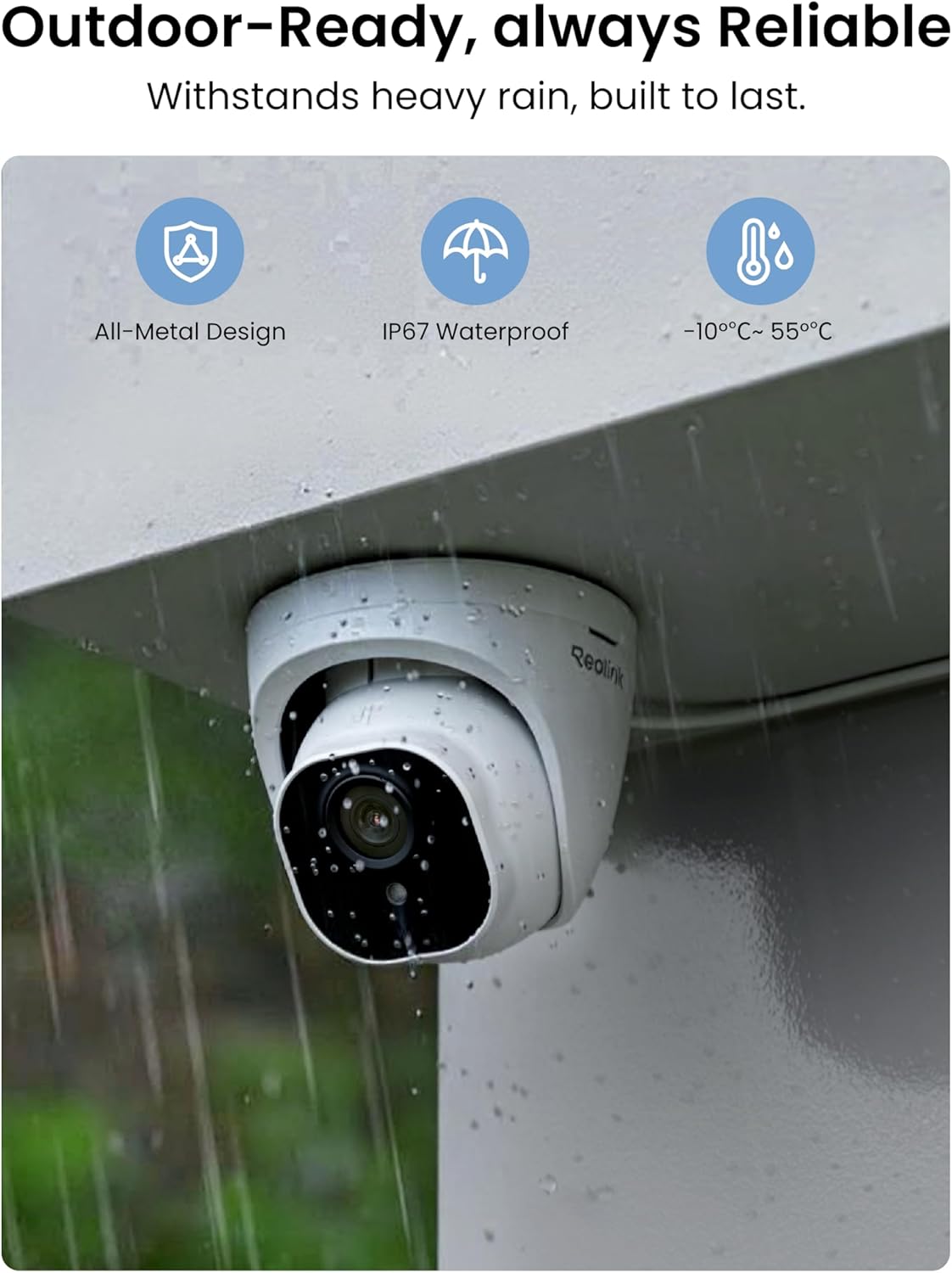
Figure 2.1: All components included in the REOLINK RLK8-800D4 package.
3. Product Overview
3.1 NVR (Network Video Recorder)
The RLN8-410 NVR is the central unit for recording and managing your security footage. It features 8 channels, allowing connection of up to 8 cameras, and comes with a 2TB hard drive pre-installed for 24/7 continuous recording.
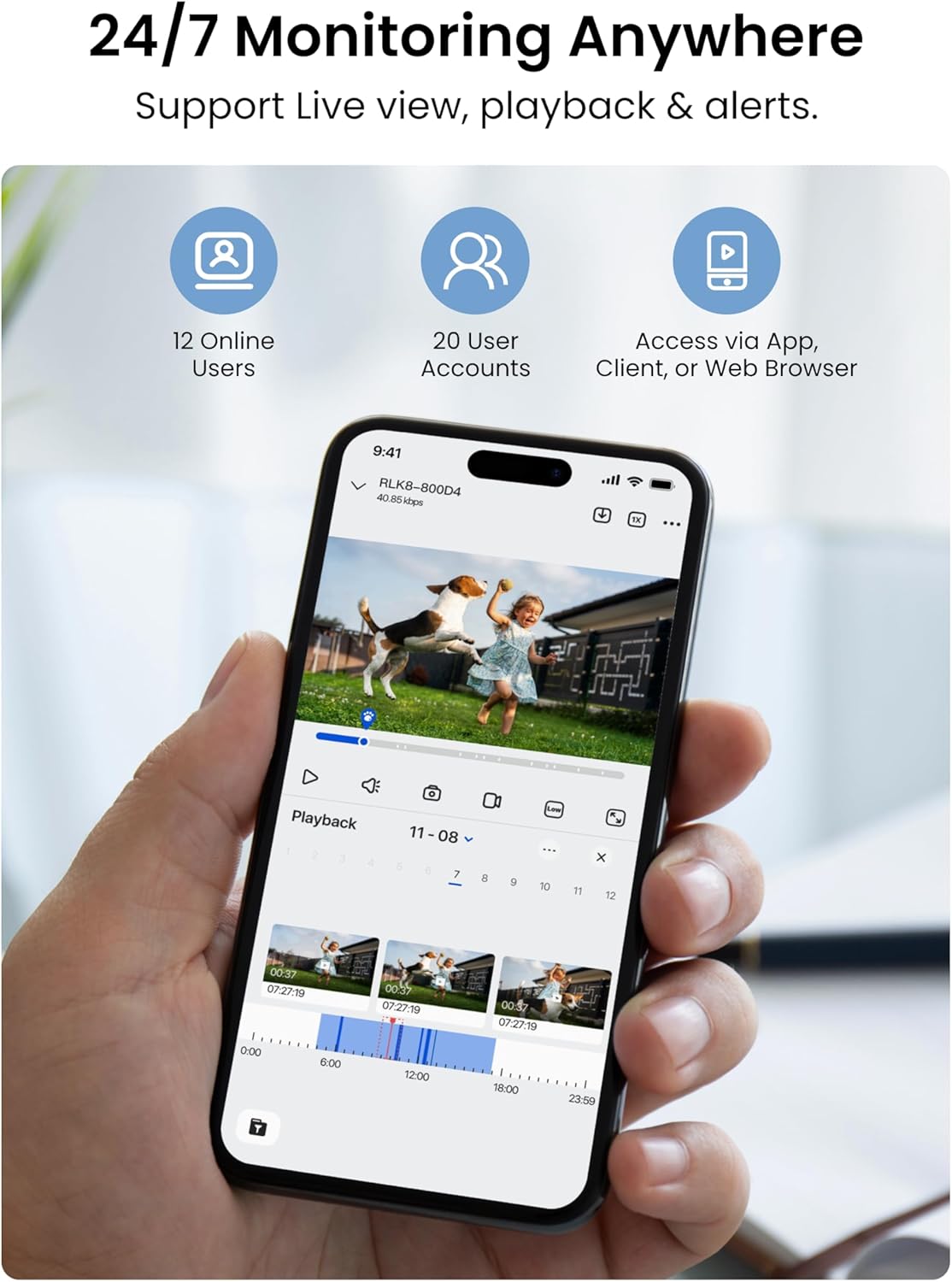
Figure 3.1: Rear view of the NVR showing various ports including HDMI, VGA, LAN, USB, Audio Out, and PoE camera inputs.

Figure 3.2: Front view of the NVR with USB port, power/HDD indicators, and navigation buttons.
3.2 D800 Turret Camera
The D800 turret cameras provide 4K Ultra HD (8MP) video resolution. They are PoE-enabled, receiving both power and data through a single Ethernet cable. The cameras are designed for outdoor use with IP67 waterproof rating and feature smart person/vehicle detection.
Figure 3.3: Detailed view of the D800 Turret Camera, highlighting the lens, 18pcs IR LEDs, daylight sensor, and connection cables (network, optional power, reset button).
4. Setup Guide
Follow these steps to set up your REOLINK 4K Security Camera System:
4.1 Physical Installation
- Mounting Cameras: Use the provided mounting templates to mark drill holes. Secure the camera base to the desired location (wall or ceiling) using the screws and anchors. Adjust the camera angle as needed.
- Cable Management: Route the 18-meter Ethernet cables from each camera to the NVR. Ensure connections are secure and use waterproof lids for outdoor Ethernet ports.
- NVR Placement: Place the NVR in a secure, well-ventilated area near your monitor and router.

Figure 4.1: Example of a D800 Turret Camera securely mounted on an exterior wall.
4.2 Initial Connection
- Connect Cameras to NVR: Plug each camera's Ethernet cable into one of the PoE ports on the back of the NVR.
- Connect NVR to Monitor: Use the provided HDMI cable to connect the NVR to a monitor or TV. Alternatively, use a VGA cable.
- Connect NVR to Router: Use the 1-meter Ethernet cable to connect the NVR's LAN port to your internet router. This enables remote access.
- Connect USB Mouse: Plug the USB mouse into one of the NVR's USB ports for navigation.
- Power On: Connect the NVR power adapter and turn on the NVR using the switch on the back.
Video 4.1: A detailed unboxing and setup guide for the REOLINK RLK8-800D4 system, demonstrating component identification and initial connections.
4.3 Initial Configuration (On-Screen Wizard)
Upon first boot, the NVR will display a setup wizard on the connected monitor:
- Set Password: Create a strong password (at least 6 characters) for the admin user.
- General Settings: Configure resolution (select 3840*2160 for 4K), time zone, date format, and time format.
- HDD Management: The NVR will prompt to initialize the pre-installed 2TB HDD. Confirm to format the disk.
- Network Configuration: The NVR should automatically obtain an IP address via DHCP.
- Device List: The connected cameras should appear in the device list.
- Email/DDNS/NTP: Configure these settings if desired for email alerts, dynamic DNS, or time synchronization.
Video 4.2: This video demonstrates the initial setup process of the NVR, including password creation, general settings, and hard drive initialization.
5. Operating Instructions
5.1 Live View and Playback
Once configured, you can view live footage from your cameras on the connected monitor or remotely via the REOLINK app.
- Monitor View: Use the USB mouse to navigate the NVR interface. Double-click a camera feed to view it full screen. Right-click to access menu options like digital zoom, console, and exit.
- Playback: In the NVR menu, select 'Search' to find recorded footage. You can filter by channel, date, and time. The timeline will show normal recordings and event-triggered recordings (e.g., motion detection).
- Multi-Screen View: The NVR supports various display layouts (1, 4, 8, 9 cameras) to monitor multiple areas simultaneously.
Video 5.1: This video highlights the 24/7 monitoring capabilities of the REOLINK system, including live view and playback features.
5.2 REOLINK App (Mobile Access)
Download the REOLINK app from your device's app store. Add your NVR by scanning the QR code on the NVR unit. You can then:
- View Live Feeds: Access live camera feeds from anywhere.
- Playback Recordings: Review recorded footage directly from your phone.
- Receive Push Notifications: Enable push notifications to get real-time alerts on your phone when motion is detected.
- Configure Settings: Adjust various camera settings, including display, motion detection zones, recording schedules, and more.
Video 5.2: Demonstrates the 4K day vision capabilities of the RLC-820A camera, showcasing clear daytime footage.
Video 5.3: This video illustrates the night vision performance of the REOLINK 8MP PoE IP Security Camera (RLC-820A), showing clear footage in low-light conditions.
5.3 Smart Detection & Privacy
The system offers advanced detection features and privacy options:
- Motion Detection: Configure sensitivity levels and motion zones to specify areas for detection.
- Person/Vehicle Detection: Cameras can differentiate between people and vehicles, reducing false alarms from animals or shadows.
- Privacy Mask: Mask out specific areas in the camera's view to protect privacy (e.g., neighbor's windows).

Figure 5.1: Smart AI Detection capabilities of the REOLINK system, identifying people, vehicles, and animals.
6. Maintenance
Regular maintenance ensures optimal performance and longevity of your security system:
- Auto Reboot: Schedule automatic reboots for the NVR (e.g., weekly) to maintain system stability.
- Firmware Updates: Regularly check for and apply firmware updates for both the NVR and cameras to ensure you have the latest features and security patches. Updates can be done via USB.
- Factory Reset: In case of persistent issues, a factory reset option is available in the system settings.
- HDD Management: The 2TB HDD provides ample storage. You can expand storage up to 8TB with an external hard drive, for a total of 16TB.

Figure 6.1: The NVR comes with a 2TB HDD pre-installed, expandable up to 16TB with additional external drives.
7. Troubleshooting
Here are solutions to common issues you might encounter:
- Camera/NVR Not Working: Check all cable connections, ensure switch ports are functional, and confirm power supply. If issues persist, contact REOLINK Support.
- System Not Working with Other Brands: This system is designed exclusively for REOLINK PoE cameras to ensure full functionality and stable performance. Other brands are not supported.
- No Internet Needed for Local Recording: Internet is only required for remote access features. Local recording will function without an internet connection.
8. Specifications
| Feature | Detail |
|---|---|
| Brand | REOLINK |
| Model Number | RLK8-800D4 |
| Connectivity Technology | Wired (PoE) |
| Video Capture Resolution | 4K 8MP (3840 × 2160) |
| Special Feature | H.265 Video Coding, Person/Vehicle Detection, Night Vision |
| Number of Channels | 8 |
| Memory Storage Capacity | 2 TB HDD (pre-installed), expandable up to 16TB |
| Item Dimensions L x W x H | 11 x 12.7 x 14.8 inches |
| Operating System | iOS, Android, Windows, Mac OS |
| Night Vision Range | 100 Feet |
| Frame Rate | 20FPS |
| Recording Mode | Continuous recording, Motion-triggered recording |
| Hardware Interface | Ethernet, HDMI, USB, VGA, eSATA |
| Viewing Angle | 87 Degrees |
9. Warranty and Support
REOLINK is committed to providing reliable products and excellent customer service.
- 30-Day Money Back Guarantee: If you are not satisfied with your purchase, you may return it within 30 days for a full refund.
- 2-Year Limited Warranty: The product is covered by a 2-year limited warranty against defects in materials and workmanship.
- 24/7 Online Support: REOLINK offers 24/7 online support to assist with any technical issues or questions.
- Privacy Protection: Your videos are encrypted with AES, RSA/ECDHE, and TLS algorithms to ensure data privacy and security.
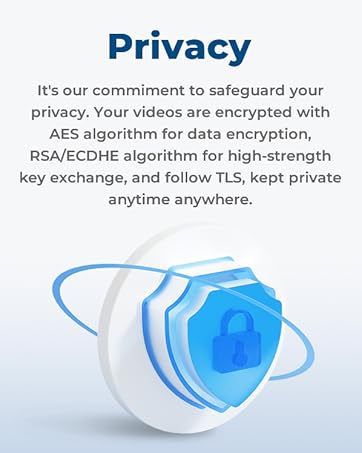
Figure 9.1: REOLINK's commitment to privacy protection through advanced encryption methods.


