
Introduction
Thank you for choosing the IMICE X9 Wired Optical Gaming Mouse. This manual provides detailed instructions for setting up, operating, maintaining, and troubleshooting your new gaming mouse. Please read this manual carefully to ensure optimal performance and longevity of your device.
Product Overview
The IMICE X9 is a high-performance wired optical gaming mouse designed for precision and comfort. It features adjustable DPI settings, 6 programmable buttons, and vibrant LED lighting to enhance your gaming experience. Its ergonomic design ensures comfortable use during extended gaming sessions.
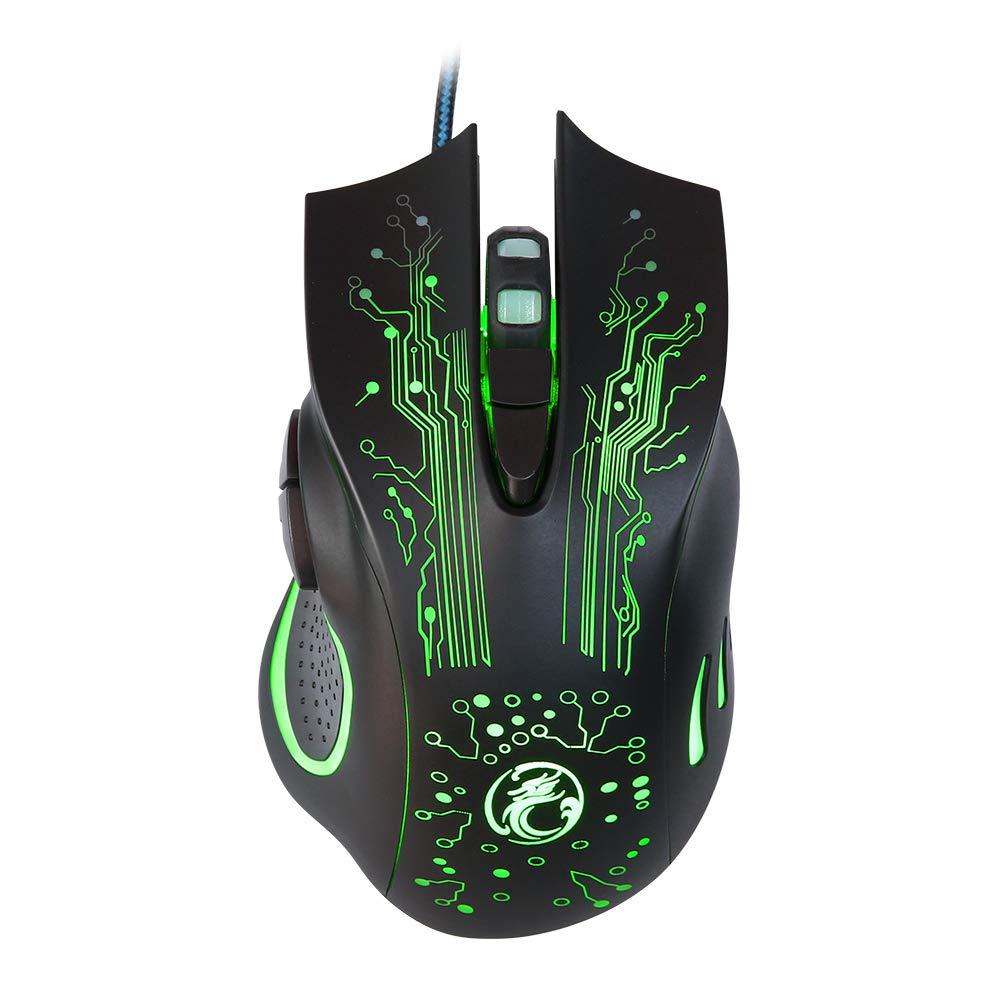
Image: The IMICE X9 gaming mouse showcasing its ergonomic design and dynamic LED lighting.
Setup
Setting up your IMICE X9 gaming mouse is a simple plug-and-play process.
- Unpack the Mouse: Carefully remove the IMICE X9 gaming mouse from its packaging.
- Connect to Computer: Locate an available USB port on your computer (desktop or laptop). Insert the USB connector of the IMICE X9 mouse firmly into the USB port.
- Driver Installation: Your operating system (Windows, Linux) should automatically detect and install the necessary drivers. This process may take a few moments.
- Ready for Use: Once the drivers are installed, the mouse's LED lighting will illuminate, and it will be ready for immediate use.
Operating Instructions
Basic Functionality
- Left Click: Primary action, selection.
- Right Click: Secondary action, context menus.
- Scroll Wheel: Scroll up/down in documents and web pages. Pressing the scroll wheel acts as a middle click.
DPI Adjustment
The IMICE X9 mouse features adjustable DPI (Dots Per Inch) settings, allowing you to change cursor sensitivity on the fly. The available DPI settings range from 800 to 2400 DPI.

Image: Top view of the IMICE X9 mouse, showing the DPI adjustment button located behind the scroll wheel.
- DPI Button: Press the dedicated DPI button (usually located behind the scroll wheel) to cycle through the available DPI settings. Each press will change the sensitivity, often indicated by a change in LED color or a brief flicker.
Additional Buttons
The IMICE X9 includes additional buttons for enhanced productivity and gaming.

Image: Side view of the IMICE X9 mouse, illustrating the placement of the two thumb buttons.
- Forward Button: Typically located on the side, this button allows you to navigate forward in web browsers or file explorers.
- Backward Button: Also located on the side, this button allows you to navigate backward in web browsers or file explorers.
Maintenance
Proper maintenance ensures the longevity and performance of your IMICE X9 gaming mouse.
- Cleaning: Use a soft, dry cloth to wipe the surface of the mouse. For stubborn dirt, slightly dampen the cloth with water or a mild cleaning solution. Avoid harsh chemicals.
- Optical Sensor: Keep the optical sensor on the underside of the mouse clean and free from dust or debris. Use a cotton swab or compressed air if necessary.
- Cable Care: Avoid sharp bends or excessive pulling on the USB cable to prevent damage.
- Storage: When not in use, store the mouse in a clean, dry environment away from extreme temperatures.
Troubleshooting
If you encounter issues with your IMICE X9 gaming mouse, refer to the following common solutions:
| Problem | Possible Cause | Solution |
|---|---|---|
| Mouse not responding | Loose USB connection, faulty USB port, driver issue. | Try reconnecting the USB cable. Use a different USB port. Restart your computer. Check Device Manager for driver status. |
| Cursor movement is erratic or jumpy | Dirty optical sensor, unsuitable mouse pad surface. | Clean the optical sensor. Use a clean, non-reflective mouse pad. |
| LED lights are off or flickering | Power issue, software conflict. | Ensure the mouse is properly connected. Try a different USB port. Restart your computer. |
| DPI adjustment not working | Button malfunction, temporary software glitch. | Press the DPI button firmly. Restart your computer. |
If the problem persists after trying these solutions, please contact customer support.
Specifications
Detailed technical specifications for the IMICE X9 Wired Optical Gaming Mouse:
- Brand: IMICE
- Model: X9
- Connectivity Technology: USB (Wired)
- DPI Settings: 800-2400 DPI (Adjustable)
- Tracking Method: Optical
- Number of Buttons: 6
- Hand Orientation: Ambidextrous
- Special Features: Ergonomic Design, LED Lighting
- Recommended Uses: Gaming
- Compatible Devices: Laptop, Personal Computer
- Compatible Operating Systems: Linux, Windows 10
- Style: Modern
- Platform: PC
- Batteries Included: No
- Manufacturer Part Number: YX1560214

Image: A display of three IMICE X9 gaming mice, highlighting the different LED color options (red, blue, green).
Warranty and Support
The IMICE X9 Wired Optical Gaming Mouse comes with a standard manufacturer's warranty. For specific warranty terms and conditions, please refer to the warranty card included with your product or visit the official IMICE website. For technical support, troubleshooting assistance beyond this manual, or warranty claims, please contact IMICE customer service through their official channels.


