
1. Introduction
The Ajazz AK325 is a 104-key USB wired desktop computer keyboard featuring a unique retro punk round keycap design and a natural soft backlight. It is engineered to provide a quiet typing experience, making it suitable for various work environments. This manual provides detailed instructions for setting up, operating, maintaining, and troubleshooting your Ajazz AK325 keyboard.
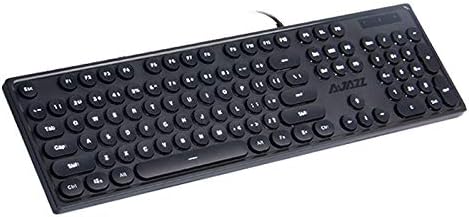
Figure 1.1: Ajazz AK325 Black Keyboard - Top View. This image displays the full layout of the 104-key keyboard, highlighting its distinctive round keycaps and the wired USB connection.
Key Features:
- Retro Punk Keycap Design: Unique round keycaps provide a distinctive aesthetic and tactile feel, similar to mechanical keyboards.
- Ultra-Quiet Operation: Designed for minimal noise during typing, ensuring a quiet working environment.
- Natural Soft Backlight: Features a gentle backlight to prevent eye strain, with adjustable effects and intensity.
- Wired USB Connectivity: Ensures stable and reliable connection to your computer.
- Wide Compatibility: Supports various operating systems including Windows XP, 7, 8, 10, and IOS.
2. Specifications
| Specification | Value |
|---|---|
| Brand Name | Ajazz |
| Model | AK325 |
| Manufacturer Reference | YX1306825 |
| Number of Keys | 104 |
| Keyboard Dimensions (L x W x H) | 447 x 131 x 31mm |
| Keyboard Weight | 0.77kg |
| Cable Length | 1.6m |
| Connectivity Technology | USB Wired |
| Current / Voltage | 500mA / 5V |
| System Requirements | Windows XP, Windows 7, Windows 8, Windows 10, IOS |
| Hand Orientation | Ambidextrous |
3. Setup
Setting up your Ajazz AK325 keyboard is a simple plug-and-play process. No additional drivers are typically required for basic functionality.
Connection Steps:
- Locate an available USB port on your computer (desktop PC, laptop, etc.).
- Take the USB cable attached to your Ajazz AK325 keyboard.
- Insert the USB connector firmly into the chosen USB port on your computer.
- Your operating system should automatically detect and install the necessary drivers for the keyboard. This may take a few moments.
- Once detected, the keyboard is ready for use. You can test it by typing in any text editor.
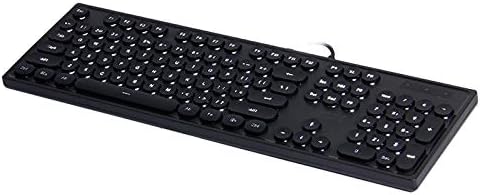
Figure 3.1: Ajazz AK325 Black Keyboard - Angled View. This image provides a perspective of the keyboard's profile and the integrated USB cable, illustrating its wired nature.
4. Operating Instructions
The Ajazz AK325 keyboard offers basic functionality and adjustable backlight features. The primary control for backlight settings is the 'Fn' key combined with other keys.
Backlight Control:
- Switch Backlight Effects: Press Fn + TAB to cycle through different backlight regulation effects.
- Increase Light Intensity: Press Fn + ↑ (Up Arrow key) to make the backlight brighter.
- Decrease Light Intensity: Press Fn + ↓ (Down Arrow key) to dim the backlight.
- Adjust Breathing Speed: Press Fn + ← (Left Arrow key) or Fn + → (Right Arrow key) to increase or decrease the speed of the breathing backlight effect.
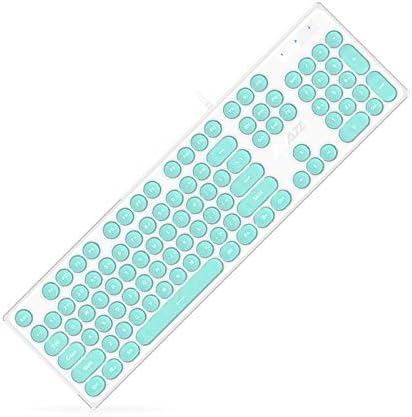
Figure 4.1: Ajazz AK325 Black Keyboard - Detailed Angled View. This image provides a closer look at the keycap texture and the overall ergonomic design of the keyboard.
5. Maintenance
Proper maintenance can extend the lifespan of your Ajazz AK325 keyboard and ensure optimal performance.
Cleaning Instructions:
- Disconnect First: Always unplug the keyboard from your computer before cleaning.
- Dust Removal: Use a can of compressed air to blow away dust and debris from between the keycaps. Hold the can upright to prevent propellant discharge.
- Surface Cleaning: Gently wipe the surface of the keycaps and the keyboard body with a soft, lint-free cloth slightly dampened with water or a mild, non-abrasive cleaning solution. Avoid excessive moisture.
- Avoid Harsh Chemicals: Do not use strong solvents, alcohol, or abrasive cleaners, as these can damage the keycaps or the keyboard finish.
- Drying: Ensure the keyboard is completely dry before plugging it back into your computer.
Storage:
When not in use for extended periods, store the keyboard in a clean, dry place away from direct sunlight and extreme temperatures.
6. Troubleshooting
If you encounter issues with your Ajazz AK325 keyboard, refer to the following common troubleshooting steps:
Common Issues and Solutions:
- Keyboard Not Responding:
- Ensure the USB cable is securely plugged into a working USB port on your computer.
- Try plugging the keyboard into a different USB port.
- Restart your computer.
- Test the keyboard on another computer to determine if the issue is with the keyboard or the computer.
- Backlight Not Working or Dim:
- Press Fn + ↑ to increase backlight intensity.
- Press Fn + TAB to cycle through different backlight modes, as some modes might appear dim or off.
- Ensure the keyboard is receiving sufficient power from the USB port. Try a different port or a powered USB hub if available.
- Keys Not Registering or Sticking:
- Clean the keyboard as described in the Maintenance section to remove any debris under the keycaps.
- If specific keys are consistently failing, the keyboard may require service.
7. Package Contents
Upon opening the product packaging, you should find the following items:
- 1 x Ajazz AK325 Black Keyboard (with integrated USB cable)
- 1 x User Manual (this document)
Note: At the time of this manual's publication, only the black color variant of the keyboard is available for order.
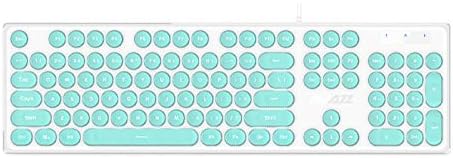
Figure 7.1: Ajazz AK325 White Keyboard with Teal Keycaps. This image shows a color variant of the keyboard, featuring a white body and vibrant teal round keycaps.

Figure 7.2: Ajazz AK325 White Keyboard with Pink Keycaps. Another color variant, this image displays the keyboard with a white body and soft pink round keycaps, offering a different aesthetic.
8. Warranty and Support
For warranty information and technical support regarding your Ajazz AK325 keyboard, please refer to the specific warranty card included with your purchase or contact the retailer or manufacturer directly.
Keep your purchase receipt or proof of purchase for warranty claims. For the most up-to-date support resources, visit the official Ajazz website or the website of the retailer from whom you purchased the product.
If you have further questions or require assistance beyond the scope of this manual, please reach out to customer service.
