
NetumScan
Contents
NetumScan NSL5 2D Barcode Scanner User Manual
Model: NSL5 | Brand: NetumScan
1. Introduction
This manual provides detailed instructions for the setup, operation, and maintenance of your NetumScan NSL5 2D Barcode Scanner. The NSL5 is a versatile wired barcode imager designed for efficient scanning of both 1D and 2D barcodes, including QR codes, Data Matrix, and PDF417. It is compatible with various operating systems and is ideal for retail, inventory management, and other business applications.

Image: The NetumScan NSL5 2D Barcode Scanner, a black handheld device with a blue trigger button and an attached USB cable.
2. Package Contents
- NetumScan NSL5 2D Barcode Scanner (with integrated USB cable)
- User Manual (this document)
3. Setup
The NetumScan NSL5 scanner is designed for plug-and-play operation, requiring no driver installation for most common operating systems.
3.1 Connecting the Scanner
- Locate an available USB port on your computer (PC or Laptop).
- Plug the USB cable of the NSL5 scanner into the USB port.
- The scanner will automatically be recognized by your system. A confirmation sound or light may indicate successful connection.
3.2 System Compatibility
The NSL5 scanner is compatible with the following operating systems:
- Windows 7/10
- Mac OS
- Linux
It is designed to work with desktop PCs and laptops. It is not compatible with iPads or iPhones.

Image: Visual representation of compatible devices (PC, Laptop) and operating systems (Windows, Linux, Mac OS) for the NSL5 scanner, highlighting its USB Plug & Play functionality.
4. Operating Instructions
The NetumScan NSL5 scanner offers various scanning modes and supports a wide range of barcode types.
4.1 Supported Barcode Types
The scanner can decode numerous 1D and 2D barcode types at high speed, including:
- 1D Barcodes: UPC/EAN Add on 2 or 5, Code 128, Code32/Code39, and more.
- 2D Barcodes: QR Code, Data Matrix, PDF417.
It can read barcodes from both printed paper and digital screens (smartphones, laptops, PC monitors), making it convenient for mobile payments and POS systems.

Image: Illustration showing the scanner's ability to decode various barcode types, including frayed, folded, profiled, color, one-dimensional, and two-dimensional codes.
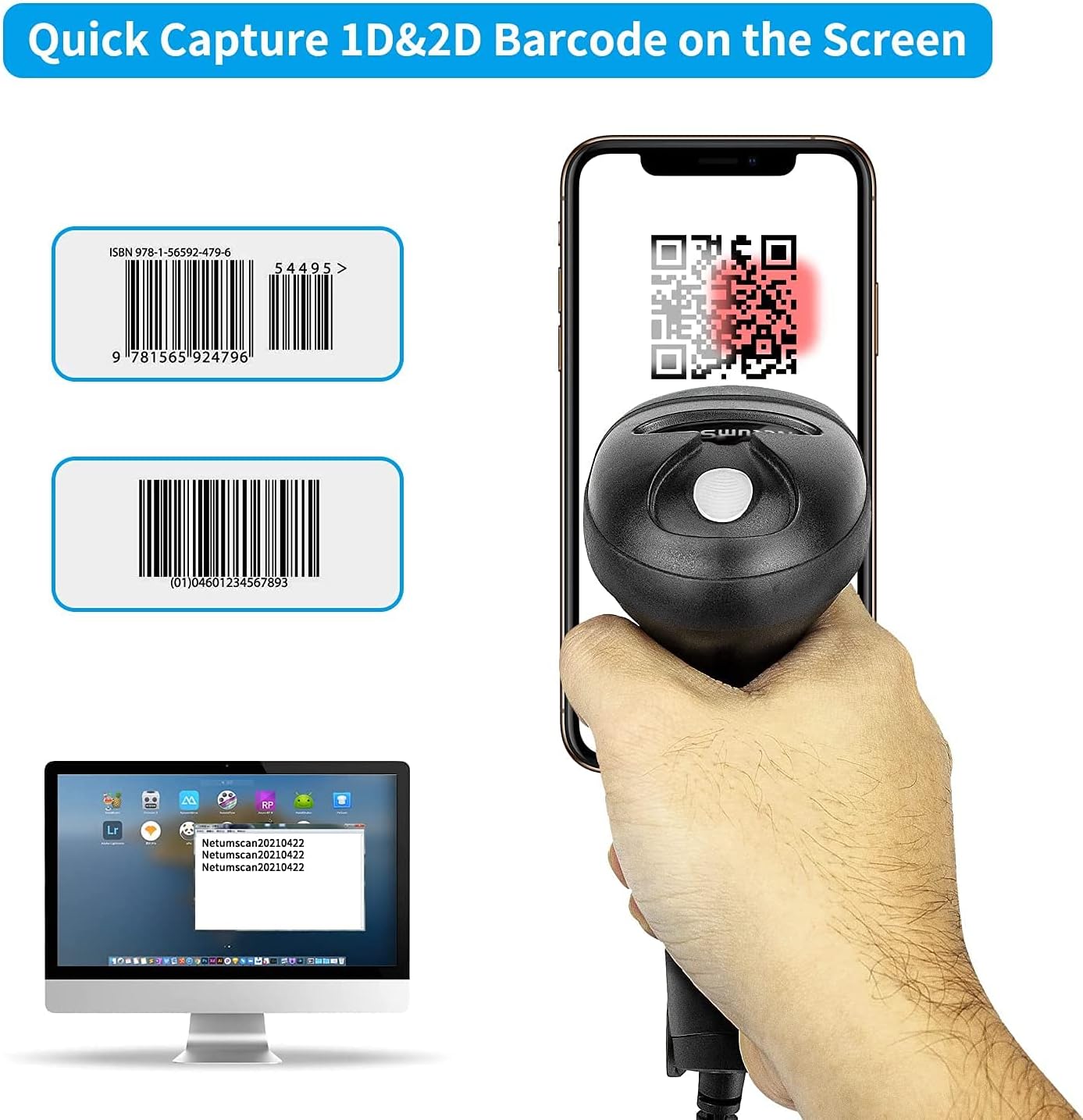
Image: A hand holding the scanner, demonstrating its capability to quickly capture 1D and 2D barcodes displayed on a smartphone screen, with the scanned data appearing on a computer monitor.
4.2 Scanning Modes
The NSL5 scanner supports three primary scanning modes:
- Key Trigger Mode: Press the trigger button to activate the scan beam and read a barcode. This mode is suitable for precise, on-demand scanning.
- Continuous Scan Mode: The scan beam remains continuously active, allowing for rapid scanning of multiple barcodes without repeatedly pressing the trigger.
- Auto-induction Mode: The scanner automatically detects when a barcode is presented within its scanning range and activates the beam to read it. No trigger press is required.

Image: Visual representation of the three scanning modes: Key Trigger Mode (manual press), Continuous Scan Mode (beam always on), and Auto-induction Mode (automatic detection).

Image: Detailed illustrations explaining the operation of Trigger Mode (scan when barcode is near, press button), Automatic Detection Mode (red beam lights up when barcode passes, no button press needed), and Continuous Mode (red beam always on, reads when barcode passes, no button press needed).
5. Customization and Settings
The NSL5 scanner allows for various customizations to suit your operational needs.
5.1 Sound and Vibration Settings
You can adjust the scanner's feedback settings:
- Turn off the sound.
- Set sound volume to Low or High.
- Turn on or off vibration feedback.

Image: Icons representing options to turn off sound, set low sound, set high sound, turn on vibration, and turn off vibration.
5.2 Data Formatting (Prefix/Suffix)
The scanner can be configured to add custom prefixes or suffixes to scanned data, which can be useful for data entry and system integration.

Image: Examples of barcodes with "Add Prefix" (ABC123456789) and "Add Suffix" (123456789ABC) functionality.
5.3 Data Hiding
For specific applications, you may configure the scanner to hide certain parts of the scanned data (start, middle, or end data).

Image: Examples of barcodes demonstrating the ability to hide start, middle, or end data segments.
5.4 Language Support
The scanner supports multiple languages for its operational feedback and settings, including English, French, German, Spanish, and Italian.

Image: Flags representing supported languages: English, Spanish, German, Dutch, French, Italian, Turkish, Polish, and Swedish.
6. Maintenance
To ensure optimal performance and longevity of your NetumScan NSL5 scanner, follow these maintenance guidelines:
- Cleaning: Use a soft, dry cloth to clean the scanner's exterior. For the scanning window, use a lint-free cloth lightly dampened with a non-abrasive cleaner. Avoid harsh chemicals or abrasive materials.
- Storage: Store the scanner in a cool, dry place away from direct sunlight and extreme temperatures.
- Handling: While the scanner is designed to be robust and can withstand drops from up to 1.5 meters, avoid unnecessary impacts or rough handling to prevent damage.

Image: An illustration depicting the scanner falling and impacting a cracked surface, indicating its shock and drop resistance from 5 feet (1.5 meters).
7. Troubleshooting
If you encounter issues with your NetumScan NSL5 scanner, refer to the following common problems and solutions:
| Problem | Possible Cause | Solution |
|---|---|---|
| Scanner not recognized by computer. | Loose USB connection, incompatible USB port, or system issue. |
|
| Scanner does not read barcodes. | Incorrect scanning mode, damaged barcode, insufficient lighting, or scanner window obstruction. |
|
| Scanned data is incorrect or incomplete. | Barcode not fully scanned, or incorrect data formatting settings. |
|
8. Specifications
| Feature | Detail |
|---|---|
| Model Number | NSL5 |
| Connectivity Technology | USB (Wired) |
| Compatible Devices | PC, Laptop |
| Compatible Operating Systems | Windows 7/10, Mac OS, Linux |
| Barcode Types Supported | 1D (UPC/EAN, Code 128, Code32/Code39, etc.), 2D (QR, Data Matrix, PDF417) |
| Drop Resistance | Up to 1.5 meters (5 feet) |
| Power Source | Cable Electric |
| Manufacturer | NetumScan |
| Country of Origin | China |
| UPC | 649615769287 |
9. Warranty and Support
9.1 Manufacturer's Warranty
The NetumScan NSL5 Barcode Scanner comes with a one-year manufacturer's warranty from the date of purchase. This warranty covers defects in materials and workmanship under normal use. Please retain your proof of purchase for warranty claims.
9.2 Customer Support
For technical assistance, troubleshooting beyond this manual, or warranty inquiries, please contact NetumScan customer support. Refer to the product packaging or the official NetumScan website for the most current contact information.
Ask a question about this manual
Ask about setup, troubleshooting, compatibility, parts, safety, or missing instructions. Manuals+ will review the question and use this page’s manual context to help answer it.