Product Overview
This manual provides instructions for the Elekpia Replacement Remote Control, designed for use with various MAG IPTV Linux Set-Top Box models. This remote offers a direct replacement solution, requiring no complex programming or pairing.
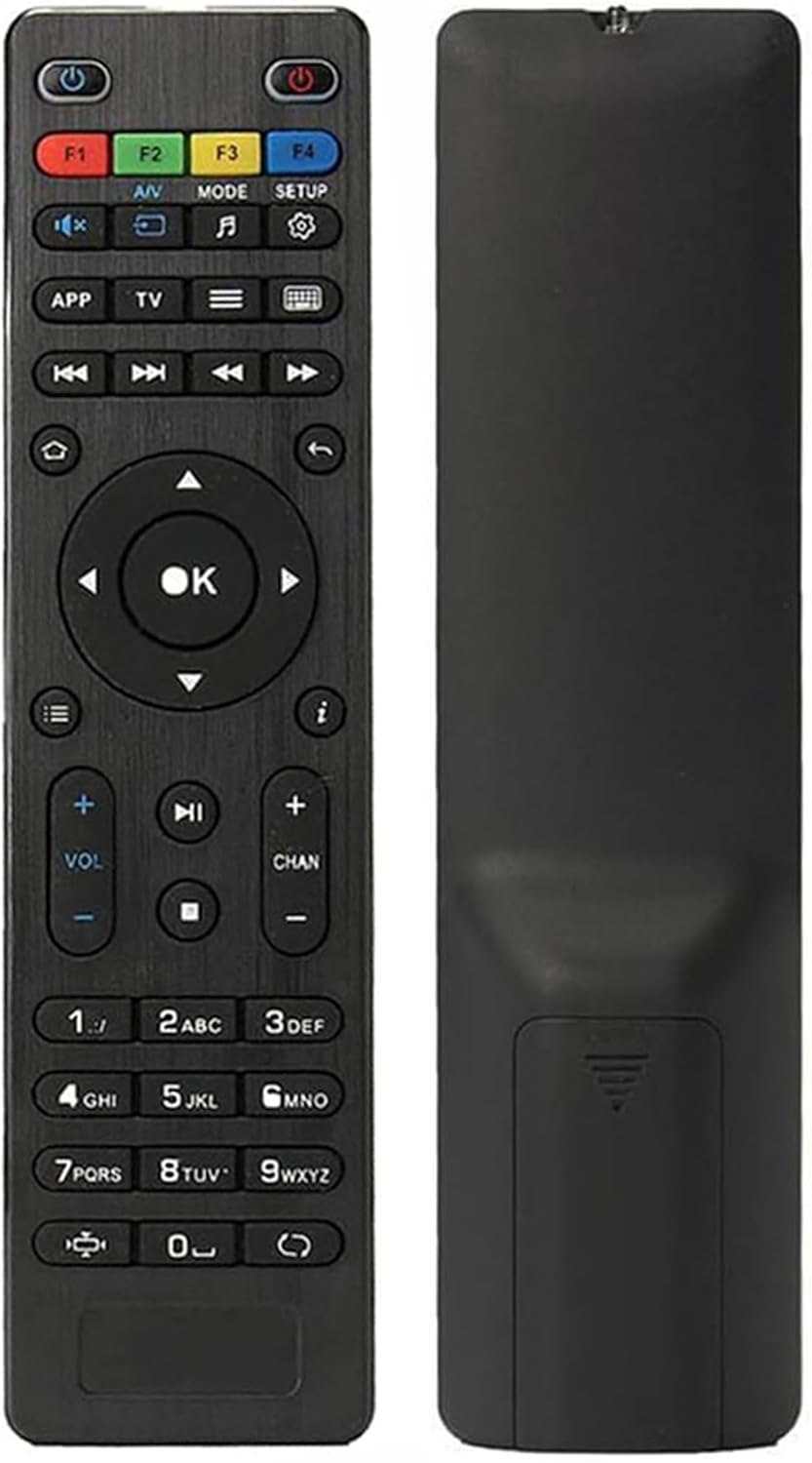
Image: Front and back view of the Elekpia replacement remote control. The remote is black with clearly labeled buttons on the front, and a smooth, ergonomic back.
Key Features:
- Compatible with a wide range of MAG IPTV Linux Set-Top Box models, including MAG250, MAG254, 255, 256, 257, 260, 275, 349, 350, 351, 352, and MAG322W1.
- No programming or pairing required; functions immediately upon battery installation.
- Powered by two AAA batteries (not included).

Image: The remote control is shown alongside a list of compatible MAG models, emphasizing its broad compatibility with various MAG IPTV Linux Set-Top Boxes.
Setup
Setting up your new Elekpia remote control is a straightforward process. Follow these steps to begin using your remote.
1. Battery Installation
- Locate the battery compartment on the back of the remote control.
- Slide open the battery compartment cover.
- Insert two (2) AAA batteries, ensuring the positive (+) and negative (-) terminals align correctly with the indicators inside the compartment.
- Close the battery compartment cover securely.
2. Initial Use
This remote control is designed to work directly with compatible MAG IPTV Linux Set-Top Boxes without the need for programming or pairing. Once batteries are installed, point the remote at your set-top box and begin using it.
Operating Instructions
Familiarize yourself with the functions of each button on your Elekpia remote control to effectively navigate and control your MAG IPTV Linux Set-Top Box.

Image: A detailed diagram illustrating the layout and function of each button on the remote control, including power, navigation, volume, channel, and media playback controls.
Remote Control Button Functions| Button | Function |
|---|
| Power Button (⏻) | Turns the Media Player On/Off. |
| F1, F2, F3, F4 | Additional functions (may vary by device). |
| A/V | Changes audio mode. |
| MODE | Accesses setup menu. |
| SETUP | Accesses setup menu. |
| APP | Context menu. |
| TV | Quick TV access. |
| Menu (☰) | TV Guide. |
| Keyboard (⌨) | Virtual keyboard. |
| Navigation Arrows (Up, Down, Left, Right) | Navigates through menus and options. |
| OK Button | Confirms selections. |
| Back/Return (↩) | Goes back to the previous screen. |
| Home (⌂) | Returns to the home screen. |
| Info (ⓘ) | Displays information. |
| Volume Up/Down (VOL + / -) | Adjusts the volume level. |
| Channel Up/Down (CHAN + / -) | Switches channels. |
| Mute (🔇) | Toggles sound on/off. |
| Play/Pause (▶⏸) | Plays or pauses media. |
| Stop (⏹) | Stops media playback. |
| Skip Forward/Backward (⏭⏮) | Skips to the next/previous track or chapter. |
| Fast Play (⏩) | Fast forwards through media. |
| Numeric Keypad (0-9) | Direct input for channel numbers or other numerical data. |
| Aspect Ratio (◧) | Changes aspect ratio. |
| Update (↻) | Initiates an update (functionality may vary). |
Maintenance
Proper maintenance ensures the longevity and optimal performance of your remote control.
1. Battery Replacement
Replace batteries when the remote's responsiveness decreases or it stops functioning. Always use new AAA batteries and dispose of old batteries responsibly according to local regulations.
2. Cleaning
To clean the remote, gently wipe its surface with a soft, dry cloth. For stubborn dirt, slightly dampen the cloth with water or a mild, non-abrasive cleaner. Avoid using excessive liquid or harsh chemicals, as these can damage the remote's electronics or finish.
3. Storage
When not in use for extended periods, it is recommended to remove the batteries to prevent potential leakage and damage to the remote.
Troubleshooting
If you encounter issues with your remote control, refer to the following common problems and their solutions.
Common Issues and Solutions| Problem | Possible Cause | Solution |
|---|
| Remote not responding. | Dead or incorrectly installed batteries. Obstruction between remote and set-top box. Remote out of range. | Replace batteries with new AAA batteries, ensuring correct polarity. Remove any obstructions. Ensure you are within effective range of the set-top box. |
| Buttons are sticky or hard to press. | Accumulation of dirt or debris under the buttons. Internal mechanism issue. | Gently clean around the buttons with a soft, dry cloth or a cotton swab. If the issue persists, it may indicate internal wear. |
| Remote works intermittently. | Low battery power. Infrared sensor on remote or set-top box is dirty or obstructed. | Replace batteries. Clean the infrared sensor on both the remote and the set-top box. Ensure a clear line of sight. |
| Remote does not control the set-top box. | Incompatible set-top box model. | Verify that your MAG IPTV Linux Set-Top Box model is listed as compatible (MAG250, MAG254, 255, 256, 257, 260, 275, 349, 350, 351, 352, MAG322W1). |
Specifications
Product Specifications| Feature | Detail |
|---|
| Model Number | Elekpia mag 254 remote |
| Compatible Devices | MAG250, MAG254, 255, 256, 257, 260, 275, 349, 350, 351, 352 IPTV Linux Set-Top Box, MAG322W1 |
| Power Source | 2 x AAA Batteries (not included) |
| Dimensions (L x W x H) | 7 x 1.8 x 0.6 inches (approximately) |
| Item Weight | 1.76 ounces (approximately) |
| Color | Black |
| Special Feature | Ergonomic design |
Warranty and Support
Information regarding product warranty and customer support is not provided within this instruction manual. For warranty details or technical assistance, please refer to the product packaging or contact the retailer/manufacturer directly.
Manufacturer: Elekpia Factory


