
1. Introduction
Thank you for purchasing the FEELWORLD F6 On-Camera Monitor. This manual provides detailed instructions for the proper use, setup, and maintenance of your monitor. Please read this manual thoroughly before operating the device to ensure optimal performance and to prevent damage.
The FEELWORLD F6 is a compact and lightweight 5.7-inch Full HD 1920x1080 IPS monitor designed for DSLR and mirrorless cameras. It features a 170° wide viewing angle, professional Rec.709 color calibration, and a range of advanced monitoring tools to assist in professional video production.
Safety Information
- Do not expose the monitor to rain or moisture to avoid electric shock or fire.
- Avoid placing the monitor in direct sunlight or near heat sources.
- Use only the specified power adapter or compatible batteries.
- Do not disassemble or modify the monitor. Refer all servicing to qualified personnel.
- Keep the monitor away from strong magnetic fields.
2. Package Contents
Please check that all items are present in your package:
- FEELWORLD F6 On-Camera Monitor
- Tilt Arm
- HDMI Cable
- Sunshade
- User Manual
3. Product Overview
The FEELWORLD F6 monitor is designed for ease of use and portability, featuring a slim profile and lightweight construction.
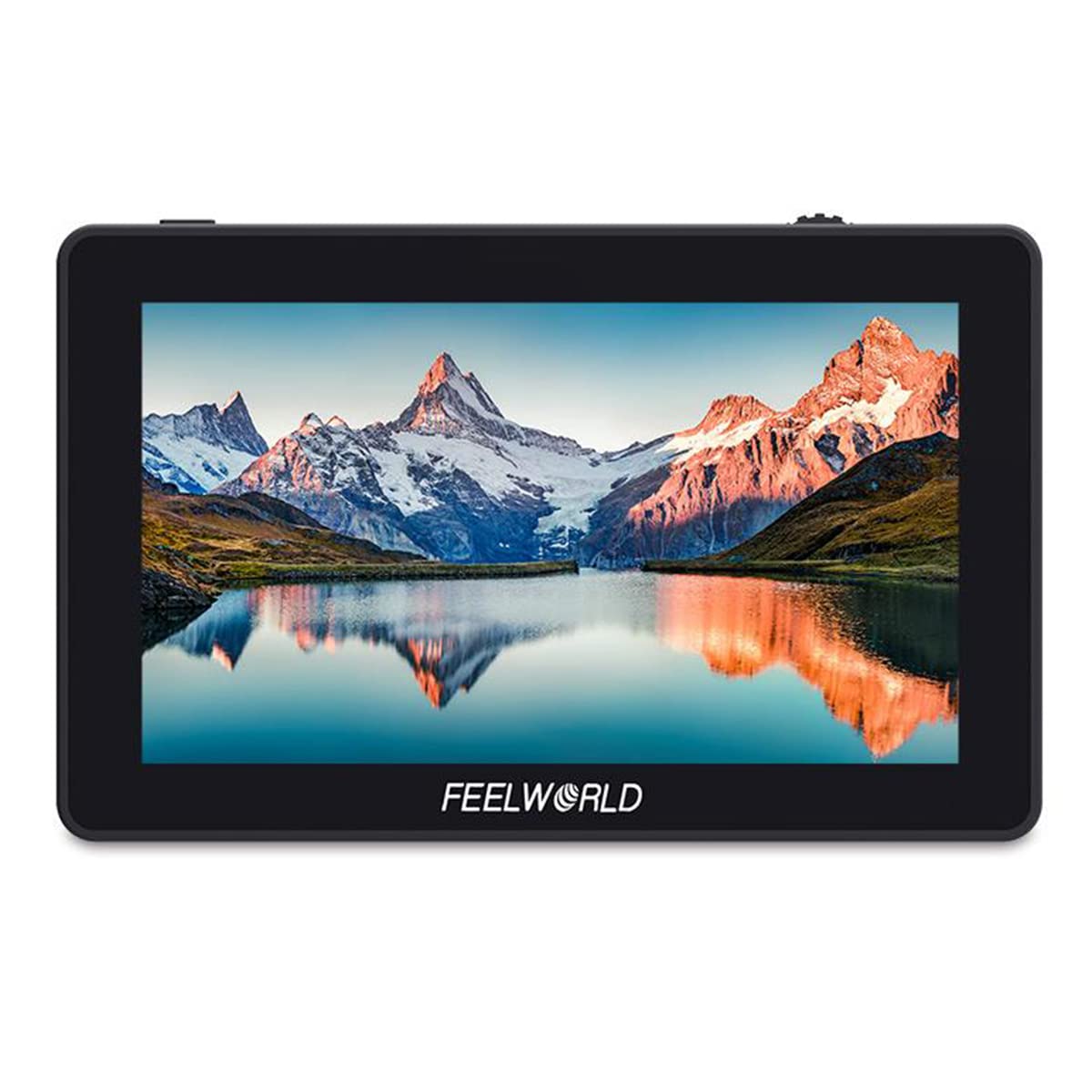
Figure 3.1: FEELWORLD F6 monitor mounted on a camera with a microphone.
Ports and Buttons

Figure 3.2: Side view of the FEELWORLD F6 monitor illustrating its various input and output ports.
- DC IN 12V: Power input for the monitor.
- DC OUT 8V: Power output to power compatible cameras or accessories.
- HDMI IN: HDMI input for video signal from your camera.
- USB UPGRADE: USB port for firmware updates.
- 3.5mm Ear Phone Slot: Audio output for monitoring sound.
- Function Buttons: Customizable buttons for quick access to monitor features.
- Menu Button: Accesses the monitor's main menu.
- Scroll Wheel: Navigates through menu options and adjusts settings.
4. Setup
4.1 Mounting the Monitor
The FEELWORLD F6 includes a tilt arm for flexible mounting options on your camera's hot shoe or cold shoe mount.

Figure 4.1: The monitor attached to a camera via the included tilt arm, allowing for angle adjustments.
- Attach the tilt arm to your camera's hot shoe or cold shoe mount.
- Securely fasten the tilt arm.
- Mount the FEELWORLD F6 monitor onto the tilt arm using the ¼-20 screw.
- Adjust the monitor to your desired viewing angle and tighten the tilt arm.
4.2 Powering the Monitor
The F6 monitor supports both DC power input and battery power.

Figure 4.2: Rear view of the monitor, highlighting the battery plate for compatible rechargeable batteries.
- DC Power: Connect a 7-24V DC power adapter to the 'DC IN 12V' port.
- Battery Power: Attach a compatible NP-F series battery (e.g., NP-F970) to the battery plate on the back of the monitor.
4.3 Connecting to a Camera
Use an HDMI cable to connect your camera to the monitor.
- Ensure both the monitor and camera are powered off.
- Connect one end of the HDMI cable to your camera's HDMI output port.
- Connect the other end of the HDMI cable to the 'HDMI IN' port on the FEELWORLD F6 monitor.
- Power on the monitor, then power on your camera. The video signal should appear on the monitor.
5. Operating Instructions
5.1 Basic Operation
- Power On/Off: Press and hold the power button (usually located on the side or top) for a few seconds to turn the monitor on or off.
- Menu Navigation: Press the 'MENU' button to access the main menu. Use the scroll wheel to navigate through options and press the wheel to confirm selections.
- Function Buttons: The F1/F2/F3 buttons are customizable. You can assign frequently used functions (e.g., Peaking, False Color) to these buttons via the menu.
5.2 Advanced Monitoring Features
The F6 monitor includes several professional tools to assist with exposure, focus, and framing:
- Peaking Filter: Highlights sharp edges in red, green, or blue to assist with focus.
- Histogram: Displays the tonal distribution of the image, helping to prevent over or under-exposure.
- False Colors: Assigns specific color overlays to different exposure levels, making it easy to identify overexposed or underexposed areas.
- Exposure (Zebras): Displays zebra patterns over areas exceeding a set exposure threshold.
- Embedded Audio: Visualizes audio levels on the screen.
- Anamorphic Mode: De-squeezes anamorphic footage for proper viewing.
- Nine Grids: Overlays a 3x3 grid for composition assistance.
- Zoom-in: Magnifies a portion of the image for critical focus.
- Pixel-to-Pixel: Displays the image at its native resolution without scaling.
- Check Field: Displays only red, green, blue, or mono channels for color analysis.
- Image Flip: Flips the image horizontally or vertically, useful for various mounting orientations.
- Image Freeze: Pauses the current frame on the screen.
5.3 Color Calibration (Rec.709 Standard)
The FEELWORLD F6 monitor is factory-calibrated to the professional Rec.709 HD color standard, ensuring accurate color reproduction.

Figure 5.1: Illustration of the Rec.709 color standard, indicating the monitor's professional color accuracy.

Figure 5.2: Visual comparison demonstrating the improved color accuracy after professional calibration.
This calibration ensures that the colors displayed on the monitor are consistent and true to the source, which is crucial for critical monitoring during production.
6. Maintenance
6.1 Cleaning
- Use a soft, dry cloth to clean the monitor's exterior.
- For the screen, use a microfiber cloth specifically designed for electronics. If necessary, lightly dampen the cloth with a screen cleaning solution. Do not spray liquid directly onto the screen.
- Avoid using harsh chemicals, solvents, or abrasive cleaners.
6.2 Storage
- When not in use, store the monitor in a cool, dry place, away from direct sunlight and extreme temperatures.
- If storing for an extended period, remove any attached batteries.
- Use a protective case or pouch to prevent scratches and impacts.
7. Troubleshooting
| Problem | Possible Cause | Solution |
|---|---|---|
| Monitor does not power on. | No power, low battery, or faulty power connection. | Check DC power connection or replace/recharge battery. Ensure power button is pressed correctly. |
| No video signal. | Incorrect HDMI connection, camera not outputting signal, or incorrect input selected. | Verify HDMI cable connection. Check camera's HDMI output settings. Ensure 'HDMI IN' is selected on the monitor. |
| Image is distorted or flickering. | Faulty HDMI cable, incompatible resolution, or interference. | Try a different HDMI cable. Adjust camera's output resolution. Move away from sources of electromagnetic interference. |
| Monitor gets hot during operation. | Normal operation, or poor ventilation. | Some warmth is normal. Ensure adequate airflow around the monitor. If excessively hot, power off and allow to cool. |
If the problem persists after attempting these solutions, please contact customer support.
8. Specifications
| Feature | Specification |
|---|---|
| Model | F6 |
| Screen Size | 5.7" IPS |
| Resolution | 1920 x 1080 pixels |
| Pixel Pitch | 0.0657 x 0.0219 mm |
| Aspect Ratio | 16:9 |
| Brightness | 460 cd/m² |
| Contrast Ratio | 1400:1 |
| Backlight | LED |
| Viewing Angle | 85°/85° (L/R) 85°/85° (U/D) |
| Input Voltage | 7 ~ 24 V DC |
| Power Consumption | ≤ 8 W |
| Power Connector | DC |
| Operating Temperature | -20 °C ~ 55 °C |
| Storage Temperature | -30 °C ~ 65 °C |
| Installation | 3 x ¼-20 Thread points (top, bottom, right side) |
| Dimensions | 154 x 90 x 23 mm |
| Unit Weight | 200 g |
| HDMI Input/Output Support | 480i/576i/480p/576p, 1080i (60/59.94/50), 720p (60/59.94/50/30/29/25/24/23.98), 1080p (60/59.94/50/30/29.97/25/24/24sF/23.98/ 23.98sF), 4K UHD 3840 × 2160p (30/29.97/25/24/23.98 Hz), 4096 × 2160p (24 Hz) |
| Audio Output | 3.5mm Stereo Headphone Jack |
| Reference Number | 712350122799 |
| ASIN | B07ZR8SHZ8 |
9. Warranty and Support
9.1 Warranty Information
FEELWORLD products typically come with a limited warranty against defects in materials and workmanship. Please refer to the warranty card included with your product or visit the official FEELWORLD website for specific warranty terms and conditions applicable to your region.
9.2 Customer Support
For technical assistance, troubleshooting, or service inquiries, please contact FEELWORLD customer support. You can usually find contact information, including email and phone numbers, on the official FEELWORLD website (www.feelworld.cn) or through your local distributor.
When contacting support, please have your product model (F6) and purchase information ready.