
Merkury Innovations MI-WW111-199W
Merkury Innovations Smart Wi-Fi Light Switch User Manual
Model: MI-WW111-199W
Introduction
The Merkury Innovations Smart Wi-Fi Light Switch allows you to control your lighting with ease, offering touch, app, and voice control capabilities. This dimmable switch integrates seamlessly with your home Wi-Fi network, requiring no additional hub. It is compatible with Amazon Alexa and Google Home, enabling convenient voice commands for your lighting. You can also set automated schedules and control your lights remotely using the Geeni app.
Safety Information
Please read and understand all safety instructions before installation and use. Improper installation can be dangerous or illegal. Always consult a qualified electrician if you are unsure about any part of the installation process.
- WARNING: Risk of Electric Shock. Disconnect power at the circuit breaker or fuse box before installation.
- This device is intended for installation in accordance with the National Electric Code (NEC) and local regulations.
- Ensure a neutral wire is present in your electrical box. This smart light switch requires a neutral wire for proper operation.
- Only compatible with 2.4GHz Wi-Fi networks.
- Do not exceed the maximum electrical ratings of the device.
Package Contents
- Merkury Innovations Smart Wi-Fi Light Switch
- Installation Guide (this manual)
- Mounting Screws
Setup
1. Pre-Installation Checks
- Verify your home Wi-Fi network is 2.4GHz.
- Confirm the presence of a neutral wire in your wall box.
- Turn off power to the light switch at the circuit breaker before proceeding.
2. Wiring Instructions
Carefully remove your existing light switch. Identify the Line (hot), Load, Neutral, and Ground wires. Connect the corresponding wires from your wall box to the Merkury Innovations Smart Wi-Fi Light Switch. Secure all connections with wire nuts. Ensure no bare wires are exposed.

Image: Side of the product packaging illustrating the wiring requirements, specifically highlighting the need for a neutral wire for installation. It also indicates that the switch is designed to replace existing light switches and is compatible with lights controlled by a single switch.
3. App Download and Connection
Download the Geeni app from the App Store (for iOS) or Google Play Store (for Android). Follow the in-app instructions to create an account and add your new Smart Wi-Fi Light Switch. The app will guide you through connecting the switch to your 2.4GHz Wi-Fi network.

Image: Back of the product packaging detailing the simple setup process: 1. Download App, 2. Install Switch, 3. Connect. It also mentions that the Geeni app controls all Merkury smart products, including security, lighting, and power devices.
4. Voice Assistant Integration
Once connected to the Geeni app, you can link your Merkury Innovations Smart Wi-Fi Light Switch to Amazon Alexa or Google Home for voice control. Follow the instructions within the Alexa or Google Home app to enable the Geeni skill/action and discover your new device.

Image: Front of the product packaging for the Merkury Innovations Smart Wi-Fi Dimmer Switch. It highlights the 'Touch to Dim' feature and indicates control via app, touch, and voice, with compatibility for Google Assistant.
Operating the Smart Wi-Fi Light Switch
Manual Control
The light switch features a touch-sensitive surface for manual operation. Tap to turn lights on/off. Press and hold to dim or brighten the lights. The sensitivity of the touch control may require precise interaction for desired dimming levels.
App Control
Using the Geeni app, you have full control over your light switch from anywhere with an internet connection:
- On/Off: Toggle the light switch on or off.
- Dimming: Adjust the brightness level of your lights.
- Scheduling: Create custom schedules to automatically turn lights on or off at specific times, or based on your location (e.g., turn on when you arrive home).
- Sharing Access: Share control of the switch with family members or other users through the app.
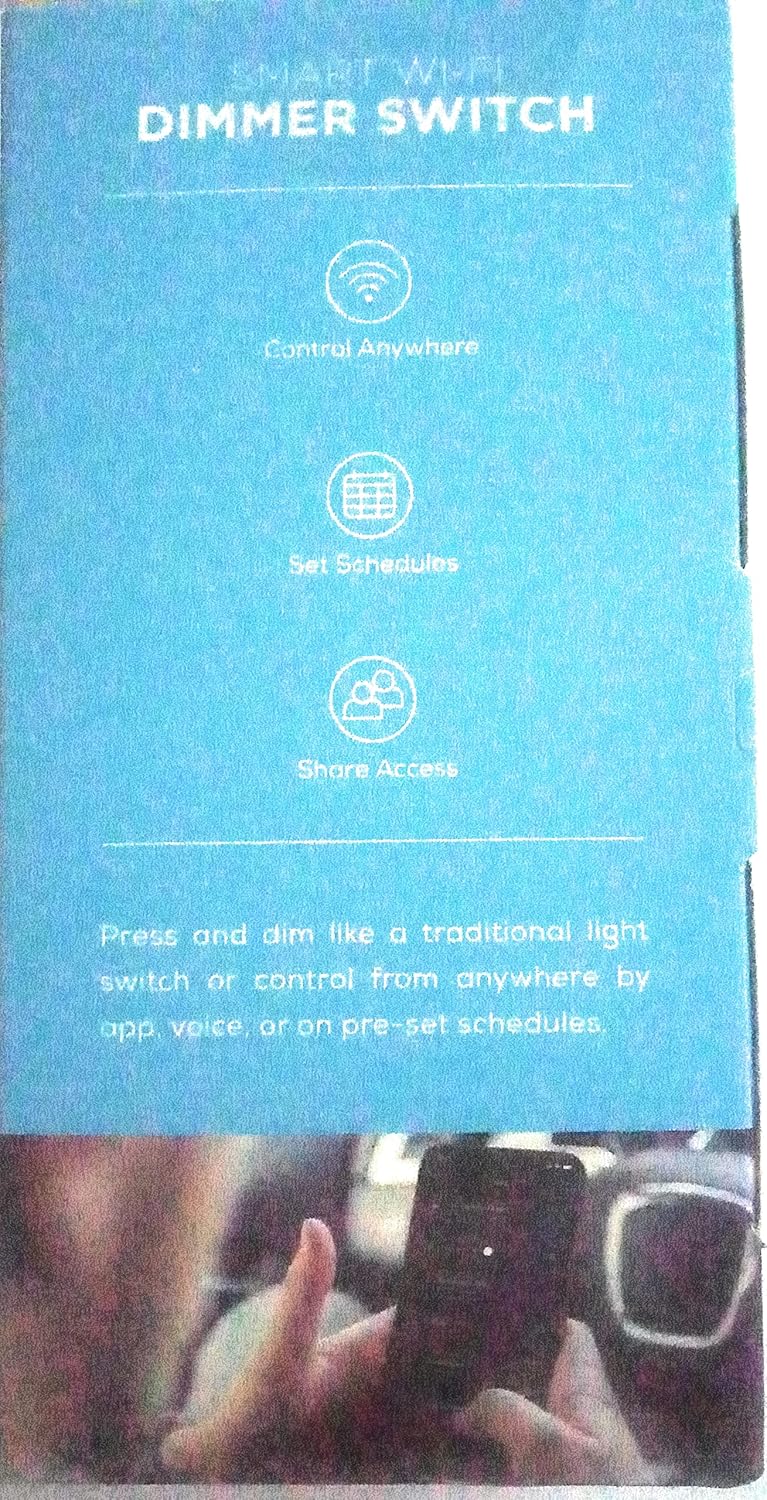
Image: Side of the product packaging highlighting key features of the Smart Wi-Fi Dimmer Switch: Control Anywhere, Set Schedules, and Share Access. It emphasizes the ability to press and dim like a traditional switch or control remotely via app, voice, or pre-set schedules.
Voice Control
Once integrated with Amazon Alexa or Google Home, use simple voice commands to control your lights. Examples:
- "Alexa, turn on the living room lights."
- "Hey Google, dim the kitchen lights to 50%."
- "Alexa, turn off the bedroom light."
Maintenance
To maintain your Merkury Innovations Smart Wi-Fi Light Switch, ensure it is kept clean and free from dust. Use a soft, dry cloth for cleaning. Do not use abrasive cleaners or solvents, as these may damage the surface of the switch. Ensure the switch plate is securely fastened to prevent dust and debris from entering the electrical box.
Troubleshooting
| Problem | Possible Cause | Solution |
|---|---|---|
| Switch not responding to app/voice commands. | No Wi-Fi connection, incorrect Wi-Fi band, app issue. | Ensure your Wi-Fi is active and the switch is within range. Verify your Wi-Fi is 2.4GHz. Restart the Geeni app. Re-pair the device if necessary. |
| Lights do not dim or dimming is inconsistent. | Incompatible bulbs, wiring issue, touch sensitivity. | Ensure you are using dimmable LED or incandescent bulbs. Check wiring connections. Practice using the touch control for precise dimming. |
| Switch does not power on after installation. | No neutral wire, incorrect wiring, no power. | Confirm a neutral wire is connected. Double-check all wiring connections. Ensure power is restored at the circuit breaker. Consult an electrician if unsure. |
| Manual touch control is too sensitive or awkward. | User unfamiliarity with touch interface. | Familiarize yourself with the specific touch points for on/off and dimming. Consistent interaction will improve usability. |
Specifications
- Model Number: MI-WW111-199W
- Operation Mode: OFF
- Operating Voltage: 120 Volts (AC)
- Contact Type: Normally Open
- Connector Type: Wireless
- Terminal: Screw
- Circuit Type: 1-way
- Mounting Type: Wall Mount
- Actuator Type: Push Button
- Contact Material: Metal
- International Protection Rating: IP00
- Number of Positions: 1
- Controller Type: Amazon Alexa
- Control Method: Voice
- Connectivity Protocol: Wi-Fi (2.4GHz only)
- Color: White
- Unit Count: 1.0 Count
- Number of Items: 1
- Item Weight: 10.6 ounces
- Package Dimensions: 6.02 x 3.66 x 3.03 inches
- UPC: 844702083134
Warranty and Support
For warranty information or technical support, please refer to the official Merkury Innovations website or contact their customer service directly. Keep your purchase receipt for warranty claims.
Related Documents - MI-WW111-199W
 |
Merkury Smart Wi-Fi Camera Start Guide A comprehensive start guide for the Merkury Smart Wi-Fi Camera, covering setup, app integration, and voice control with Google Assistant and Amazon Alexa. |
 |
Merkury Smart Wi-Fi LED Strip: Start Guide, Installation, and Voice Control Comprehensive guide for the Merkury Smart Wi-Fi LED Strip, covering setup, installation, troubleshooting, and voice control integration with Google Assistant and Amazon Alexa. Learn how to connect and manage your smart lighting. |
 |
Merkury Smart Wi-Fi Camera Start Guide and User Manual Comprehensive guide for setting up and using the Merkury Smart Wi-Fi Camera, including installation, app connection, settings, troubleshooting, and voice control integration with Google Assistant and Amazon Alexa. |
 |
Merkury Smart Wi-Fi Camera: Setup Guide and Features Comprehensive guide to setting up and using your Merkury Smart Wi-Fi Camera, including app installation, connection methods (Easy Mode, QR Code), settings, troubleshooting, and voice control integration with Google Assistant and Amazon Alexa. |
 |
Merkury Spectrum 450 Smart Wi-Fi LED Bulb User Manual User's manual for the Merkury Spectrum 450 Smart Wi-Fi LED Color + White Light bulb (Model MIC-BW901). Includes setup guide, features, technical specifications, and troubleshooting FAQs. |
 |
Merkury ENCORE MI-BT135 Bluetooth Speaker User Manual User manual for the Merkury ENCORE MI-BT135 Bluetooth Speaker and Wireless Microphone, covering setup, troubleshooting, specifications, and controls. |