
1. Introduction
This manual provides detailed instructions for the setup, operation, and maintenance of your MOES Smart Wake Up Light. Please read this manual thoroughly before using the device to ensure proper function and to maximize your user experience. This device combines a digital alarm clock with sunrise and sunset simulation, FM radio, natural sounds, and smart control features.
2. Product Overview
Familiarize yourself with the components and controls of your Smart Wake Up Light.

Figure 2.1: Front view of the MOES Smart Wake Up Light, showing the light panel and digital display.

Figure 2.2: Rear view and button layout of the MOES Smart Wake Up Light, indicating various controls and ports.
Control Buttons and Ports:
- Setting "+"/Volume "+": Increase value or volume.
- Snooze/Night Light Switch: Activate snooze or turn on/off night light.
- Setting "-"/Volume "-": Decrease value or volume.
- Alarm 1/Alarm 2: Set or activate Alarm 1 or Alarm 2.
- Light Switch: Turn the light on or off.
- Light Brightness Adjustment: Adjust the intensity of the light.
- Display Brightness/Time Setting: Adjust display brightness or set time.
- FM Switch: Turn FM radio on or off.
- FM Tuning: Tune FM radio frequencies.
- Fall Asleep: Activate sleep aid function.
- Button Battery: Backup battery compartment.
- Micro USB Input: Power input port.
- Reset: Reset the device to factory settings.
- USB Output: USB port for charging external devices.
- FM Antenna: Connect the FM antenna for better reception.
3. Features
- Hands-free Voice Control: Compatible with Amazon Alexa and Google Home for voice commands. Requires 2.4GHz WiFi.
- Smart Life App Control: Manage all functions via the Tuya/Smart Life App on your smartphone.
- Sunrise/Sunset Simulation: Gradually brightens before your alarm time (10-60 minutes) and dims for sleep. Brightness adjustable from 5% to 100%.
- Multiple Alarms with Snooze: Features 4 alarms, including options for separate workday and weekend settings. Snooze function provides 8-15 extra minutes of sleep.
- 7 Natural Sounds and FM Radio: Choose from pure music, birds, forest, waves, beeping, or FM radio for wake-up sounds. FM radio frequency range: 76-108.0MHz.
- 7 Colors of Atmosphere Lights: Select from various colors for ambient lighting.
4. Setup
4.1 Power Connection
- Connect the provided Micro USB cable to the Micro USB Input port on the back of the device.
- Plug the other end of the cable into a suitable AC power adapter (not always included, use a standard 5V USB adapter).
- The device will power on, and the display will illuminate.
4.2 Initial Time Setting
Upon first power-on or after a reset, you may need to set the time manually. Refer to the 'Operating Instructions' section for detailed time setting procedures.
4.3 Wi-Fi and App Connection
To utilize smart features, connect the device to your home 2.4GHz Wi-Fi network via the Smart Life/Tuya App.
- Download the Smart Life or Tuya Smart app from your mobile device's app store (Google Play or Apple App Store).
- Register or log in to your account.
- Ensure your mobile device is connected to a 2.4GHz Wi-Fi network. The Smart Wake Up Light only supports 2.4GHz Wi-Fi.
- On the device, press and hold the Snooze button until the Wi-Fi icon on the display blinks rapidly, indicating pairing mode.
- In the app, tap '+' to add a device, then select 'Lighting' or 'Small Home Appliances' and find 'Wake Up Light' or 'Alarm Clock'.
- Follow the in-app instructions to complete the connection. This typically involves confirming the Wi-Fi network and entering the password.
- Once connected, the Wi-Fi icon will stop blinking and remain solid.
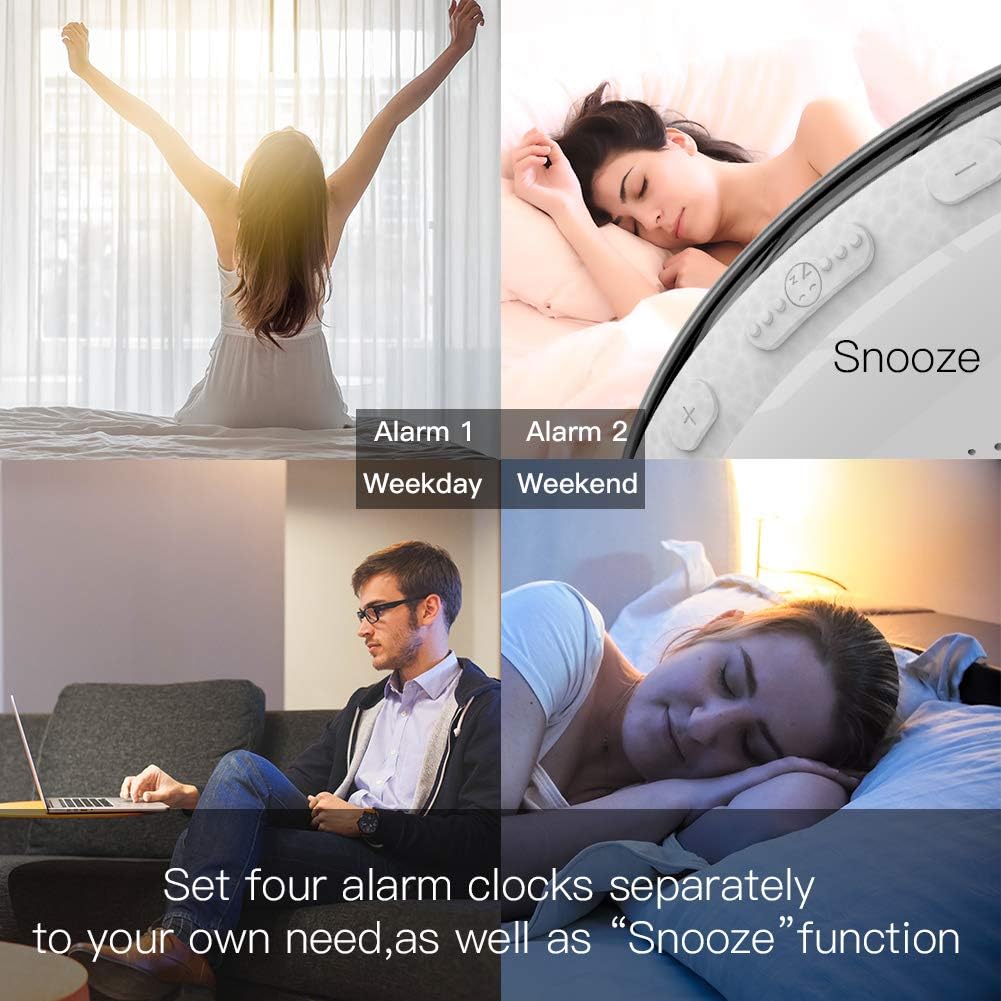
Figure 4.1: Image illustrating the setting of multiple alarms, including options for weekday and weekend.
5. Operating Instructions
5.1 Setting the Time
- Press the Display Brightness/Time Setting button. The hour digits will flash.
- Use the Setting "+" and Setting "-" buttons to adjust the hour.
- Press the Display Brightness/Time Setting button again to switch to minute adjustment. The minute digits will flash.
- Use the Setting "+" and Setting "-" buttons to adjust the minutes.
- Press the Display Brightness/Time Setting button once more to confirm and exit.
5.2 Sunrise Simulation Alarm
The sunrise simulation gradually increases light intensity before your set alarm time.
- Press the Alarm 1 or Alarm 2 button to select an alarm.
- Use the Setting "+" and Setting "-" buttons to set the alarm time.
- Configure the duration of the sunrise simulation (10-60 minutes) and the final brightness level (5%-100%) via the Smart Life App or device settings.
- Select your desired wake-up sound (natural sound or FM radio).
- To activate the snooze function, press the Snooze button when the alarm sounds. This will provide an additional 8-15 minutes of sleep.

Figure 5.1: Visual representation of the sunrise simulation, gradually brightening the room, and sunset simulation, gradually dimming the light.
5.3 Sunset Simulation (Sleep Aid)
The sunset simulation gradually decreases light intensity to help you fall asleep.
- Press the Fall Asleep button.
- Set the duration for the dimming process and the starting brightness level using the Smart Life App or device settings.
- The light will slowly dim until it turns off.
5.4 Natural Sounds and FM Radio
- Natural Sounds: When setting an alarm, you can choose from 7 pre-programmed natural sounds (pure music, birds, forest, waves, beeping).
- FM Radio: To activate FM radio, press the FM Switch button. Long press the FM Tuning button for 2 seconds to automatically scan and save available stations. Use the Setting "+" and Setting "-" buttons to manually tune or select saved stations.
- Adjust the volume using the Volume "+" and Volume "-" buttons.
Figure 5.2: Illustration of the various wake-up sounds available, including FM radio, and the device displaying a blue light.
5.5 Voice Control (Alexa/Google Home)
After successfully connecting the device to the Smart Life/Tuya App and linking it to your Amazon Alexa or Google Home account:
- You can use voice commands to control the light, set alarms, or turn the FM radio on/off.
- Example commands: "Alexa, turn on [device name] light", "Hey Google, set an alarm for 7 AM on [device name]", "Alexa, turn off [device name] radio".
- Note: To stop an alarm via voice, you may need to specifically command