
1. Introduction
Thank you for choosing the QZT HD 1080P Wi-Fi Outdoor IP Surveillance Camera. This manual provides detailed instructions for the installation, operation, and maintenance of your new security camera. Please read this manual thoroughly before use to ensure proper setup and functionality. Keep this manual for future reference.
2. Package Contents
Please check the package contents upon opening. If any items are missing or damaged, contact your retailer.
- QZT HD 1080P Wi-Fi Outdoor IP Surveillance Camera
- Power Adapter
- Mounting Screws and Wall Plugs
- Waterproof Kit for Network Cable (if applicable)
- User Manual
3. Product Overview
The QZT HD 1080P Wi-Fi Outdoor IP Surveillance Camera is designed for robust outdoor security, offering high-definition video, two-way audio, motion detection, and reliable night vision. Its IP66 waterproof rating ensures durability in various weather conditions.
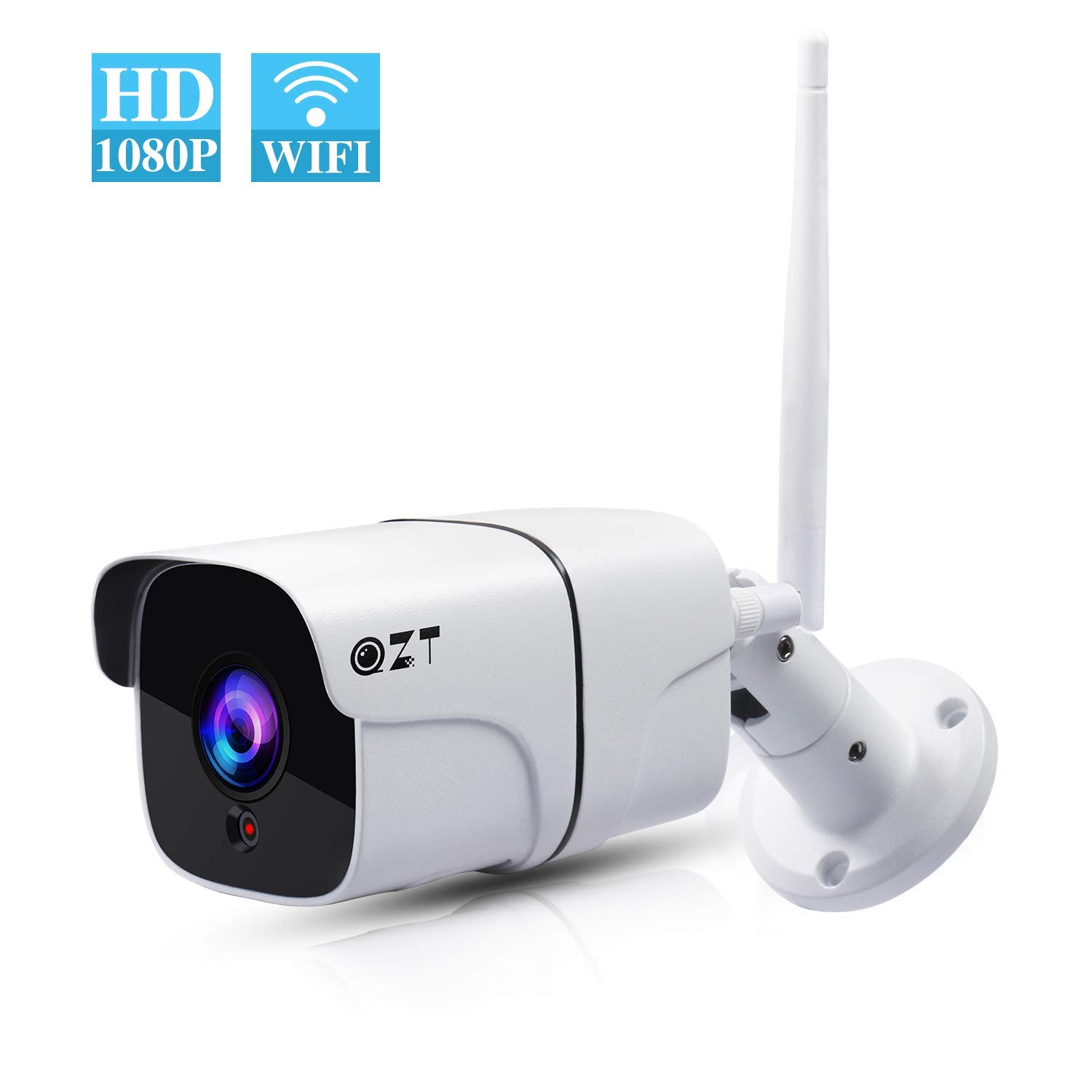
Figure 3.1: QZT HD 1080P Wi-Fi Outdoor IP Surveillance Camera.
Camera Components

Figure 3.2: Labeled diagram of the QZT camera's external components.
- Metal Aluminum Case: Durable housing for outdoor protection.
- High Definition F=3.6mm Lens: Captures clear 1080P video.
- Daylight Sensor: Automatically detects ambient light for night vision activation.
- SD Card Slot: For local video storage (supports 8-64GB SD cards, not included).
- Power Port: Connects to the power adapter.
- Network Port: For wired Ethernet connection (optional).
- Reset Key: Used to reset the camera to factory settings.
4. Installation and Setup
4.1 Physical Installation
Choose a suitable outdoor location for mounting the camera, ensuring a clear field of view and access to a power source. The camera's IP66 rating ensures protection against dust and water.
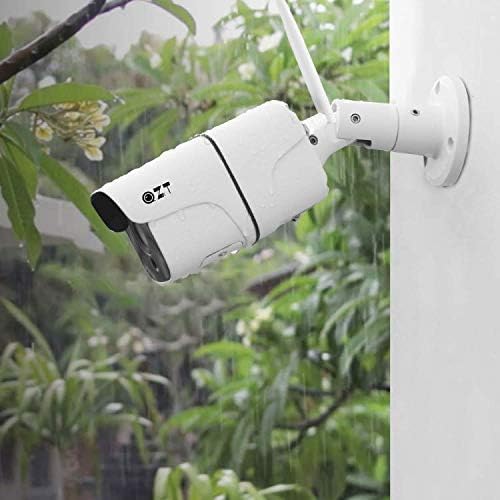
Figure 4.1: QZT camera demonstrating IP66 waterproof capability in rain.
- Mark the drilling positions on the wall using the camera's mounting bracket as a template.
- Drill holes and insert the wall plugs.
- Secure the mounting bracket to the wall with the provided screws.
- Attach the camera to the bracket and adjust its angle for optimal coverage.
- Connect the power adapter to the camera's power port and plug it into an electrical outlet.
4.2 Network Connection
The camera supports 2.4G Wi-Fi connectivity. Ensure your Wi-Fi network is 2.4GHz for successful pairing.
- Download the recommended mobile application (e.g., CamHi, as suggested by users) from your smartphone's app store (iOS/Android compatible).
- Register an account and log in.
- Follow the in-app instructions to add your camera. This typically involves scanning a QR code on the camera or connecting to the camera's temporary Wi-Fi hotspot.
- Select your 2.4G Wi-Fi network and enter the password.
- Wait for the camera to connect to your Wi-Fi network. A voice prompt or LED indicator will confirm successful connection.
4.3 SD Card Installation (Optional)
To enable local video recording, install a Secure Digital (SD) card (8-64GB, not included) into the designated slot on the camera (refer to Figure 3.2).
- Power off the camera before inserting or removing the SD card.
- Locate the SD card slot.
- Gently insert the SD card with the contacts facing down until it clicks into place.
- Power on the camera. Format the SD card through the mobile app settings if prompted or if recording issues occur.
5. Operating Instructions
5.1 Live View and Remote Access
Once connected, open the mobile app to view the live feed from your camera. The app allows remote monitoring from anywhere with an internet connection. The camera supports up to 6 users viewing online simultaneously.
5.2 Two-Way Audio
The camera features a built-in microphone and speaker, enabling two-way communication. Use the 'Talk' button in the mobile app to speak through the camera and hear audio from its vicinity.

Figure 5.1: Demonstrating two-way audio communication via the mobile app.
5.3 Motion Detection and Alerts
Configure motion detection settings in the mobile app to receive real-time alerts on your smartphone when movement is detected. You can customize the detection area and sensitivity to minimize false alarms.

Figure 5.2: Motion detection triggering a smartphone alert.
5.4 Night Vision
The camera is equipped with 18 infrared LEDs, providing clear black-and-white night vision up to 15 meters (approximately 50 feet). The daylight sensor automatically activates night vision mode in low-light conditions.

Figure 5.3: Comparison of daytime and night vision clarity.
5.5 Video Recording and Playback
Recordings can be stored on an installed SD card. Access recorded footage and playback directly through the mobile application. You can also configure continuous recording or event-triggered recording based on motion detection.
6. Maintenance
- Cleaning: Regularly wipe the camera lens with a soft, dry cloth to ensure clear image quality. Do not use harsh chemicals.
- Firmware Updates: Check the mobile app periodically for available firmware updates. Keeping your camera's firmware updated ensures optimal performance and security.
- Environmental Considerations: While IP66 rated, avoid directing high-pressure water jets directly at the camera. Ensure power connections are secure and protected from moisture.
7. Troubleshooting
- Camera Not Connecting to Wi-Fi: Ensure your Wi-Fi network is 2.4GHz. Verify the Wi-Fi password. Move the camera closer to the router. Try resetting the camera using the reset key.
- No Live View: Check internet connection on both your smartphone and the camera. Ensure the camera is powered on. Restart the mobile app.
- Poor Image Quality: Clean the camera lens. Ensure sufficient lighting (for daytime) or that night vision is active (for nighttime). Check your internet bandwidth.
- Motion Alerts Not Received: Verify motion detection settings in the app. Check notification permissions for the app on your smartphone. Ensure the detection area is correctly configured.
- SD Card Not Recording: Ensure the SD card is correctly inserted and formatted via the app. Check if the SD card is full or corrupted. Replace the SD card if necessary.
8. Technical Specifications

Figure 8.1: Visual comparison of 720P and 1080P video resolution.
| Feature | Specification |
|---|---|
| Model Number | B07ZPMY5C9 |
| Video Resolution | 1080P Full HD (2 MP Optical Sensor) |
| Lens | F=3.6mm Wide-angle (100°) |
| Night Vision Range | Up to 15 meters (50 feet) with 18 IR LEDs |
| Connectivity | Wi-Fi (2.4G only), Wireless |
| Waterproof Rating | IP66 |
| Audio | Two-Way Audio |
| Storage | Supports Micro SD Card (8-64GB, not included) |
| Compatible Devices | Smartphones (iOS, Android) |
| Dimensions (LxWxH) | 19.8 x 6 x 6 cm |
| Weight | 680 g |
| Material | Durable Plastic/Metal Casing |
9. Warranty and Customer Support
Specific warranty details for this product are not provided in the available information. For warranty claims, technical assistance, or customer support, please refer to the contact information provided with your purchase or visit the official QZT website. Always retain your proof of purchase.
No official seller videos were found in the product data for embedding in this manual.