
1. Introduction
Thank you for choosing the Aputure AL-MC Portable LED Light. This manual provides essential information for the safe and effective operation of your device. Please read it thoroughly before use and retain it for future reference. The AL-MC is a compact, versatile RGBWW LED light designed for various video and photography lighting applications, offering precise color control and multiple lighting modes.
2. Product Overview
2.1 Key Features
- RGBWW Color Mixing: Full Hue, Saturation, and Intensity (HSI) color control.
- Adjustable CCT: Color Temperature range from 3200K to 6500K.
- Built-in FX Modes: Multiple pre-programmed lighting effects.
- Sidus Link App Control: Wireless control via Bluetooth.
- Magnetic Back: Integrated magnets for easy mounting on metallic surfaces.
- Wireless Charging: Supports Qi wireless charging standard.
- Compact and Lightweight: Highly portable design.
2.2 Package Contents
The Aputure AL-MC package typically includes the following items:

Image 1: Aputure AL-MC LED light shown with its accessories, including a black carrying pouch with a red 'A' logo, a white silicone diffuser, several 3M adhesive pads, and a black USB-C charging cable. The light itself is a rectangular white panel with red accents.
- Aputure AL-MC LED Light
- Silicone Diffuser
- Magic Tape (Adhesive Pads)
- USB Type-C Charging Cable
- Carrying Pouch
2.3 Device Components
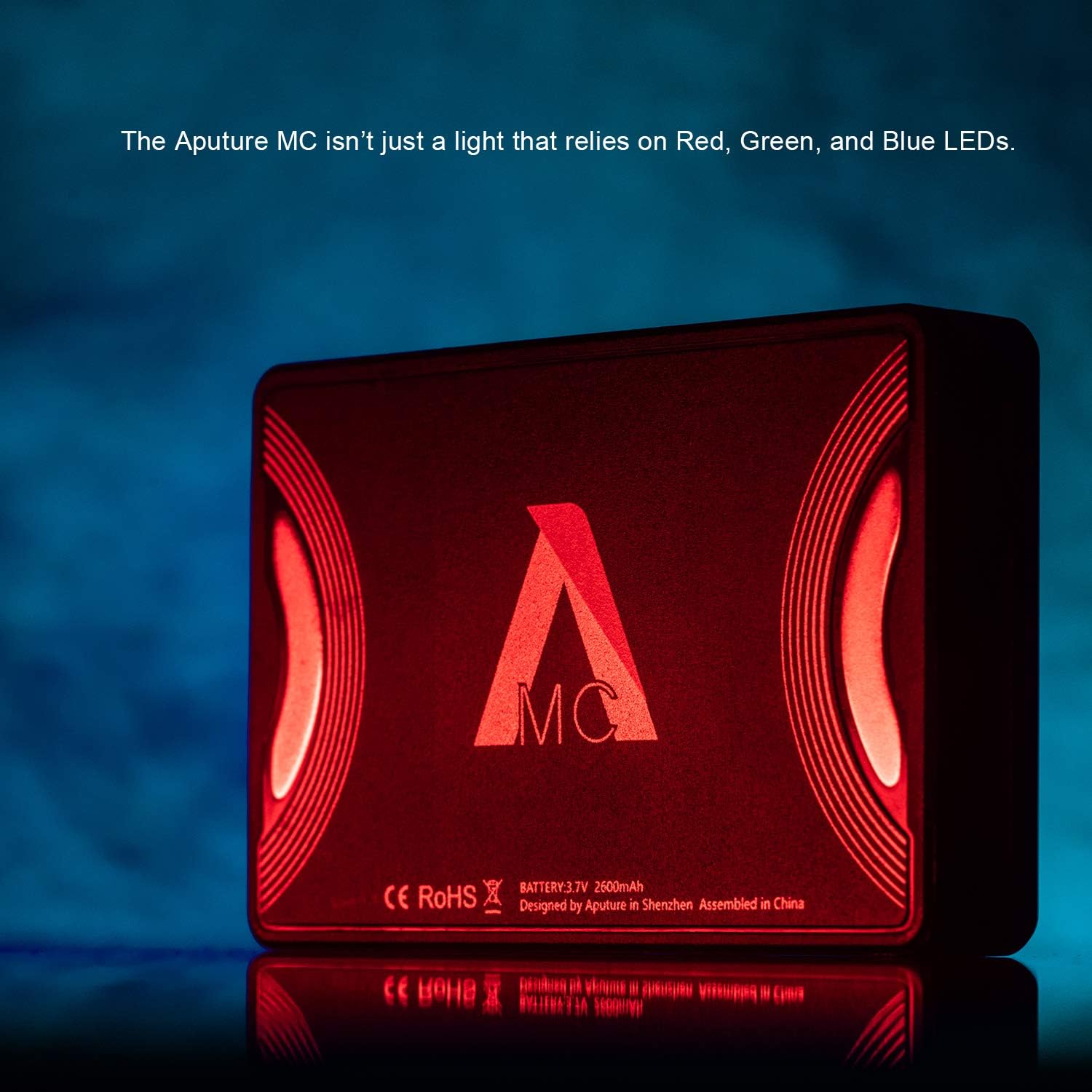
Image 2: A side view of the Aputure AL-MC light, highlighting its integrated display screen which shows 'HUE 360°' and a battery indicator. Adjacent to the screen are small control buttons labeled 'OK/D' and 'OFF/ON' switch, indicating user interface elements.
- LED Panel: Front light-emitting surface.
- Display Screen: OLED screen showing settings and battery status.
- Control Buttons: Buttons for navigation and selection (e.g., OK/D, Menu).
- Power Switch: On/Off toggle.
- USB-C Port: For wired charging.
- Magnetic Back: For attaching to metal surfaces.
3. Setup
3.1 Charging the Battery
The AL-MC has a built-in lithium battery. Before first use, fully charge the device.

Image 3: The rear panel of the Aputure AL-MC light, displaying technical specifications such as 'BATTERY: 3.7V 2600mAh'. Text below indicates 'Lithium Battery Powered for 2 hours continuous lighting at max. brightness', highlighting its power source and operational duration.
- USB-C Charging: Connect the provided USB-C cable to the light's USB-C port and a 5V/2A USB power adapter (not included). The battery indicator on the display will show charging status.
- Wireless Charging: Place the AL-MC on a Qi-compatible wireless charging pad. Ensure the light is centered on the pad for optimal charging.
3.2 Powering On/Off
Locate the power switch on the side of the unit. Slide it to the 'ON' position to power on the light. Slide it to 'OFF' to power off.
3.3 Mounting the Light
The AL-MC features integrated magnets, allowing it to be easily attached to any metallic surface. For non-metallic surfaces, use the included adhesive pads (Magic Tape) to create a magnetic mounting point.
4. Operating the Aputure AL-MC
4.1 Basic Controls
Use the control buttons next to the display to navigate menus and adjust settings. The 'OK/D' button typically confirms selections or cycles through display information.
4.2 CCT Mode (Correlated Color Temperature)
In CCT mode, you can adjust the color temperature from 3200K (warm tungsten) to 6500K (cool daylight) to match ambient light or other fixtures. Use the navigation buttons to select CCT mode and adjust the temperature and brightness.
4.3 HSI Mode (Hue, Saturation, Intensity)
HSI mode allows for full control over the light's color output. You can select any color from the full 360° color gamut.

Image 4: The Aputure AL-MC light illuminated with a strong red color, illustrating its ability to produce a wide range of hues through its HSI color control system.
- Hue: Adjusts the color (0-360 degrees).
- Saturation: Adjusts the intensity or purity of the color (0-100%).
- Intensity: Adjusts the overall brightness of the light (0-100%).
4.4 FX Modes (Special Effects)
The AL-MC includes several built-in lighting effects to simulate various scenarios, such as Paparazzi, Fire, Faulty Bulb, TV, Pulse, Party, Cop Car, and Lightning. Navigate to the FX menu to select and customize these effects.
4.5 Sidus Link App Control
For advanced control and features, download the Sidus Link app from your device's app store. The app allows for remote control of all light functions, including CCT, HSI, FX modes, and firmware updates. Ensure Bluetooth is enabled on your mobile device to connect to the AL-MC.

Image 5: A hand holding the Aputure AL-MC light, demonstrating its compact, credit card-sized form factor and lightweight nature, making it highly portable for various shooting environments.
5. Maintenance
5.1 Cleaning
To clean the AL-MC, use a soft, dry cloth. Do not use harsh chemicals or abrasive materials, as they may damage the finish or optical components. Keep the LED panel free of dust and fingerprints for optimal light output.
5.2 Storage
Store the device in a cool, dry place away from direct sunlight and extreme temperatures. If storing for an extended period, ensure the battery is charged to approximately 50% to prolong its lifespan. Use the provided carrying pouch for protection during transport and storage.
5.3 Battery Care
Avoid fully discharging the battery frequently. Recharge the battery regularly, even if the light is not in use, to maintain battery health. Do not expose the battery to high temperatures or puncture it.
6. Troubleshooting
- Light does not turn on:
- Ensure the battery is charged. Connect to a power source and check the charging indicator.
- Verify the power switch is in the 'ON' position.
- App connection issues:
- Ensure Bluetooth is enabled on your mobile device.
- Restart the AL-MC and the Sidus Link app.
- Make sure the app is updated to the latest version.
- Ensure the AL-MC's firmware is up to date via the app.
- Inconsistent light output or color:
- Check for any obstructions on the LED panel.
- Reset the light to factory settings if issues persist (refer to app or device menu for reset option).
- Device overheating:
- Ensure adequate ventilation around the device.
- Reduce brightness if operating in a confined space or high ambient temperature.
7. Specifications
| Feature | Specification |
|---|---|
| Model | AL-MC |
| Color Temperature Range | 3200K-6500K |
| Color Modes | RGBWW, HSI, CCT, FX |
| Connectivity | Bluetooth (Sidus Link App), USB Type-C |
| Battery Type | Lithium-ion, 3.7V 2600mAh |
| Charging | USB-C, Qi Wireless Charging |
| Item Weight | 1.1 pounds (approx. 0.5 kg) |
| Package Dimensions | 5.5 x 4.4 x 3.9 inches |
| Manufacturer | Aputure |
| ASIN | B07ZKMT4GT |
| UPC | 611864765839 |
8. Warranty & Support
8.1 Warranty Information
Aputure products are typically covered by a limited warranty against defects in materials and workmanship. The specific duration and terms of the warranty may vary by region and product. Please refer to the warranty card included with your product or visit the official Aputure website for detailed warranty information.
8.2 Customer Support
For technical assistance, troubleshooting, or warranty claims, please contact Aputure customer support. Contact information can usually be found on the official Aputure website or on the product packaging. When contacting support, please have your product model (AL-MC) and purchase information ready.


