
1. Introduction
This manual provides detailed instructions for the setup, operation, maintenance, and troubleshooting of your Havit KB493L ABNT2 Mechanical RGB Keyboard. Please read this manual thoroughly to ensure proper use and to maximize your product experience.
2. Product Overview
The Havit KB493L is a mechanical keyboard designed for performance and durability. It features customizable RGB lighting, Outemu Blue mechanical switches, and double shot keycaps for enhanced longevity.
Key Features:
- Suspended key design for comfortable typing and easy cleaning.
- All-metal top finish for durability and a premium feel.
- FN+15 key combination for storing keyboard profiles.
- ABNT2 standard layout.
- Double shot keycaps resist wear and fading.
- Outemu Blue mechanical switches for tactile and audible feedback.
- Full RGB backlighting with customizable effects.

Figure 2.1: Top view of the Havit KB493L ABNT2 Mechanical RGB Keyboard, showcasing its full RGB lighting across all keys.
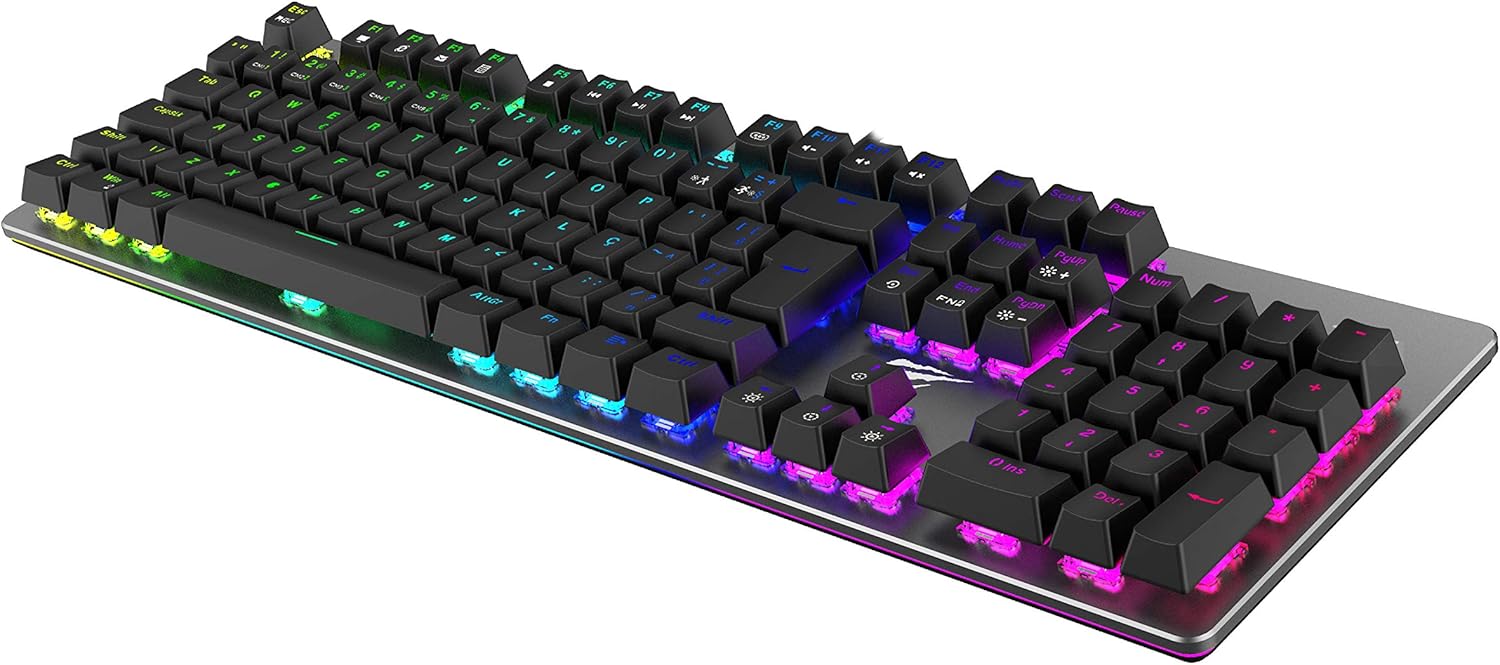
Figure 2.2: Angled view of the Havit KB493L keyboard, illustrating the RGB lighting extending to the sides of the keyboard chassis.
3. Setup
3.1 Connecting the Keyboard
- Unpack the Havit KB493L keyboard from its packaging.
- Locate an available USB-A port on your computer.
- Plug the USB-A connector of the keyboard cable into the USB-A port on your computer.
- The keyboard is plug-and-play. Your operating system should automatically detect and install the necessary drivers.
- Once installed, the keyboard's RGB lighting will illuminate, indicating it is ready for use.

Figure 3.1: Contents of the Havit KB493L keyboard package, including the keyboard and user documentation.
4. Operation
4.1 Basic Keyboard Functions
The Havit KB493L functions as a standard ABNT2 layout keyboard. All keys perform their labeled functions directly.
4.2 Multimedia and Function Keys
The keyboard includes a Function (FN) key that, when pressed in combination with other keys, activates secondary functions, often indicated by icons on the keycaps.
- FN + F1-F12: Access multimedia controls (e.g., volume, play/pause, stop, next/previous track) and other system functions. Refer to the icons on the F-keys for specific functions.
- FN + 15: This combination is used to store keyboard profiles, allowing users to save custom settings for lighting or key assignments.
4.3 RGB Lighting Customization
The Havit KB493L features dynamic RGB backlighting. Specific key combinations are used to change lighting modes, brightness, and speed.
- FN + [Lighting Key]: Typically, keys like 'Ins', 'Home', 'PgUp', 'Del', 'End', 'PgDn' (or similar keys with lighting icons) are used in combination with FN to cycle through various lighting effects.
- FN + Arrow Keys: May adjust brightness or speed of lighting effects.
- Refer to the keyboard's keycap legends for specific lighting control icons.
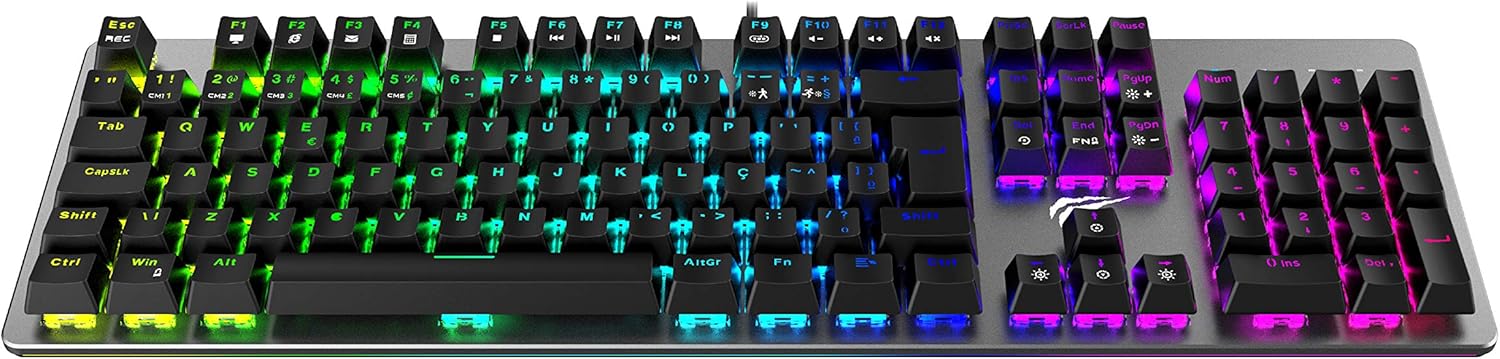
Figure 4.1: Top view of the Havit KB493L keyboard displaying an alternative RGB lighting pattern, highlighting the customizable nature of the backlighting.
5. Maintenance
5.1 Cleaning the Keyboard
Regular cleaning helps maintain the keyboard's performance and appearance.
- Disconnect the keyboard from your computer before cleaning.
- Use a can of compressed air to remove dust and debris from between the keycaps.
- Wipe the keycaps and keyboard surface with a soft, slightly damp cloth. Avoid excessive moisture.
- For stubborn stains, a small amount of mild cleaning solution (e.g., isopropyl alcohol) can be applied to the cloth, not directly to the keyboard.
- Ensure the keyboard is completely dry before reconnecting it to your computer.
5.2 General Care
- Avoid exposing the keyboard to liquids, extreme temperatures, or direct sunlight.
- Do not attempt to disassemble the keyboard, as this may void the warranty.
- Handle the USB cable carefully to prevent damage.
6. Troubleshooting
If you encounter issues with your Havit KB493L keyboard, refer to the following common solutions:
- Keyboard not responding:
- Ensure the USB cable is securely connected to both the keyboard and the computer.
- Try plugging the keyboard into a different USB port on your computer.
- Restart your computer.
- Test the keyboard on another computer to determine if the issue is with the keyboard or the original computer.
- RGB lighting not working or incorrect:
- Check if the lighting is turned off using the FN key combinations (refer to Section 4.3).
- Cycle through different lighting modes to see if any work.
- Ensure your computer's USB port is providing sufficient power.
- Specific keys not working:
- Clean the affected key(s) to remove any debris that might be obstructing the switch.
- If the issue persists, contact customer support.
7. Specifications
| Brand | Havit |
| Model | KB493L Blue |
| Manufacturer | Havit |
| Part Number | KB493L Blue |
| Compatible Devices | PC |
| Special Features | Mechanical |
| Connectivity Technology | USB-A |
| Product Weight | 792 g |
| Product Dimensions | 13.5 x 3.7 x 44.6 cm |
| Package Dimensions | 48.8 x 18.4 x 5.2 cm |
| ASIN | B07ZK1PDM5 |
| Available Since | October 28, 2019 |
8. Warranty and Support
Havit products are designed and manufactured to the highest quality standards. For information regarding warranty coverage, terms, and conditions, please refer to the warranty card included with your product or visit the official Havit website.
For technical support, troubleshooting assistance beyond this manual, or to inquire about replacement parts, please contact Havit customer service through their official website or the contact information provided in your product packaging.