
1. Introduction
This manual provides detailed instructions for the installation, operation, and maintenance of your Brother AVH-9610 2DIN Car Radio. Please read this manual thoroughly before using the product to ensure proper function and to prevent damage.
The Brother AVH-9610 is a versatile 2DIN car radio designed to enhance your in-car audio experience. It features 4 channels and a robust 50 Watts output power, delivering clear and powerful sound.
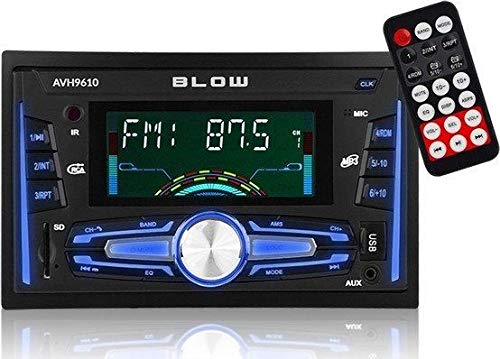
Image showing the front panel of the Brother AVH-9610 2DIN Car Radio, featuring the display and control buttons.
2. Setup and Installation
Proper installation is crucial for the optimal performance of your AVH-9610 car radio. It is highly recommended that installation be performed by a qualified professional to avoid damage to the unit or your vehicle's electrical system.
2.1. Pre-Installation Checklist
- Ensure the vehicle's ignition is off and the negative terminal of the battery is disconnected.
- Verify all necessary mounting hardware and wiring harnesses are available.
- Consult your vehicle's service manual for specific dashboard removal and wiring diagrams.
2.2. Wiring Connections
Connect the wiring harness according to the diagram provided with your unit. Typical connections include:
- Yellow Wire: Constant 12V (Battery)
- Red Wire: Switched 12V (Accessory/Ignition)
- Black Wire: Ground
- Blue Wire: Power Antenna/Amplifier Remote Turn-On
- Speaker Wires: Connect to vehicle's speakers (e.g., White/White-Black for Front Left, Gray/Gray-Black for Front Right, Green/Green-Black for Rear Left, Purple/Purple-Black for Rear Right).
- Antenna Input: Connect the vehicle's radio antenna.
2.3. Mounting the Unit
Secure the AVH-9610 into the vehicle's 2DIN dashboard opening using the supplied mounting brackets and screws. Ensure the unit is firmly seated and does not obstruct any vehicle controls.
2.4. Initial Power-On
After all connections are made and the unit is mounted, reconnect the vehicle's battery. Turn the ignition to the ACC or ON position. The unit should power on. Follow any on-screen prompts for initial setup, such as language selection or clock setting.
3. Operating Instructions
This section covers the basic functions and operations of your Brother AVH-9610 car radio.
3.1. Power On/Off and Volume Control
- Power On: Press the POWER button (usually marked with ␦ or PWR).
- Power Off: Press and hold the POWER button for a few seconds.
- Volume Adjustment: Rotate the VOLUME knob clockwise to increase volume, counter-clockwise to decrease.
3.2. Source Selection
Press the MODE or SOURCE button to cycle through available audio sources such as FM/AM Radio, USB, Bluetooth Audio, and AUX input.
3.3. Radio Operation
- Band Selection: Press the BAND button to switch between FM1, FM2, FM3, and AM bands.
- Automatic Tuning: Press and hold the SEEK or TUNE buttons to automatically search for the next strong station.
- Manual Tuning: Briefly press the SEEK or TUNE buttons to adjust the frequency step by step.
- Preset Stations: To save a station, tune to the desired frequency, then press and hold one of the numeric preset buttons (1-6) until you hear a beep. To recall a preset, simply press the corresponding numeric button.
3.4. Audio Settings
Press the AUDIO or MENU button to access audio settings. These may include:
- Bass/Treble: Adjust low and high frequencies.
- Balance/Fader: Adjust sound distribution between left/right and front/rear speakers.
- Equalizer (EQ): Select from preset EQ modes (e.g., Pop, Rock, Classic) or customize settings.
4. Maintenance
Regular maintenance helps ensure the longevity and optimal performance of your Brother AVH-9610 car radio.
4.1. Cleaning the Unit
- Use a soft, dry cloth to wipe the display and control panel.
- For stubborn dirt, slightly dampen the cloth with water or a mild, non-abrasive cleaner.
- Do not use harsh chemicals, solvents, or abrasive cleaners as they can damage the finish.
- Avoid spraying liquids directly onto the unit.
4.2. Software Updates
Periodically check the Brother support website for any available software or firmware updates for your AVH-9610 model. Updates can improve performance, add new features, or fix bugs. Follow the instructions provided with the update package carefully.
5. Troubleshooting
If you encounter issues with your Brother AVH-9610, refer to the following common problems and solutions before contacting support.
| Problem | Possible Cause | Solution |
|---|---|---|
| No power |
|
|
| No sound |
|
|
| Radio reception is poor |
|
|
6. Specifications
The following are the technical specifications for the Brother AVH-9610 2DIN Car Radio:
- Model: AVH-9610
- Brand: Brother
- Dimensions (L x W x H): 2.79 x 24.64 x 16.51 cm
- Number of Channels: 4
- Output Power: 50 Watts
- Wattage in Output: 50 Watts
- ASIN: B07ZJNCMFL
- Date First Available on Amazon.com.be: April 22, 2022
7. Warranty and Support
Your Brother AVH-9610 2DIN Car Radio is covered by a manufacturer's warranty. Please refer to the warranty card included with your product for specific terms, conditions, and duration. Keep your proof of purchase for warranty claims.
For technical assistance, troubleshooting beyond this manual, or warranty service, please contact Brother customer support. Contact information can typically be found on the official Brother website or on the warranty documentation.
Note: Specifications are subject to change without notice.