Introduction
This manual provides detailed instructions for the IFYOO ONE Pro Mobile Game Controller, Model IFYOO-V911. It covers setup, operation, maintenance, and troubleshooting to ensure optimal performance and user experience. This wireless gamepad is designed for use with compatible iPhone/iPad (iOS 13 or later, MFi games only), Android smartphones/tablets (Android 10 or later), and PlayStation 4 consoles.
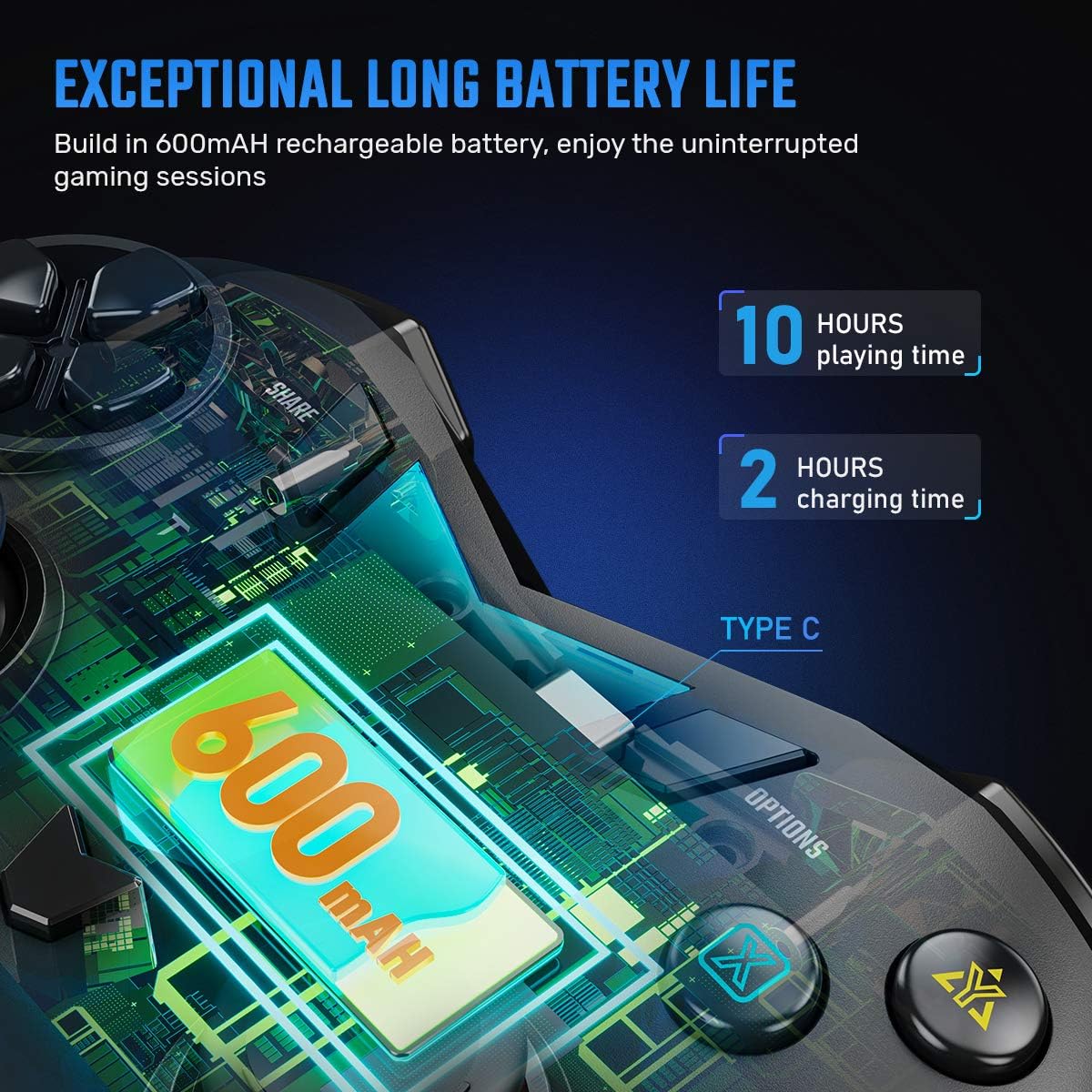
Image: The IFYOO ONE Pro controller positioned next to a PlayStation 4 console, a smartphone, and a tablet, illustrating its versatile compatibility across multiple gaming platforms and devices.
Product Overview
The IFYOO ONE Pro controller features an ergonomic design for comfortable grip during extended gaming sessions. It includes a segmented adjustable bracket for smartphones, dual rumble motors for haptic feedback, a high-precision D-pad, wear-resistant anti-slip joysticks, and a TURBO function.
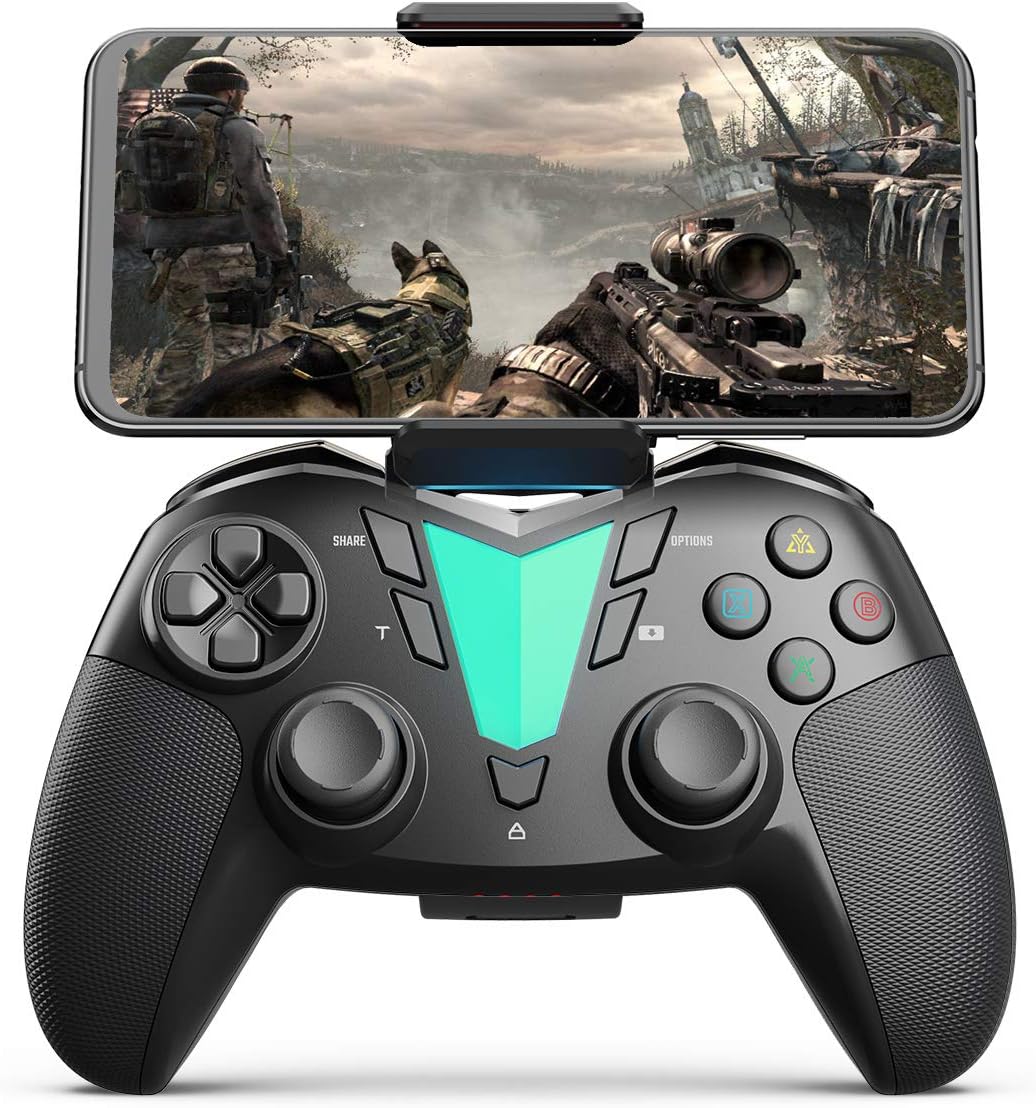
Image: The IFYOO ONE Pro Mobile Game Controller with a smartphone securely mounted in the adjustable bracket, actively displaying a game. This illustrates the controller's primary use case for mobile gaming.
Key Features:
- Wireless Connectivity: Utilizes Bluetooth for connection to compatible devices.
- Ergonomic Design: Shaped for natural hand fit with non-slip rubber grips.
- Adjustable Phone Holder: Supports smartphones from 3.5 to 6.5 inches, featuring a 210-degree rotatable gimbal.
- Dual Rumble Motors: Provides haptic feedback for immersive gameplay.
- TURBO Function: Allows for continuous rapid fire input.
- Precision Aiming: Equipped with highly precise joysticks.
- LED Backlight: Integrated LED lighting for visual appeal.
- Built-in Battery: 600mAh rechargeable lithium battery.

Image: A diagram detailing the adjustable phone holder mechanism of the IFYOO ONE Pro controller. It highlights the holder's width range of 55-80mm and its 210-degree rotational capability, emphasizing its flexibility for various smartphone sizes and viewing angles.
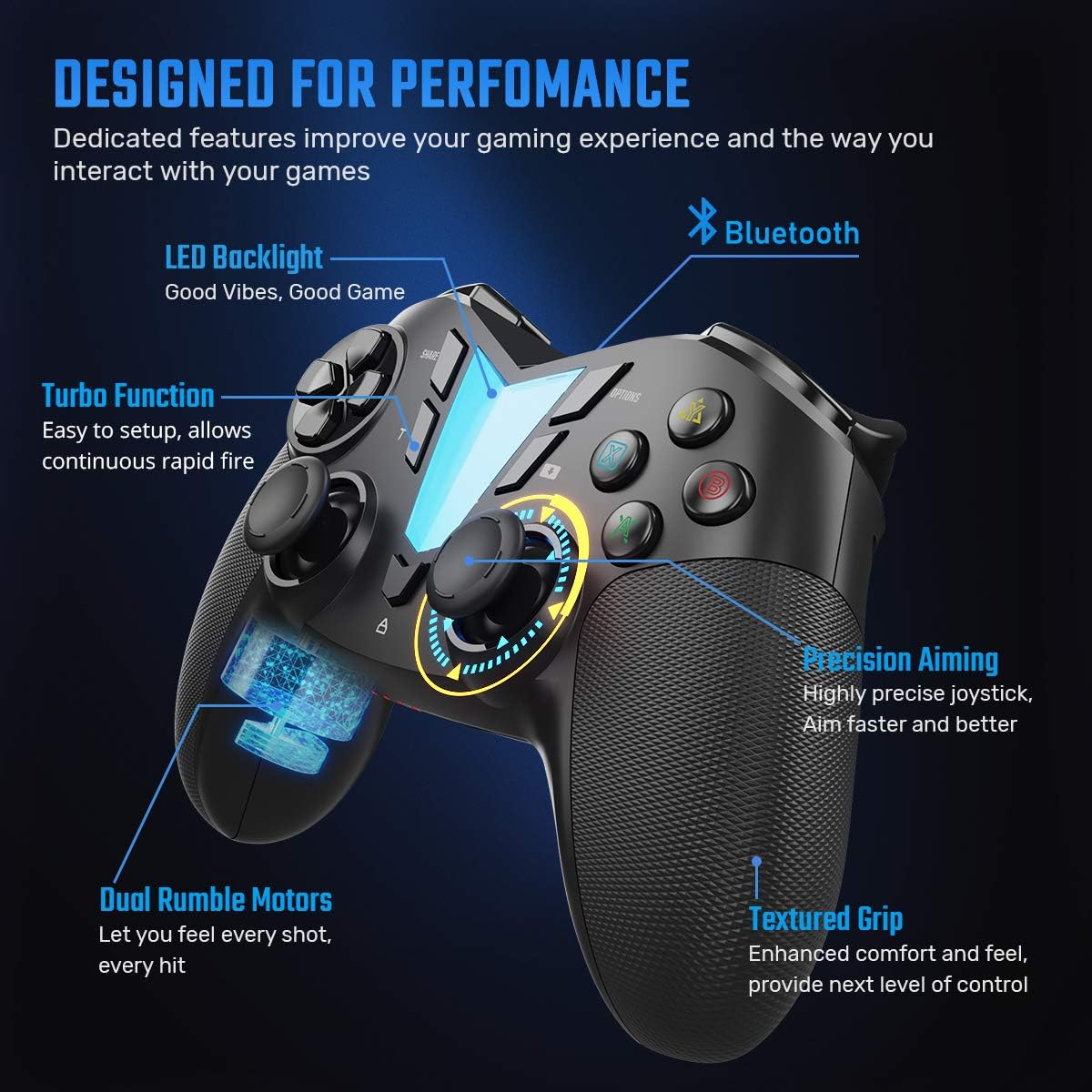
Image: A detailed diagram of the IFYOO ONE Pro controller, pointing out its various features such as the LED backlight, Bluetooth connectivity, Turbo function, precision aiming joysticks, dual rumble motors, and textured grips. This visual aid helps users identify and understand the controller's components.
Setup Instructions
Initial Charging:
Before first use, fully charge the controller using the provided Type-C USB cable. Connect the cable to the controller's charging port and a compatible USB power source. The charging time is approximately 2-3 hours.
Pairing with Devices:
- For PlayStation 4 (PS4):
- Ensure your PS4 console is powered on.
- Connect the IFYOO ONE Pro controller to your PS4 console using a USB cable.
- Press the PS button on the controller. The controller will pair with the PS4.
- Once paired, you may disconnect the USB cable for wireless play.
- For iOS Devices (iPhone/iPad iOS 13 or later):
- Ensure Bluetooth is enabled on your iOS device.
- On the IFYOO ONE Pro controller, press and hold the SHARE button and the HOME button simultaneously until the indicator lights begin to flash rapidly. This puts the controller into pairing mode.
- On your iOS device, go to Settings > Bluetooth.
- Select "IFYOO ONE Pro" or a similar name from the list of available devices to pair.
- Once connected, the indicator light on the controller will become solid.
- For Android Devices (Android 10 or later):
- Ensure Bluetooth is enabled on your Android device.
- On the IFYOO ONE Pro controller, press and hold the OPTIONS button and the HOME button simultaneously until the indicator lights begin to flash rapidly. This puts the controller into pairing mode.
- On your Android device, go to Settings > Connected devices > Pair new device.
- Select "IFYOO ONE Pro" or a similar name from the list of available devices to pair.
- Once connected, the indicator light on the controller will become solid.

Image: The IFYOO ONE Pro controller prominently displayed with text overlays confirming its wireless compatibility with PlayStation 4, iOS devices running version 13 or later, and Android devices running version 10 or later. This image visually reinforces the broad compatibility of the device.
Operating Instructions
Power On/Off:
- To power on, press the HOME button.
- To power off, press and hold the HOME button for approximately 5 seconds until the indicator lights turn off.
TURBO Function:
The TURBO function allows a button to register continuous presses as long as it is held down, useful for rapid fire in games.
- To activate TURBO: Press and hold the desired action button (e.g., A, B, X, Y, L1, R1) and then press the TURBO button once. The button will now function in TURBO mode.
- To deactivate TURBO: Press and hold the same action button and then press the TURBO button again.
PS4 Specific Functions:
- Dual Vibration: The controller supports dual vibration feedback for compatible PS4 games.
- Touchpad Press: The touchpad area on the controller supports press-down functionality, similar to the original PS4 controller. Note that it does not support multi-touch gestures or 6-axis motion sensing.
- PS4 Remote Play: The controller is compatible with PS4 Remote Play for streaming games to other devices.
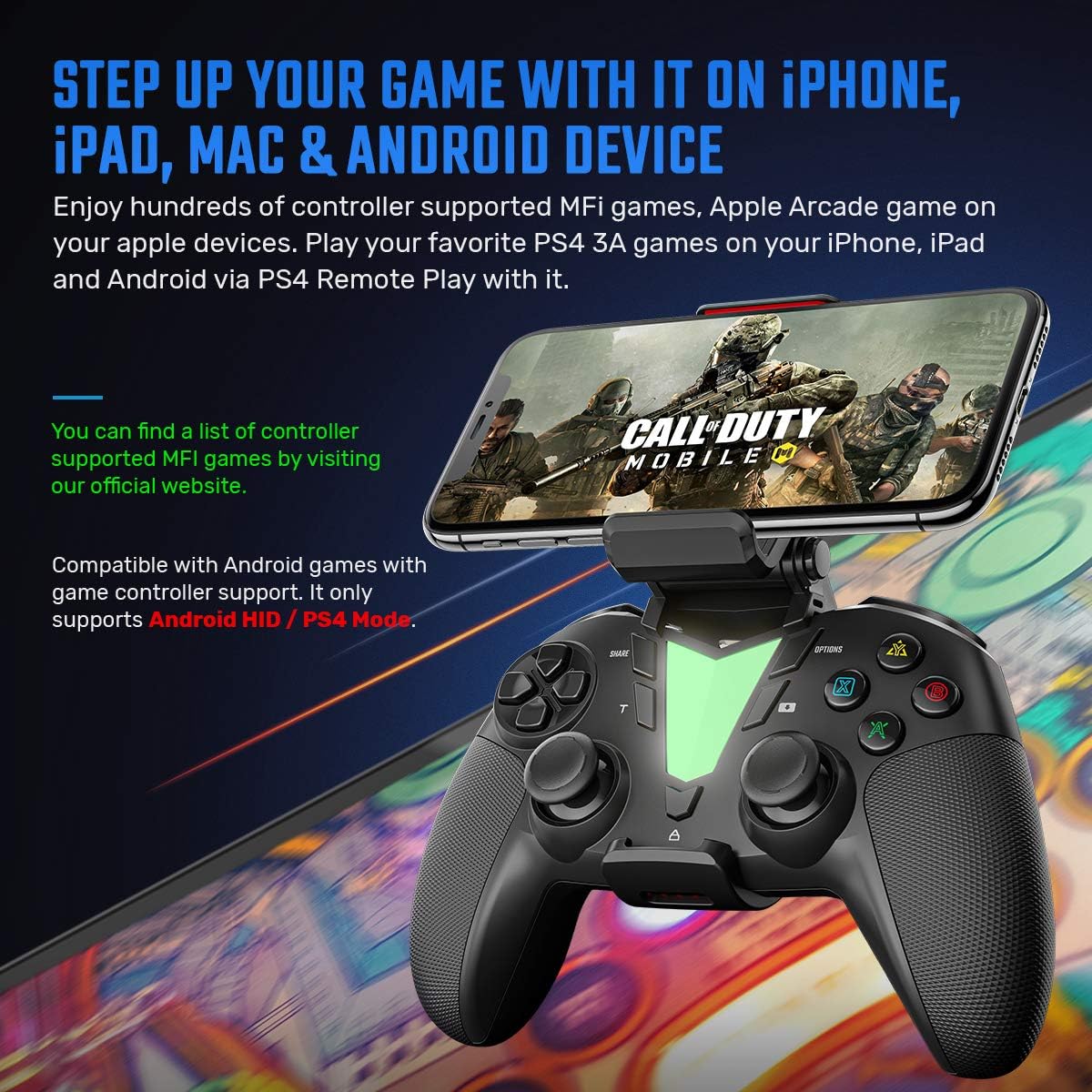
Image: The IFYOO ONE Pro controller paired with a smartphone running Call of Duty Mobile. Text highlights compatibility with MFi games for iOS and Android games supporting Android HID/PS4 Mode, demonstrating its use for popular mobile titles.
Compatibility
- iOS Devices: Compatible with iPhone and iPad running iOS 13 or later. Supports MFi (Made For iPhone/iPad) certified games only. A list of supported MFi games can be found via the GAMESVICE LIVE APP or the official IFYOO website.
- Android Devices: Compatible with Android phones, tablets, Smart TVs, and TV Boxes running Android 10 or later. Supports Android games with Android HID / PS4 Mode support.
- PlayStation 4: Compatible with PS4, PS4 Pro, and PS4 Slim consoles. Supports dual vibration and touchpad press functions. Does not support 6-axis motion, headset jack, or multi-touch touchpad functions.
- Note: This controller is not compatible with PUBG Mobile.
Charging and Battery
The controller is equipped with a built-in 600mAh lithium battery, providing approximately 10 hours of playing time on a full charge. Charging is done via the included Type-C USB cable.
- Charging Time: Approximately 2-3 hours for a full charge.
- Battery Indicator: The LED indicator lights will show charging status and battery level. Refer to the controller's specific light patterns for detailed information (e.g., flashing while charging, solid when full).
- Low Battery Warning: The controller will typically provide a visual cue (e.g., flashing lights) when the battery is low.

Image: An internal diagram of the IFYOO ONE Pro controller highlighting its 600mAh rechargeable battery. Accompanying text specifies a playing time of 10 hours and a charging time of 2 hours using a Type-C connection, providing key battery performance details.
Maintenance
- Cleaning: Use a soft, dry cloth to clean the controller. Avoid using harsh chemicals or abrasive materials.
- Storage: Store the controller in a cool, dry place away from direct sunlight and extreme temperatures.
- Avoid Drops: Protect the controller from drops and impacts, which can damage internal components.
- Charging Practices: Do not overcharge the battery. Disconnect the charger once the battery is full.
Troubleshooting
Controller Not Turning On:
- Ensure the controller is fully charged. Connect it to a power source using the Type-C USB cable and allow it to charge for at least 30 minutes before attempting to power on again.
- If the issue persists, locate the small reset button on the bottom of the controller (often a small pinhole). Use a thin object (like a paperclip) to press and hold the reset button for a few seconds. Then, try to power on the controller.
Unable to Pair/Connect:
- Ensure the controller is in the correct pairing mode for your device (SHARE + HOME for iOS, OPTIONS + HOME for Android).
- Verify that Bluetooth is enabled on your device and that the device's operating system meets the minimum requirements (iOS 13+, Android 10+).
- Forget or unpair the controller from your device's Bluetooth settings, then attempt the pairing process again.
- Restart both your device and the controller.
- Ensure no other Bluetooth devices are interfering with the connection.
Buttons or Joysticks Unresponsive/Lagging:
- Ensure the controller has sufficient battery charge. Low battery can affect performance.
- Try resetting the controller using the reset button as described above.
- Ensure you are within the wireless range (approximately 10 meters) of your connected device.
- Test the controller with a different game or application to determine if the issue is specific to one title.
Charging Issues:
- Verify that the Type-C USB cable is securely connected to both the controller and the power source.
- Try using a different Type-C USB cable and/or a different USB power adapter to rule out faulty accessories.
- Ensure the charging port on the controller is clean and free of debris.
Specifications
| Model Number | IFYOO-V911 |
| Connectivity Technology | Bluetooth Wireless |
| Compatible Devices | iPhone/iPad (iOS 13+ MFi Games), Android (Ver. 10+), PlayStation 4 (PS4, PS4 Pro, PS4 Slim) |
| Wireless Distance | Approximately 10 meters |
| Battery Capacity | 600mAh Lithium Battery |
| Charging Time | 2-3 Hours |
| Playing Time | Approximately 10 Hours |
| Phone Holder Compatibility | 3.5-6.5 inch smartphones |
| Item Weight | 0.353 ounces |
| Package Dimensions | 7.76 x 5.31 x 3.23 inches |
Warranty and Support
IFYOO products are designed for quality and reliability. For specific warranty details, please refer to the warranty card included with your product or visit the official IFYOO website. For technical support or inquiries, please contact IFYOO customer service through the contact information provided on the official website or your purchase platform.


