
CHiQ U50H7A
CHIQ U50H7A 50-inch Android Smart TV User Manual
Model: U50H7A
1. Introduction
This manual provides essential information for the safe and efficient operation of your CHIQ U50H7A 50-inch Android Smart TV. Please read this manual thoroughly before using the television and retain it for future reference. The CHIQ U50H7A is a 50-inch 4K UHD LED Smart TV featuring Android 11, built-in Wi-Fi, Bluetooth 5.0, Google Assistant, Chromecast, and access to popular streaming services.

Image: Front view of the CHIQ U50H7A 50-inch Android Smart TV, showcasing its frameless design.
2. Important Safety Information
Always follow basic safety precautions when using this television to reduce the risk of fire, electric shock, and injury.
- Do not expose the TV to rain or moisture.
- Do not open the cabinet; refer all servicing to qualified personnel.
- Ensure proper ventilation around the TV.
- Do not place the TV on an unstable cart, stand, tripod, bracket, or table.
- Unplug the TV during lightning storms or when unused for long periods.
- Keep batteries away from children.
3. Package Contents
Verify that all items listed below are included in your package:
- CHIQ U50H7A 50-inch Android Smart TV
- Remote Control (with 2 AAA batteries)
- Power Cord
- User Manual (this document)
- TV Stands (feet)
4. Physical Setup
4.1. Installing the TV Stands
Carefully place the TV face down on a soft, flat surface. Attach the two stand feet to the bottom of the TV using the provided screws. Ensure they are securely fastened.
4.2. Connecting Peripherals
Your TV offers various connection ports for external devices:
- HDMI Ports (3x): Connect Blu-ray players, game consoles, or other HDMI-enabled devices. Supports ARC/CEC.
- USB Ports (2x): Connect USB storage devices for media playback.
- AV Input (1x): For older devices using composite video and stereo audio.
- Digital Audio Output (Optical, 1x): Connect to a soundbar or home theater system for digital audio.
- Earphone Jack (1x): For connecting headphones.
- Antenna Inputs (2x): Connect your terrestrial (DVB-T/T2) or satellite (DVB-S/S2) antenna.
- LAN Port (1x): For wired internet connection.

Image: Left side view of the CHIQ U50H7A TV, illustrating the various input and output ports.

Image: Right side view of the CHIQ U50H7A TV.
4.3. Power Connection
Connect the power cord to the TV's power input and then to a suitable wall outlet.
5. Initial Setup and First Use
5.1. Powering On
After connecting the power, press the power button on the remote control or on the TV itself to turn on the television.
5.2. Network Connection
Upon first startup, you will be guided through the initial setup process. This includes selecting your language, country, and connecting to a network.
- Wi-Fi: Select your Wi-Fi network from the list and enter the password.
- Wired (LAN): If you connected an Ethernet cable, the TV should automatically detect the wired connection.
5.3. Google Account Setup
To access all Android TV features, including Google Play Store, Google Assistant, and personalized recommendations, sign in with your Google account. You can skip this step and sign in later if preferred.
5.4. Channel Scanning
The TV will prompt you to scan for available channels. Follow the on-screen instructions to perform an automatic scan for DVB-T/T2 (terrestrial), DVB-C (cable), or DVB-S/S2 (satellite) channels based on your antenna connection.
6. Operating the TV
6.1. Remote Control Functions
The included remote control provides access to all TV functions. Insert the two AAA batteries into the remote control, ensuring correct polarity.

Image: The CHIQ U50H7A remote control, showing dedicated buttons for Netflix, Prime Video, and YouTube, along with navigation and volume controls.
- Power Button: Turns the TV on or off.
- Number Buttons: Direct channel selection.
- Navigation Pad: For menu navigation.
- OK Button: Confirms selections.
- Back Button: Returns to the previous screen.
- Home Button: Accesses the Android TV home screen.
- Volume Up/Down: Adjusts volume.
- Channel Up/Down: Changes channels.
- Netflix, Prime Video, YouTube Buttons: Direct access to these streaming applications.
- Google Assistant Button: Activates voice control.
6.2. Android TV Interface
The Android TV home screen provides quick access to your favorite apps, live TV, and content recommendations.

Image: The Android TV home screen displaying various applications and content suggestions.

Image: A closer view of the Android TV interface, highlighting available applications like Netflix, YouTube, and Google Play.
6.3. Google Assistant
Press the Google Assistant button on your remote to use voice commands. You can search for content, control smart home devices, get answers, and more.

Image: Illustration of Google Assistant functionality on the CHIQ TV, showing a voice command prompt.
6.4. Streaming Applications
Your TV comes pre-installed with popular streaming apps like Netflix, Amazon Prime Video, YouTube, and Disney+. You can download more apps from the Google Play Store.

Image: The Google Play ecosystem on Android TV, showing various apps and games available for download.
6.5. Bluetooth Connectivity
Connect Bluetooth-enabled devices such as headphones or speakers wirelessly to your TV for an enhanced audio experience.
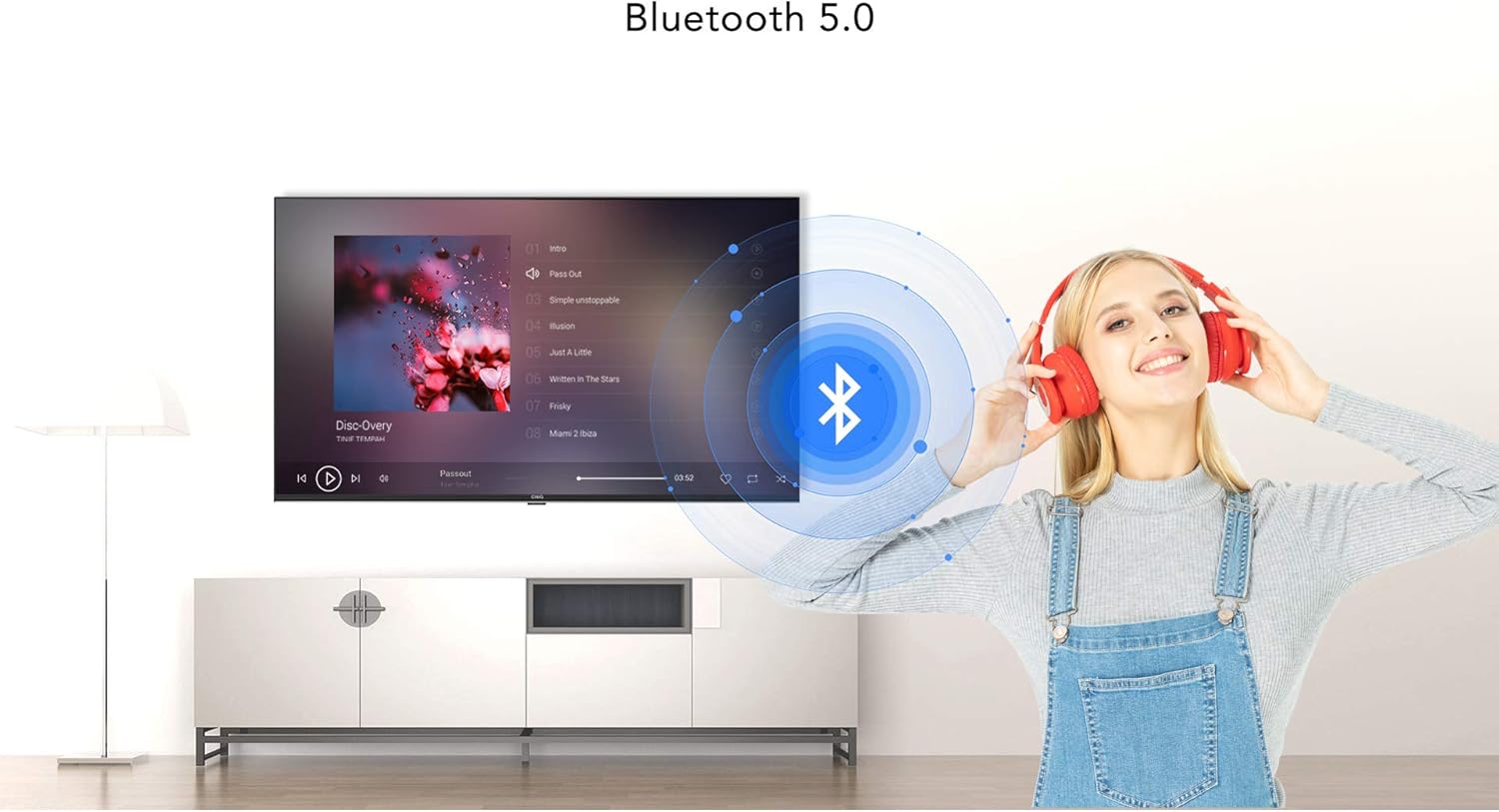
Image: A user enjoying audio through Bluetooth headphones connected to the CHIQ TV.
6.6. Chromecast Built-in
Use Chromecast built-in to cast content from your compatible smartphone, tablet, or computer directly to your TV screen.

Image: Illustration of Chromecast built-in, showing content being cast from a mobile device and laptop to the TV.
7. Maintenance
To ensure the longevity and optimal performance of your TV, follow these maintenance guidelines:
- Cleaning the Screen: Gently wipe the screen with a soft, lint-free cloth. For stubborn marks, use a screen cleaner specifically designed for TVs, applied to the cloth, not directly to the screen.
- Cleaning the Cabinet: Use a soft, dry cloth to wipe the TV cabinet. Do not use abrasive cleaners or solvents.
- Ventilation: Ensure the ventilation openings on the back and sides of the TV are not blocked.
- Power Cord: Regularly check the power cord for any damage.
8. Troubleshooting
If you encounter issues with your TV, refer to the following common problems and solutions:
| Problem | Possible Solution |
|---|---|
| No power | Check if the power cord is securely plugged into the TV and the wall outlet. Ensure the wall outlet is functioning. |
| No picture, but sound is present | Check the input source. Ensure external devices are properly connected and powered on. Adjust brightness and contrast settings. |
| No sound, but picture is present | Check volume levels and mute status. Ensure external audio devices are properly connected. Check audio output settings. |
| Remote control not working | Replace batteries. Ensure there are no obstructions between the remote and the TV's IR sensor. |
| Wi-Fi connection issues | Restart your router and modem. Re-enter the Wi-Fi password. Ensure the TV is within range of the router. |
9. Specifications
Detailed technical specifications for the CHIQ U50H7A 50-inch Android Smart TV:
| Feature | Description |
|---|---|
| Brand | CHiQ |
| Model Number | U50H7A |
| Screen Size | 50 Inches (126 cm diagonal) |
| Display Technology | LED |
| Resolution | 4K UHD (3840 x 2160 pixels) |
| Refresh Rate | 60 Hz |
| Operating System | Android 11 |
| Connectivity | Wi-Fi, Bluetooth 5.0, Ethernet (LAN) |
| HDMI Ports | 3 (ARC/CEC compatible) |
| USB Ports | 2 |
| Other Inputs/Outputs | AV Input, Digital Audio Output (Optical), Earphone, 2x ANT |
| Special Features | HDR10/HLG, Dolby Vision, Dolby Audio, Google Assistant, Google Play, Chromecast built-in, HbbTV, Smart/Internet functions |
| Dimensions (without stand) | 111.7 x 64.8 x 9.3 cm |
| Dimensions (with stand) | 111.7 x 70.3 x 27.4 cm |
| Power Consumption (SDR) | 70.0 W |
| Power Consumption (HDR) | 70.0 W |
| Standby Power Consumption | 0.5 W |
| Networked Standby Power Consumption | 0.6 W |
9.1. Energy Label Information

Image: EU Energy Label for the CHIQ U50H7A, showing energy efficiency class G for both SDR and HDR.
For detailed product information and the official EU energy label, please visit the EPREL database:
10. Warranty and Support
CHiQ provides a warranty for this product. For any warranty-related issues or after-sales support, please contact CHiQ customer service. Minimum guaranteed software and firmware updates are available for 8 years from the date of placement on the market. Minimum guaranteed product support is 7 years. The minimum duration of the general guarantee offered by the supplier is 2 years.
If you have any questions or require assistance, please refer to the contact information provided with your purchase or visit the official CHiQ website.
- Official Website: https://www.chiq.com/
- Email: info@changhong.cz
- Telephone: +420322321411
Related documentsU50H7A


Ask a question about this manual
Ask about setup, troubleshooting, compatibility, parts, safety, or missing instructions. Manuals+ will review the question and use this page’s manual context to help answer it.