
1. Product Overview
The TECLAST T30 is a 10.1-inch tablet designed for versatile use, featuring an Octa-Core processor and running on Android 9 Pie. This manual provides essential information for setting up, operating, and maintaining your device.
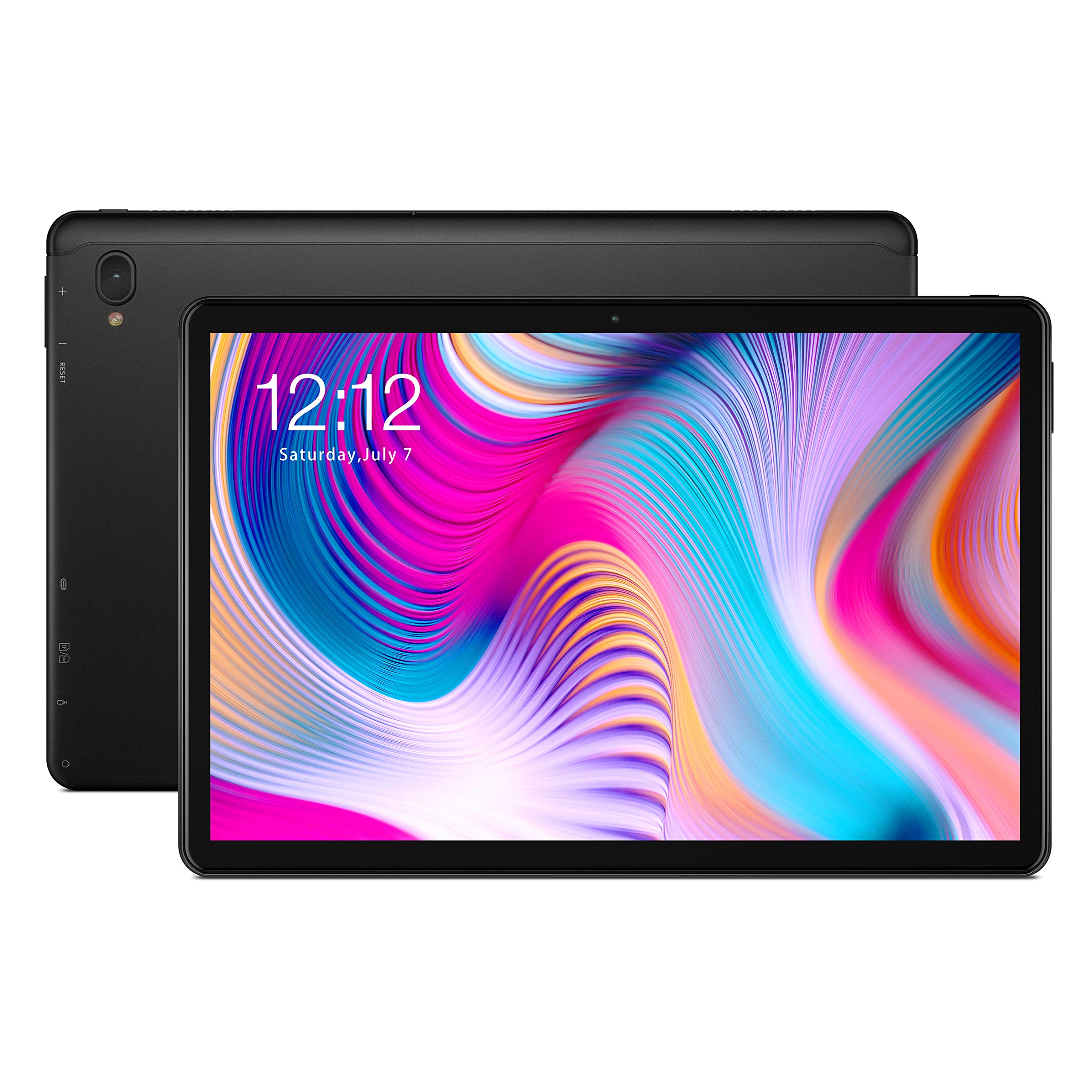
Figure 1: Front view of the TECLAST T30 Tablet.

Figure 2: Back view of the TECLAST T30 Tablet.
2. Getting Started: Setup
2.1 Package Contents
Verify that all items are present in your package:
- TECLAST T30 Tablet
- USB Type-C Cable
- Power Adapter
- User Manual (this document)
2.2 Device Layout and Controls
Familiarize yourself with the tablet's physical features and buttons.

Figure 3: Rear camera and control buttons (Power, Volume, Reset).
- Power Button: Located on the top edge (when held horizontally), used to turn the device on/off or put it to sleep/wake it up.
- Volume Buttons: Located next to the power button, used to adjust the device's volume.
- Rear Camera: Located on the back of the tablet.
- Front Camera: Located on the front bezel above the screen.
- USB Type-C Port: For charging and data transfer.
- Reset Pinhole: A small hole for performing a hard reset if the device becomes unresponsive.
- Pogo Pin Connector: Located on the side, for connecting compatible accessories like a keyboard dock.
2.3 Initial Charging
Before first use, fully charge your TECLAST T30 Tablet. Connect the provided USB Type-C cable to the tablet's charging port and the power adapter to a wall outlet. The charging indicator will illuminate.
2.4 Powering On/Off
- To Power On: Press and hold the Power Button until the TECLAST logo appears on the screen.
- To Power Off: Press and hold the Power Button until a power-off menu appears. Select "Power off" and confirm.
- To Sleep/Wake: Briefly press the Power Button.
2.5 Initial Setup Wizard
Upon first power-on, the tablet will guide you through the initial setup process. This includes selecting your language, connecting to a Wi-Fi network, setting up your Google account, and configuring basic security settings.
3. Operating Instructions
3.1 Touch Screen Navigation
The TECLAST T30 features a responsive 2.5D touch panel. Use standard Android gestures for navigation:
- Tap: To select an item or open an application.
- Tap and Hold: To access contextual menus or move icons.
- Swipe: To scroll through pages or lists.
- Pinch: To zoom in or out on images and web pages.
3.2 Connecting to Wi-Fi
- Go to Settings > Network & internet > Wi-Fi.
- Toggle Wi-Fi On.
- Select your desired Wi-Fi network from the list.
- Enter the network password if prompted, then tap Connect.
3.3 Camera Usage
To use the camera, open the Camera application. You can switch between the front and rear cameras, adjust settings, and capture photos or videos.
3.4 Installing Applications
Applications can be downloaded and installed from the Google Play Store. Ensure you have a stable internet connection and a Google account configured.
4. Maintenance
4.1 Cleaning the Device
Use a soft, lint-free cloth to clean the screen and body of the tablet. Avoid using harsh chemicals or abrasive materials, as these can damage the finish.
4.2 Battery Care
The TECLAST T30 is equipped with an 8000mAh battery, providing approximately 11 hours of usage. To prolong battery life:
- Avoid extreme temperatures.
- Do not let the battery completely drain frequently.
- Unplug the charger once the battery is full.
4.3 Software Updates
Regularly check for and install software updates to ensure optimal performance and security. Go to Settings > System > Advanced > System update.
5. Troubleshooting
If you encounter issues with your TECLAST T30 Tablet, refer to the following common solutions:
5.1 Device Not Powering On
- Ensure the battery is sufficiently charged. Connect the tablet to its charger for at least 30 minutes.
- Press and hold the Power Button for 10-15 seconds to force a restart.
5.2 Screen Unresponsive
- Restart the device by holding the Power Button.
- If unresponsive, use a thin tool (like a paperclip) to press the Reset Pinhole for a few seconds. This will force a restart without data loss.
5.3 Wi-Fi Connectivity Issues
- Restart your Wi-Fi router.
- Forget the network in tablet settings and reconnect.
- Ensure the tablet is within range of the Wi-Fi signal.
6. Specifications
| Feature | Specification |
|---|---|
| Brand | TECLAST |
| Model | T30 |
| Operating System | Android 9 Pie |
| Screen Size | 10.1 Inches |
| Max Screen Resolution | 1920 x 1200 (FHD) |
| Processor | MediaTek Octa-Core |
| RAM | 4 GB |
| Internal Storage | 64 GB |
| Rear Camera | 8 MP |
| Battery Capacity | 8000mAh (approx. 11 hours battery life) |
| Connectivity | Wi-Fi, Bluetooth, 4G (model dependent) |
| Charging Port | USB Type-C |
| Item Weight | 2.1 pounds |
7. Official Product Video
Watch the official product video for a visual guide to the TECLAST T30 Tablet's features and design.
Video: Teclast T30 10.1 inch 4G Tablet overview. This video highlights the tablet's design, key features, and performance capabilities.
8. Warranty and Support
8.1 Warranty Information
For detailed warranty information, please refer to the warranty card included with your product or visit the official TECLAST website. Warranty terms and conditions may vary by region.
8.2 Customer Support
If you require further assistance or have questions not covered in this manual, please contact TECLAST customer support through their official website or the contact information provided in your product packaging.


