
Introduction
The GENAI Wireless Bluetooth Headset B112 provides a convenient and hands-free communication experience. This manual offers detailed instructions for setting up, operating, maintaining, and troubleshooting your headset to ensure optimal performance and longevity.
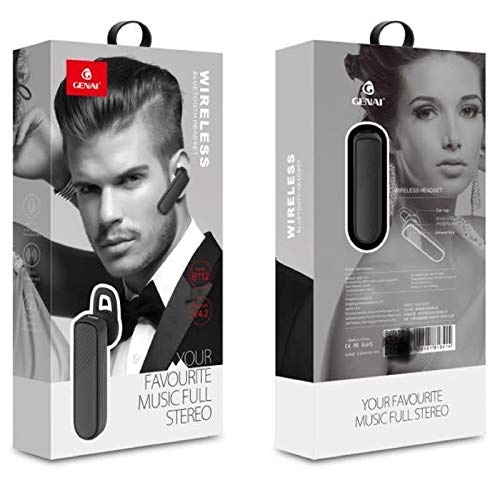
Image: GENAI Wireless Bluetooth Headset B112, main unit with ear hook.
What's in the Box
The product package includes the following items:
- GENAI Wireless Bluetooth Headset B112
- Ear Cushions
- Charging Cable (Micro USB)
Setup
1. Charging the Headset
- Connect the Micro USB charging cable to the charging port on the headset.
- Connect the other end of the charging cable to a compatible USB power source (e.g., computer USB port, USB wall adapter).
- The indicator light will illuminate during charging.
- A full charge typically takes approximately 2 hours.
- Once fully charged, the indicator light may change color or turn off, depending on the model. Disconnect the charging cable.
2. Pairing with a Bluetooth Device
- Ensure the headset is fully charged.
- Power On: Press and hold the multi-function button (usually the main button) on the headset until the indicator light flashes, typically alternating blue and red, indicating pairing mode.
- Activate Bluetooth: On your mobile phone or other Bluetooth-enabled device, go to the Bluetooth settings and ensure Bluetooth is turned on.
- Search for Devices: Your device will scan for available Bluetooth devices. Look for "B112" or "GENAI B112" in the list.
- Connect: Select "B112" or "GENAI B112" to initiate the pairing process. If prompted for a password, enter "0000" (four zeros).
- Once successfully paired, the indicator light on the headset will typically flash blue slowly, and you may hear a voice prompt confirming the connection.
3. Wearing the Headset
The GENAI B112 headset is designed for comfortable wear. Attach the ear hook if desired, and adjust it to fit securely over your ear. The ear cushions can be changed for a better fit.
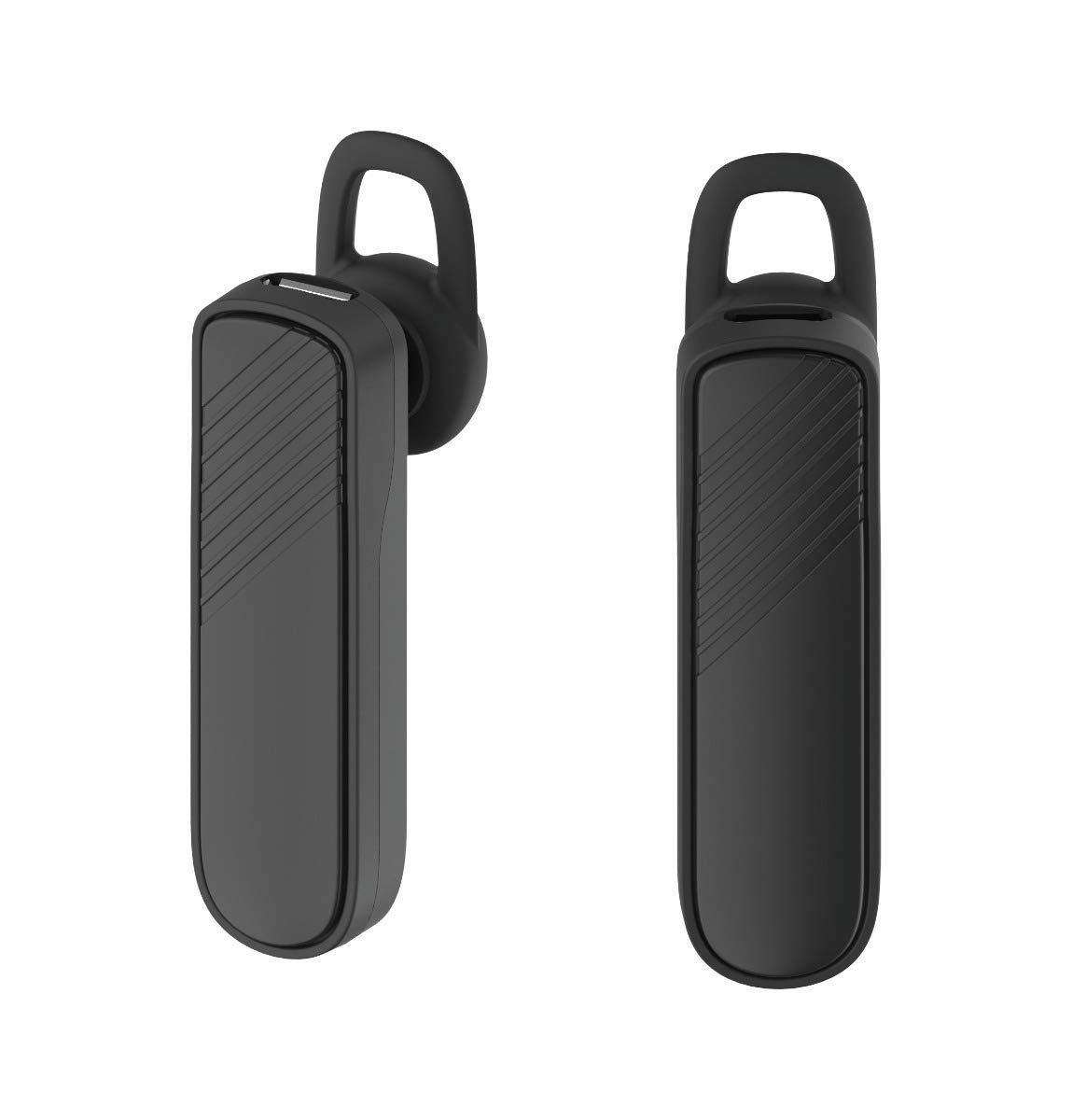
Image: Two views of the GENAI Wireless Bluetooth Headset B112, illustrating its design.
Operating Instructions
- Power On/Off: Press and hold the multi-function button for approximately 3-5 seconds to power on or power off the headset. A voice prompt will confirm the action.
- Answering/Ending Calls: Press the multi-function button once to answer an incoming call. Press it again to end an active call.
- Rejecting Calls: Press and hold the multi-function button for approximately 2 seconds to reject an incoming call.
- Redial Last Number: Double-press the multi-function button to redial the last dialed number.
- Volume Control: Use the dedicated volume buttons (if present) or the multi-function button (depending on model variation) to adjust the call or music volume. Refer to your device's manual for specific button functions.
- Music Playback: When connected, you can play music from your paired device. The multi-function button may also control play/pause.
- Voice Prompts: The headset provides voice alerts for power on/off and pairing status.
Maintenance
- Cleaning: Use a soft, dry, lint-free cloth to clean the headset. Do not use harsh chemicals, cleaning solvents, or strong detergents.
- Storage: When not in use, store the headset in a cool, dry place, away from extreme temperatures and direct sunlight.
- Battery Care: To prolong battery life, avoid fully discharging the battery frequently. Charge the headset regularly, even if not used for extended periods.
- Water Exposure: This headset is not waterproof. Avoid exposure to water, moisture, or rain.
Troubleshooting
- Headset does not power on:
- Ensure the headset is fully charged. Connect it to a power source and allow it to charge for at least 30 minutes before attempting to power on again.
- Cannot pair the headset with my device:
- Ensure the headset is in pairing mode (indicator light flashing blue/red).
- Make sure Bluetooth is enabled on your device.
- Keep the headset and your device within close proximity (within 1 meter) during pairing.
- Turn off and on both the headset and your device, then try pairing again.
- If previously paired, try "forgetting" or "unpairing" the headset from your device's Bluetooth list and then re-pair.
- No sound or low volume:
- Check the volume levels on both the headset and your paired device.
- Ensure the headset is properly connected to your device. Sometimes, the audio output might switch to the phone speaker.
- Try restarting both devices.
- Headset disconnects frequently:
- Ensure there are no obstacles between the headset and your device.
- Move closer to your paired device to reduce interference.
- Check for other active Bluetooth devices that might be causing interference.
- Ensure the headset is sufficiently charged.
Specifications
| Model Name | B112 |
| Connectivity Technology | Bluetooth V4.2 |
| Charging Port | Micro USB |
| Charging Time | Approximately 2 Hours |
| Talk Time | Up to 20 Hours |
| Music Play Time | Approximately 20 Hours |
| Standby Time | Up to 1000 Hours |
| Item Weight | 30 g |
| Material | Plastic |
| Special Feature | Earhook |
| Included Components | Ear Cushions |
| Compatible Devices | Android, iOS, Mi devices (Bluetooth-enabled smartphones) |
Warranty Information
This GENAI Wireless Bluetooth Headset B112 comes with a 3 Months Replacement Warranty from the date of purchase. Please retain your proof of purchase for warranty claims. This warranty covers manufacturing defects. Please note that this warranty does not include refunds.
Support
For further assistance, technical support, or warranty claims, please contact your retailer or the GENAI customer service department. Refer to the product packaging or the official GENAI website for contact details.