
DeLUX DELUX-M618mini White
Contents
DeLUX M618mini Wireless Vertical Mouse User Manual
Model: DELUX-M618mini White
Introduction
Thank you for choosing the DeLUX M618mini Wireless Vertical Mouse. This ergonomic mouse is designed to provide a comfortable and natural computing experience, reducing wrist strain and promoting a healthier posture. This manual provides detailed instructions on setting up, operating, and maintaining your new mouse.

Image: Side view of the DeLUX M618mini Wireless Vertical Mouse, showcasing its ergonomic design and USB-C charging port.
Package Contents
Please verify that all items are present in your package:
- 1 x DeLUX M618mini Wireless Vertical Mouse
- 1 x User Manual
Product Features
- Ergonomic Design: Natural handshake posture reduces wrist fatigue and discomfort, featuring a concave area for the thumb and an extended bottom edge for the pinky finger.
- Dual Mode Connectivity: Seamlessly switch between Bluetooth 5.2 and 2.4G wireless modes for versatile device compatibility.
- Adjustable DPI: Five adjustable DPI levels (800/1200/1600/2400/4000) for precise cursor control, easily changed via the dedicated DPI button.
- Rechargeable Battery: Built-in 500mAh Li-ion battery provides up to 2 weeks of use on a 2-hour charge, with up to six months of standby time. USB-C port allows charging during use.
- Quiet Clicks: Designed for silent operation, minimizing distractions.
- Wide Compatibility: Supports Windows 7/8/10/Mac OS, and is suitable for PC, laptop, computer, notebook, phone, and MacBook. Note: Backward and forward buttons may have limited functionality on Mac.

Image: Illustrates the difference between a traditional mouse grip, which can cause wrist compression, and the natural handshake posture promoted by the vertical mouse, designed to reduce carpal tunnel syndrome.

Image: A hand resting on the DeLUX M618mini mouse, highlighting the comfortable thumb and pinky rest areas.

Image: The DeLUX M618mini mouse with an overlay indicating its quiet click functionality, designed for a less distracting work environment.
Setup Guide
Charging the Mouse
Before first use, it is recommended to fully charge the mouse. Connect the included USB-C cable to the charging port on the front of the mouse and the other end to a USB power source (e.g., computer USB port, USB wall adapter).
- A full charge takes approximately 2 hours.
- The mouse can be used while charging.

Image: The DeLUX M618mini mouse connected to a charging cable, illustrating its 500mAh rechargeable battery feature.
Connecting the Mouse
The DeLUX M618mini supports dual-mode connectivity: 2.4G Wireless via USB receiver and Bluetooth 5.2.

Image: The underside of the DeLUX M618mini mouse, indicating the 2.4G wireless mode, Bluetooth 5.2 mode, and the mode switch button for multi-device workflow.
2.4G Wireless Mode:
- Locate the USB receiver, usually stored in a compartment on the bottom of the mouse.
- Plug the USB receiver into an available USB port on your computer.
- Turn on the mouse using the ON/OFF switch on the bottom.
- Press the "Mode Switch Button" on the bottom of the mouse until the indicator light for 2.4G (usually labeled '1') is active.
- The mouse should automatically connect to your computer.
Bluetooth 5.2 Mode:
- Turn on the mouse using the ON/OFF switch on the bottom.
- Press the "Mode Switch Button" on the bottom of the mouse until the indicator light for BT 5.2 (usually labeled '2') is active.
- On your computer or device, go to Bluetooth settings.
- Search for new devices and select "DeLUX M618mini" (or similar name) from the list.
- Follow any on-screen prompts to complete the pairing process.
Operating Instructions
Basic Functions
- Left Click: Standard selection and activation.
- Right Click: Opens context menus.
- Scroll Wheel: Scrolls content vertically. Can also be pressed for middle-click functionality.
- Forward/Backward Buttons: Located on the side for navigation in web browsers and file explorers. (Note: Limited functionality on Mac OS).
Adjusting DPI (Sensitivity)
The mouse features five adjustable DPI levels to suit different tasks and preferences. The DPI button is located above the backward button.
- Press the DPI button to cycle through the available sensitivities: 800, 1200, 1600, 2400, and 4000 DPI.
- Each press will change the cursor speed, allowing you to find your preferred setting for precision or rapid movement.

Image: Diagram illustrating the five adjustable DPI settings (800, 1200, 1600, 2400, 4000) and the location of the DPI button on the DeLUX M618mini mouse.
Maintenance
- Cleaning: Use a soft, dry cloth to clean the mouse. For stubborn dirt, a slightly damp cloth can be used, ensuring no moisture enters the internal components.
- Storage: Store the mouse in a cool, dry place away from direct sunlight and extreme temperatures.
- Battery Care: To prolong battery life, avoid fully discharging the mouse frequently. Charge it when the low battery indicator appears.
Troubleshooting
| Problem | Possible Cause | Solution |
|---|---|---|
| Mouse not responding | Low battery; Incorrect connection mode; USB receiver not plugged in (2.4G); Bluetooth not paired (BT 5.2); Mouse is off. | Charge the mouse; Ensure correct mode (2.4G or BT 5.2) is selected via the mode switch button; Plug in USB receiver securely; Re-pair Bluetooth; Turn on the mouse. |
| Cursor movement is erratic or slow | Low DPI setting; Dirty optical sensor; Uneven or reflective surface. | Increase DPI using the DPI button; Clean the optical sensor with a soft cloth; Use the mouse on a clean, non-reflective mouse pad or surface. |
| Cannot connect via Bluetooth | Mouse not in pairing mode; Device's Bluetooth is off; Interference. | Ensure mouse is in BT 5.2 mode and ready for pairing (indicator light blinking); Turn on Bluetooth on your device; Move closer to the device or away from other wireless devices. |
| Forward/Backward buttons not working on Mac | Operating system limitation. | This is a known limitation for Mac OS. Basic mouse functions will work, but side buttons may not be supported without third-party software. |
Specifications
| Feature | Detail |
|---|---|
| Model | DELUX-M618mini White |
| Connectivity | 2.4G Wireless, Bluetooth 5.2 |
| DPI Levels | 800 / 1200 / 1600 / 2400 / 4000 |
| Battery Type | Built-in 500mAh Li-ion Rechargeable Battery |
| Charging Port | USB-C |
| Product Dimensions | 4.29 x 3.5 x 2.72 inches (109 x 89 x 69 mm) |
| Item Weight | 4.2 ounces (119 grams) |
| Movement Detection | Optical |
| Compatibility | Windows 7/8/10/Mac OS (limited functionality on Mac) |
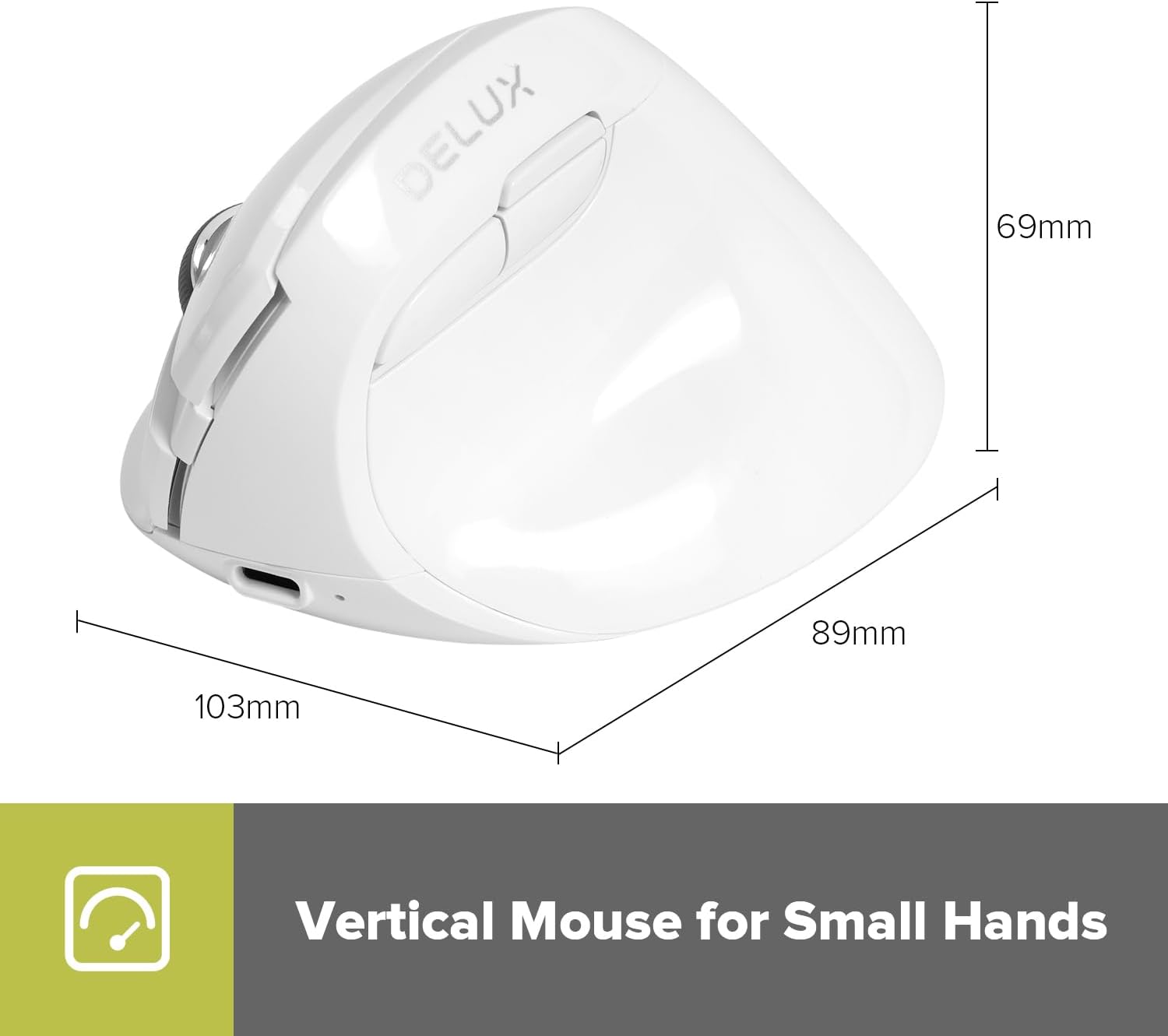
Image: The DeLUX M618mini mouse shown with its dimensions (103mm length, 89mm width, 69mm height), indicating its suitability as a vertical mouse for small hands.

Image: A chart providing hand length recommendations for different DeLUX vertical mouse models (Small, Medium, Large), with the M618mini categorized for small hands (under 6.9 inches / 17.5 cm).
Warranty and Support
For warranty information and technical support, please refer to the official DeLUX website or contact their customer service. Details are typically provided on the product packaging or the manufacturer's official support channels.
Manufacturer: DELUX
Country of Origin: China
For further assistance, visit the DeLUX Store on Amazon.
Documents and downloads
Ask a question about this manual
Ask about setup, troubleshooting, compatibility, parts, safety, or missing instructions. Manuals+ will review the question and use this page’s manual context to help answer it.