
1. Introduction
The TUREWELL Q Plus Android TV Box is a smart media player designed to transform your television into a smart entertainment hub. Running on Android 10.0, it offers access to various applications, streaming services, and media playback capabilities, supporting up to 6K resolution. This manual provides essential information for setting up, operating, and maintaining your device.
2. Safety Information
- Read all instructions carefully before using the device.
- Keep the device away from water, moisture, and high temperatures.
- Do not attempt to disassemble, modify, or repair the device yourself. This will void the warranty.
- Use only the power adapter provided with the device. Using unauthorized adapters may cause damage or fire.
- Ensure proper ventilation around the device to prevent overheating.
- Keep the device and accessories out of reach of children.
3. Package Contents
Please check the package contents upon opening to ensure all items are present:
- 1 x TUREWELL Q Plus Android Smart TV Box
- 1 x Power Adapter
- 1 x HDMI Cable
- 1 x Remote Control (batteries not included)
- 1 x User Manual

This image displays all items included in the TUREWELL Q Plus Android TV Box package, ensuring users can verify they have received all necessary components.
4. Device Overview
Familiarize yourself with the ports and interfaces of your TUREWELL Q Plus Android TV Box.

This image highlights the various connectivity options available on the TUREWELL Q Plus TV Box, including multiple USB ports, HDMI, Ethernet, and an SD card slot for expanded storage.
Port Descriptions:
- SD Card Slot: For inserting SD/SDHC/MMC memory cards to expand storage.
- USB 2.0 Ports (x2): For connecting USB devices such as external hard drives, USB flash drives, keyboards, or mice.
- HDMI Port: Connects to your TV or display for video and audio output.
- Ethernet Port: For a wired network connection.
- AV Port: For connecting to older TVs using an AV cable (composite video and stereo audio).
- SPDIF Port: For digital audio output to a home theater system or soundbar.
- DC 5V Power Input: Connects the provided power adapter.
5. Setup Guide
Follow these steps to set up your TUREWELL Q Plus Android TV Box:
- Connect to TV: Connect one end of the HDMI cable to the HDMI port on the TV Box and the other end to an available HDMI input on your television. If using an older TV, connect via the AV port.
- Connect Power: Plug the DC 5V power adapter into the power input port on the TV Box, then plug the adapter into a wall outlet. The device should power on automatically or you may need to press the power button on the remote.
- Select Input: Turn on your TV and select the correct HDMI or AV input source using your TV remote.
- Network Connection:
- Wired (Ethernet): Connect an Ethernet cable from your router to the Ethernet port on the TV Box.
- Wireless (Wi-Fi): On the initial setup screen or in the settings menu, navigate to Network settings, select Wi-Fi, choose your network, and enter the password.
- Initial Setup: Follow the on-screen prompts to complete the initial setup, including language selection and Google account login.

Setting up the TUREWELL Q Plus TV Box is a simple three-step process: connect to your TV via HDMI, establish a network connection (Wi-Fi or Ethernet), and then open your desired media application.
6. Operating Instructions
6.1. Basic Navigation
Use the provided remote control to navigate the Android interface. The directional buttons allow you to move between icons, and the 'OK' button selects items. The 'Back' button returns to the previous screen, and the 'Home' button takes you to the main launcher.

The TUREWELL Q Plus Android TV Box runs on Android 10.0, providing access to a wide range of applications through the Google Play Store.
6.2. Accessing Applications
From the home screen, you can access pre-installed applications or download new ones from the Google Play Store. Navigate to the 'Apps' section or the Google Play Store icon to browse and install applications.
6.3. Media Playback
The TV Box supports various media formats and resolutions, including 6K Ultra HD and 3D content.
- Local Media: Connect a USB drive or SD card to play videos, music, and photos directly. Use a file manager app to browse your media.
- Streaming Services: Install your preferred streaming apps (e.g., YouTube) from the Google Play Store and log in to access content.
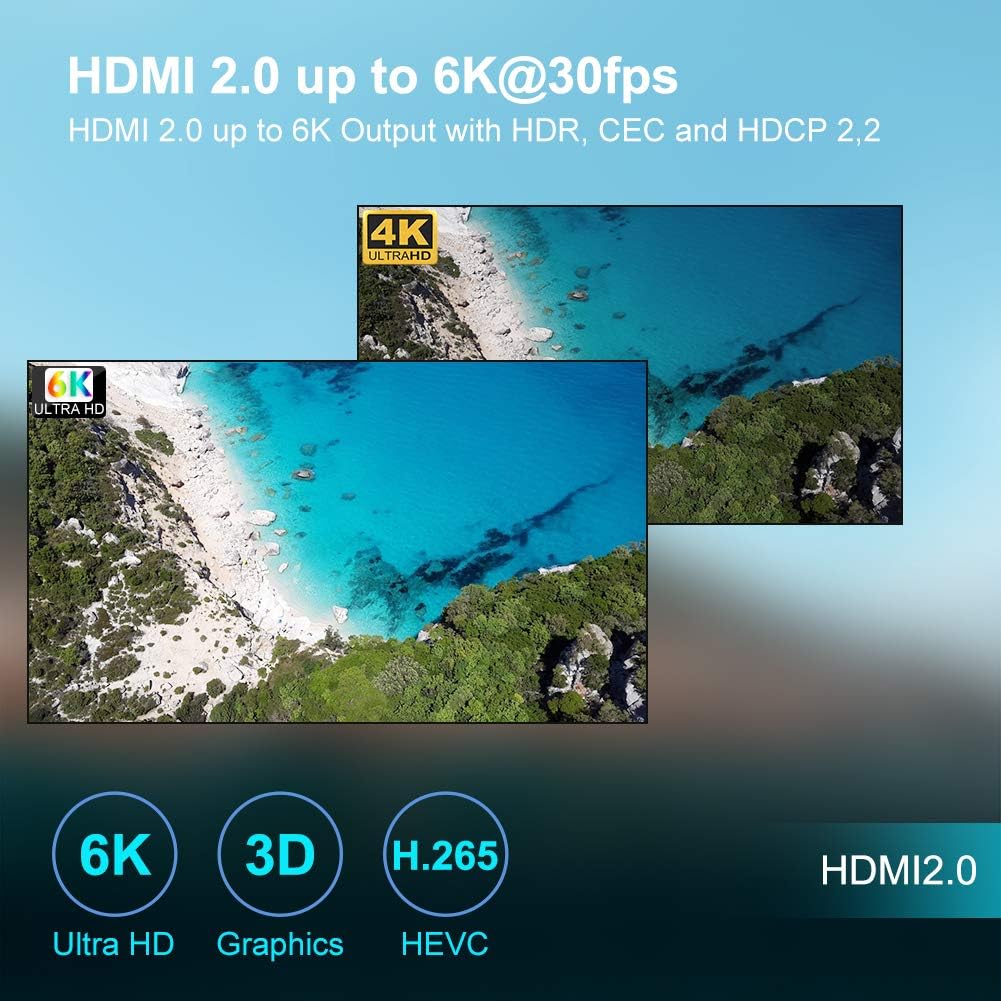
This image illustrates the TUREWELL Q Plus TV Box's capability to support 6K Ultra HD resolution, 3D graphics, and H.265 video decoding for high-quality media playback.

The TUREWELL Q Plus TV Box supports 3D video output, allowing users to enjoy 3D movies and content on compatible displays.
6.4. Screen Mirroring (DLNA/AirPlay/Miracast)
The device supports screen mirroring technologies, allowing you to cast content from your mobile devices to your TV.
- Ensure your mobile device and the TV Box are connected to the same Wi-Fi network.
- Open the screen mirroring feature on your mobile device (e.g., Smart View, Screen Cast, AirPlay).
- Select the TV Box from the list of available devices.

The TV Box supports AirPlay and Miracast, allowing users to wirelessly cast videos, music, and photos from their Android or iOS devices to the connected television.
7. Maintenance
7.1. Cleaning the Device
Wipe the device with a soft, dry cloth. Do not use liquid cleaners or abrasive materials, as they may damage the surface.
7.2. Software Updates
Periodically check for software updates in the device settings to ensure optimal performance and access to the latest features. Updates can improve stability and security.
7.3. Factory Reset
If you experience persistent issues or wish to clear all personal data, you can perform a factory reset. Go to Settings > System > Reset options > Erase all data (factory reset). Be aware that this will delete all installed apps and user data.
8. Troubleshooting
If you encounter problems with your TV Box, refer to the following common issues and solutions:
| Problem | Possible Solution |
|---|---|
| No power | Ensure the power adapter is securely connected to the device and a working power outlet. Check if the power indicator light is on. |
| No display on TV | Verify the HDMI cable is properly connected to both the TV Box and the TV. Ensure your TV is set to the correct HDMI input source. Try a different HDMI cable or port. |
| Cannot connect to Wi-Fi | Check if your Wi-Fi router is working correctly. Ensure you have entered the correct Wi-Fi password. Try restarting both the TV Box and your router. |
| Remote control not working | Check and replace the batteries in the remote control. Ensure there are no obstructions between the remote and the TV Box. |
| Applications crash or freeze | Close and restart the application. Clear the app's cache (Settings > Apps > [App Name] > Clear cache). If the problem persists, try uninstalling and reinstalling the app. Ensure the device has enough free storage. |
9. Specifications
Detailed technical specifications for the TUREWELL Q Plus Android TV Box:
| Feature | Specification |
|---|---|
| Operating System | Android 10.0 |
| CPU | H616 Quad-core Cortex-A53 |
| GPU | Mali-G31MP2 |
| RAM | 2GB DDR3 |
| ROM | 16GB Flash |
| Video Decoding | VP9-10 Profile-2 up to 6K@30fps, H.265 HEVC MP-10@L5.1 up to 6K@30fps, H.264 AVC HP@L5.1 up to 4Kx2K@30fps |
| Resolution Support | 6K, 4K, 3D |
| Wi-Fi | 2.4GHz |
| Ethernet | 10/100M Standard RJ-45 |
| USB Host | 2 x USB 2.0 |
| Card Reader | SD/SDHC/MMC cards |
| Power Supply | DC 5V/2A |
| Dimensions (L x W x H) | 21.5 x 14 x 5.5 cm |
| Weight | 189 Grams |
10. Warranty and Support
TUREWELL provides a 1-year warranty for the Q Plus Android TV Box, covering manufacturing defects and malfunctions under normal use. Additionally, lifetime technical support is available to assist you with any questions or concerns you may have regarding the product.
For technical assistance or warranty claims, please contact TUREWELL customer support through the retailer where you purchased the product or refer to the contact information provided in your product packaging.
