
1. Introduction
Thank you for choosing the HaiFen Q Plus Android 10.0 TV Box. This device transforms your television into a smart entertainment hub, offering access to a wide range of applications, media content, and online services. Featuring Android 10.0, a powerful H616 Quad-Core processor, 2GB RAM, and 16GB ROM, it supports 6K Ultra HD video playback and 3D graphics. Please read this manual carefully to ensure proper setup and optimal performance of your device.
2. Safety Information
- Do not expose the device to rain, moisture, or extreme temperatures.
- Avoid placing the device near heat sources or in direct sunlight.
- Use only the provided power adapter. Using unauthorized adapters may damage the device and void the warranty.
- Do not open the device casing. Refer all servicing to qualified personnel.
- Keep the device away from children and pets.
- Ensure proper ventilation around the device to prevent overheating.
3. Package Contents
Please check the box for the following items:
- 1 x HaiFen Q Plus Android TV Box
- 1 x Power Adapter
- 1 x HDMI Cable
- 1 x Remote Control (batteries not included)
- 1 x User Manual

Image: The package contents including the TV box, power adapter, HDMI cable, remote control, and user manual.
4. Device Overview
Familiarize yourself with the ports and indicators on your Q Plus TV Box.

Image: A detailed view of the HaiFen Q Plus TV Box showing its various ports including SD card slot, USB 2.0 ports, HDMI, Ethernet, AV, SPDIF, and power input.
Port Descriptions:
- SD Card Slot: For expanding storage with a Micro SD card.
- USB 2.0 Ports (x2): Connect USB devices such as external hard drives, USB flash drives, keyboards, or mice. One port supports USB 3.0 high-speed.
- HDMI Port: Connects to your TV or display for video and audio output. Supports HDMI 2.0 up to 6K@30fps.
- Ethernet Port (RJ-45): For wired network connection (10/100M standard).
- AV Port: For connecting to older TVs using an AV cable (composite video and stereo audio).
- SPDIF Port: For digital audio output to a home theater system or soundbar.
- DC Power Input: Connect the provided power adapter.
5. Setup
5.1 Connecting to Your TV
- Connect one end of the HDMI cable to the HDMI port on the TV Box.
- Connect the other end of the HDMI cable to an available HDMI input on your television.
- If your TV does not have an HDMI input, use an AV cable (not included) to connect the AV port on the TV Box to the corresponding AV inputs on your TV.
5.2 Powering On
- Connect the power adapter to the DC Power Input port on the TV Box.
- Plug the power adapter into a wall outlet.
- The device should automatically power on, and you will see the boot-up screen on your TV. If not, press the power button on the remote control.
5.3 Network Connection
You can connect your TV Box to the internet via Wi-Fi or Ethernet.
Wi-Fi Connection:
- From the home screen, navigate to Settings.
- Select Network & Internet.
- Turn on Wi-Fi and select your desired network from the list.
- Enter the Wi-Fi password if prompted and select Connect.
Ethernet Connection:
- Connect an Ethernet cable from your router or modem to the Ethernet port on the TV Box.
- The device should automatically detect the wired connection.
5.4 Initial Configuration
Follow the on-screen prompts for initial setup, which may include:
- Language selection.
- Time zone setting.
- Google account login (recommended for full access to Google Play Store).
6. Operating Instructions
6.1 Navigation
Use the provided remote control to navigate the Android interface. The directional buttons move the cursor, the OK button selects items, and the Back button returns to the previous screen. You can also connect a USB mouse and keyboard for easier navigation and text input.
6.2 App Installation
The TV Box comes with the Google Play Store pre-installed. You can download and install various applications:
- From the home screen, open the Google Play Store app.
- Search for your desired application using the search bar.
- Select the app and click Install.

Image: The HaiFen Q Plus TV Box interface highlighting Android 10.0 and access to the Google Play Store for various applications.
6.3 Media Playback
The Q Plus TV Box supports a wide range of media formats and resolutions up to 6K Ultra HD.
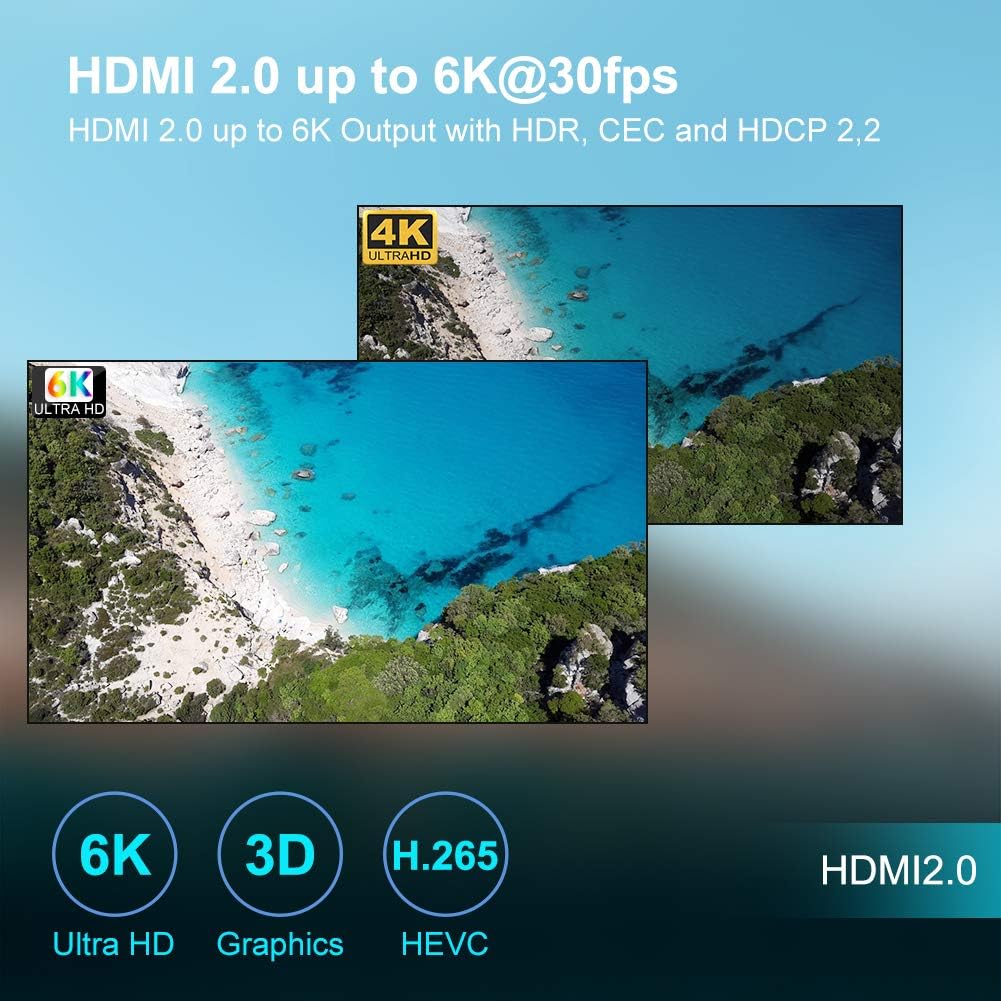
Image: A visual representation of 6K Ultra HD video output from the TV Box via HDMI 2.0, showcasing high-resolution content.
Supported Formats:
- Video: Avi, Rm, Rmvb, Ts, Vob, Mkv, Mov, ISO, WMV, ASF, FLV, dat, mpg, mpeg, VP9-10 Profile-2, H.265 HEVC MP-10@L5.1, H.264 AVC HP@L5.1, H.264 MVC, MPEG-4 ASP@L5, WMV/VC-1 SP/MP/AP, AVS-P16 (AVS+)/AVS-P2 JiZhun Profile, MPEG-2 MP/HL, MPEG-1 MP/HL, RealVideo 8/9/10, WebM.
- Audio: MP3, WMA, AAC, WAV, OGG, AC3, DDP, TrueHD, DTS, DTS/HD, FLAC, APE.
- Photo: HD JPEG, BMP, GIF, PNG, TIFF.
3D Playback:
The device supports 3D video output. To enjoy 3D content, ensure your TV and media files are 3D compatible.

Image: The TV Box supporting 3D outputs, allowing users to enjoy 3D movies on their television.
6.4 Screen Mirroring (DLNA, Airplay, Miracast)
The Q Plus TV Box supports various screen mirroring protocols, allowing you to cast content from your mobile devices to your TV.

Image: A smartphone mirroring its screen content, such as a game, to a television through the Q Plus Smart Box using AirPlay or Miracast.
- DLNA/Airplay/Miracast: Use compatible apps on your Android or iOS device to cast videos, music, or photos to the TV Box. Ensure both devices are connected to the same Wi-Fi network.
6.5 USB/SD Card Usage
You can play media files directly from USB drives or SD cards.
- Insert your USB drive into a USB port or an SD card into the SD card slot.
- The system may prompt you to open a file manager or media player. If not, navigate to a file manager app from the home screen.
- Browse to your external storage and select the media file you wish to play.
7. Maintenance
- Cleaning: Use a soft, dry cloth to clean the device. Do not use liquid cleaners or aerosols.
- Ventilation: Ensure the ventilation holes are not blocked to prevent overheating.
- Software Updates: Periodically check for system updates in the Settings menu to ensure optimal performance and security.
- Storage: When not in use for extended periods, store the device in a cool, dry place.
8. Troubleshooting
- No Power: Ensure the power adapter is securely connected to the device and the wall outlet. Try a different outlet.
- No Picture on TV: Check HDMI or AV cable connections. Ensure your TV is set to the correct input source (e.g., HDMI 1, AV).
- No Sound: Check audio cable connections (HDMI or AV). Ensure TV volume is up and not muted. Check audio settings on the TV Box.
- Remote Control Not Working: Ensure batteries are correctly inserted and not depleted. Point the remote directly at the TV Box.
- Wi-Fi Connection Issues: Ensure your Wi-Fi router is on and working. Re-enter the Wi-Fi password. Try restarting both the TV Box and your router.
- Apps Crashing/Freezing: Close and reopen the app. Clear the app's cache in Settings > Apps. If the issue persists, uninstall and reinstall the app.
- Slow Performance: Close unnecessary background applications. Clear cache for frequently used apps. Consider a factory reset if performance issues are severe (backup data first).
9. Specifications
The following table outlines the key technical specifications of the HaiFen Q Plus Android 10.0 TV Box.
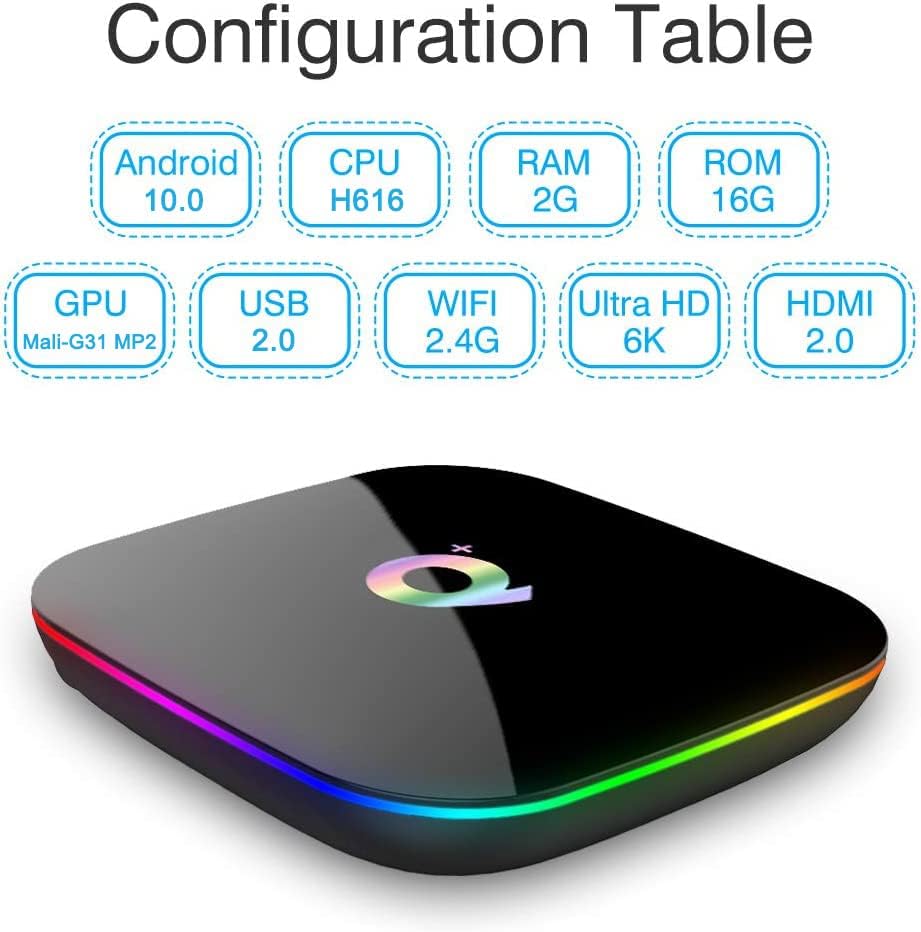
Image: A visual summary of the TV Box's core specifications including Android 10.0, H616 CPU, 2GB RAM, 16GB ROM, Mali-G31 MP2 GPU, USB 2.0, 2.4G WiFi, 6K Ultra HD, and HDMI 2.0.
| Feature | Specification |
|---|---|
| Operating System | Android 10.0 |
| Processor | H616 Quad-core Cortex-A53 (2GHz frequency) |
| GPU | Mali-G31 MP2 |
| RAM | 2GB SDRAM |
| ROM (Internal Storage) | 16GB Flash |
| Wi-Fi | 2.4G Wi-Fi |
| LAN | Ethernet: Standard 10/100M RJ-45 |
| Video Output | HDMI 2.0 up to 6K@30fps with HDR, CEC, HDCP 2.2 |
| USB Host | 1x High-speed USB 3.0, 1x High-speed USB 2.0 |
| Card Reader | SD/Micro SD Card support |
| 3D Graphics | Hardware 3D graphics acceleration |
| Supported Internet Services | Facebook, Skype, Miracast, Airplay, Browser, Chrome, Google Play, YouTube, Netflix, etc. |
| Dimensions (L x W x H) | 12.9 x 12.9 x 2.7 cm |
| Weight | 2.4 Grams |
10. Warranty and Support
The HaiFen Q Plus Android 10.0 TV Box comes with a one-year warranty. We are committed to 100% customer satisfaction and offer lifetime technical support. If you have any questions or concerns regarding your device, please do not hesitate to contact our customer support team. We aim to resolve your issues within 24 hours.
