
1. Introduction
The NETGEAR GS324P is a 24-port Gigabit Ethernet Unmanaged PoE+ Switch designed to provide a cost-effective and powerful networking solution. With a 190W PoE budget and 16 PoE+ ports, it is ideal for powering various PoE-compatible devices while expanding your network connectivity.
Key Features:
- 24 Gigabit Ethernet ports for high-speed wired connections.
- 16 PoE+ ports with a total power budget of 190W, capable of powering devices like IP cameras, VoIP phones, and wireless access points.
- Simple plug-and-play setup with no software installation or configuration required.
- Supports flexible placement options including desktop or rackmount, with all necessary mounting hardware included.
- Energy-efficient design compliant with IEEE802.3az for reduced power consumption.
- Quiet operation, making it suitable for various environments.
2. What's in the Box
Upon opening the package, you will find the following components:
- NETGEAR GS324P 24-port Gigabit Ethernet Unmanaged Switch (PoE+)
- Power cord
- Rack mount kit
- Installation guide
- Rubber feet

Figure 2.1: Contents of the NETGEAR GS324P package.
3. Setup and Installation
The NETGEAR GS324P switch is designed for simple plug-and-play installation, requiring no complex software configuration. Follow these steps to set up your switch:
- Unpack the Switch: Carefully remove all components from the box.
- Choose Placement: The switch can be placed on a desktop or mounted in a rack. For desktop use, attach the included rubber feet to the bottom of the switch. For rackmount installation, use the provided rack mount kit.
- Connect Power: Connect the power cord to the switch and then to a power outlet. The power LED on the front of the switch will illuminate.
- Connect Network Devices: Connect your network devices (computers, servers, IP cameras, VoIP phones, wireless access points) to any of the 24 Gigabit Ethernet ports using standard Ethernet cables. For PoE-powered devices, connect them to any of the 16 PoE+ ports.
- Connect to Your Network: Connect one of the switch's ports to your router or main network switch to provide internet access to connected devices.
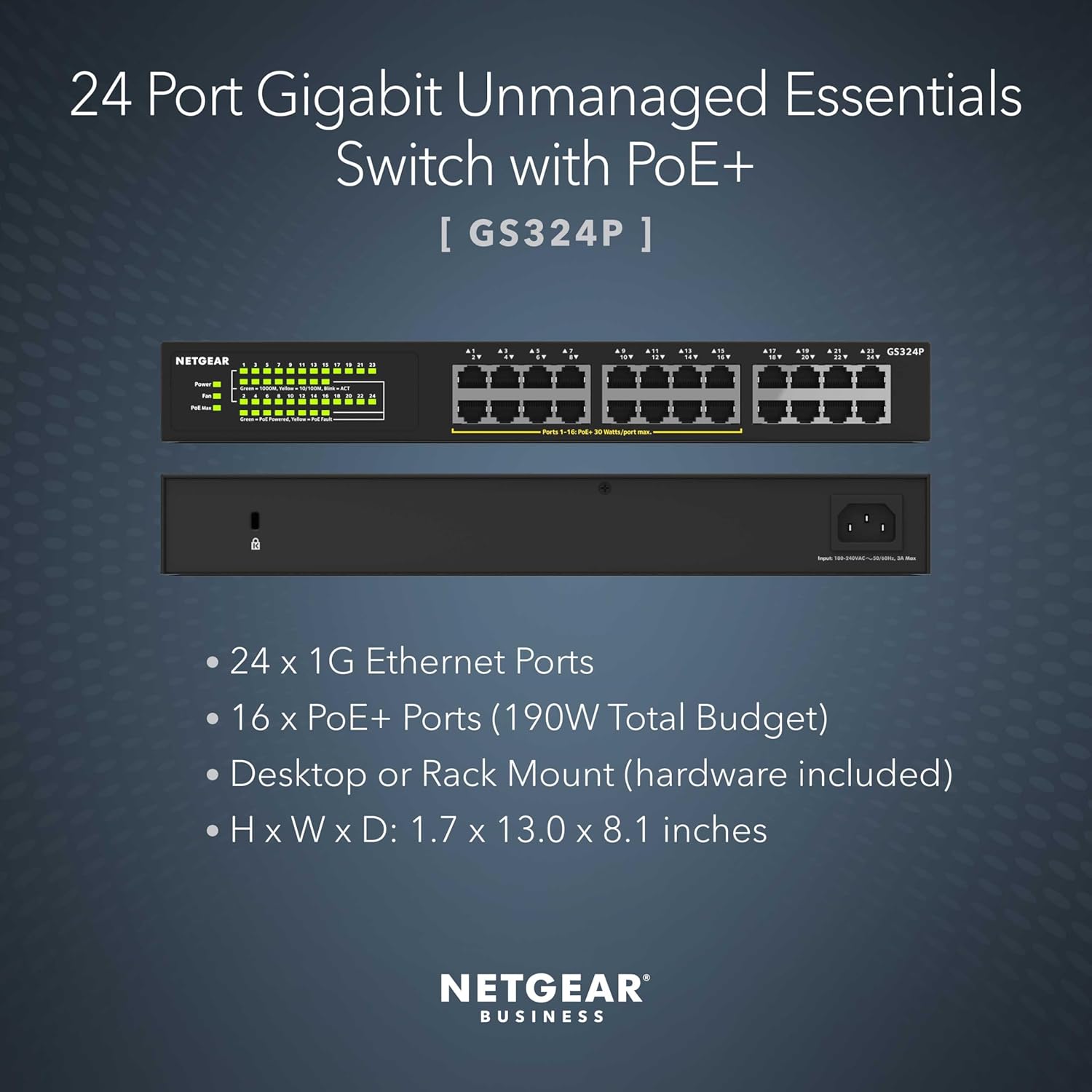
Figure 3.1: Front and back view of the NETGEAR GS324P switch.

Figure 3.2: Plug-and-play setup for the Unmanaged Essentials Switch.
Video 3.1: This video explains the fundamental concept of an Ethernet switch and its role in a network.
4. Operating Instructions
The NETGEAR GS324P is an unmanaged switch, meaning it operates automatically without requiring user configuration. Once connected, it intelligently manages network traffic and power delivery to connected devices.
PoE+ Functionality:
The 16 PoE+ ports automatically detect and supply power to compatible PoE devices. The switch prioritizes power delivery to ports in ascending order (from port 1 to port 16). If the aggregate power requirements of all attached powered devices (PDs) exceed the PoE power budget of 190W, the switch will disable power to higher-numbered ports to ensure stable operation for lower-numbered, higher-priority devices.

Figure 4.1: Power over Ethernet (PoE) capabilities.
Video 4.1: Learn about Power over Ethernet (PoE) technology and how PoE switches simplify network deployments by providing power and data over a single Ethernet cable.
5. Maintenance
To ensure the longevity and optimal performance of your NETGEAR GS324P switch, follow these simple maintenance guidelines:
- Keep Clean: Regularly wipe the exterior of the switch with a soft, dry cloth to remove dust and debris. Avoid using liquid cleaners or aerosols.
- Ensure Proper Ventilation: Make sure the ventilation holes on the sides of the switch are not blocked. Proper airflow is crucial for heat dissipation.
- Avoid Extreme Conditions: Do not expose the switch to extreme temperatures, humidity, or direct sunlight.
- Cable Management: Organize network cables to prevent tangles and reduce strain on the ports.
6. Troubleshooting
If you encounter issues with your NETGEAR GS324P switch, try the following basic troubleshooting steps:
- No Power: Ensure the power cord is securely connected to the switch and the power outlet. Check if the power LED on the front of the switch is illuminated.
- No Link/Activity: Verify that the Ethernet cable is securely connected to both the switch port and the connected device. Check the link/activity LED for the corresponding port; it should be green for a 1000Mbps connection or yellow for 10/100Mbps.
- PoE Device Not Powering On: Confirm that the device is PoE compatible. Check the PoE LED for the connected port; a green light indicates power, while a yellow light indicates a fault. Ensure the total PoE budget (190W) is not exceeded by all connected PoE devices.
- Slow Network Speed: Check the link/activity LEDs to ensure devices are connecting at the expected speed (green for Gigabit). Ensure your Ethernet cables are Cat5e or higher for Gigabit speeds.
- Reset Switch: If issues persist, disconnect the power cord from the switch, wait for 10 seconds, and then reconnect it. This will perform a soft reset.
7. Specifications
| Feature | Description |
|---|---|
| Switch Type | Network Switch |
| Product Dimensions (L x W x H) | 13" x 8.1" x 1.7" |
| Item Weight | 5.38 Pounds |
| Case Material | Metal |
| Maximum PoE Power Budget | 190W |
| Number of Ports | 24 Gigabit Ethernet ports (16 PoE+) |
| Data Transfer Rate | 24 Gigabits Per Second |
| Interface Type | PoE |
| Operating Temperature | Up to 50°C |
| UPC | 606449144796 |
| Model Number | GS324P-100NAS |

Figure 7.1: Dimensions of the NETGEAR GS324P switch.
8. Warranty and Support
The NETGEAR GS324P switch comes with an industry-leading 3-year limited hardware warranty. For detailed warranty terms and conditions, please refer to the official NETGEAR website or the documentation included with your product.
Additional Resources:
- User Manual (PDF): Download User Manual
- Installation Manual (PDF): Download Installation Manual
- NETGEAR Support: Visit the official NETGEAR support website for FAQs, firmware updates, and technical assistance.