
Introduction
This manual provides detailed instructions for the Gfytdxe 3D Optical Illusion Night Light, Model C. This LED desk lamp features touch and remote control, offering 7 or 16 color options and dimmable settings. It is designed for home decoration and can be powered via USB or 3x AA batteries.
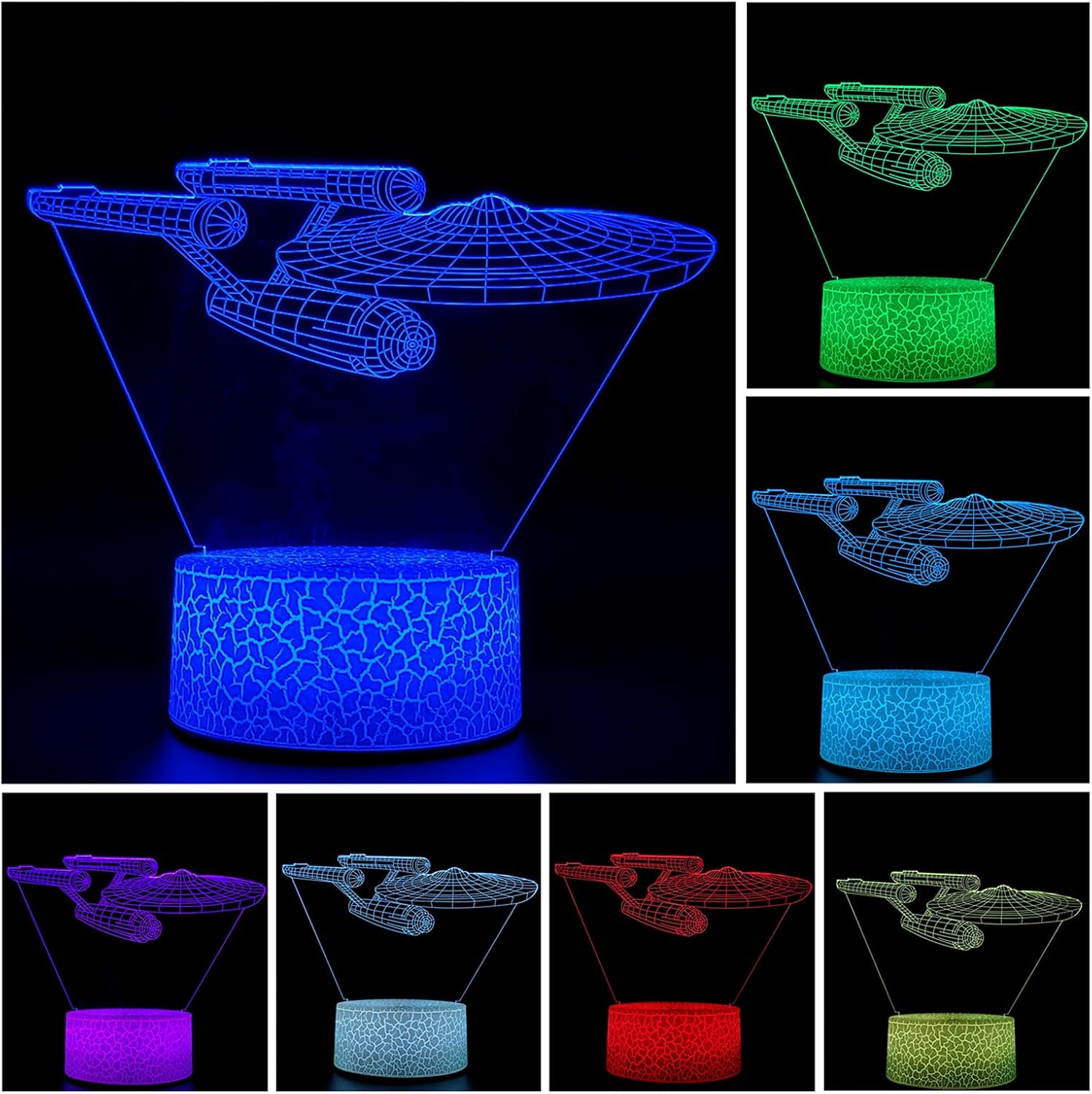
Image: The Gfytdxe 3D Optical Illusion Night Light, showcasing its blue light effect.
Package Contents
Verify that all components are present in the package:
- 1 x 3D Acrylic Panel
- 1 x ABS Base
- 1 x Remote Control
- 1 x USB Cable
- 1 x English Manual

Image: Unboxed components of the night light, including the acrylic panel, base, remote, USB cable, and manual.
Setup
-
Prepare the Acrylic Panel: Carefully peel off the protective film from both sides of the 3D acrylic panel. Avoid touching the surface directly to prevent fingerprints.

Image: A hand peeling off the protective film from the acrylic panel, revealing the clear surface underneath.
- Insert Acrylic Panel: Gently insert the prepared acrylic panel into the slot on the ABS base.
-
Power Connection:
- USB Power: Connect the provided USB cable to the USB power input on the base and plug the other end into a 5V USB adapter (not included) or a computer USB port.
- Battery Power: Alternatively, insert 3x AA batteries (not included) into the battery compartment on the bottom of the base. Ensure correct polarity.

Image: Close-up of the lamp base, highlighting the USB power input, 3*AA battery compartment, and touch key for operation.
Operating Instructions
The night light can be controlled via the touch button on the base or the included remote control.
Touch Control:
- Power On/Color Change: Press the touch button once to turn on the light. Each subsequent press will cycle through the 7 available colors (Red, Green, Blue, Yellow, Cyan, Pink, White).
- Automatic Color Change: After cycling through all 7 colors, press the button again to activate the automatic gradual color changing mode.
- Fixed Color Mode: To fix a specific color, press the touch button until the desired color appears.
- Power Off: Long press the touch button to turn off the light.
Remote Control:
The remote control offers more options, including 16 colors, brightness adjustment, and strobe/fade modes.
Image: The infrared remote control with buttons for power, brightness, color selection, and mode adjustments (strobe, flash, fade, smooth).
- Power On/Off: Use the "ON" and "OFF" buttons.
- Color Selection: Press the color buttons (Red, Green, Blue, Yellow, Cyan, Pink, White, etc.) to select a specific color. The remote offers 16 colors.
- Brightness Adjustment: Use the brightness adjusting buttons (up/down arrows) to increase or decrease light intensity.
- Mode Selection:
- FLASH: Cycles through colors quickly.
- STROBE: Flashes a single color.
- FADE: Gradually fades between colors.
- SMOOTH: Smooth transition between colors.
Maintenance
- Cleaning: Use a soft, dry cloth to gently wipe the acrylic panel and base. Avoid abrasive cleaners or solvents.
- Handling: Handle the acrylic panel by its edges to avoid fingerprints on the illuminated surface.
- Storage: When not in use for extended periods, disconnect power and store the lamp in a cool, dry place.
Troubleshooting
| Problem | Possible Cause | Solution |
|---|---|---|
| Light does not turn on. | No power, loose connection, or dead batteries. | Check USB cable connection. If using batteries, ensure they are inserted correctly and are not depleted. Try a different power source. |
| Remote control not working. | Remote battery depleted or obstruction. | Ensure the remote has a working battery. Point the remote directly at the lamp base. Remove any obstructions between the remote and the lamp. |
| Light appears dim or flickers. | Low battery power or unstable USB power. | Replace batteries or ensure the USB power source is stable and sufficient (5V). |
| Acrylic panel has fingerprints or smudges. | Improper handling. | Gently clean the panel with a soft, dry, lint-free cloth. Avoid harsh chemicals. |
Specifications
| Feature | Detail |
|---|---|
| Model Number | C |
| Brand | Gfytdxe |
| Light Source Type | LED |
| Number of Light Sources | 10 |
| Power Source | USB (5V) or 3x AA Batteries |
| Control Method | Touch, Remote Control |
| Colors Available | 7 (Touch), 16 (Remote) |
| Material Type | Acrylic, Plastic (ABS Base) |
| Product Dimensions (D x W x H) | 8.9D x 17.8W x 22.9H centimetres |
| Item Weight | 204 g |
| Wattage | 2 watts |
| Indoor/Outdoor Usage | Indoor |
| Water Resistance Level | Not Water Resistant |
Warranty and Support
This product is designed for durability and performance. If you encounter any issues or require assistance, please contact the seller directly for support, replacement, or refund options.
For product-related inquiries or support, please refer to your purchase platform or contact the manufacturer, Gfytdxe.