
1. Introduction
The Prolink PRO901ES is a 1000VA/900W Pure Sine Wave Online Uninterruptible Power Supply (UPS) designed to provide reliable power backup and protection for critical electronic equipment. This UPS features true double-conversion technology, ensuring a consistent and clean power supply. It is suitable for various applications including data centers, medical equipment, office workstations, ATMs, and kiosk machines.

Figure 1: Prolink PRO901ES 1000VA/900W Online UPS, Tower Type.
2. Product Overview
2.1 Key Features
- True Double-Conversion Online Technology: Provides consistent, high-quality AC power regardless of input fluctuations.
- Pure Sine Wave Output: Ensures compatibility with sensitive electronic equipment.
- High Input Power Factor Correction: Improves efficiency and reduces overall power losses.
- Programmable Power Management Outlets: Allows for flexible control over connected devices.
- Emergency Power Off (EPO) Function: Provides an immediate shutdown mechanism for safety.
- Advanced Voltage Regulation (AVR): Regulates output voltage within 1% tolerance, protecting devices from voltage spikes or sags.
- Monitoring Capabilities: Status can be monitored via the LCD display or PC programs.
2.2 Rear Panel Description
The rear panel of the PRO901ES UPS features essential connection ports for power input, output, and communication.
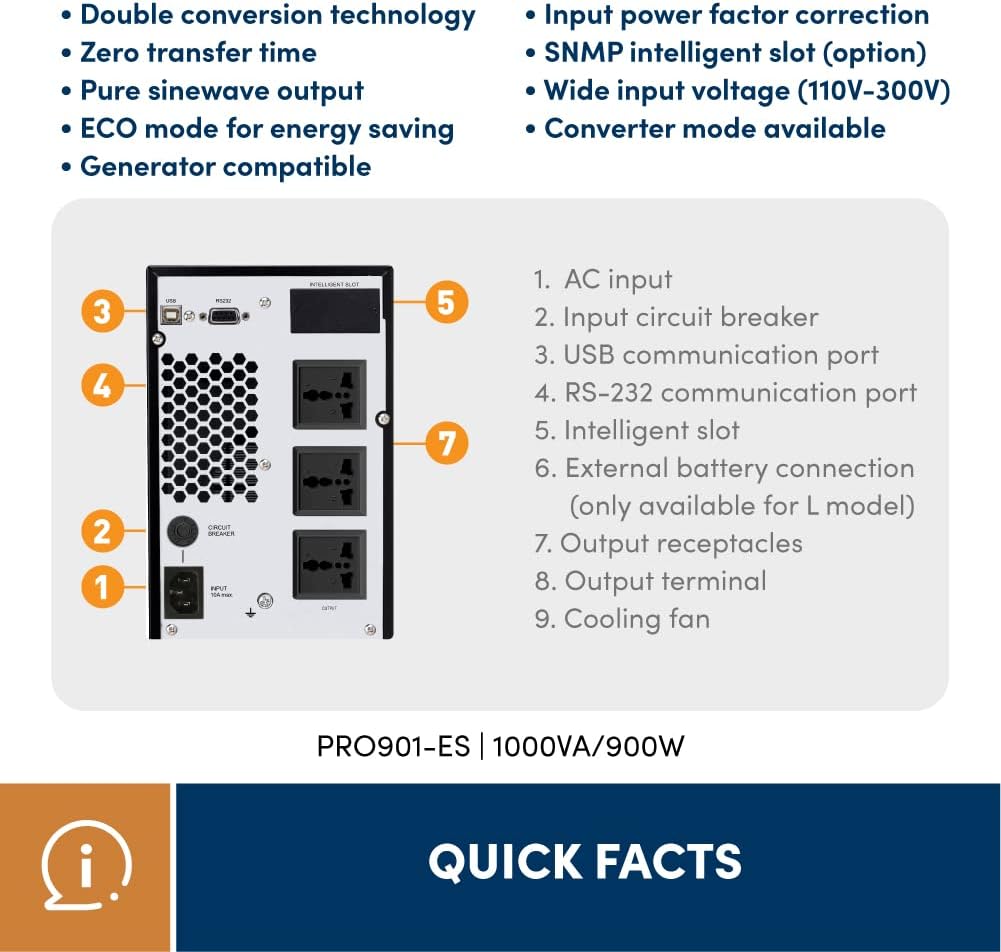
Figure 2: Rear Panel Layout of PRO901ES.
- AC Input: Connects the UPS to the main power supply.
- Input Circuit Breaker: Provides overcurrent protection for the input.
- USB Communication Port: For connecting to a computer for monitoring and management.
- RS-232 Communication Port: Another port for computer communication.
- Intelligent Slot: For optional network management cards (e.g., SNMP).
- External Battery Connection: (Only available for 'L' models) For connecting external battery packs to extend runtime.
- Output Receptacles: Three universal sockets for connecting protected devices.

Figure 3: Typical applications for the Prolink PRO901ES UPS.
3. Setup Instructions
Follow these steps for initial setup of your Prolink PRO901ES UPS:
- Unpacking: Carefully remove the UPS from its packaging and inspect for any damage. Retain packaging for future transport.
- Placement: Place the UPS in a clean, dry, and well-ventilated area, away from direct sunlight or heat sources. Ensure adequate clearance for airflow.
- Initial Charging: Before connecting any devices, plug the UPS into a standard AC power outlet using the provided power cord. Allow the unit to charge for at least 8 hours to ensure optimal battery performance.
- Connecting Devices: Once the UPS is fully charged, connect your critical electronic devices (e.g., computers, monitors, network equipment) to the output receptacles on the rear panel. Do not overload the UPS beyond its rated capacity (900W).
- Communication Setup (Optional): For advanced monitoring and management, connect the UPS to a computer using a USB or RS-232 cable. Install the necessary software (if provided) to enable communication features.
- Power On: Press the power button on the front panel to turn on the UPS. The LCD display will illuminate, indicating the operational status.
4. Operating Instructions
4.1 Powering On/Off
- To Power On: Press and hold the power button on the front panel until the UPS powers on.
- To Power Off: Press and hold the power button until the UPS powers off. Ensure all connected devices are safely shut down before powering off the UPS.
4.2 Understanding the LCD Display
The front panel LCD provides real-time information about the UPS status, including input/output voltage, battery level, load percentage, and various operational modes.

Figure 4: Monitoring status from the LCD display.
4.3 Emergency Power Off (EPO)
The EPO function allows for an immediate and complete shutdown of the UPS and all connected equipment in an emergency. Refer to the detailed wiring diagram in the full user manual for proper EPO connection.

Figure 5: Zero transfer time ensures continuous operation during power events.

Figure 6: The UPS provides clean power output, mitigating various power issues.

Figure 7: High-Precision AVR regulates output voltage within 1% tolerance.
5. Maintenance
- Battery Care: The UPS uses Lead Acid batteries. To prolong battery life, avoid frequent deep discharges and operate the UPS within recommended temperature ranges. Periodically perform a battery self-test if available through the monitoring software.
- Cleaning: Keep the UPS clean and free from dust. Use a soft, dry cloth to wipe the exterior. Do not use liquid or aerosol cleaners. Ensure ventilation openings are not blocked.
- Storage: If storing the UPS for an extended period, ensure it is fully charged and then recharge it every 3 months to prevent battery degradation.
6. Troubleshooting
This section addresses common issues you might encounter with your UPS. For more complex problems, contact customer support.
- UPS Not Turning On: Check if the AC input cable is securely connected and if the input circuit breaker has tripped. Ensure the battery is sufficiently charged.
- Short Battery Runtime: This may indicate aging batteries or an overloaded UPS. Reduce the connected load or consider battery replacement if the unit is old.
- Loud Fan Noise: Some users have reported noticeable fan noise. While often normal for cooling, ensure the ventilation is not obstructed. If the noise is excessive or unusual, contact support.
- Connected Devices Not Receiving Power: Verify that the UPS is on and not in a fault state. Check the output receptacles and ensure devices are properly plugged in.
7. Specifications
| Feature | Specification |
|---|---|
| Brand | Prolink |
| Model Number | PRO901-ES (USP-PRO901ES-3U) |
| Capacity | 1000VA / 900W |
| Battery Cell Composition | Lead Acid |
| Voltage | 240V |
| Output Voltage | 240 Volts (AC) |
| Amperage | 7 Amps |
| Form Factor | Tower |
| Power Plug Type | Type G |
| Connector Type | USB, RS-232 |
| Number of Outlets | 3 (Universal sockets) |
| Enclosure Material | Metal |
| Color | Black |
| Specification Met | EN 62040-2:2006, CE |
| Country of Origin | China |
8. Warranty and Support
The Prolink PRO901ES UPS comes with a 2-year local warranty. For technical assistance or warranty claims, please refer to the contact information below.
Figure 8: Prolink Official Store information.
Technical Support:
- Email: support@prolink2u.com
- Phone: (65) 6357 0666

