
1. Introduction
The Linksys MX5300 Velop AX Whole Home WiFi 6 System is designed to provide exceptional speed, coverage, and capacity for your home network. This system integrates Velop's intelligent mesh technology with Wi-Fi 6 (802.11ax) to deliver gigabit Wi-Fi speeds up to 5.3 Gbps across your entire home, including outdoor areas. It supports over 50 devices simultaneously, ensuring smooth 4K streaming, gaming, and smart-home system operation. Featuring BSS technology, it minimizes interference from nearby wireless networks, providing a strong and clear signal. The modular design allows for easy expansion by adding more nodes.
2. What's in the Box
- Router
- Quick Start Guide
- 1 Ethernet Cable
- 1 Power Adapter
- Printed Documentation
3. Setup Guide
- Unpack Components: Carefully remove all items from the box.
- Download the Linksys App: Search for the 'Linksys' app on your mobile device's app store and install it. The app will guide you through the setup process.
- Connect Primary Node: Plug one Velop node into a power outlet and connect it to your modem using the provided Ethernet cable. Ensure your modem is powered on.
- Follow In-App Instructions: Open the Linksys app and follow the on-screen prompts to configure your primary Velop node and create your Wi-Fi network.
- Add Additional Nodes (if applicable): If you have multiple nodes, place them strategically around your home to extend coverage. Use the Linksys app to add each additional node to your existing mesh network. The app will help you find optimal placement.
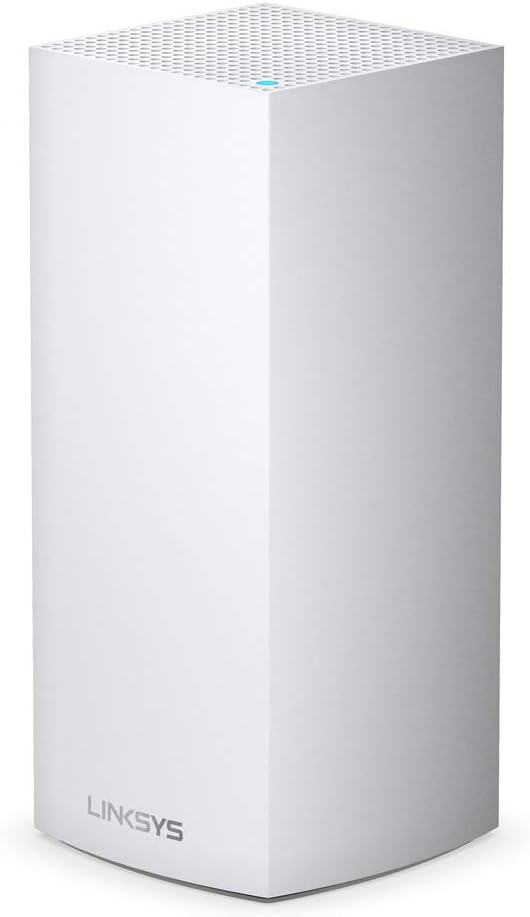
Figure 3.1: Front view of the Linksys MX5300 Velop AX node.
4. Operating Instructions
4.1 Network Management with Linksys App
The Linksys app provides comprehensive control over your mesh Wi-Fi system. You can:
- Prioritize Devices: Allocate bandwidth to specific devices for optimal performance during critical activities like video conferencing or gaming.
- Guest Access: Create a separate, secure Wi-Fi network for guests.
- Parental Controls: Manage internet access for children's devices.
- Monitor Network: View connected devices, check network status, and run speed tests.
4.2 Connecting Devices
- Wi-Fi Connection: Connect your wireless devices (laptops, smartphones, smart home devices) to your Velop Wi-Fi network using the network name (SSID) and password you set during setup.
- Ethernet Connection: Each Velop node includes Gigabit Ethernet ports. Use an Ethernet cable to connect wired devices (e.g., desktop computers, gaming consoles, smart TVs) directly to a node for a stable, high-speed connection.

Figure 4.1: Rear view of the Linksys MX5300 Velop AX node showing Ethernet and power ports.
5. Features
- Mesh Wi-Fi router provides next-gen Wi-Fi 6 speeds and whole-home mesh coverage.
- Bandwidth for 50+ wireless devices and coverage for homes up to 3000 square feet.
- Provides ultra-fast, reliable Wi-Fi coverage for 4K streaming, gaming, and more.
- Wi-Fi 6 connectivity speeds up to 5.3 Gbps.

Figure 5.1: Illustration of the system's capacity for over 50 devices.
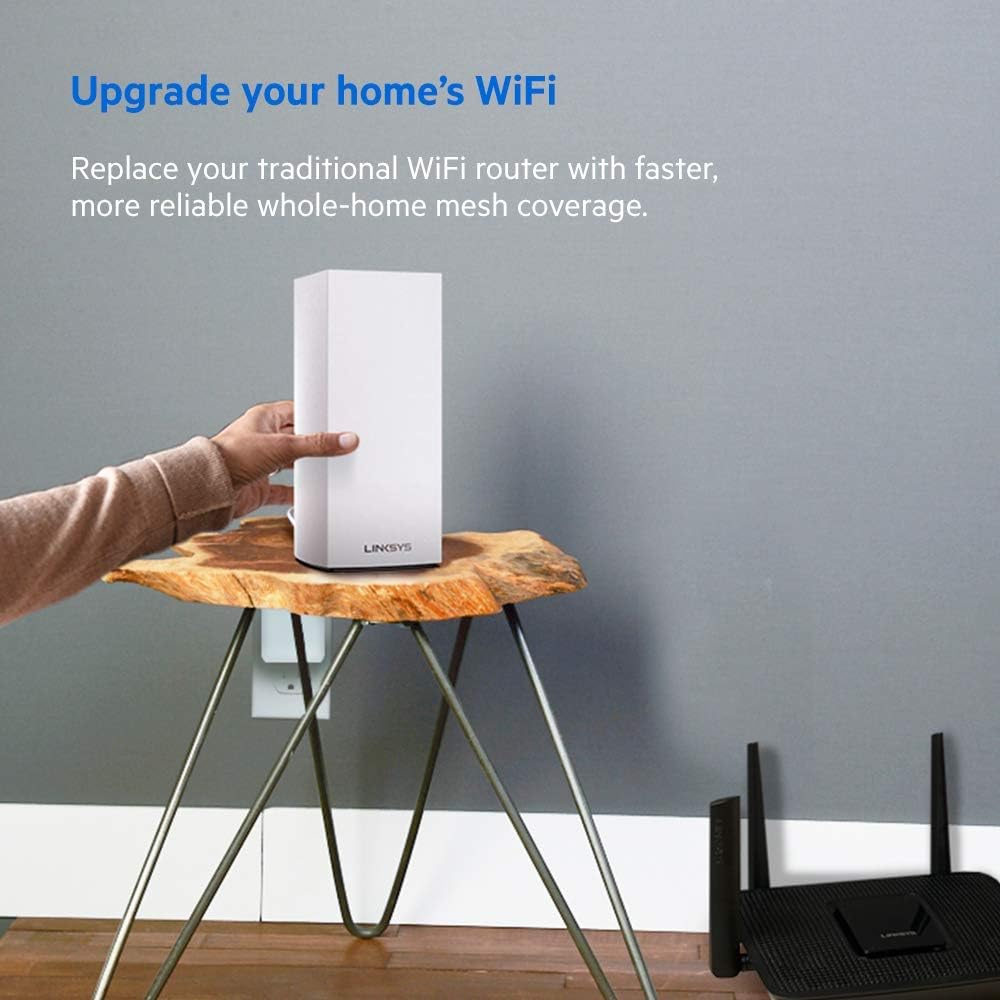
Figure 5.2: Visual representation of upgrading to the Linksys Velop AX system.

Figure 5.3: Demonstrating Wi-Fi coverage up to 3,000 square feet, including outdoor areas.

Figure 5.4: Highlighting the system's Wi-Fi 6 speeds up to 5.3 Gbps.
6. Maintenance
- Firmware Updates: Regularly check for and install firmware updates through the Linksys app. Updates often include performance improvements, security enhancements, and new features.
- Optimal Placement: Ensure your Velop nodes are placed in open areas, away from large metal objects, thick walls, and other electronic devices that could cause interference.
- Cleaning: Keep the nodes clean and free from dust to ensure proper ventilation and prevent overheating. Use a soft, dry cloth for cleaning.
7. Troubleshooting
7.1 Common Issues and Solutions
- No Internet Connection: Check all cable connections to your modem and primary Velop node. Power cycle (unplug and replug) your modem and all Velop nodes.
- Slow Speeds or Dead Zones: Relocate Velop nodes to improve signal strength and coverage. Use the Linksys app's 'Node Finder' tool to identify optimal placement. Ensure no physical obstructions are blocking the signal.
- Device Not Connecting: Verify your Wi-Fi password. Try restarting the device you are trying to connect. If the issue persists, restart the nearest Velop node.
7.2 Using the Linksys App for Diagnostics
The Linksys app offers diagnostic tools to help identify and resolve network issues. These may include network health checks, speed tests, and device connection status.
8. Specifications
| Attribute | Detail |
|---|---|
| Product Dimensions | 4.5 x 4.5 x 9.6 inches |
| Item Weight | 5.7 pounds |
| Item Model Number | MX5300 |
| Brand | Linksys |
| Model Name | AX5300 - Speed |
| Special Feature | Guest Mode, WPS |
| Frequency Band Class | Tri-Band |
| Wireless Communication Standard | 802.11ax (Wi-Fi 6) |
| Connectivity Technology | Ethernet |
| Color | White |
9. Warranty and Support
The Linksys MX5300 Velop AX Whole Home WiFi 6 System includes an Amazon exclusive extended 3.5-year warranty. For technical support, troubleshooting assistance, or warranty claims, please refer to the official Linksys support channels or contact Amazon customer service.
10. Product Video Overview

Video 10.1: An overview of the Linksys Velop MX5300 system, highlighting its features and benefits for whole-home Wi-Fi coverage.