
Introduction
This manual provides comprehensive instructions for the setup, operation, and maintenance of your JMGO N7L projector. Please read this manual thoroughly before using the device to ensure proper functionality and to maximize your viewing experience. The JMGO N7L is a compact home cinema projector featuring Native 1080P Full HD resolution, 4K compatibility, Android OS, auto-focus, and keystone correction.
Product Overview
Key Features
- Native 1080P Full HD Display: Offers 1920x1080 resolution, compatible with 4K video input.
- 700 ANSI Lumens Brightness: Provides clear images in various lighting conditions.
- Auto Focus & Keystone Correction: Automatic image adjustment for clarity and rectangular projection from different angles.
- Android OS: Integrated operating system for direct access to streaming applications and content.
- Rich Interfaces: Multiple ports for connecting external devices.
- Dual-band Wi-Fi: Supports 2.4G and 5G networks for stable online streaming.
- Integrated Bluetooth Speaker: Functions as a standalone Bluetooth speaker.
- 3D Video Support: Capable of displaying 3D content.
Projector Components
The JMGO N7L features a compact, round design. Below are images illustrating its appearance and available connection ports.

Figure 1: Top-down view of the JMGO N7L projector, showcasing its sleek, circular design with a metallic finish.
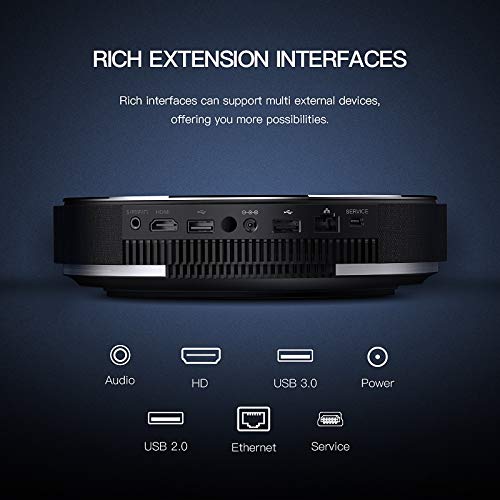
Figure 2: Rear view of the JMGO N7L projector, highlighting the various input and output ports including Audio, HDMI, USB 3.0, Power, USB 2.0, Ethernet, and Service ports.

Figure 3: Diagram illustrating the versatility of the JMGO N7L projector, showing its ability to connect to various devices such as set-top boxes, game controllers, laptops, and external speakers, functioning as a central entertainment hub.
Setup
1. Placement
Position the projector on a stable, flat surface. Ensure there is adequate ventilation around the device. For optimal viewing, place the projector directly in front of the projection surface (wall or screen). The throw ratio of 1.2:1 allows for a 2-meter wide image from a 2.5-meter distance.
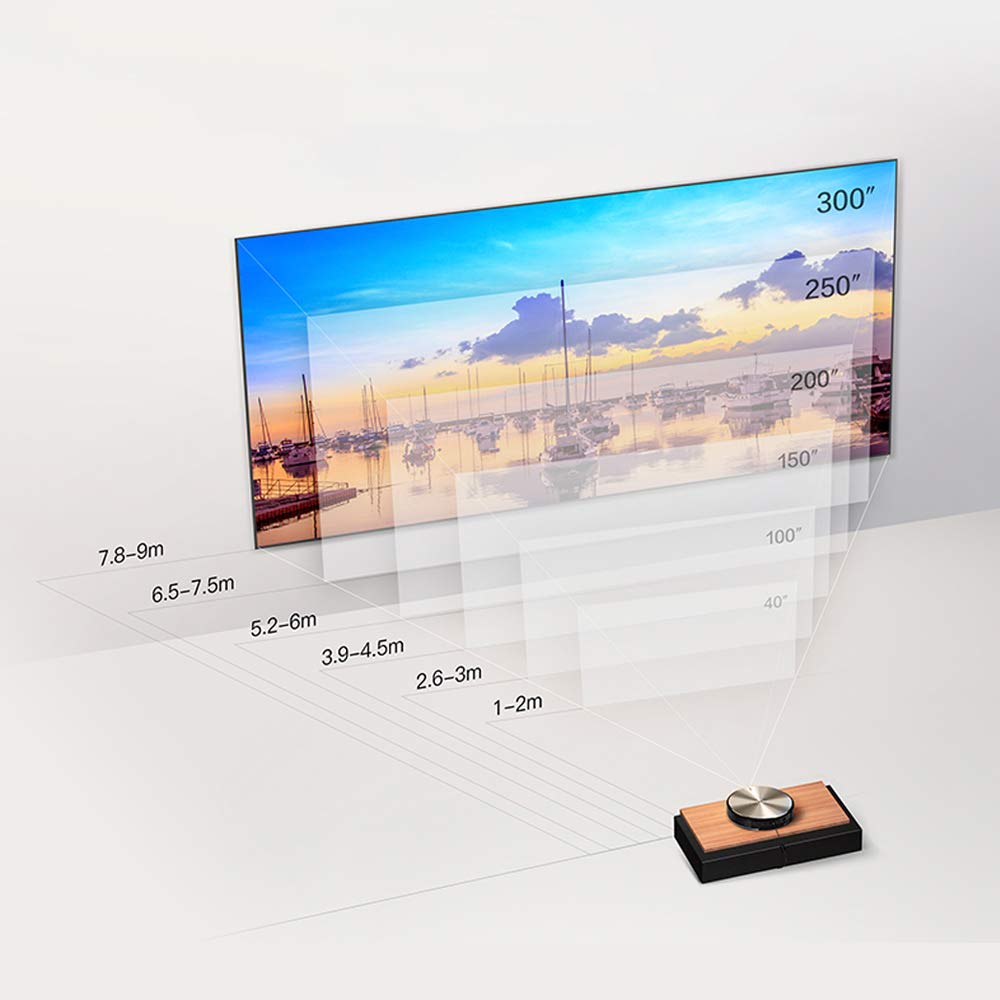
Figure 4: Projection distance chart for the JMGO N7L, showing recommended distances for various screen sizes from 40 inches to 300 inches.

Figure 5: The JMGO N7L projector positioned on a bedside table, demonstrating its compact size and suitability for various room settings.
2. Power Connection
- Connect the power adapter to the projector's power input port.
- Plug the power adapter into a suitable electrical outlet.
3. Initial Power On and Image Adjustment
- Press the power button on the projector or remote control to turn on the device.
- The projector will automatically perform Auto Focus to ensure a clear image.
- Keystone Correction will also automatically adjust the image to be rectangular, even if the projector is not perfectly aligned with the screen. Manual adjustments can typically be made via the settings menu if needed.

Figure 6: Illustration of the JMGO N7L's auto-focus feature, which automatically adjusts the image for clarity upon startup.
4. Connecting External Devices
Utilize the various ports on the rear of the projector to connect your desired devices:
- HDMI: For connecting Blu-ray players, gaming consoles, laptops, or other HDMI-enabled devices.
- USB 2.0/3.0: For connecting USB drives, external hard drives, or other USB peripherals.
- Ethernet: For a wired internet connection.
- Audio Output (3.5mm S/PDIF and 2-in-1 headphones): For connecting external audio systems or headphones.
Operating Instructions
1. Power On/Off
- To Power On: Press the power button on the projector or the remote control.
- To Power Off: Press the power button again. A shutdown menu may appear, allowing you to confirm power off or enter standby mode.
2. Navigating the Android OS
The JMGO N7L runs on a customized Android operating system, providing access to various applications and settings. Use the remote control to navigate the interface.
- Home Screen: Displays installed applications, recommended content, and system shortcuts.
- Settings: Access network settings, display options, sound settings, and system information.
- App Store: Download and install additional applications for streaming, gaming, and productivity.

Figure 7: Screenshot of the JMGO OS interface, showing various applications and settings icons, indicating its Android-based smart functionality.
3. Wi-Fi Connectivity
- Go to Settings on the home screen.
- Select Network & Internet or similar option.
- Enable Wi-Fi and select your desired 2.4G or 5G network from the list.
- Enter the password if prompted and connect.
4. Using as a Bluetooth Speaker
The JMGO N7L can function as an independent Bluetooth speaker even in standby mode.
- Ensure the projector is powered on or in standby mode.
- On your mobile device, enable Bluetooth and search for available devices.
- Select "JMGO N7L" (or similar name) from the list to pair.
- Once connected, audio from your mobile device will play through the projector's speakers.
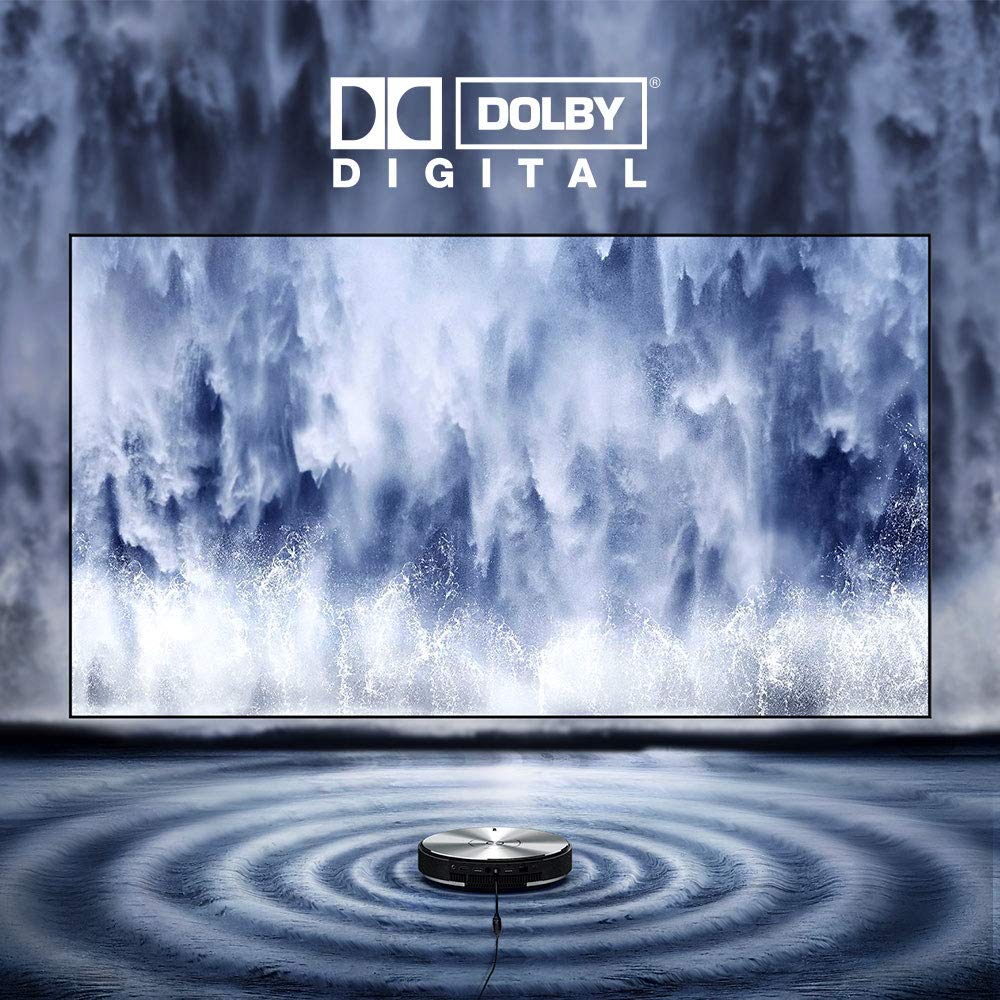
Figure 8: Visual representation of the JMGO N7L's audio capabilities, featuring Dolby Digital sound, with sound waves emanating from the projector.
5. 3D Video Playback
The JMGO N7L supports 3D video playback. To experience 3D content, you will need compatible 3D glasses (sold separately) and 3D-formatted video content.
- Play a 3D video file or stream 3D content.
- The projector should automatically detect the 3D format. If not, check display settings for 3D options.
- Wear your 3D glasses to view the content in three dimensions.
Maintenance
- Cleaning the Lens: Use a soft, lint-free cloth specifically designed for optical lenses. Do not use abrasive cleaners or cloths that could scratch the lens.
- Cleaning the Exterior: Wipe the projector's exterior with a soft, dry cloth. For stubborn marks, a slightly damp cloth can be used, but ensure no moisture enters the device.
- Ventilation: Ensure the ventilation openings are clear of dust and obstructions to prevent overheating. Do not block the air vents during operation.
- Storage: When not in use for extended periods, store the projector in a cool, dry place, away from direct sunlight and extreme temperatures.
Troubleshooting
No Image or Blurry Image
- Ensure the projector is powered on and connected correctly.
- Check the input source. Verify that the correct HDMI or other input is selected.
- Allow the auto-focus feature to complete. If the image remains blurry, try restarting the projector or manually adjusting focus via settings if available.
- Verify the projection distance is within the recommended range (refer to Figure 4).
No Sound
- Check the volume level on both the projector and the connected source device.
- Ensure that external speakers are properly connected if used, and that the audio output setting on the projector is correct.
- If using HDMI, ensure the audio is not muted on the source device.
Wi-Fi Connectivity Issues
- Ensure your Wi-Fi router is working correctly and within range.
- Verify the Wi-Fi password entered is correct.
- Try restarting both the projector and your Wi-Fi router.
- Consider using a wired Ethernet connection if persistent issues occur.
Remote Control Not Responding
- Check and replace the batteries in the remote control.
- Ensure there are no obstructions between the remote control and the projector's IR receiver.
Specifications
| Feature | Detail |
|---|---|
| Brand | JmGO |
| Model | N7L |
| Brightness | 700 ANSI Lumens |
| Native Resolution | 1920 x 1080 (Full HD) |
| Compatible Max Resolution | 4K |
| Display Technology | DLP |
| Lamp Type | LED |
| Main Chip | 4-core CPU, 8-core GPU |
| RAM / Flash Memory | 2 GB DDR3 / 16 GB eMMC |
| Hardware Interface | Bluetooth, Wi-Fi |
| Connectivity Technology | Wi-Fi (2.4G & 5G Dual-band) |
| Special Features | Auto Focus, Keystone Correction, Portable, Wireless, Built-in Speaker |
| Audio Output | 3.5mm S/PDIF and 2-in-1 headphones |
| Item Weight | 2.48 kg |
| Package Dimensions | 29.2 x 28.4 x 12.2 cm |
Warranty and Support
For information regarding warranty coverage, technical support, or service inquiries, please refer to the warranty card included with your product or visit the official JmGO website. Keep your purchase receipt as proof of purchase for warranty claims.


