1. Introduction
This manual provides detailed instructions for the setup, operation, maintenance, and troubleshooting of your ASUS ROG Delta USB-C Gaming Headset. Designed for an immersive audio experience, this headset features a Hi-Res ESS Quad-DAC, a digital microphone, and customizable Aura Sync RGB lighting. Please read this manual thoroughly to ensure optimal performance and longevity of your device.
2. Package Contents
Verify that all the following items are present in your package:
- ASUS ROG Delta USB-C Gaming Headset
- Detachable Digital Microphone
- USB-C Cable
- USB-C to USB 2.0 Adapter
- Hybrid ROG Ear Cushions (1 pair, pre-installed or separate)
- 100% Protein Leather ROG Ear Cushions (1 pair)
- User Manual (this document)
3. Product Overview
The ASUS ROG Delta headset is engineered for superior gaming audio and comfort. Key components include:
- 50mm ASUS Essence Drivers: Deliver rich gaming audio with a 127dB signal-to-noise ratio.
- ESS ES9218 Sabre Quad-DAC: Provides signal isolation for enhanced audio clarity across all frequencies.
- Detachable Digital Microphone: Ensures clear voice communication.
- On-Headset Controls: For adjusting volume and managing RGB lighting effects.
- Ergonomic D-shaped Ear Cushions: Two types included for personalized comfort and sound insulation.
- Aura Sync RGB Lighting: Customizable lighting on the earcups.
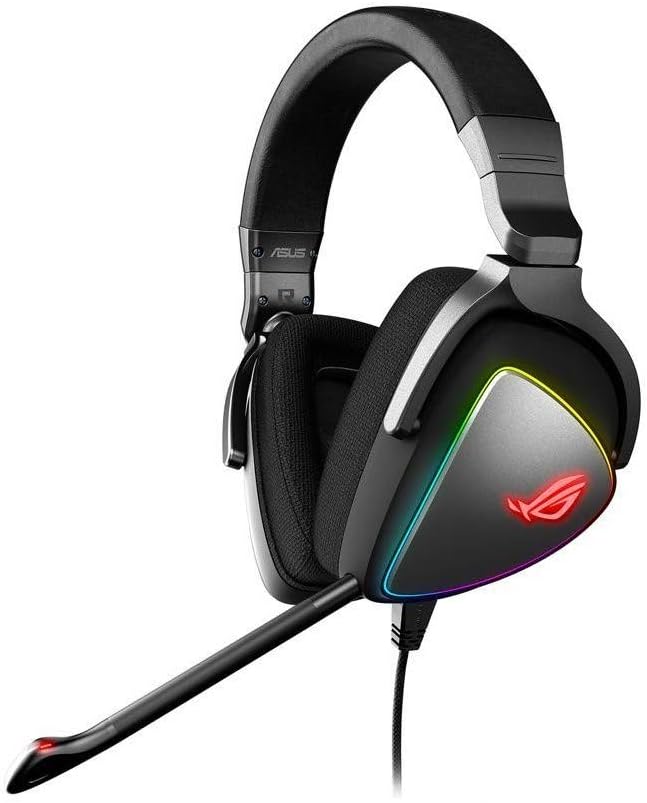
An image of the ASUS ROG Delta USB-C Gaming Headset, showcasing its over-ear design, detachable microphone, and customizable RGB lighting on the earcups. The headset features a padded headband and D-shaped ear cushions for comfort.
4. Setup
4.1 Connecting the Headset
The ROG Delta headset offers versatile connectivity options:
- For USB-C Compatible Devices (PC, Mac, PlayStation 4, Mobile Devices):
Connect the USB-C cable directly from the headset to the USB-C port on your device. - For USB 2.0 Compatible Devices (PC, Mac, PlayStation 4):
Attach the provided USB-C to USB 2.0 adapter to the USB-C cable, then connect the adapter to a standard USB 2.0 port on your device.
4.2 Attaching the Microphone
Insert the detachable digital microphone into the microphone port located on the left earcup until it clicks into place. Ensure it is securely connected for proper functionality.
4.3 Ear Cushion Installation
Your headset comes with two types of D-shaped ear cushions. To change them:
- Gently pull the existing ear cushion away from the earcup to detach it.
- Align the new ear cushion with the earcup and press firmly around the edges until it is securely attached.
5. Operating the Headset
5.1 Audio Controls
The headset features integrated controls on the earcup:
- Volume Wheel: Rotate the wheel up or down to adjust the audio volume.
- Microphone Mute Button: Press this button to toggle the microphone on or off. A red indicator light on the microphone tip will illuminate when muted.
5.2 RGB Lighting Control
The headset's Aura Sync RGB lighting can be controlled via a dedicated button on the earcup. Press the button to cycle through various lighting effects or to turn the RGB lighting on/off. For advanced customization and synchronization with other ASUS Aura Sync devices, download the ASUS Armoury Crate software from the official ASUS support website.
6. Maintenance
6.1 Cleaning
To maintain the headset's condition:
- Use a soft, dry cloth to wipe the earcups and headband.
- For ear cushions, gently wipe with a damp cloth and mild soap if necessary, then allow to air dry completely before reattaching.
- Avoid using harsh chemicals or abrasive materials, as these can damage the finish.
6.2 Storage
When not in use, store the headset in a clean, dry place away from direct sunlight and extreme temperatures. Avoid placing heavy objects on the headset to prevent damage.
7. Troubleshooting
If you encounter issues with your ASUS ROG Delta headset, refer to the following common solutions:
| Problem | Possible Solution |
|---|---|
| No audio output from headset. |
|
| Microphone is not working. |
|
| RGB lighting is not functioning. |
|
| Headset is uncomfortable or ears get warm. |
|
8. Specifications
| Feature | Detail |
|---|---|
| Model Name | ROG Delta |
| Connectivity Technology | Wired (USB-C) |
| Headphones Jack | USB |
| Compatible Devices | PC, Mac, PlayStation 4, USB-enabled mobile devices |
| Audio Driver Type | Dynamic Driver |
| Audio Driver Size | 50 Millimeters |
| Frequency Range | 20 Hz to 20,000 Hz |
| Noise Control | Sound Isolation |
| Control Method | Touch (on-headset) |
| Cable Feature | Retractable (microphone) |
| Material | Leather (ear cushions) |
| Item Weight | 12.8 ounces |
| Product Dimensions | 4.45 x 9.97 x 6 inches |
9. Warranty and Support
9.1 Warranty Information
For specific warranty terms and conditions, please refer to the warranty card included with your product or visit the official ASUS website. As this product may be renewed, warranty coverage might differ from new products. Please consult your retailer or ASUS support for details regarding your specific purchase.
9.2 Customer Support
For further assistance, technical support, or to download the latest drivers and software, please visit the official ASUS support website:
You can also find contact information for your regional ASUS support center on their website.


