1. Introduction
Thank you for choosing the Hama DR36SBT Digital Radio. This manual provides essential information for the safe and efficient operation of your device. Please read it thoroughly before use and keep it for future reference.
The Hama DR36SBT is a versatile digital radio offering FM, DAB, DAB+, and Bluetooth reception. It features a color display, alarm function, and operates via mains power, making it ideal for various settings including kitchens and bedrooms.
2. Safety Information
- Do not expose the device to moisture or extreme temperatures.
- Only use the provided power adapter.
- Do not open the device casing. Repairs should only be performed by qualified personnel.
- Keep the device away from strong magnetic fields.
- Ensure proper ventilation around the device.
3. Package Contents
Please check that all items are present and in good condition:
- 1x Hama DR36SBT Digital Radio
- 1x Power Adapter (5V 3A)
- 1x Quick Installation Guide (Multilingual)
4. Product Overview
4.1 Front View and Display

This image shows the front of the Hama DR36SBT Digital Radio, featuring its large, clear display. The display typically shows the current time, date, and active mode (FM, DAB, or Bluetooth). Alarm indicators and signal strength are also visible.
4.2 Top Controls
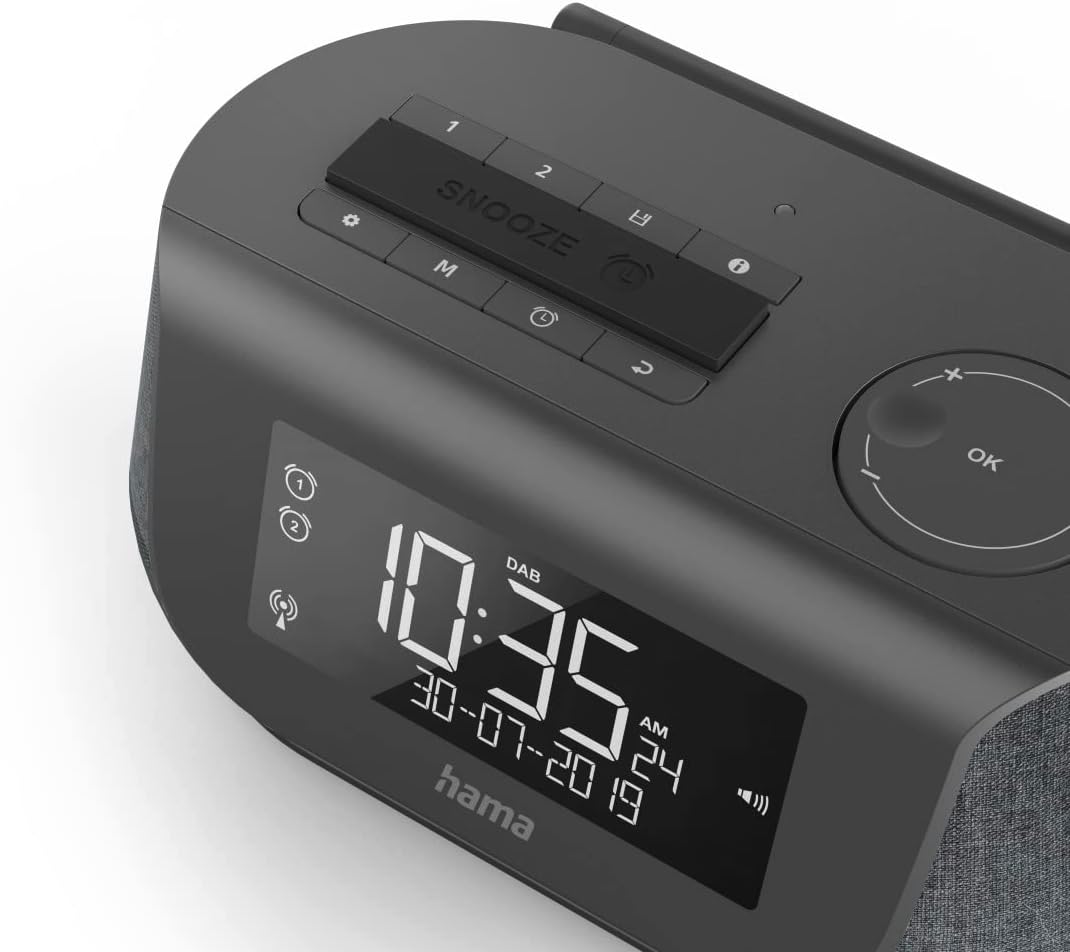
The top panel houses the main control buttons, including the Snooze button, alarm setting buttons, mode selection, and navigation controls (e.g., OK, directional buttons) for menu interaction.
4.3 Rear Ports

The rear of the radio features essential connection ports: an update port (likely Micro USB), a 3.5mm headphone jack, the DC IN port for power, and a USB Type-A port for charging external devices.
5. Setup
5.1 Power Connection
- Unpack the radio and all accessories.
- Extend the telescopic antenna fully for optimal reception.
- Connect the power adapter cable to the DC IN port on the rear of the radio.
- Plug the power adapter into a suitable mains power socket.
5.2 Initial Setup
Upon first power-on, the radio will typically enter a setup wizard or perform an automatic scan for DAB stations. Follow the on-screen prompts to set the language, time, and date.

The radio is designed to fit well in various home environments, such as a bedside table, as shown in this image.
6. Operating Instructions
6.1 Power On/Off
- Press the Power button (usually located on the top panel) to turn the radio on or off.
6.2 Mode Selection (FM/DAB/Bluetooth)
- Press the Mode button (often labeled 'M') repeatedly to cycle through available modes: FM, DAB, DAB+, and Bluetooth.
6.3 Radio Tuning (FM/DAB)
- In FM or DAB mode, use the Tune/Scroll knob or buttons to navigate through stations.
- Press OK or the knob to select a station.
- To perform a full scan for DAB stations, navigate to the 'Scan' option in the DAB menu.
6.4 Bluetooth Pairing
- Switch the radio to Bluetooth mode. The display will show 'Pairing' or similar.
- On your smartphone, tablet, or computer, enable Bluetooth and search for available devices.
- Select 'Hama DR36SBT' from the list of devices to pair.
- Once paired, you can stream audio from your device to the radio.

The radio can also charge your smartphone via its USB port, as depicted in this image.
6.5 Alarm Function
- Press the Alarm button (often labeled with a bell icon) to enter alarm settings.
- Use the navigation buttons to set alarm time, source (buzzer, FM, DAB), and frequency (daily, weekdays, weekends).
- Press OK to confirm settings.
- To snooze an active alarm, press the Snooze button. To turn off the alarm, press the Power button.
6.6 USB Charging
- Connect your smartphone or other compatible device to the USB Type-A port on the rear of the radio using a suitable USB cable.
- The radio provides up to 2.4A for charging.
6.7 Display Settings
- Access the 'Settings' menu to adjust display brightness, backlight timeout, and other visual preferences.
- The VA display offers high contrast for clear readability.
7. Maintenance
7.1 Cleaning
- Always disconnect the radio from the power supply before cleaning.
- Use a soft, dry, lint-free cloth to clean the exterior of the radio.
- Do not use abrasive cleaners, solvents, or strong detergents.
7.2 Storage
- If storing the radio for an extended period, disconnect it from the power supply.
- Store in a cool, dry place, away from direct sunlight and extreme temperatures.
8. Troubleshooting
| Problem | Possible Cause | Solution |
|---|---|---|
| No power | Power adapter not connected or faulty outlet. | Ensure power adapter is securely connected and the outlet is functional. |
| Poor radio reception | Antenna not extended, weak signal, or interference. | Fully extend the telescopic antenna. Reposition the radio to improve signal. Perform a new station scan. |
| Bluetooth device won't pair | Radio not in pairing mode, device too far, or already paired with another device. | Ensure radio is in Bluetooth pairing mode. Move device closer. Disconnect from other Bluetooth devices. |
| Alarm does not sound | Alarm not activated or volume too low. | Check alarm settings to ensure it is enabled and the volume is adequate. |
9. Specifications
- Model: DR36SBT (00054896)
- Color: Black
- Dimensions (W x D x H): Approximately 19 x 11 x 9.5 cm (7.5 x 4.3 x 3.7 inches)
- Weight: 660 g (1.46 lbs)
- Speaker Type: Stereo
- Material: Plastic
- Connectivity: Bluetooth, DAB, DAB+, FM
- Connectors: 3.5mm Line Input, USB Type-A (for charging, max 2.4A)
- Power Supply: Integrated Mains Power (5V 3A via adapter)
- Output Power (RMS): 2 W
- Display Type: LCD (VA display)
10. Warranty and Support
Hama GmbH & Co KG assumes no liability and provides no warranty for damage resulting from improper installation/mounting, improper use of the product, or from failure to observe the operating instructions and/or safety notes.
For technical support or warranty claims, please contact your local Hama dealer or visit the official Hama website for contact information.
For more information, you may visit the Hama Official Website.