
1. Introduction
The ASHATA GV-023 USB DAC Audio Converter is a versatile device designed to enhance your audio experience by converting digital audio signals from your computer into high-quality analog sound. It functions as an external USB sound card, offering multiple output options for various audio setups.
Key Features:
- Multiple Outputs: Features analog (RCA L/R), coaxial digital, optical digital, and 3.5mm headphone outputs.
- USB Sound Card Functionality: Can be used directly as a USB sound card for your computer.
- Wide Compatibility: Compatible with major operating systems including Windows 10/8.1/8/7/Vista/XP/2000 and Mac OS X.
- Plug and Play: Generally requires no drivers for basic stereo operation.
- No External Power: Operates solely via USB power.
2. Package Contents
Please ensure all items are present in your package:
- ASHATA GV-023 USB DAC Audio Converter
- USB Cable
3. Product Overview
Familiarize yourself with the ports and indicators on your ASHATA GV-023 USB DAC Audio Converter.

Figure 3.1: Front view of the converter with labeled ports.
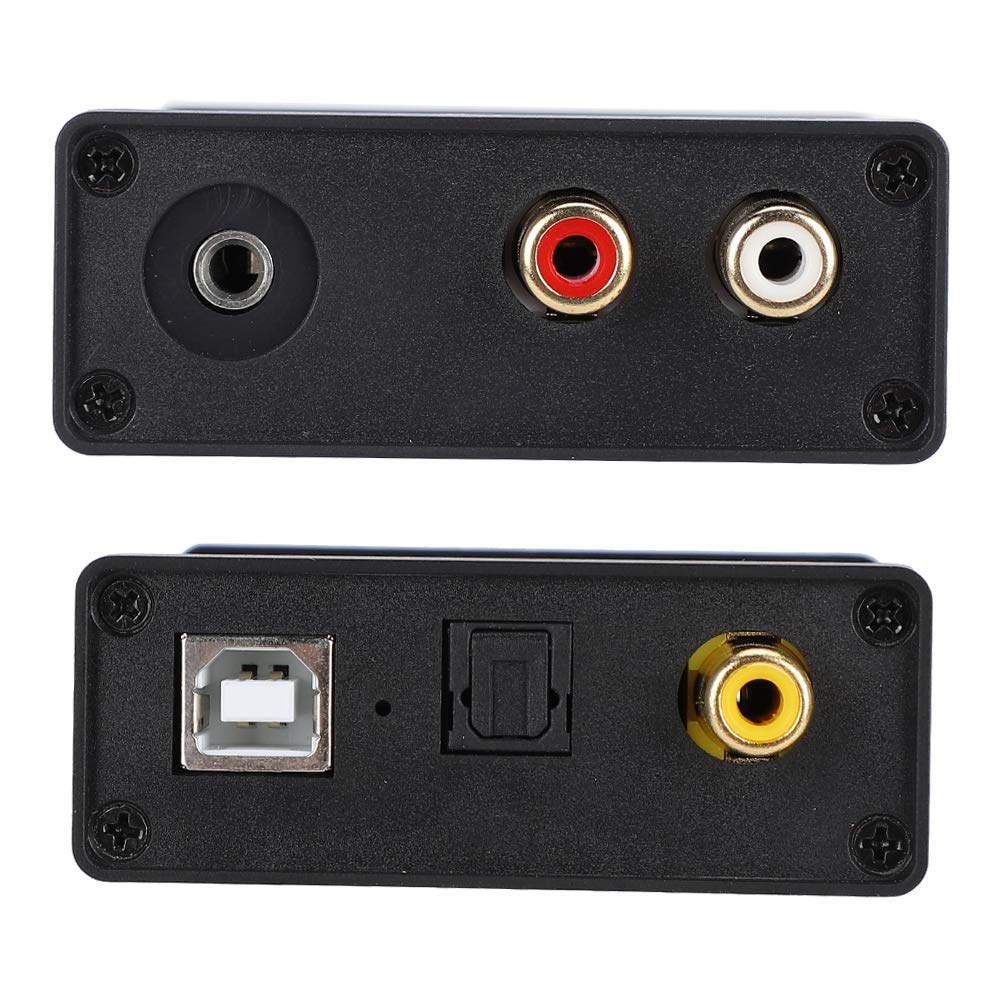
Figure 3.2: Top and bottom views of the converter showing all input and output ports.
Port Descriptions:
- USB IN: Connects to your computer for audio input and power.
- Optical OUT: Digital audio output (TOSLINK).
- Coaxial OUT: Digital audio output (RCA).
- Headphone OUT: 3.5mm stereo jack for headphones.
- R/L OUT: RCA stereo analog audio output for speakers or amplifiers.
4. Setup and Connection
Follow these steps to connect your ASHATA GV-023 USB DAC Audio Converter to your system.
Basic Connection Diagram:

Figure 4.1: Basic connection setup with computer, headphones, and stereo speakers.
Connection Steps:
- Connect the provided USB cable from the USB IN port on the ASHATA GV-023 to an available USB port on your computer (laptop or desktop). The device will power on automatically.
- Your computer's operating system should automatically detect and install the necessary drivers for basic stereo audio playback.
- Connect your audio output device (headphones, stereo speakers, amplifier) to the corresponding output port on the converter:
- For headphones, plug into the Headphone OUT (3.5mm jack).
- For analog stereo speakers or an amplifier, use RCA cables to connect to the R/L OUT ports.
- For digital audio receivers or amplifiers, use an optical cable to the Optical OUT or a coaxial cable to the Coaxial OUT.
- Select the ASHATA GV-023 (or similar name) as your default audio output device in your computer's sound settings.
Important Notes:

Figure 4.2: Setup notes and components.
- For 5.1 channel audio output, specific drivers may be required. Please refer to your computer's or operating system's documentation for driver installation if needed.
- No external power supply is required as the device is powered via the USB connection.
5. Operating Instructions
Once connected and configured, operating the ASHATA GV-023 is straightforward.
- Ensure the converter is properly connected to your computer and audio output device as described in the Setup section.
- Play audio from your computer. The sound will be routed through the ASHATA GV-023.
- Adjust the volume using your computer's volume controls or the volume control on your connected audio output device (e.g., headphones, amplifier).
- To switch between different output types (e.g., headphones, RCA, optical), ensure only one output is actively used at a time or manage your audio settings on your computer if multiple outputs are simultaneously active.
Typical Usage Scenarios:

Figure 5.1: Example connection diagram showing various input and output devices.
- Computer to Headphones: Connect your computer to the converter via USB, then plug your headphones into the 3.5mm jack.
- Computer to Stereo System: Connect your computer to the converter via USB, then use RCA cables to connect the converter's R/L OUT to your stereo amplifier or active speakers.
- Computer to Digital Receiver: Connect your computer to the converter via USB, then use an optical or coaxial cable to connect the converter's digital output to your digital audio receiver.
6. Maintenance
To ensure the longevity and optimal performance of your ASHATA GV-023 USB DAC Audio Converter, follow these simple maintenance guidelines:
- Cleaning: Use a soft, dry cloth to wipe the exterior of the device. Avoid using liquid cleaners, aerosols, or solvents.
- Environment: Keep the device in a dry environment, away from direct sunlight, high temperatures, and humidity.
- Handling: Handle the device with care. Avoid dropping it or subjecting it to strong impacts.
- Storage: When not in use for extended periods, store the device in a cool, dry place.
7. Troubleshooting
If you encounter issues with your ASHATA GV-023, refer to the following common problems and solutions:
| Problem | Possible Cause | Solution |
|---|---|---|
| No sound output |
|
|
| Device not recognized by computer |
|
|
| Sound quality is poor or distorted |
|
|
8. Specifications
| Brand | ASHATA |
| Model Number | GV-023 (ASHATAbyzagun786) |
| Product Dimensions (L x W x H) | 1 x 1 x 1 cm |
| Weight | 190 grams |
| Color | Default |
| Number of Items in Package | 1 |
| Mounting Type | Tabletop, Plug Mount |
| Batteries Included | No |
| Interface Type | USB |
| Number of Channels | 2 |
| UPC | 739879697539 |
9. Warranty and Support
For any questions, technical assistance, or after-sales service regarding your ASHATA GV-023 USB DAC Audio Converter, please contact ASHATA customer support. We are committed to providing high-quality service to our customers.
Specific warranty details may vary by region and retailer. Please refer to your purchase documentation for precise warranty terms.